CYP DS-MP500 Manuel utilisateur

DS-MP500
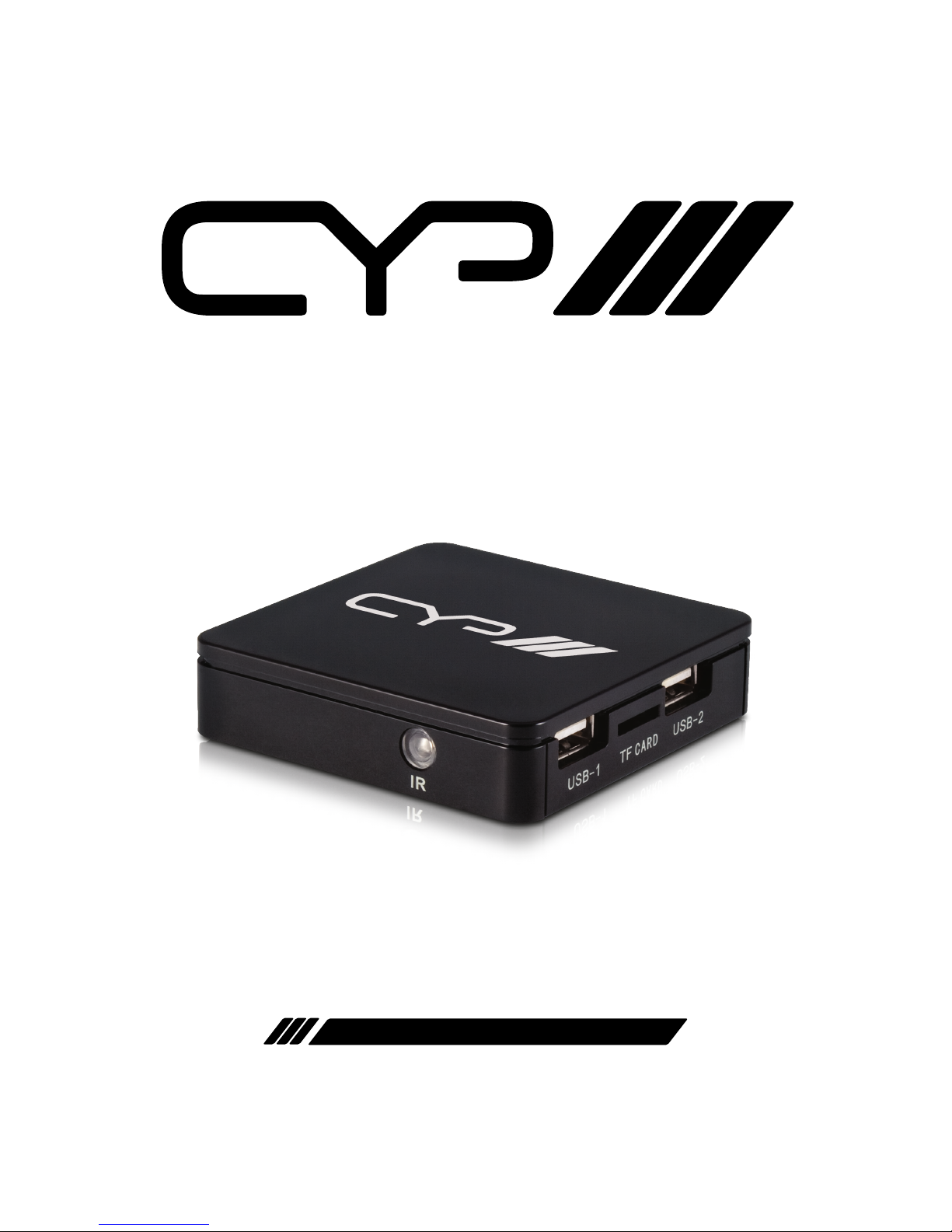
CYP TV - Android Digital Signage Media Player
OPERATION MANUAL


3
DISCLAIMERS
The information in this manual has been carefully checked and is
believed to be accurate. CYP (UK) Ltd assumes no responsibility for any
infringements of patents or other rights of third parties which may result
from its use.
CYP (UK) Ltd assumes no responsibility for any inaccuracies that may be
contained in this document. CYP (UK) Ltd also makes no commitment to
update or to keep current the information contained in this document.
CYP (UK) Ltd reserves the right to make improvements to this document
and/or product at any time and without notice.
COPYRIGHT NOTICE
No part of this document may be reproduced, transmitted, transcribed,
stored in a retrieval system, or any of its part translated into any language
or computer le, in any form or by any means—electronic, mechanical,
magnetic, optical, chemical, manual, or otherwise—without express
written permission and consent from CYP (UK) Ltd.
© Copyright 2011 by CYP (UK) Ltd.
All Rights Reserved.
Version 1.1 August 2011
TRADEMARK ACKNOWLEDGMENTS
All products or service names mentioned in this document may be
trademarks of the companies with which they are associated.

4
SAFETY PRECAUTIONS
Please read all instructions before attempting to unpack, install or operate
this equipment and before connecting the power supply.
Please keep the following in mind as you unpack and install this
equipment:
• Always follow basic safety precautions to reduce the risk of re,
electrical shock and injury to persons.
• To prevent re or shock hazard, do not expose the unit to rain,
moisture or install this product near water.
• Never spill liquid of any kind on or into this product.
• Never push an object of any kind into this product through any
openings or empty slots in the unit, as you may damage parts inside
the unit.
• Do not attach the power supply cabling to building surfaces.
• Use only the supplied power supply unit (PSU). Do not use the PSU if
it is damaged.
• Do not allow anything to rest on the power cabling or allow any
weight to be placed upon it or any person walk on it.
• To protect the unit from overheating, do not block any vents or
openings in the unit housing that provide ventilation and allow for
sucient space for air to circulate around the unit.
REVISION HISTORY
VERSION NO. DATE SUMMARY OF CHANGE
v1.01 08/08/2013 First release
v1.02 03/11/2013 Added Warnings about SD Card/
Factory reset
v1.03 25/04/2014 Minor Corrections
v1.04 29/04/2014 Corrected USB Output labelling
v1.05 29/04/2014 Added warranty Warning

5
CONTENTS
1. Introduction...........................................6
2. Package Contents ..................................6
3. System Requirements ...........................6
4. Features..................................................7
5 Setting up................................................8
Hardware Installation...................................... 8
6 Set up.......................................................9
Changing the player's network settings .. 9
Changing the players date and time.......10
7 Adding your player to your account .. 11
8 The Content Management System .... 12
Uploading content.........................................12
4 Steps to uploading content ....................12
Content Management ..................................13
Player Management ......................................13

6
1. INTRODUCTION
The DS-MP500 is a small yet powerful digital signage media player for
displaying high denition video and full screen images, forming the
backbone of any integrated digital signage system. This device utilises a
cloud based content management system, the latest Android technology,
and wireless capabilities to provide the user with a system which is easy
to manage from any web enabled PC or hand held device in order to
achieve outstanding results. The CYP content manager is an intuitive,
easy to use platform allowing digital communications to be uploaded,
scheduled, and altered quickly and eortlessly to optimise the impact of
any targeted marketing communications.
2. PACKAGE CONTENTS
1 x DS-MP500 Media Player
1 x Power Supply
1 x TF Card (16GB Standard)
3. SYSTEM REQUIREMENTS
A HDMI cable and any necessary adapters to connect to your screen's
inputs.
An internet connection, either wireless or cabled.
A USB Keyboard and Mouse.

7
4. FEATURES
Low voltage solid state PC hardware
Cloud based browser controlled content management system
Designed for displaying Full Screen Video and Images
Remote browser access enables content upload and scheduling from
any external location
Intuitive schedule planner enables complete control of content
timings
Unlimited number of media players can be allocated to a single user
account, enabling nationwide estate management from a single
interface
Assign unlimited content administrators with comprehensive access
rights control function for enhanced integration and management
Up to 1080p HD resolutions and audio supported
No ongoing management or support costs
3 Year Manufacturer Warranty

8
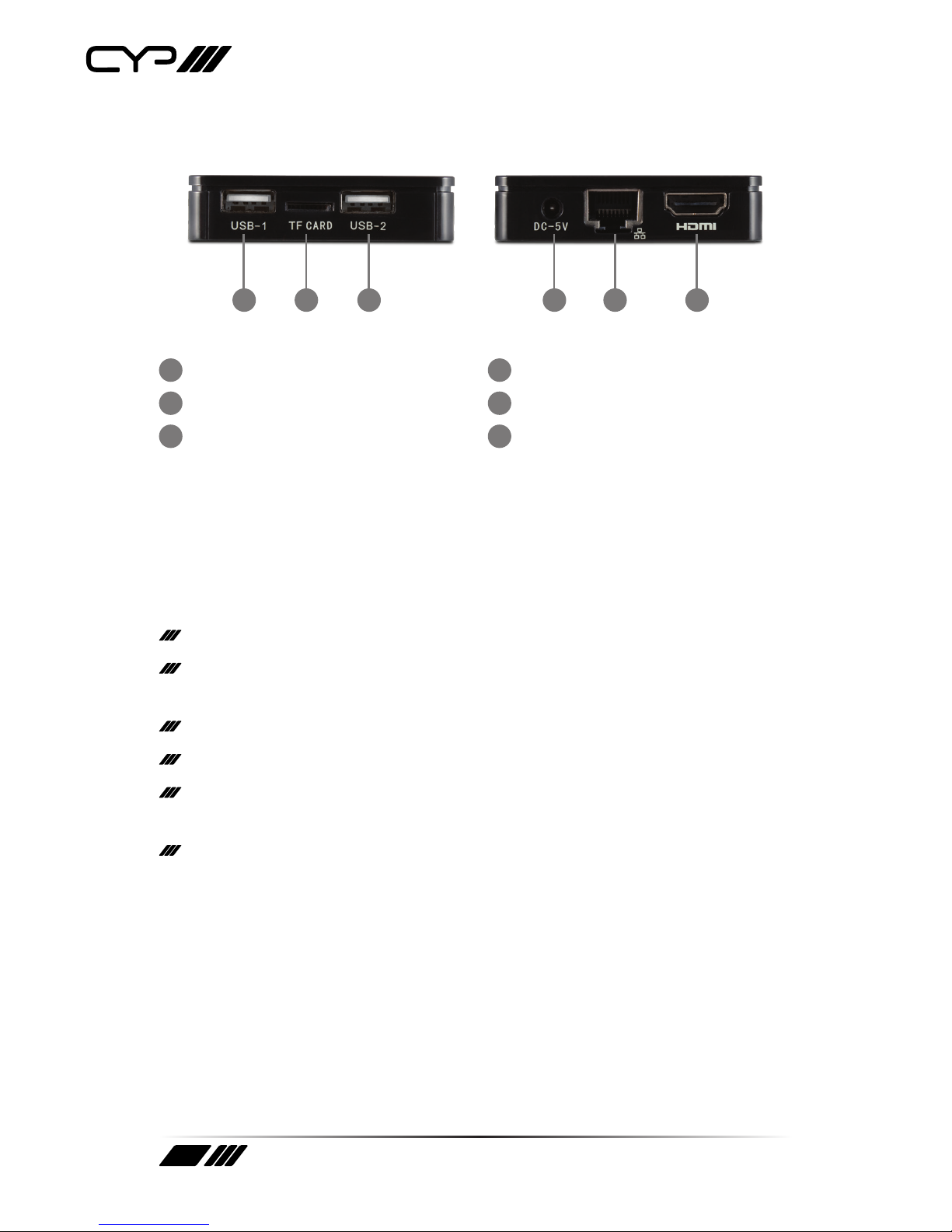
5 SETTING UP
1 2 3 4 5 6
1USB connection 1
2TF card slot
3USB connection 2
45V DC power supply
5Ethernet connection
6HDMI output
Hardware Installation
Your CYPTV Android Digital Signage Media Player can be connected to
any Screen or projector with an HDMI or DVI input using the appropriate
cable (not supplied).
Connect the HDMI / HDMI to DVI cable to the player and the screen.
If connecting to the internet via a cable, connect the cable to the
player.
Switch on the screen and select the correct input source.
Connect the player power.
If the player is to be mounted on the screen, use adhesive tape or
similar on the smooth side of the player to keep the air vents clear.
Once started up you will see an Authorisation code on the screen.
Note: Care should be taken when removing or inserting the SD-Card.
Do not force the card beyond halfway when re-inserting it as this may
damage the card or slot.
!

9
6 SET UP
To successfully register your player to your account the player will need to
be connected to the internet. This can be achieved automatically by:
Connecting to a DHCP network using a network cable;
Connecting to a Wireless network (see network settings below)
Changing the player's network settings
To exit the player software or Authorisation code screen, connect the
USB Key board and Mouse to the player, and navigate to the home
page by pressing the‘Home’ key on your keyboard.
Click on the 6 squares in the top right hand corner to access the Apps page.
Click the Settings icon.
Click on Wireless or Ethernet settings and enter your password and or
network settings as provided by your network provider.
You are now online and ready to connect the player to your account.
If connecting via an Ethernet connection ensure that the scan setting
in the Wireless settings is switched to o. This will stop any message
boxes appearing.

10
Changing the players date and time
To exit the player software or Authorisation code screen, connect the
USB Key board and Mouse to the player, and navigate to the home
page by pressing the‘Home’ key on your keyboard.
Click on the 6 squares in the top right hand corner to access the Apps page.
Click the Settings icon.
Click on Date & Time settings. Note that you will need to scroll down
the list to get to this setting.
If the player is online then ensure that the 'Automatic date & time'
setting is ticked to retrieve the correct time from the internet,
otherwise untick the setting and enter the correct date and time in the
boxes below.
Note: If the time is incorrectly set then content that is scheduled will not
appear at the correct time.
WARNING
DO NOT, under any circumstance perform a 'Factory data reset'. Doing
so will render the Media Player inoperable as vital software required
for the correct running of the unit will be erased. This will invalidate
the warranty.
!
Table des matières
Autres manuels CYP Lecteur multimédia