
CXN V2 Manuel utilisateur

1
CXN (V2) Network Player
Manual Generated: 2022/08/13 - 06:48

2
目次
CXN (V2) Network Player 3 ...........................................................................................................................................................................................................
Introduction 4 ...............................................................................................................................................................................................................................
What's included with the CXN (V2)? 5 ..........................................................................................................................................................................................
Front Panel 6 .................................................................................................................................................................................................................................
Rear Panel Connections 7 ............................................................................................................................................................................................................
Remote Control 9 ..........................................................................................................................................................................................................................
Getting Connected 10 ...................................................................................................................................................................................................................
Connecting to WiFi 14 ...................................................................................................................................................................................................................
StreamMagic app 16 .....................................................................................................................................................................................................................
Built-in Streaming Services 17 .....................................................................................................................................................................................................
AirPlay 2 19 ...................................................................................................................................................................................................................................
Chromecast Built-in 20 .................................................................................................................................................................................................................
Internet Radio 21 ..........................................................................................................................................................................................................................
USB Audio 23 ................................................................................................................................................................................................................................
USB Media 28 ................................................................................................................................................................................................................................
Streaming Your Local Digital Music Collection 29 .......................................................................................................................................................................
Settings 30 .....................................................................................................................................................................................................................................
Technical Specification 32 ............................................................................................................................................................................................................
Source Quality Matrix 34 ..............................................................................................................................................................................................................
Troubleshooting 35 .......................................................................................................................................................................................................................

3
CXN (V2) Network Player
Last updated: 8月 3, 2022 04:23. Revision #5572
Users Manual

4
Introduction
Last updated: 6月 27, 2022 10:02. Revision #5487
This guide is designed to make installing and using this product as easy as possible. Information in this document has been carefully checked for
accuracy at the time of publishing; however, Cambridge Audio’s policy is one of continuous improvement, therefore design and specifications are
subject to change without prior notice.
This document contains proprietary information protected by copyright. All rights are reserved. No part of this manual may be reproduced by any
mechanical, electronic or other means, in any form, without prior written permission of the manufacturer. All trademarks and registered trademarks
are the property of their respective owners.
StreamMagic is a trademark of Audio Partnership Plc and is registered in the European Community and other countries.
This product contains software licensed under version 2 of the GNU Public License and version 2.1 of the GNU Lesser Public License. The source code
for this software is available from: http://gpl.stream-magic.com/
This product includes technology owned by Microsoft Corporation and under a licence from Microsoft Licensing GP. Use or distribution of such
technology outside of this product is prohibited without a license from Microsoft Corporation and/or Microsoft Licensing, GP as applicable.
The Spotify software is subject to third party licenses found here: www.spotify.com/connect/third-party-licenses.
This product support AirPlay 2 and requires iOS 11.4 or later.
Apple and AirPlay are trademarks of Apple Inc., registered in the U.S. and other countries.
Use of the Works with Apple badge means that an accessory has been designed to work specifically with the technology identified in the badge and
has been certified by the developer to meet Apple performance standards.
Android, Google Play and the Chromecast built-in logo are trademarks of Google Inc.
TIDAL and TIDAL logo are registered trademark of Aspiro AB in the European Union and other countries.
© Copyright Cambridge Audio Ltd 2022
For upcoming news on future products, software updates and exclusive offers, make sure you register your product
at http://www.cambridgeaudio.com/register

5
What's included with the CXN (V2)?
Last updated: 8月 3, 2022 04:43. Revision #5584
1) CXN (V2) Network Player
2) Safety Guide
3) Quick Start Guide
4) 3 x AAA Batteries
5) Remote Control
6) Control Bus Cable
7) Wi-Fi Dongle
8) Power Cable

6
Front Panel
Last updated: 7月 12, 2022 03:28. Revision #5489
1. Standby/On
Switches the unit between Standby Mode (indicated by dim power LED) and On (indicated by bright power LED). Standby Mode is a low power mode
(0.5 Watts) – This can only be achieved when using Eco mode. The unit should be left in Standby Mode when not in use.
2. USB
For use with USB storage devices. 1A maximum current consumption.
3. Skip
Skip to next track during playback.
4. Play/Pause
Play or Pause current track.
5. Stop/Delete
Press during playback to stop or delete items in various menus.
6. Display
7. Info
During playback, pressing this button will cycle through ‘Now Playing’ screens. Press and hold to display the product info.
8. Home
Press to navigate to Home menu.
9. Infrared Sensor
IR sensor that receives IR commands from the remote control.
10. Return
Press to return to the previous menu.
11. (More)
When playing from UPnP sources, this button displays queued tracks and options.
12. Navigation/Select (Rotary Dial)
Rotate to scroll and navigate around the menus. Press to accept the item/function shown on the display.

7
Rear Panel Connections
Last updated: 7月 12, 2022 02:51. Revision #5490
1. AC Power Socket
Once you have completed all connections to the amplifier, plug the AC power cable into an appropriate mains socket then switch on.
2. USB Sockets
Pre-fitted Wi-Fi dongle and connection for USB HD/flash disk or optional BT100 Bluetooth audio receiver.
The USB ports are not intended for connection to Apple mobile devices, no functionality, charging or otherwise, is supported.
The Wi-fi dongle is pre-fitted. Your unit will default to an Ethernet connection if one is made, however it is advised to remove the Wi-Fi dongle if using
an Ethernet connection.
If you are using this CXN (V2) with Wi-Fi please make sure your unit is positioned within range of your wireless router.
Important Note: Do not connect/disconnect the Wi-Fi dongle when the unit is on.
3. Ethernet
Use to connect the CXN (V2) directly to a router.
4. Digital Inputs (D1 and D2)
TOSLINK and S/P DIF coaxial digital inputs.
Coaxial – Use a high quality 75 ohm digital RCA Phono interconnect cable (This is different from an analogue audio phono interconnect). This input is
suitable for 16-24 bit content up to 192kHz.
TOSLINK Optical – Use a high quality TOSLINK fibre optic interconnect cable designed specifically for audio use. This input is suitable for 16-24 bit
content up to 96kHz (TOSLINK is not recommended at 192kHz sampling rates).
Note: To obtain the best results from your system we recommend using only high-quality Cambridge Audio interconnects. This will ensure that you
hear your system as we designed it. Please ask your dealer for details.
5. Digital Outputs
TOSLINK and S/P DIF coaxial digital outputs.
6. USB Audio In
A USB B type socket to enable the playback of audio from a computer running either Microsoft Windows or Apple Mac OS X operating systems. Some
builds of Linux are also suitable.
Notes:

8
Always use a high-quality USB connection cable certified as USB Hi-Speed. USB cable connections longer than 3m may result in inconsistent
audio performance.
Always turn the volume to minimum, switch to another input or turn the CXA off before plugging/unplugging cables to the USB input or
whilst booting up/shutting down your PC/Mac.
The use of USB hubs is not recommended for this input.
7. IR In
Allows modulated IR commands from an IR repeater or custom install systems to be received by the amplifier.
Commands received by the IR In socket are not looped out of the Control Bus.
Note: The IR input doesn’t provide any power, so any device connected to this input will need to have its own power source.
8. Control Bus
RCA sockets used to send and receive power and volume commands from other connected CX Series products. For more information on the Control
Bus, see Control Bus section.
9. Balanced Audio Output
For use with balanced XLR connections. The balanced connection is the higher quality option and can reject noise and interference in the cable when
used with other equipment that supports this function.
Note: XLR connectors should be wired as follows: Pin 1: Ground, Pin 2: Hot (in-phase) and Pin 3: Cold (phase-inverted).
10. Line Output
Line Output (fixed or variable) used to provide a signal to another amplifier or a recording device.
9
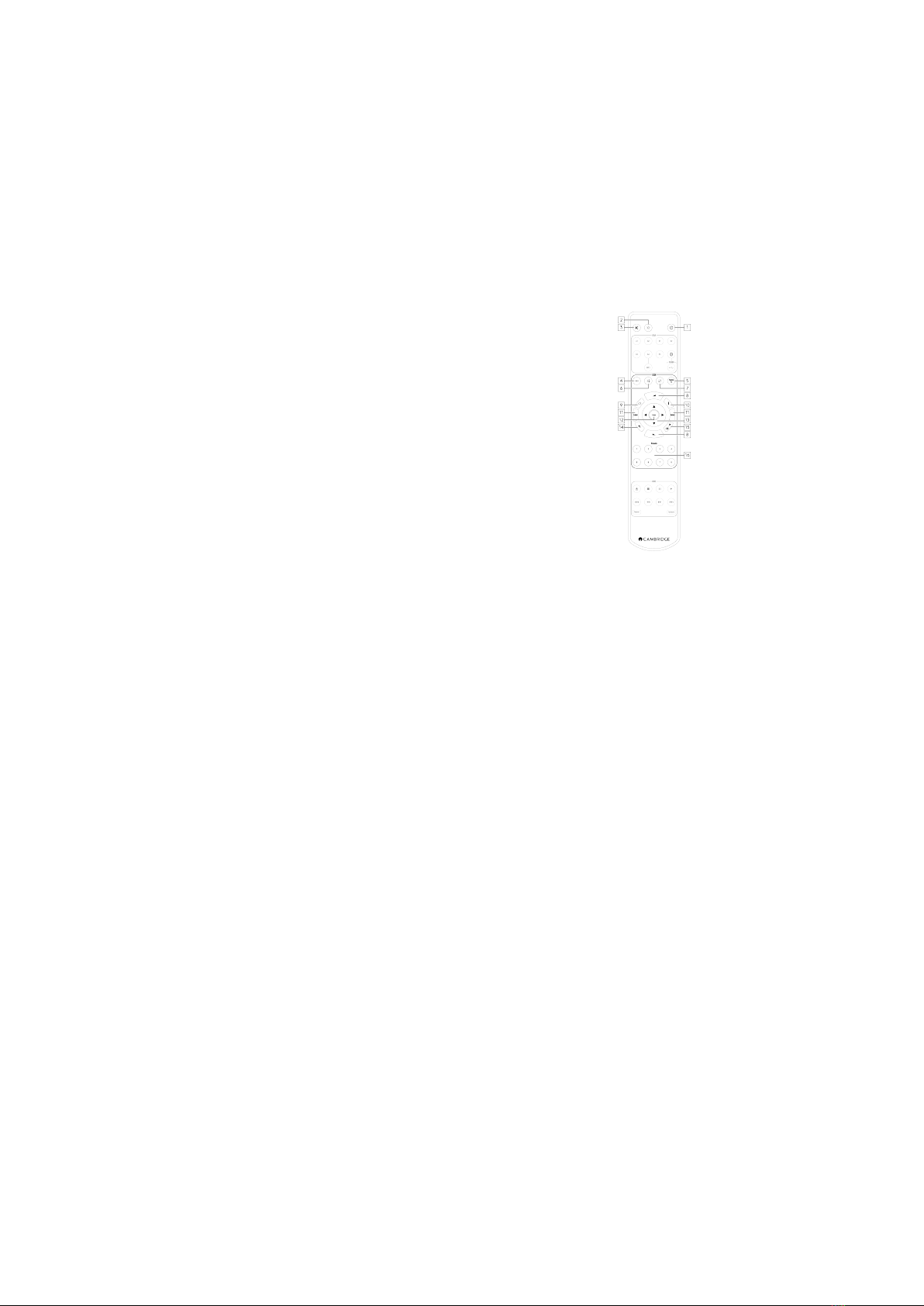
Remote Control
Last updated: 7月 12, 2022 01:11. Revision #5497
The CXN (V2) remote control handset duplicates some of the front panel control functions and is also able to control other CX series products. The
supplied AAA batteries must be fitted before the remote control can be used. The handset buttons function as described below:
1. Standby/On
Switches the CXN (V2) between On and Standby mode.
2. Brightness
Alters the brightness of the CXN (V2) display. There are two brightness levels and an option to
switch off the backlight.
Note: When the CXN (V2) display lights are selected to be off, selecting any of the functions will
briefly switch on the lights to show the change.
3. Mute
Press to mute or unmute the loudspeakers, pre-out, sub, and the headphone outputs.
4. (More)
When playing from Media Library sources, this button displays queued tracks and options.
5. Digital Input
Shortcut to D1 Digital Input.
6. Random
Play random track within queue.
7. Repeat
Repeat all tracks in queue.
8. Volume
Volume level adjust.
9. Home Menu
Returns front panel display to Home menu option.
10. Info
Toggles between display information.
11. Skip
Skips between previous and next tracks.
12. Enter
Enter or select.
13. Navigation
To navigate between menus.
14. Return
Return or back.
15. Play/Pause
Play or Pause current track.
16. Presets
Recalls stored 1 – 8 presets.

10
Getting Connected
Last updated: 7月 12, 2022 01:16. Revision #5137
Basic Analogue Connections
Important Note: Switch the power off before making any connections.
There are two analogue connection options for the CXN (V2).
1. Line Output Connection (RCA)
2. Balanced Audio Connection (XLR)
Basic Digital Connections
There are two digital connection options for the CXN (V2).
Table des matières


