CTC Union SVP Express Manuel utilisateur

USER MANUAL
SVP Express
An Intelligent Surveillance System
CTC
U
n
i
on
T
ec
h
no
l
og
i
es
C
o.,
Ltd
.


1
LEGAL
The information in this publication has been carefully checked and is believed to be entirely
accurate at the time of publication. CTC Union Technologies assumes no responsibility, however,
for possible errors or omissions, or for any consequences resulting from the use of the
information contained herein. CTC Union Technologies reserves the right to make changes in its
products or product specifications with the intent to improve function or design at any time and
without notice and is not required to update this documentation to reflect such changes.
CTC Union Technologies makes no warranty, representation, or guarantee regarding the
suitability of its products for any particular purpose, nor does CTC Union assume any liability
arising out of the application or use of any product and specifically disclaims any and all liability,
including without limitation any consequential or incidental damages.
CTC Union products are not designed, intended, or authorized for use in systems or applications
intended to support or sustain life, or for any other application in which the failure of the product
could create a situation where personal injury or death may occur. Should the Buyer purchase or
use a CTC Union product for any such unintended or unauthorized application, the Buyer shall
indemnify and hold CTC Union Technologies and its officers, employees, subsidiaries, affiliates,
and distributors harmless against all claims, costs, damages, expenses, and reasonable attorney
fees arising out of, either directly or indirectly, any claim of personal injury or death that may be
associated with such unintended or unauthorized use, even if such claim alleges that CTC Union
Technologies was negligent regarding the design or manufacture of said product.
TRADEMARKS
Microsoft is a registered trademark of Microsoft Corp.
HyperTerminal™ is a registered trademark of Hilgraeve Inc.
User Manual
Version 1.0 Oct 2007 First Release
This manual supports the following:
SVP-Express
This document is the first official release manual. Please check CTC Union's website for any
improving this manual or to point out omissions or errors to marketing@ctcu.com. Thank you.
CTC Union maintains a support web site (support.ctcu.com) where you may obtain the latest
manual, quick installation guide, and operational firmware. Membership to this web site is free,
however, you must be a registered member in order to access any software updates.
CTC Union Technologies Co., Ltd.
2008 Copyright, All rights reserved.

2
BEFORE USING THIS PRODUCT
This CTC Union product has been designed with safety in mind. However, if not used properly,
electrical products can cause fires which may lead to serious bodily injury. To avoid such
accidents, be sure to heed the following.
Legal Caution:
Video and audio surveillance may be forbidden by laws that vary from country to country. Please
check the laws in your local region before using this product for surveillance purposes.
Heed the safety precautions
Be sure to follow the general safety precautions and the “Operation Notice.”
In case of a breakdown
In case of system breakdown, discontinue use and contact your authorized CTC Union dealer.
In case of abnormal operation
• If the unit emits smoke or an unusual smell,
• If water or other foreign objects enter the cabinet, or
• If you drop the unit or damage the cabinet:
1 Disconnect the cable and the connecting cables.
2 Contact your authorized CTC Union dealer or the store where you purchased the product.
Operation Notice - Operating or storage location
Avoid operating or storing this unit in the following locations:
• Extremely hot or cold places (Operating temperature: 0 °C to +50 °C [32 °F to 122°F])
• Exposed to direct sunlight for a long time, or close to heating equipment (e.g., near heaters)
• Close to sources of strong magnetism
• Close to sources of powerful electromagnetic radiation, such as radios or TV transmitters
• Locations subject to strong vibration or shock
Ventilation
To prevent heat buildup, do not block air circulation around the device.
Transportation
When transporting the unit, repack it in its original packaging or in materials of equal quality.
Cleaning
• Use a soft, dry cloth to clean the external surfaces of the device. Stubborn stains can be
removed using a soft cloth dampened with a small quantity of detergent solution, then wipe dry.
• Do not use volatile solvents such as alcohol, benzene or thinners as they may damage the
surface.

Contents
A. Getting Started 1
A.1. Main Function 1
A.2. System Requirement 1
A.2.1. Client-Server System Structure 1
B. Running the Installation Wizard 3
B.1. SVP Express Server version – Installing 3
B.2. SVP Express Client version – Installing 7
B.3. Firewall Configuration 7
C. Control Program 7
C.1. Automatically starts upon system boot up 7
C.2. Shutting Down the Control Program 8
C.3. Start the Control program manually 8
D. Admin Program 9
D.1. Running the Admin Program 9
D.2. Admin Interface Overview 10
D.3. System Management Overview 10
D.3.1. Email Setting 11
D.3.2. Holiday Setting 12
D.3.3. DNS Setting 12
D.3.4. Storage 13
D.3.5. System Alarm 15
D.3.6. Rotation 16
D.3.7. Motion Rectangle 16
D.4. User Group 17
D.4.1. User 17
D.4.2. Group 19
D.5. Area and eMap management 21
D.5.1. Add Area 23
D.5.2. Remove SubArea 23
D.5.3. Rename the Area 23
D.5.4. Remove Area 24
D.5.5. Upload eMap 24
D.5.6. Refresh eMap 24
D.5.7. Resize eMap Icon 25
D.5.8. Device Management (Network Camera, Video Server Controller) 25
D.5.8.1. Network Camera 26

D.5.8.1.1. Network Camera Button Overview 26
D.5.8.1.2. Network Camera Setting Overview 27
D.5.8.1.3. Remove Network Camera 34
D.5.8.1.4. HW Password 34
D.5.8.1.5. Sensor (Digital Input) 35
D.5.8.1.6. Relay (Digital Output) 36
D.5.8.2. Video Server 37
D.5.8.3. Tools in Menu Bar of eMap interface 38
E. Monitor Program 39
E.1. Running Monitor Program 39
E.2. Monitor Program Interface 40
E.3. Video Display Area 40
E.4. Camera Selection 41
E.5. Display Selection 41
E.5. Local Video Setting 41
E.5.1. Local Record 41
E.5.2. Local Play 42
E.5.3. Local Folder 43
E.5.4. Snapshot 43
E.5.5. Resolution switch while Single camera (CIF/4CIF) 43
E.6. PT Control Interface 43
E.7. System Setting 44
E.7.1. Relay Setting/Cancel Alarm 44
E.7.2. Server Query 45
E.7.3. Alarm On/Off 45
E.7.4. Alarm Query 46
E.7.5. Exit 46
E.8. Alarm eMap 46
E.9. Alarm Notification Log 47

Page 1
A. Getting Started
For a better understanding, please read this manual before operate the SVP Express system.
A.1. Main Function
SVP Express includes the following programs:
1. Control: This program manages video recording, input/output events and alarm triggering; it is
running as a background program of SVP Express comes with PC boot up. For detail please
refer to Section C.
2. Admin: This program allows you to configure the system of SVP Express and setup the device
which connected to system, for detail, please refer to Section D.
3. Monitor: This program allows you to view live video and query recorded file and alarm log, for
detail please refer to Section E.
4. Web Monitor: This program allows you to online monitor live video thru IE from client PC, for
detail please refer to Section F.
A.2. System Requirement
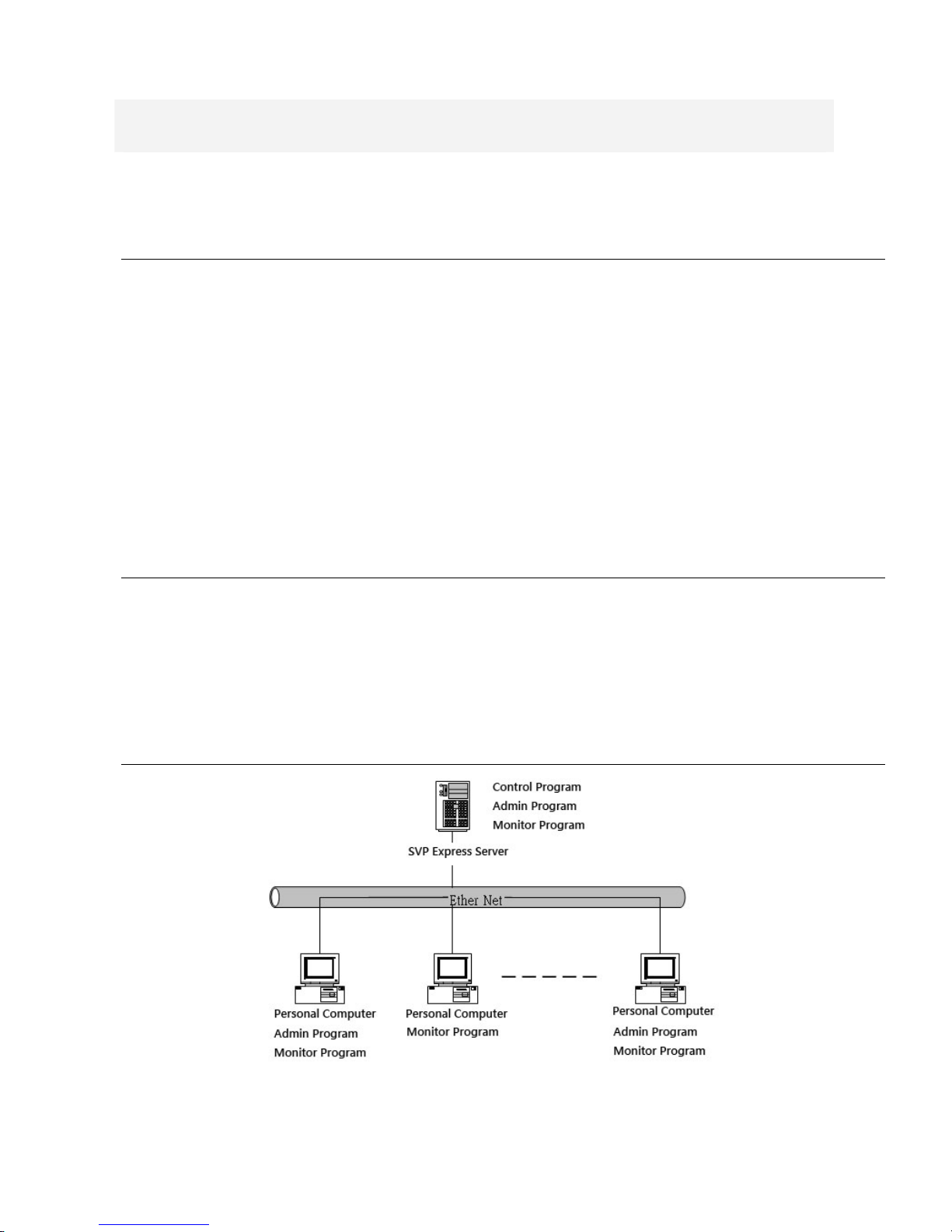
SVP Express is consisted of SERVER version and CLIENT version. SERVER version limits
one installation, license key are required whenever adding devices for central management.
SERVER version includes Admin, Monitor, Control and Web Monitor programs. The CLIENT
version is designed for monitoring purpose, and the Admin program is an option while installation
(for detail please refer to Section B. Running the Installation Wizard).
A.2.1. Client-Server System Structure

Page 2
zSystem Requirement- SERVER version
CPU P-4 3.0G
RAM 1G
Operating System Windows XP Professional SP2
Network 10/100 Mbps Fast Ethernet
Display Card 1024 x 768 (XVGA) or above
zSystem Requirement- CLIENT version
CPU P-4 1.2G
RAM 256 MB or above
Operating System Windows XP Professional SP2
Network 10/100 Mbps Fast Ethernet
Display Card 1024 x 768 (XVGA) or above
zNetworking Suggestion
SVP Express is optimized for small-scale project, simple LAN or simple WAN environment.
Place the system behind firewall or IP sharing device to efficiently protect this system from
hackers’ attack.

Page 3
B. Running the Installation Wizard
B.1. SVP Express Server version – Installing
【Step 1】Please insert SVP Express CD into CD-ROM drive. Go to SVP
Express\Server directory to execute Setup.exe.
【Step 2】Select language
The Installation Wizard will select the language of your operation system intelligently.
SVP Express supports three languages:Traditional Chinese, Simplified Chinese,
English
【Step 3】The Installshield Wizard will
check if IIS is installed at your system. If
not, you can continue installing SVP
Express, but you will not be able to use
the WEB monitoring feature without IIS.
To Install IIS, do the following,
1. Click “Start”.
2. Go to Control Panel Æ
Add/Remove Program
3. Click Add/Remove Windows
Component
4. Check Internet Information Services
(IIS)
5. Click “Next”.
6. Click “Finish”.
During the installation process, you may
need Microsoft Windows Operating
System CD.

Page 4
【Step 4】Click “Next” to begin the
installation process.
【Step 5】Please read the License
Statement and select “Yes” to accept
and continue.
Table des matières
Manuels Système de sécurité populaires d'autres marques

EDM
EDM Solution 6+6 Wireless-AE Manuel utilisateur

Highway Safety Group
Highway Safety Group EA401 Manuel utilisateur

Siren
Siren LED GSM Manuel utilisateur

Detection Systems
Detection Systems 7090i Instructions de montage

Se-Kure Controls
Se-Kure Controls MicroMini SK-4841 Manuel utilisateur

Siemens
Siemens FDM273 Manuel utilisateur