
Crucial SK01 - External 2.5" Storage Manuel utilisateur

Installation & User Guide
SK01 EXTERNAL 2.5” DRIVE STORAGE KIT
www.crucial.com
For additional information on product, warranty or return
information visit www.crucial.com/support
Pour obtenir de plus amples renseignements sur la garantie ou le
retour de produit, veuillez visiter le site www.crucial.com/support
Zusätzliche Informationen zur Produktgarantie oder zum
Zurücksenden finden Sie unter www.crucial.com/support
Gå til www.crucial.com/support for ytterligere informasjon om
produktgaranti eller -retur
Per ulteriori informazioni sulla garanzia del prodotto o sulla
restituzione, visitare il sito www.crucial.com/support
Para más información sobre la garantía del producto o el
procedimiento de devolución, visite www.crucial.com/support

Table of Contents
Package contents ....................................................................... 2
Minimum system requirements ............................................. 2
Installation steps
• To insert the SSD into the 2.5-inch external enclosure ................................................... 3-4
• To use the 2.5-inch external enclosure as a standalone device............................................ 5
• To use the 2.5-inch external enclosure in the 3.5-inch desktop drive bay .......................... 5-7
• To use the 2.5-inch external enclosure in the 5.25-inch desktop drive bay ..................... 8-10
Removal steps
• To remove a 2.5-inch external enclosure from a 3.5-inch or 5.25-inch drive bay...................11
• To remove the standalone 2.5-inch external enclosure from the USB port in Windows
2000 or above..........................................................................................................12
• To remove the standalone 2.5-inch external enclosure from the USB port in a Mac ..............12
Partitioning and formatting steps
• To partition and format the storage drive in Windows 2000 or above ........................ 13-18
• To partition and format the SSD in Mac OS ........................................................... 19-22
FAQs ............................................................................................ 23
1

2
Package contents
• 2.5-inch USB 2.0 external enclosure
• 3.5-inch hot-swappable SATA drive bay
• 5.25-inch bracket
• USB cable
• Internal SATA cable
• Internal power cable adapter
• Screw packets:
– 7 large screws for mounting 3.5-inch drive bay and 5.25-inch bracket, plus 1 spare
– 4 small screws for attaching the SSD to the PCB, plus 1 spare
• Protective carrying case
• User guide
NOTE: The Crucial SK01 storage kit does NOT contain an SSD; please purchase the SSD separately at
Crucial.com. The SK01 storage kit is also compatible with standard 2.5-inch SATA mechanical hard drives.
Minimum system requirements
• Microsoft® Windows® 2000 or above
• Mac® OS 9.x or above
• Linux kernel 2.4.1.0 or above
• Computer with a USB 2.0 connection (for external/standalone use) and
SATA interface (for internal installation)
3
Installation steps
The SK01 external 2.5-inch storage kit is designed to house
an internal 2.5-inch SSD for use in three different ways:
• Connection as an external USB 2.0 device for desktops or notebooks
• Connection via a SATA 3Gb/s port by way of installation into a 3.5-inch desktop drive bay
• Connection via a SATA 3Gb/s port by way of installation into a 5.25-inch desktop drive bay
NOTES:
• No USB or SATA driver installation is required for Windows 2000 or above or for Mac OS 9.x or above.
However, drivers may be required for other OSs; check with your software and system manufacturer.
To insert the SSD into the 2.5-inch external enclosure
Regardless of whether you choose internal installation or standalone use, you must first insert your SSD
into the 2.5-inch external enclosure provided in this kit.
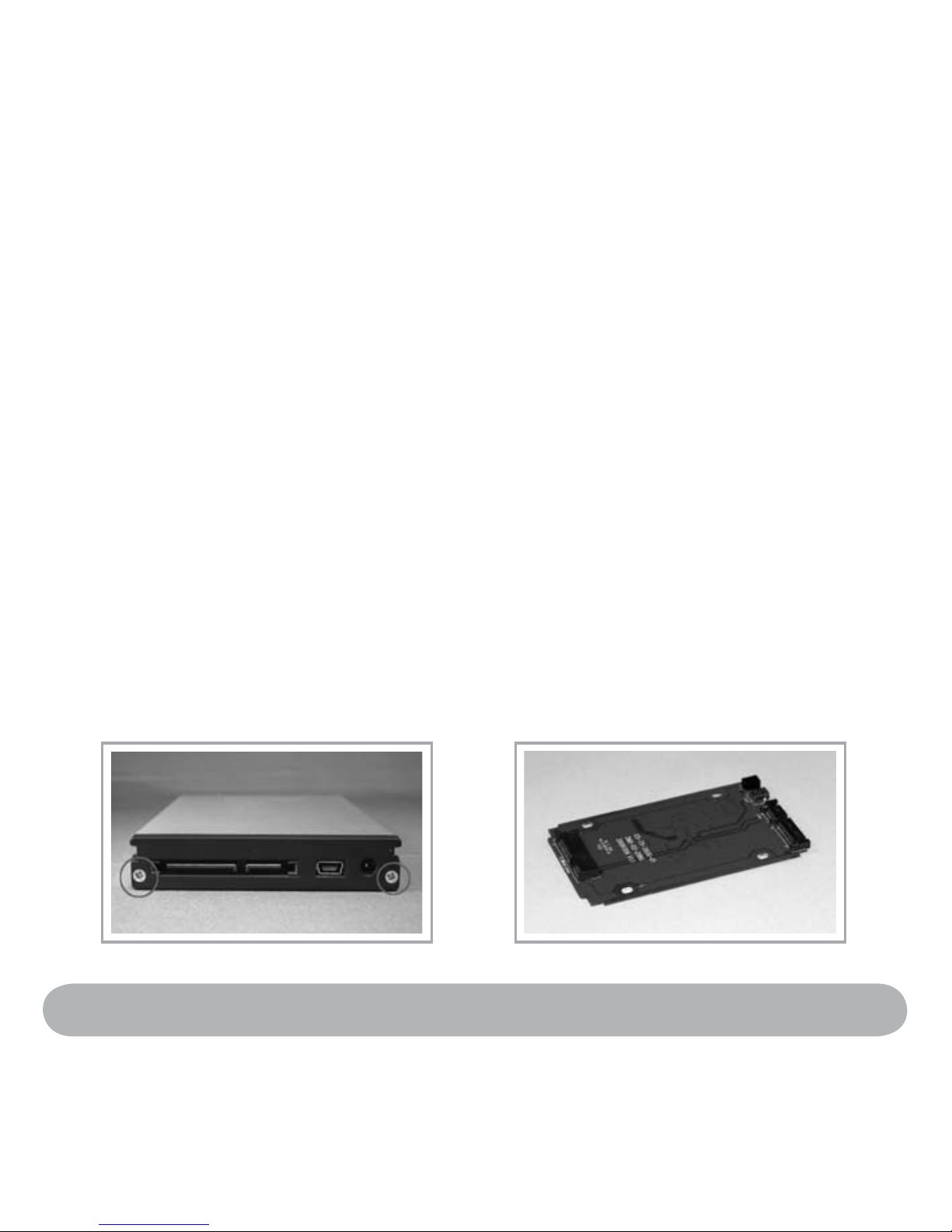
1. Unscrew the back cover of the 2.5-inch external enclosure (Pic A) and pull out the printed circuit board
(PCB) (Pic B).
A B

4
2. Align the SATA connector on the rear of the SSD with the SATA connector on the rear of the PCB (Pic A),
and then slide the SSD connector onto the PCB connector (Pic B).
3. Hold the PCB and SSD together and flip them
upside down. On the bottom of the PCB,
use the smaller screws to attach the SSD to
the PCB, and then flip the assembled PCB/SSD
unit upright.
4. Align the assembled PCB/SSD unit with
the rounded grooves on both sides of
the external enclosure, and then push
the unit inside the external enclosure.
5. Re-attach the back cover and secure it
with the screws that you removed in step 1.
A B

5
To use the 2.5-inch external enclosure
as a standalone device
If you are installing the SSD internally into a desktop computer, skip this section and proceed to either “To
use the 2.5-inch SSD external enclosure in the 3.5-inch desktop drive bay” or “To use the 2.5-inch SSD
external enclosure in the 5.25-inch desktop drive bay.”
If you are using the SSD as a standalone external device
for a desktop or notebook computer, use the following
instructions.
1. Start the system.
2. Using the USB cable provided in this kit, connect the USB port of the 2.5-inch external enclosure to
a computer USB port.
NOTE: The cable is two-headed; you may need to use both heads in order to draw enough power to run
the SSD, particularly if you are using a notebook computer.
3. After the system recognizes the device, the SSD is ready to use.
To use the 2.5-inch external enclosure
in the 3.5-inch desktop drive bay
Use the 3.5-inch drive bay provided in this kit to install the 2.5-inch external enclosure into the 3.5-inch
bay (floppy drive bay) of a desktop computer.
1. Turn the computer power off, and then open the computer case.
6
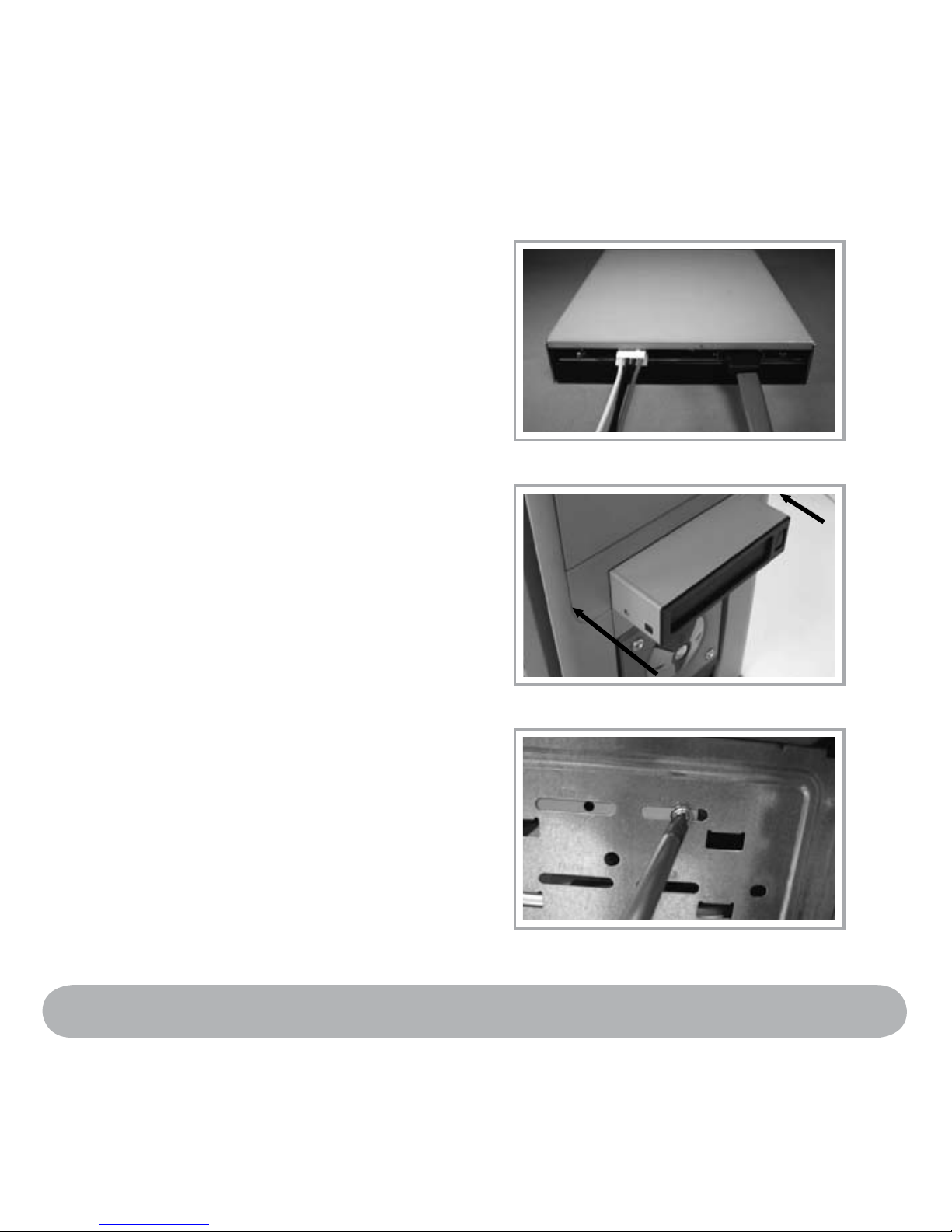
2. On the rear of the 3.5-inch drive bay,
plug in the power cable adapter and
the SATA cable.
3. Insert the 3.5-inch drive bay into
the 3.5-inch bay of a desktop computer.
4. Adjust the drive bay so that it is level
in the case. Use the larger screws
to secure it on both sides.
7
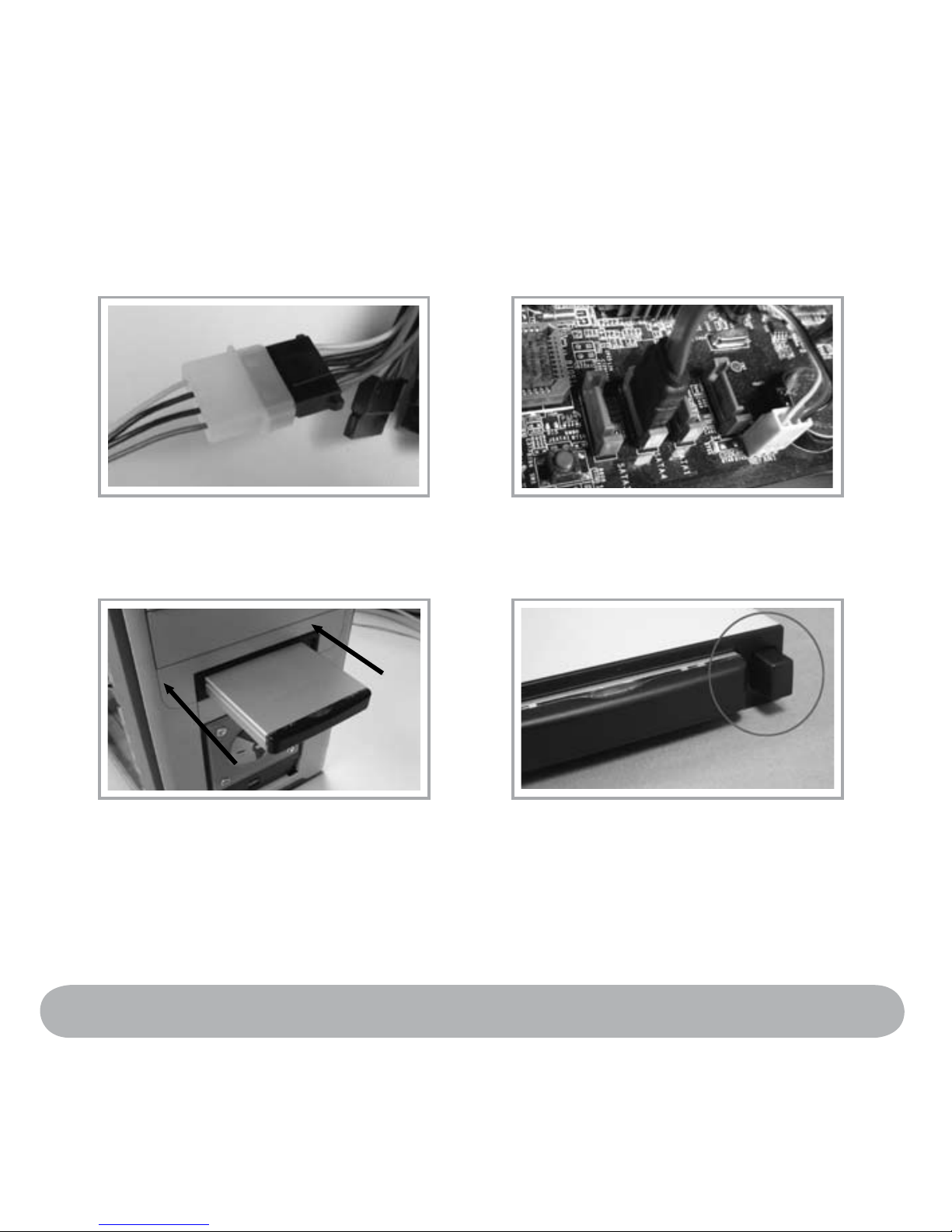
5. Connect the drive bay power cable to the power cable inside the case (Pic A). Connect the drive bay
SATA cable to the SATA slot on the motherboard (Pic B).
6. Insert the 2.5-inch external enclosure (Pic A) into the 3.5-inch drive bay until they are firmly connected.
The eject button on the 3.5-inch drive bay will pop out when the 2.5-inch external enclosure is fully
inserted (Pic B).
7. Turn on the computer power; when the system starts up, the operating system should recognize a new
disk drive. If the system does not recognize the drive, contact technical support at
www.crucial.com/support.
NOTE: The SATA drive is hot-swappable if the motherboard supports this feature; otherwise, the connection
must be made when the power is off. Check with your motherboard or system manufacturer for more
information.
A B
A B

8
To use the 2.5-inch external enclosure in the 5.25-inch
desktop drive bay
Use the 3.5-inch drive bay and 5.25-inch bracket provided in this kit to install the 2.5-inch external
enclosure into the 5.25-inch bay (CD-ROM/DVD drive bay) of a desktop computer.
1. Turn the computer power off, and then open the computer case.
2. Place the 3.5-inch drive bay into the 5.25-inch bracket (Pic A), aligning the screw holes in the drive bay
with the openings in the bracket (Pic B).
3. Use the larger screws to anchor the housing
inside the brackets.
A B
Ce manuel convient aux modèles suivants
1
Table des matières


