NEED HELP? VISIT SUPPORT.NIGHTLIFE.COM.AU OR CALL US 24/7
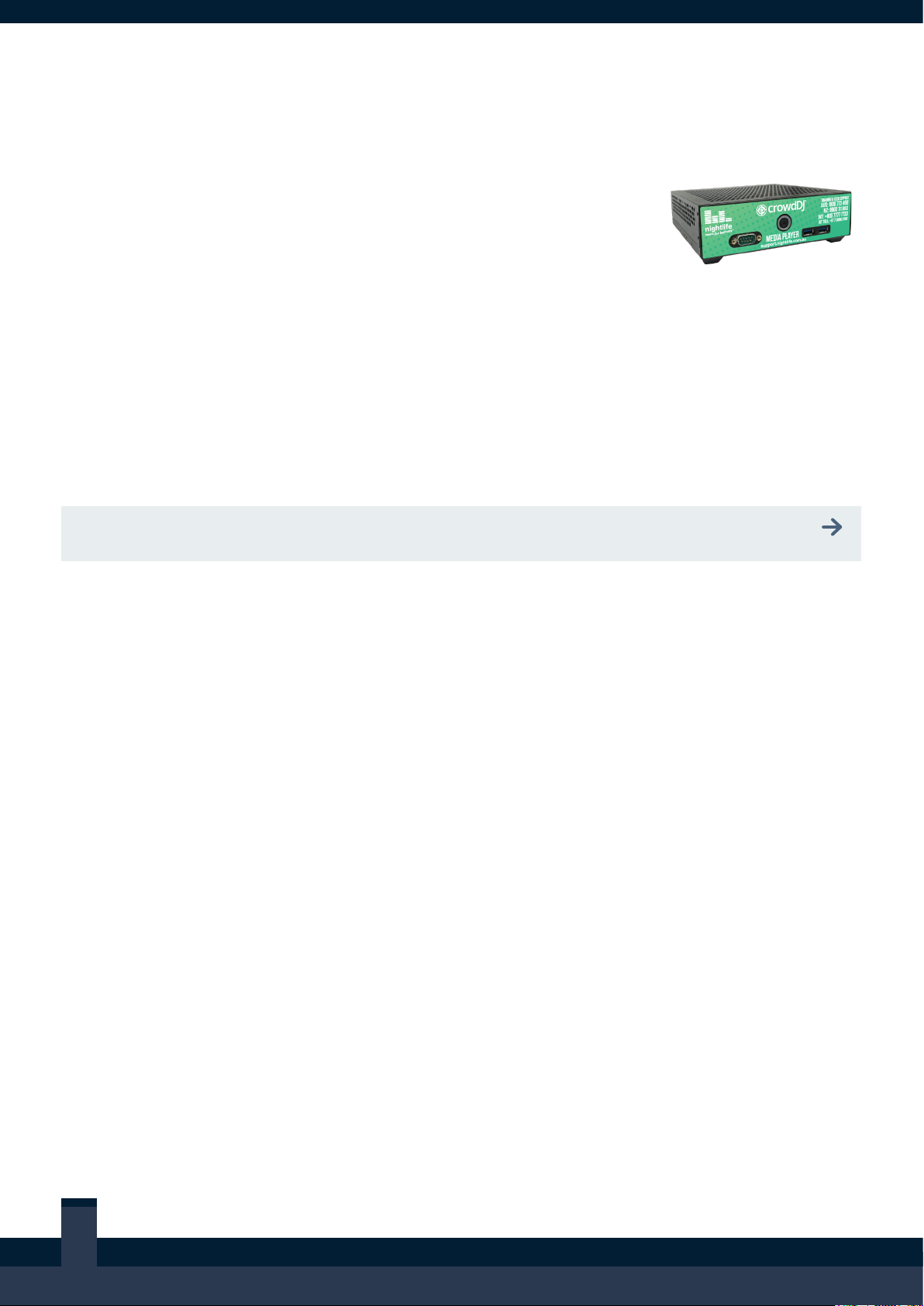
The Media Player will play music automatically
once powered on (please allow approximately
ve minutes for start-up to complete).
To conrm the Media Player's audio is working
and connected correctly, ensure the volume on
the audio distribution equipment is turned up
and music is playing.
Is music playing through the audio
distribution equipment?
NOTE: This test is only applicable if screens
have been connected as part of the Media
Player installation.
The Media Player will play video along with
audio upon start up.
To conrm the Media Player’s video outputs
have been connected correctly to screens and
the audio is in sync complete the following:
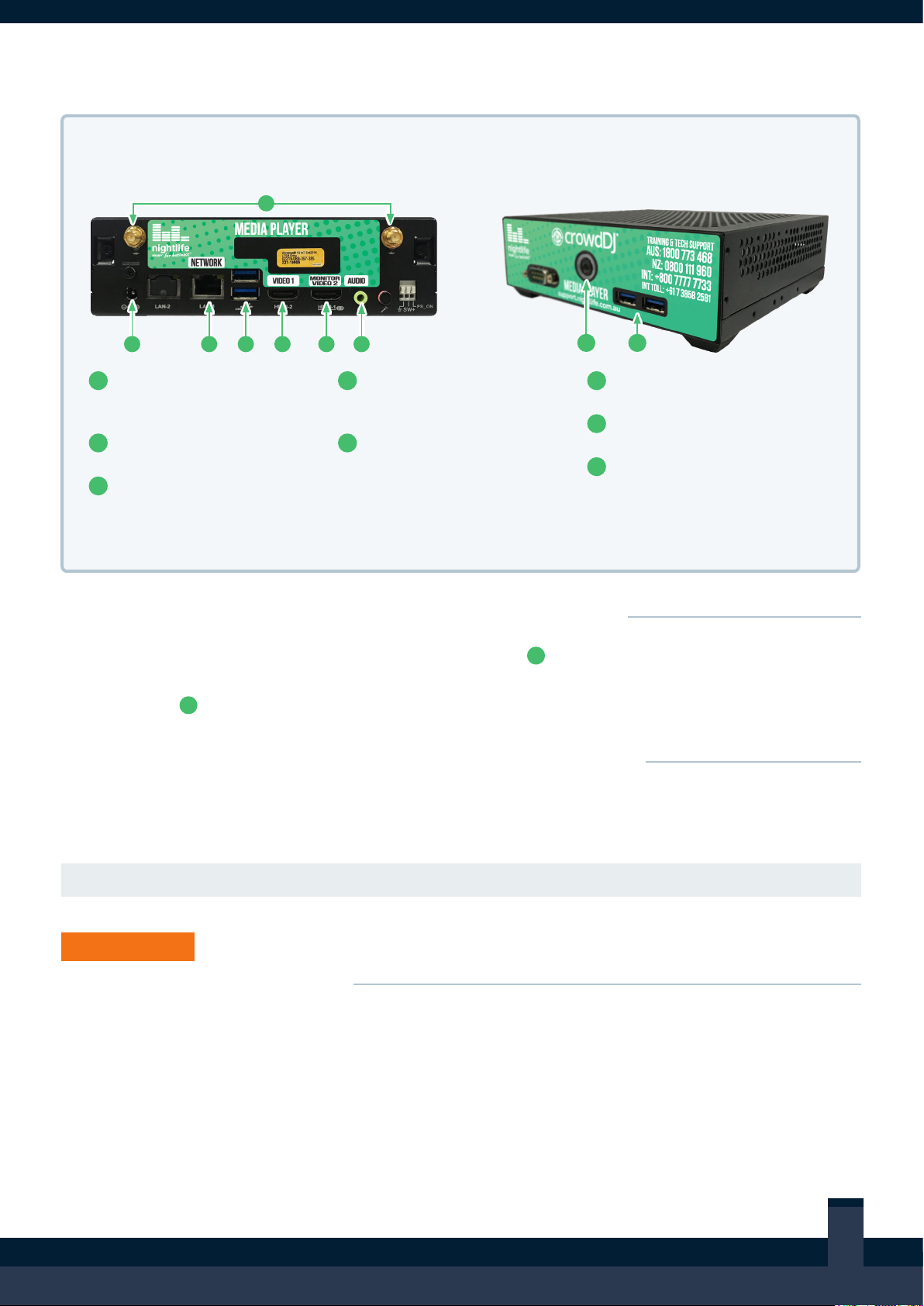
Ensure the screen(s) connected to
are turned on and displaying
vision from the Media Player (i.e. music videos,
ambient visuals, digital signage).
When a music video is playing, listen to the
audio and conrm the corresponding music
video is playing and that it is in sync.
If required as part of the installation, check the
screen(s) connected to are
turned on and displaying vision from the Media
Player (i.e. ambient visuals, digital signage).
Is Video + Audio Output 1 displaying vision
from the Media Player on-screen?
Is the Video and Audio in sync when music
videos are playing on-screen?
Is Video Output 2 displaying
vision from the Media Player on-screen?
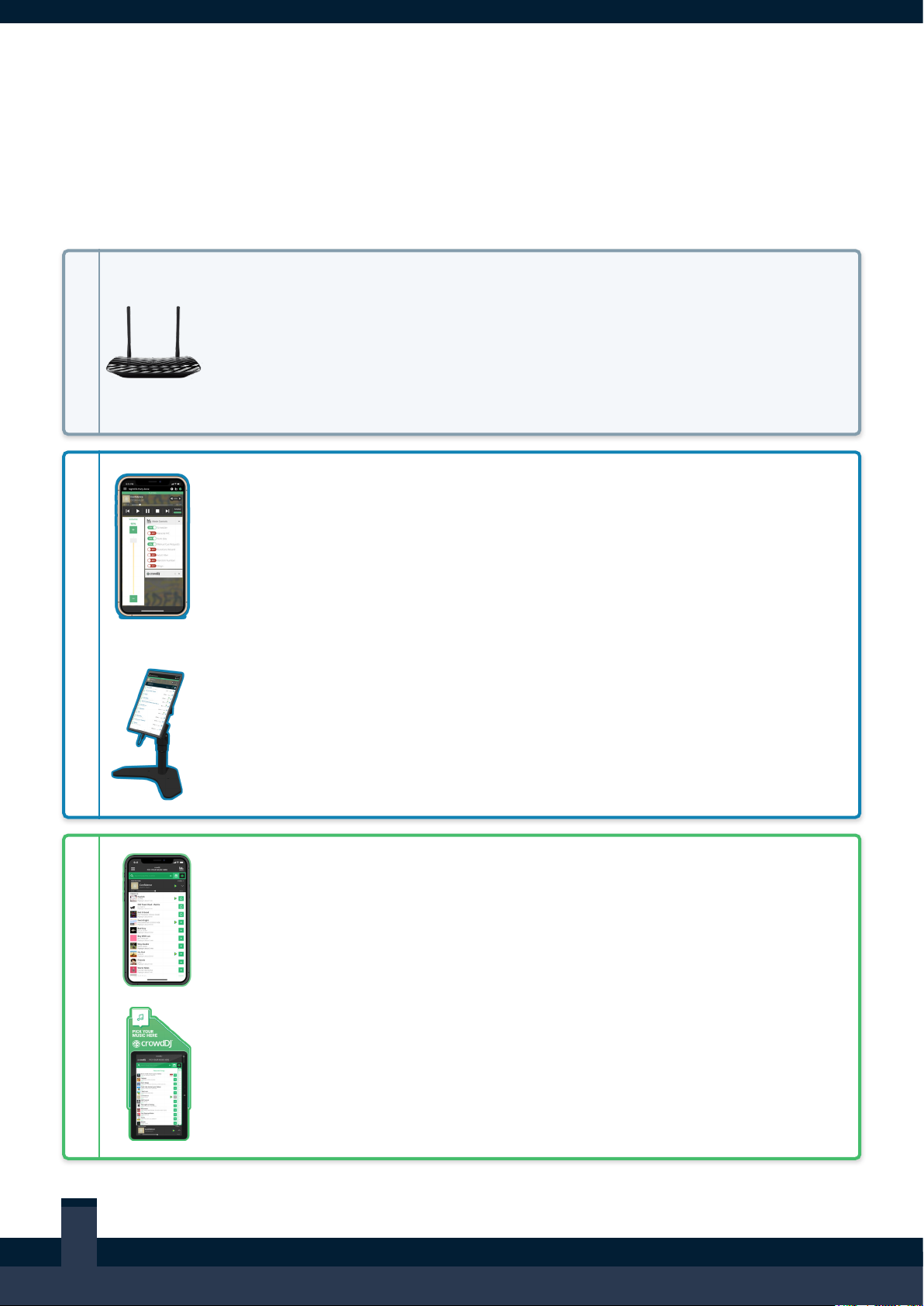
The Media Player will have been connected to
a local network as part of the installation (i.e.,
the business’ IT infrastructure or a Nightlife-
supplied router).
To conrm the Media Player’s connectivity to
the local network, you will need a supplied
Nightlife Tablet or a smartphone with the
Manage My Nightlife app and an account.
NOTE: In the event you do not have a tablet or
valid account, skip this step or call Nightlife.
Use the Manage My Nightlife App to pick
a song. Refer to USER GUIDE: Manage My
Nightlife Navigation for assistance.
Did the correct song play?