
CreativeStar JXG-213-F Manuel utilisateur

Visual Intercom Face Recognition Terminal
Quick Guide
V1.0.6

Contents
1 Product Overview .......................................................................................... 1
2 Device Installation ......................................................................................... 2
3 Local Configurations ...................................................................................... 3
3.1 Initial Interface .............................................................................................. 3
3.2 Main Interface ............................................................................................... 4
3.3 Activation Config ........................................................................................... 5
3.3.1 Adding Personnel Information ............................................................ 6
3.3.2 Changing Activation Password ............................................................ 8
3.3.3 Configuring Authentication Scene ...................................................... 9
3.3.4 Device Maintenance ......................................................................... 10
3.4 Device Operations ....................................................................................... 11
4 Web Configurations ..................................................................................... 12
4.1 Logging in to the Web Interface .................................................................. 12
4.2 Viewing Real-Time Video ............................................................................. 12
4.3 Synchronizing Time ..................................................................................... 13
4.4 Managing Users ........................................................................................... 13
4.5 Configuring Audio ........................................................................................ 14
4.6 Turning Off Device Lights in Darkness ......................................................... 15
4.7 Configuring FTP Server ................................................................................ 16
4.8 Configuring OSD Parameters ....................................................................... 17
4.9 Configuring Check Templates ...................................................................... 18
4.10 Adding Personnel Information to Face Libraries ....................................... 19
4.10.1 Adding One Person ......................................................................... 19
4.10.2 Importing Personnel Information in Batch ..................................... 21
4.11 Advanced Settings ..................................................................................... 22
4.12 Maintenance Configurations ..................................................................... 23
4.12.1 Restoring Default Factory Settings ................................................. 23
4.12.2 Upgrading the Firmware ................................................................. 24
4.12.3 Exporting Diagnosis Information .................................................... 24

Disclaimer and Safety Warnings ........................................................................ 26

1
1 Product Overview
The visual intercom face recognition terminal ("the face recognition terminal" for
short) is a face recognition access control product featuring high performance and
high reliability. The face recognition technology is perfectly integrated into the
access control device, which relies on deep learning algorithm, to support face
authentication to open the door and achieve precise control of human. Moreover,
using remote control to open the door is also supported via indoor monitor. And it
can be widely applied to the scenarios of building systems, such as smart
communities, public security, parks and other important areas.
The specification table below lists the major parameters of the device.
Parameters
Description
Operation System
Linux
Face Recognition Accuracy
Rate
>99%
Face Recognition Time
200ms
Face Capacity
10,000
Card Capacity
100,000
Storage Capacity
4GB
Event Capacity
8,000 (with images)
Measurement Range
86℉ - 113℉
Measurement Deviation
≤0.54℉
Measurement Distance
3.28'
Authentication Mode
Face Whitelist∶ (1∶N)
Card: (1:N)
Face + Body temperature

2
Parameters
Description
Mask Detection
Door Opening Method
Face, Password, QR code, Card
Communication Mode
10/100Mbps adaptive network port
Card Type
Mifare 1 Card
User Management
Support user library addition, deletion, update
Record Management
Support local recording and real-time upload
Interface
LAN×1, Wiegand Input×1, Wiegand Output×1,
RS485×1, Alarm Input×2, Alarm Output×1,
USB2.0×1, Lock×1, Door Contact ×1, Exit
Button×1
Power Supply
Input 12V±25% DC
Screen
Touch Screen, Size: 7 inches, Resolution:
600×1024
Camera
Dual Lens, 2MP, 1080P
Supplement Light
LED soft light and infrared light
Dimensions (L×W×H)
For terminal: 134.0mm×33.0mm×305.0mm
Working Environment
For terminal: -4℉-149℉, Relative Humidly <
95% (non-condensing)
For module: 59℉-86℉
Protection Level
Both terminal and module: IP 54
Applicable Environment
Indoor, No wind
2 Device Installation
For the wiring and installation of the device, refer to JXG-Face Recognition Access
Control Terminal Quick Guide and JXG-Forehead Digital Detection Module Quick

3
Guide.
3 Local Configurations
3.1 Initial Interface
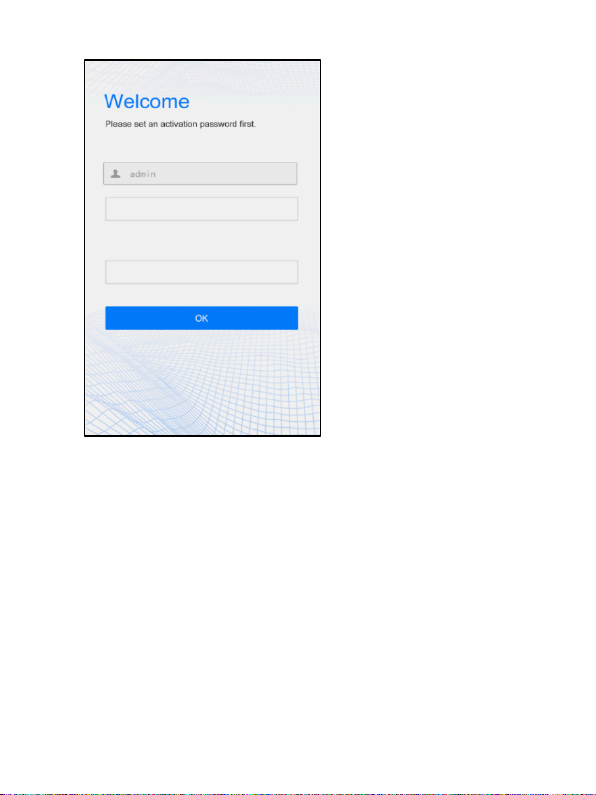
When the face recognition terminal is used for the first time or is restored to default
factory settings, you need to set the activation password, which is used to log in to
the Activation Configuration interface.
The activation password must contain at least eight characters (including at least
two of the following types: upper case letters, lower case letters, digits, underscores,
and hyphens).
Note: The password is consistent with the password for the admin to log in to the
Web interface.
4
3.2 Main Interface
After you configure the activation password, the main interface of the visual
intercom face recognition terminal displays.

5
Measure Forehead Temperature Measure Wrist Temperature
Tips: As shown in the figures above, the numbers in highlighted in the red circles
indicate temperatures. If you see these numbers, it means that the forehead
temperature measurement module or the wrist temperature measurement module
has been connected successfully and working normally.
3.3 Activation Config
Press the main interface of the face recognition terminal for a long period of time
(longer than 3 seconds). On the displayed password input interface, enter the
configured activation password to go to the Activation Config interface.

6
3.3.1 Adding Personnel Information
1. On the Activation Config interface, tap to go to the User Management
interface.
2. Configure personnel information by referring to the table below.
Parameter
Parameter Description and
Configuration
Remarks
Name
Mandatory.
Enter the name of a person.
/

7
Gender
Enter the gender of the person.
Select Male or Female from the drop-
down list. The default value is Male.
/
Card No.
Enter the card No. of the person.
After successful input, the person can
swipe the card for access.
At least one of the
parameters needs
to be set so that
personnel
information can be
input successfully.
Face
Picture
Collect and input face photos.
After successful input, the person can
have the face scanned for access.
3. Perform the following steps to collect a person's face photo:
1) Follow the prompt on the interface and ask the person to face the camera.
2) Tap to collect the face snapshot.
Autres manuels pour JXG-213-F
1
Ce manuel convient aux modèles suivants
1
Table des matières


