
Cota Mobile Phone Manuel utilisateur

1
BELONG, BENEFIT, BE HEARD
COTA MOBILE PHONE
USER GUIDES
EDITION 4 - JUNE 2011

2
These User Guides have been written to help you get the most from your COTA
Mobile Phone.
They provide step-by-step instructions for most of the main features and functions
of the phone.
The Manufacturer‟s User Manual that came with the phone also provides some
instructions for other functions and should therefore be read in conjunction with
these User Guides.
The Manufacturer‟s User Manual is available in large print from
www.cotamembership.org.au, where you can also print each individual User
Guide in this document.

3
COTA MOBILE PHONE
GETTING STARTED
4
COTA MOBILE PHONE
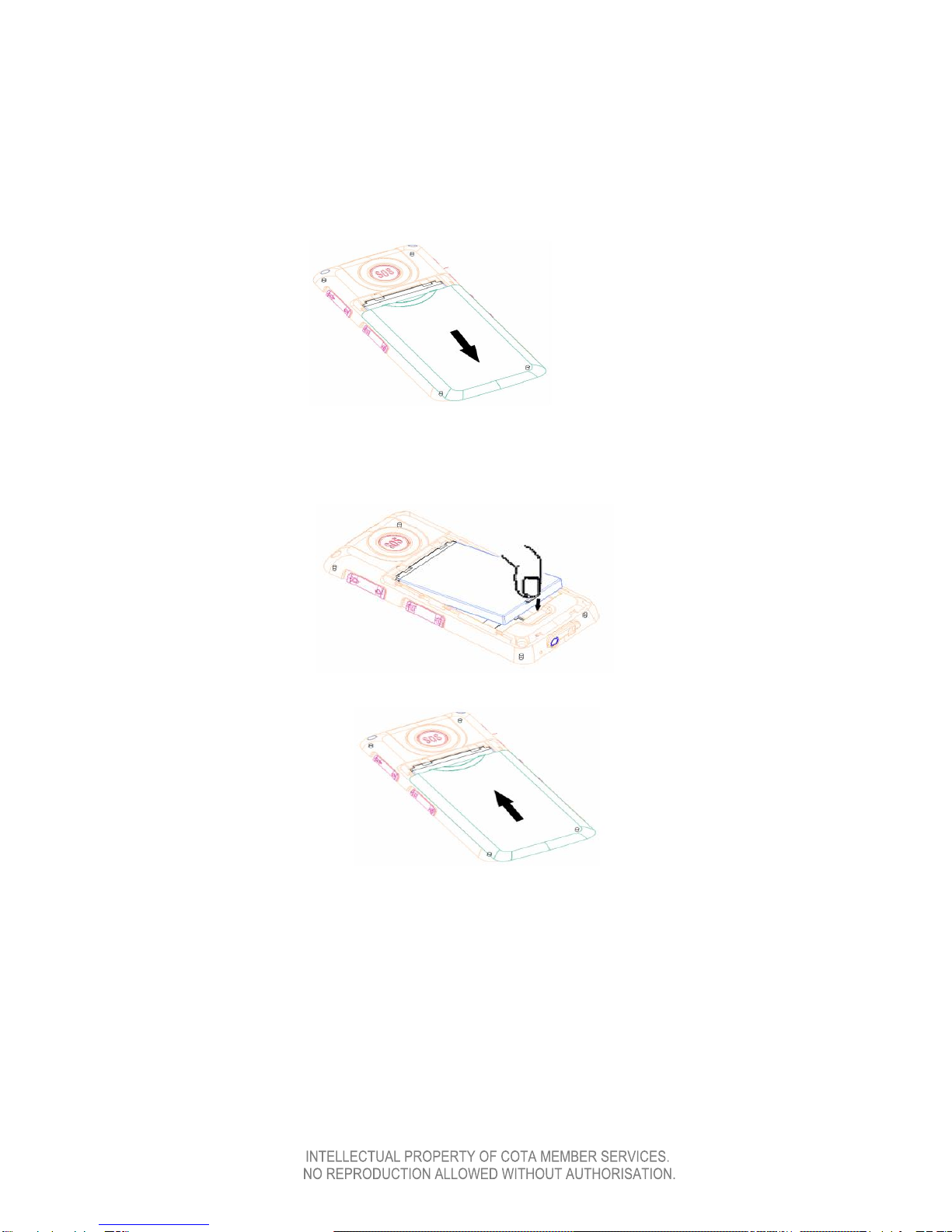
INSERTING THE BATTERY
1. Slide off the battery cover
2. Place the battery in the battery slot, being sure to align the three metal
points of battery facing Downwards and matching with the three metal
connection points on the phone.
3. Slide the battery cover back on, ensuring it clicks into place.
5
COTA MOBILE PHONE
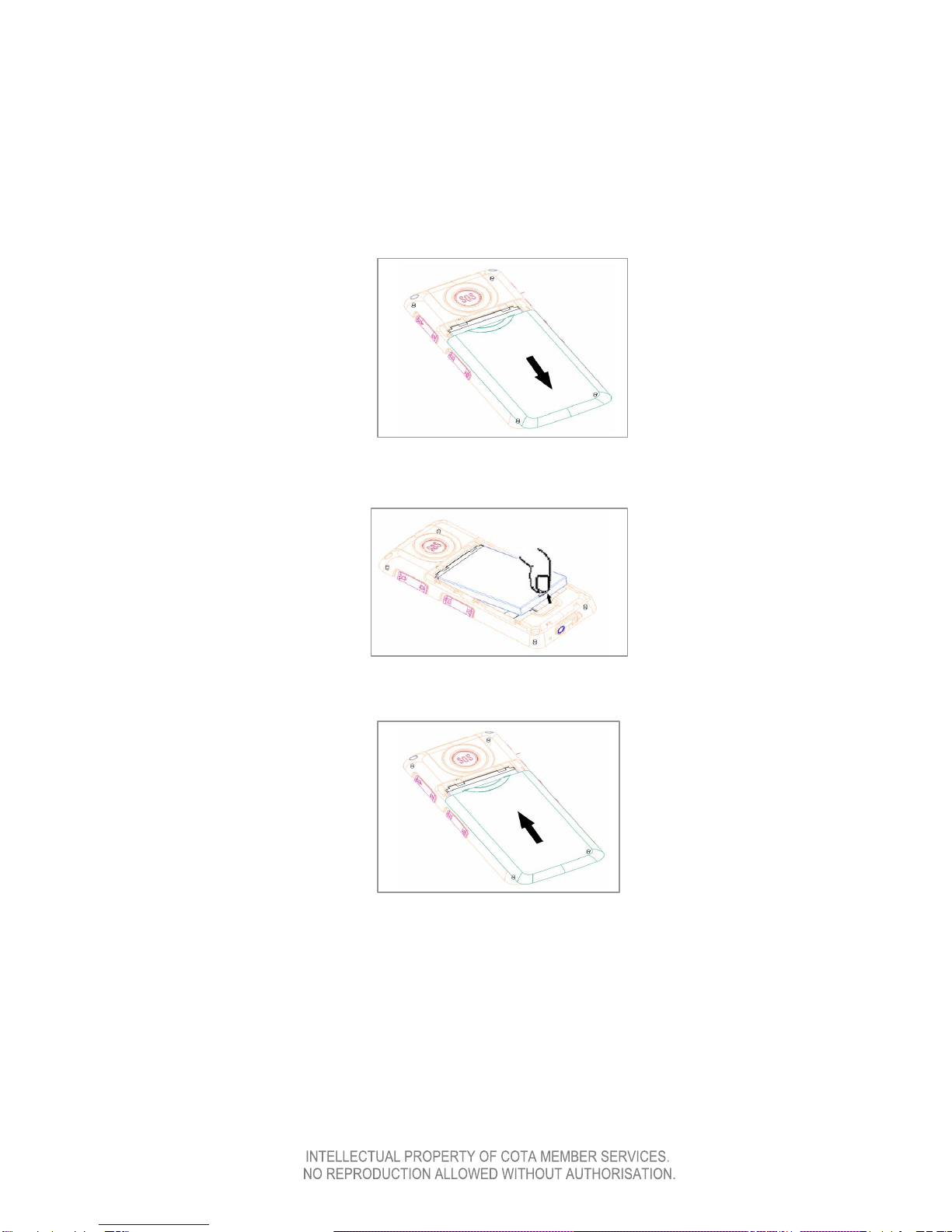
REMOVING THE BATTERY
1. Ensure the phone is switched off (see “Switching off the phone”)
2. Slide off the battery cover.
3. Press on the battery end as shown and lift it up to take it out of the battery
slot.
4. Slide the battery cover back ensuring that it clicks into position.

6
COTA MOBILE PHONE
INSERTING THE SIM CARD
1. Remove the battery cover
2. Remove the battery (see “Removing the battery” if required)
3. Slide in the SIM card with the metal part facing Downward (as shown in
diagram), taking special care not to bend or scratch it. Ensure the SIM card is
completely inserted in right position –it should be laying flat.
4. Replace the battery then the battery cover (see “Inserting the battery” if
required)

7
WHAT TYPE OF SIM CARD CAN BE PUT IN THE PHONE?
NOTE: The COTA Mobile Phone does not come with a SIM Card.
A SIM card is necessary to make and receive calls on a mobile phone. The SIM
card connects the mobile phone to the mobile phone network. When you get a
SIM card it is for a particular phone carrier such as Telstra, Optus and
Vodaphone.
The COTA Mobile Phone is a 2G/GSM mobile phone and is unlocked. This
means it can be used with any SIM card, from any phone carrier, as long as it is
compatible with a 2G/GSM mobile phone.
You can put an existing 2G/GSM SIM card from a phone you may already have in
to the COTA Mobile Phone and continue to use it. Your phone number won't
change.
If you have a SIM card and are unsure if it will work in the COTA Mobile Phone,
check with the provider of your SIM card. They can confirm whether it is
compatible with the COTA Mobile Phone.
You can also purchase a new SIM card to put in the COTA Mobile Phone, as long
as it is compatible with a 2G/GSM mobile phone.
The COTA Mobile Phone may also work with a "Next G" or "3G” SIM card.
Again, check with the provider who will confirm whether their Next G or 3G SIM
cards are compatible with the COTA Mobile Phone.
2G/GSM isn‟t inferior to Next G/3G, nor will 2G/GSM become obsolete or
disappear. 2G/GSM is the technology that underpins most of the world's mobile
phone networks. The Next G/3G network enables mobile phones to perform
many enhanced features such as internet surfing and video calling - which the
COTA Mobile Phone doesn‟t have.
SIM cards can be bought from phone shops such as Crazy Johns or All Phones
or directly from the phone carrier retailers such as Telstra, Optus and Vodaphone.
There are two options to purchase a SIM card, pre-paid or post paid.
Once you have decided on which phone carrier you would like to go with and
have purchased your sim card, you then need to set the phone up to recognise
that phone carrier‟s network.

8
To ensure your phone is configured to your Sim Card‟s network, you need to
follow the steps below. On the phone, go to:
Press the Up arrow key twice to go to the Settings menu; press the green
'Telephone' key to select it
Press the DOWN arrow key twice to go to the Network Settings option; press
the green 'Telephone' key to select it
Press the DOWN arrow key three times to go to the Network Settings option
again; press the green 'Telephone' key to select it
Press the Green 'Telephone Key' when 'Automatic' appears...Selecting" will
appear on the screen
Wait for the phone screen to say "Done"
Press the Red 'Telephone' key repeatedly or press and hold it to get back to
the main screen
This will confirm the phone‟s network and enable to phone to make and receive
calls from your Sim Card.

9
COTA MOBILE PHONE
CHARGING THE BATTERY
You can charge your phone‟s battery at any time, whether it is switched on or off.
1. If necessary, insert the battery (see “Inserting the battery” if required)
2. Plug the small end of the charger into the bottom of the phone as shown.
3. Plug the other end into the powerpoint and switch it on.
When the battery indicator shows it is fully charged (it will stop moving), remove
the charger from the phone.
NOTE:
The phone will sound a low battery alert when the battery power is low and
display “low battery” on the screen. Please charge the battery when you receive
this alert.

10
COTA MOBILE PHONE
SWITCHING ON THE PHONE
1. Ensure the phone has been charged (see “Charging the phone”)
2. Press the Red 'Telephone' key and hold it Down for at least 3 seconds to
switch the phone on.
3. If prompted, type in the PIN code (see “Managing the phone‟s PIN code” for
more information) and press Green 'Telephone' key to enter.
WARNING:
Your SIM card will be locked and you will lose the ability to use the phone if
you type in the wrong PIN code three times.
TURNING THE KEYBOARD LOCK ON AND OFF
1. Turn the phone on (see “Switching on the phone”)
2. Slide the button on the lower side of the phone labeled with the and
symbols, Downward.
3. The display screen will show asymbol alongside the current time.
4. The keyboard is now locked and keys cannot be accidently pressed.
5. To unlock, slide the same button upward.
SWITCHING OFF THE PHONE
1. Press and hold Down the Red 'Telephone' key for 3 seconds to switch off
the phone while it is in standby mode.
(Standby mode is when phone is switched on but you‟re not doing anything
on it at the time)
2. The phone will chime and turn off.
3. You‟ll know it is off when the screen display goes blank.
Autres manuels pour Mobile Phone
1
Table des matières
Autres manuels Cota Téléphone portable


