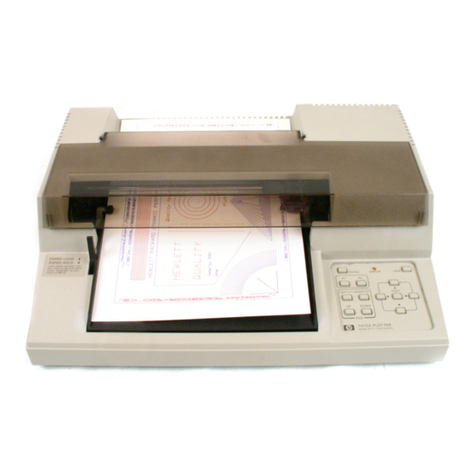
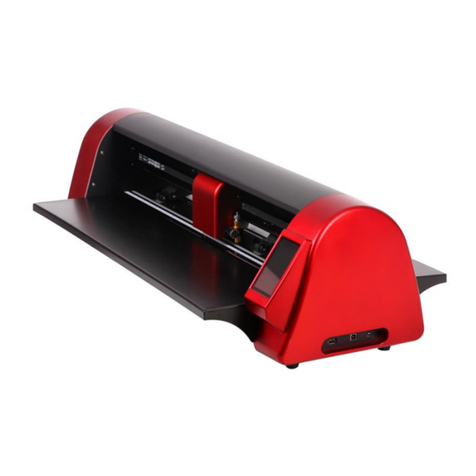
CONTACLIP EMS-eco Manuel utilisateur

©
EMS - eco
Operating Instructions
Release: July 21, 2010
1
EMS -
eco
Easy-Marking-System

1. Introduction...................................................................................................3
2. Items supplied ..............................................................................................4
3. Product overview ..........................................................................................5
4. Set-up ...........................................................................................................6
5. Operation......................................................................................................7
6. Cleaning and product care .........................................................................10
7. Accessories.................................................................................................11
8. Troubleshooting ..........................................................................................12
9.Technical information...................................................................................13
10. Instructions for packaging the plotter EMS-eco .......................................14
11. Safety instructions ....................................................................................15
Plotter EMS - eco
Operating Instructions
2
EMS -
eco
Easy-Marking-System

1. Introduction:
Thank you for purchasing the EMS-eco, a flexible plotter that helps you label marking
elements quickly and easily.
Rugged construction in stylish aluminium
Labelling area A4 size 220 mm x 305 mm
Easy to change fixtures to suit a variety of marking elements
Auto calibration no adjustment necessary
Capable of labelling marking elements up to 10.5 mm in height.
Special solutions for up to 15 mm are possible
Universal power supply of 100-240V AC
The special start-up function for the plotter pens ensures neat labelling right from
the very first marking element
PC interfaces: USB ports
Control language: HPGL
Possible to update EMS-eco software through PC connection and downloading
from the Internet
3

2. Items supplied
Please check you have received all the items supplied with your labelling device
(see list below).
Please retain the packaging in case you need to return the device.
The following items are supplied as standard:
1. Plotter EMS-eco
2. Power supply with corresponding mains power cord
3. USB cable
4. Operating instructions
©
EMS - eco
Operating Instructions
Release: July 21, 2010
1
EMS-
eco
Eas
y
-Markin
g
-S
y
stem
1.
2. 3. 4.
4

3. Product overview
1) Plotting area
2) Pins for holding support plates
3) Clip adapter for plotter pen
4) Penholder
5) Power supply
6) USB port
7) Control panel/control keys
8) Writing arm
9) Plotter pen storage location
10) Interface for optional external devices
34
2
Segment 1 Segment 2
2
87
9
6
5
110
5

4. Setting up the Plotter EMS - eco
LOCATION
A dry, dust-free room is the ideal environment for the plotter. If possible, do not install
the device in damp or very dusty areas. Do not expose the system to direct sunlight.
Please ensure that the connections on the right-hand side of the device are accessible
at all times. Position the EMS-eco firmly on the work surface where it is to be used,
ensuring it is level.
Please ensure that the writing arm can move freely and is not obstructed by other
objects.
CONNECTIONS
Plug the device into a correctly installed mains socket using the power supply included
with the product.
The power supply features a variable AC input voltage of 100-240V~50-60Hz.
The power connection can be replaced by way of adapter plugs.
Plug the connector from the output cable on the power supply into the top right-hand
side of the plotter.
Then hook up the device using the provided USB cable. The respective ports are
located on the right-hand side of the EMS-eco.
6

5. Operation
Once you have installed the EMS-eco and connected the power supply and data
cable, you can switch the plotter on.
Important:
Before switching the device on please ensure that there are no objects on the
writing/plotting area which might prevent the writing arm from moving freely.
All settings and commands are entered using the control panel.
Control Panel
Switch device on/off
Turn off the beep
reminder signal to re-cap
and store the plotter pen
Delete data
downloaded from PC
Pause or stop plotter
activity
ON/OFF buttons
The ON/OFF buttons are used to activate and deactivate the device. When the plotter
is switched on, the writing arm moves to the top right-hand corner of the labelling area
and auto calibration takes place. The green light comes on when the system is ready
for use and to receive data from the PC.
Clear buffer
If the EMS-eco contains data the yellow light will come on. You can delete this data by
pressing the 'Clear buffer' key.
To do this the system must be in stop mode (red light on).
7

Stop/view key
If the 'stop/view' key is activated while the plotter is in action, the job will pause
immediately and the plotter pen will move into the top right-hand corner. The red light
will signal the interruption. Pressing the key again will calibrate the writing arm and the
plotter will continue with the job. The red light will go out.
Beep off key
After completion of the print job an acoustic signal (beep) will notify the user to take
the pen out of the pen holder and re-cap. The signal will be repeated continuously
after 20 seconds and can be turned off by using the 'beep off' key.
Attention:
The pen will clog and dry up if it remains un-capped in the pen holder.
Please note:
To turn off the signal in general please press 'Clear buffer' and 'beep off' together and
press 'ON' to start the plotter.
To re-activate the signal please use the same sequence.
Insert the plotter pen into the pen holder
Before using the EMS-eco, insert the plotter pen with the desired tip width into the clip
adapter of the pen holder.
Important:
Only plotter pens of the types shown with HP-adaption
may be used. Using other plotter pens and writing
instruments may damage the device.
Please note:
Prior to starting the plot, please select the pen with the desired tip width and make
sure to prime the pen on a plastic surface. Insert the pen directly into the pen holder.
The plotter always re-calibrates prior to first plotting.
8

Placing the fixtures on the Plotter EMS-eco
There are four pin stops on the plotting area where up to two different fixtures can be
loaded. Different fixtures are available depending on the size of the marking elements.
They can occupy one or two segments on the plotting area.
Different size fixtures:
Placing the elements in the fixtures
Choose the appropriate fixture for the elements to be labelled and insert the elements
carefully into the fixture. You can also add the elements first and then place the
fixtures on the plotter.
1 segment 2 segments
9

6. Cleaning and product care
Protect the EMS-eco from dust and other dirt. When not in use, cover the plotter.
A special dust cover is available as an accessory.
Wipe the device occasionally after use with a dry, lint-free cloth or a mild cleaning
agent.
Important:
Under no circumstances use harsh cleaning products to clean the plotter.
Never lubricate the mechanical parts of the plotter.
10
Table des matières
Autres manuels CONTACLIP Traceur