Connex CTAB1044hn Manuel utilisateur

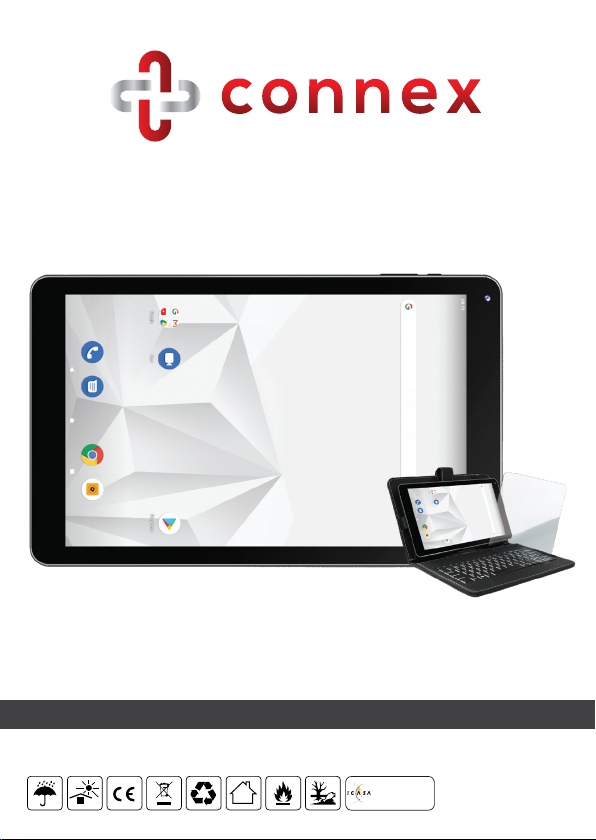
10.1” Mediatek Quad Core Calling Tablet
INSTRUCTION MANUAL
CONNEX CTAB1044hn
Please read and retain these instrucons for future use.
TA-2016/1212
Approved CTAB1044hn

I. Safety Precautions:
1. Please note that this is an advanced technological device with
sensitive components. Avoid dropping the tablet. Avoid rough
handling to prevent damage.
2. To avoid short-circuiting your device, do not allow it to come into
contact with metal objects. To avoid losing important data, we
recommend backing up your device regularly, especially before
you upgrade the firmware or install new applications. The
manufacturer and / or distributor do not take responsibility for loss
of data while using this device.
3. Do not disassemble.
4. Do not wipe the surface of the unit with alcohol, thinners or benzene,
as this may damage the finish or screen of the unit.
5. Do not disconnect the unit while it is formatting or uploading /
downloading, as this may lead to software errors.
6. Please operate this device strictly as per the user guide.
7. Do not allow your tablet to come into contact with water, or insert
foreign objects into the unit.
8. Do not use the unit in places that are extremely hot, cold, dusty,
or humid.
9. Specifications are subject to change and improvement without notice.
Note: The pictures shown in the manual are for reference only. The
design and the specification of the unit are subject to change
without notice.
1

CTAB1044hn
II. Descripon of parts:
1. Micro USB Input
2. Aux Headphone Socket
3. Front Camera
4. Power Button
5. Vol + / Vol –
6. Reset
7. Rear Camera
8. Microphone
9. Speaker
III. Operaon Instrucons
1. Basic Funcons
1.1 SIM Card Installaon
Place the tablet on a flat surface. Ensure the tablet is switched off,
insert the SIM card into the SIM card slot in the direction indicated.
1.2 Power on / Power off
Power on:
Press and hold the power button for 5 seconds; the unit displays
the start-up logo and enters the home screen mode after a
short time.
Power off:
Press and hold the power switch for 3 seconds, then tap Power Off
to turn the unit off.
Sleep Mode:
While the device is on, briefly pressing the power switch will enter
into Sleep Mode, and your screen will turn off. Any applications you
had running, will continue to run in the background. Resume use by
briefly pressing the power button again. You may use this function
when not using the device for a short time, to save power.
1.3 Charging
When the device prompts low battery, please charge it using the
provided charging cable.
2 3
3
1
8
4
7
2
9
5
6

1.4 Main Menu
Swipe up on the touch panel in the main interface and all your
installed applications will be displayed. Swiping to the next screen
will display additional applications. Applications include the
system settings, music player, video player, web browser and many
other applications which were installed on your tablet, plus any new
ones you have installed.
2.1 Date and Time Sengs
Click the “Date & Time” option in the settings interface to set
the date and time. You may set the date, time zone, time, time
format and date format, etc. in the menu.
4 5
2. Sengs
Click the icon in the main
interface to enter the settings
interface.
Click the corresponding
setting items to change settings
to customize the device to your
personal preferences.

2.2 Brightness
Select the “Display” option in the settings interface. Click “Brightness”
to enter the menu, and slide the bar to adjust the brightness. A lower
brightness setting will allow for a slightly longer battery usage time.
3. WiFi Connecon
Under the settings menu click “Network & Internet” and then
click “Wi-Fi” to set and manage wireless access. A list of nearby
available Wi-Fi networks will be displayed. Click the name of the
network you wish to connect to and the settings window will display.
Connect to the Wi-Fi network of your choosing by following the
prompts on the screen. You may be asked to input a user name
and password if the networks are encrypted or protected.
6 7

4. Bluetooth
Under the settings menu click “Connected Devices” to set and
manage Bluetooth devices.
Click “Pair new device”. A list of available nearby Bluetooth devices
will show. Click the name of the device you wish to pair with. Select
device pairing using any pairing code which was supplied with the
Bluetooth device. After a few seconds, the tablet will notify you that
the devices are paired. You can now transfer pictures, movies, music,
etc. with the Bluetooth device.
8 9
5. Install, Uninstall and Run Applications
5.1 Install
There are many ways to install applications under Android™. The
recommended method is using Google™ Play. To access Google Play,
simply click on the Google Play icon and then search for
your selected application and follow the prompts to install it.
Note: You will require a Google account to access Google Play.
Note: You can also install programs using the OTG function of the
tablet, but the manufacturer / distributor of this tablet accepts no
responsibility for software errors using this method.
5.2 Uninstall
To uninstall an application, click “Apps & Notifications” under
Settings and select the application you wish to uninstall. Click on
the Uninstall button to uninstall the application.
6. Browsing the internet
6.1 Ensure you are connected to a network and select the Browser
application. When the browser opens, type the web address of the
site you want to visit and the browser will navigate to that site.
6.2 Click the icon to enter bookmark view to see the browser history.
Click the web page you want to open. To save a web page into a
bookmark, you may click the icon to enter and click “Add” to
save it.

7.2. Video Playback
Click the Gallery application in the main menu to view a list of all
your photos and videos. Click on the file name or thumbnail to
view it. While the video is playing, touch the screen to open the
playback icons and click the relevant icon to Play / Pause /
Adjust Volume / Skip files, etc.
10 11
7. Audio and video playback
7.1. Audio playback
Select the Music application in the main menu to enter the audio
playback interface. It will list all the audio files in the device, and you
may click the file name to play it. In the audio playing interface,
click the relevant icons to PLAY/ PAUSE, etc.

8. Picture Viewing
Click the Gallery application in the main menu to view a list of all your
photos and videos. Click on the file name or thumbnail picture to view it.
Touch the screen to open the operation icons while viewing the picture
to Zoom in / Zoom out / Skip to next picture / Delete the picture, etc.
9. Camera
Click Camera in the main interface.
9.1 Camera
Click the icon to take the picture.
Click the icon to set the Scene Mode, Picture size,
Picture quality, and color effect.
Click the icon to select the rear or front camera.
12 13

10.4 3G Data Network
To use the tablet for 3G Data, please ensure that you have a valid
SIM card installed with Data available. Place the tablet on a flat
surface. Ensure the tablet is switched off, open the bottom shell,
and insert the SIM card into the SIM card slot in the direction
indicated. The 2G / 3G network signal icon will show after
entering the system. Since you can only choose either 2G / 3G or
Wi-Fi, you must turn off Wi-Fi first. Select Settings “Network &
amp; Internet” Mobile networks to setup your 3G Data Network.
11. Connecng to an External Device
11.1. Connect with PC
Connect the device to a computer via the USB cable. Your
computer will detect the tablet and you will be able to browse
your files in the My Computer menu of your computer.
9.2 Video
Click the icon to take video.
Click the icon to set the color effect or restore to default settings.
10. 3G calling
To use the tablet for 3G calling, please ensure that you have a valid
SIM card installed with available airtime.
10.1 Phone
Place the tablet on a flat surface. Ensure the tablet is switched
off, open the bottom shell, and insert the SIM card into the SIM card
slot in the direction indicated.
Turn on the device. The 3G network signal icon will show
after entering the system. Click the icon to enter the
"phone" function.
There are 3 opons:
1. Phone:Enter the phone number you wish to call and then click
the icon to dial.
2. Call log: Check the call history in the call list and dial the number
again.
3. Contacts: Click the name of the contact to dial.
10.2 Contacts
Click the icon to enter the Contacts function. Click the icon to
add an account, Click the icon to pop up options to Delete contacts,
Contacts to display, Import/Export, Groups, Accounts, Settings,
Share visible contacts. You may make the corresponding selections
based on your requirements.
10.3 Messaging
Click the icon to enter the Messaging function, click the icon
to create a new message, click the icon to Search messaging.
Click the icon to enter the settings menu. You may make the
corresponding selections based on your requirements.
11.2. Using an OTG or SD Card
This tablet supports removable devices with FAT32 formats, such
as a USB flash drive. Connect the USB flash drive to the tablet
using the supplied OTG cable. Your tablet will recognize the
USB flash drive and a menu will open allowing you to browse the
files on the USB flash drive.
15 16

The OTG function will also allow the connection of a USB mouse or
keyboard to the tablet. Your tablet can support an additional Micro SD
card with a capacity of up to 64 GB. To insert the card, please first
ensure the tablet is switched off and on a flat surface. Insert the Micro
SD card into the slot. When turning on the tablet after insertion of the
Micro SD card, the tablet will recognize it and it will be available for
use. To view what is on the Micro SD card, you can use the File
Manager application.
12. GPS
Click Settings in the main interface and click Location to enter the
Location Access Setting interface. Allow the tablet to use the GPS
for Location Services.
17 18
Table des matières


