
CompanionLink Software Linea 1 Guide de démarrage rapide

CompanionLink User's Guide
© COPYRIGHT 2001 BY COMPANIONLINK SOFTWARE, INC. ALL RIGHTS RESERVED.
CompanionLinkisaTrademarkofCompanionLinkSoftware,Inc. Otherbrandsaretrademarksoftheirrespectiveholders.

License Agreement
COPYRIGHT. CompanionLinkandallproductscreatedbyCompanionLinkSoftware,Inc.(theSoftware)areownedbyCompanionLinkSoftware,
Inc. and are protected by United States copyright laws and treaty provisions. By purchasing this software, you are agreeing to be bound by the
termsof this license. Ifyoudo not agree withthislicense, you may returnallmaterials to CompanionLinkSoftwarewithin 30 days forafull refund.
GRANTOFLICENSE. WithyourpurchaseofCompanionLink,Co
mpanionLinkSoftwaregrantsyoutherighttoinstallandusetheprogramfor the
specific number of people that have purchased licenses (i.e. a single license is for one person, and a five-
userlicenseisforfive people). You may
install CompanionLink on
multiplecomputers, or use it withmultiple organizers, providedthat each installation isspecifically for thecorrect number
of licensed users.
RESTRICTIONS. Youmay not make copies of thisguide,orofanypagein this guide, without written permis
sion from CompanionLink Software.
You may not decompile or reverse engineer the Software.
MEDIAREPLACEMENT. CompanionLink Software warrantsthe physicalmedia on which thesoftware isdistributed. Any such media thatisnot
readable in any way will be replaced without charge.
GOVERNING LAW. The laws of the State of Oregon govern this license agreement.
RIGHTS. CompanionLink Software retains all rights not expressly granted. Nothing in this license agreement constitutes a waiver of
CompanionLink Software's rights under U.S. Copyright laws or any other Federal or State law.
Limited Warranty
LIMITED WARRANTY. CompanionLink Software warrants that the Software will perform substantially in accordance with the accompanying
writtenmaterials for a pe
riodof90days from the date of receipt. Any implied warranties on the software are limited to 90 days. Some states do not
allow limitations on duration of an implied warranty, so the above limitation may not apply to you.
CUSTOMER REMEDIES. CompanionLink Software's entire liability and your exclusive remedy shall be, at CompanionLink Software's option,
either (a) return of the price paid or (b) repair or replacement of the software that does not meet CompanionLink Software's Limited Warranty and
which
is returned to CompanionLink Software with a copy of your receipt. This Limited Warranty is void if failure of the software has resulted from
accident, abuse, or misapplication. Any replacement software will be warranted for the remainder of the original warranty period or 30 days,
whichever is longer.
No other warranties. CompanionLink software disclaims all other warranties, either expressed or implied, including but not limited to implied
warrantiesof merchantability and fitness for aparticularpurp
ose,withrespecttothesoftwareandtheaccompanyingwrittenmaterials.This limited
warranty gives you specific legal rights; you may have others which vary from state to state.
No liability for consequential damages. In no event shall companionlink
software or its suppliers be liable for any damages whatsoever (including,
without limitation, special, indirect incidental or consequential damages, damages for loss of business profits, business interruption, loss of
business information, or other pecuniary loss) arising out of the use of or inability to use this product, even if companionlink software has been
advised of the possibility of such damages. Because some states do not allow the exclusion or limitation of liability for consequential or incide
ntal
damages, the above limitation may not apply to you.
i

Table of Contents
GettingStarted……………………....………………………………………………………………… 1
Installation…………………………………...…………..………….………………………………….. 3
RunningCompanionLink…………………………………………………………………………….. 6
CategoryManager……………………………………....….…………………………………………. 13
CompanionLinkSynchronize……………………………………………………………………….. 17
SpecialNoteforWinCE/PocketPCDevices..…………..…………………………………………. 17
Index………………………………………………………………….………………………………….. 18
©Copyright2000byCompanionLinkSoftware, Inc. All Rights Reserved.
CompanionLinkisaTrademarkofCompanionLinkSoftware,Inc. Otherbrandsaretrademarksoftheirrespectiveholders.
CompanionLink Software, Inc.
P.O. Box 1660
/ 340 Pacific Ave.
Brookings, Oregon 97415
(541) 412-
0300
www.companionlink.com

Technical Support
Technical support for all purchased products is available free of charge by calling
our technical support department.
CompanionLink Software, Inc.
Hours: 7:00 a.m. to 4:00 p.m. Pacific Time, M-F
Support: (541) 412-0300
Fax: (541) 412-0500
Email: [email protected]
Visit our Website: http://www.companionlink.com
Online Step Guide: http://www.companionlink.com/CL SetupGuide.html
Online Knowledge Base: http://www.companionlink.com/knowledge.html
CompanionLink Software, Inc.
P.O. Box 1660 / 340 Pacific Ave., Brookings, Oregon 97415

GETTING STARTED
Thank you for purchasing CompanionLink. CompanionLink is a new generation
synchronization tool that moves contact, calendar, to-do and memo information from your
contact manager to many types and brands of handheld organizers.
FOUR-STEP QUICK-START
STEP 1: Install the software that is supplied with your handheld organizer onto your
computer.
STEP 2: Start the software that is supplied with your handheld organizer. In the desktop
application, enter an appointment for 10:00 a.m. Configure your synchronization
options and then run the synchronization software with the handheld organizer,
except Psion and OnHand. For Psion, run “Backup.” Make sure the appointment is
at 10:00 a.m. on the handheld.
PLEASE DO NOT INSTALL OR RUN COMPANIONLINK UNTIL YOU KNOW THAT
YOUR HANDHELD DESKTOP MANAGER IS INSTALLED AND WORKING.
STEP 3: Install CompanionLink. Configure via “Settings” to select your handheld organizer
and main personal information manager. For more detailed setup, select
“Category Manager” and “Application Settings” for each of the handheld
applications –Address Book, Datebook, ToDo List, and Memo (if applicable).
STEP 4: For Palm OS organizers, press the HotSync button to synchronize data. For
all other organizers, press the “Synchronize” button on the main CompanionLink
screen.

HOW COMPANIONLINK WORKS
CompanionLink synchronizes your information between your contact manager and your
handheld organizer. CompanionLink can transfer data from your contact manager to your
handheld, from your handheld to your contact manager, or both.
CompanionLink reads data directly from your Contact Manager and launches the
synchronization process that performs the data transfer to and from the handheld. Because
the synchronization process is automatic, CompanionLink runs as a "One-Step" procedure.

INSTALLATION
BEFORE INSTALLING COMPANIONLINK
Before installing CompanionLink, you must install the desktop software that came with your
handheld device.
For Palm OS devices, Palm Desktop must be installed.
For VTech Helio, CellVic and OnHand, install the connection software that came
with your handheld device.
For organizers using the Windows CE/Pocket PC operating system, be sure that
Active Sync 3.0 or higher is installed. Further, Outlook 97/98/2000/2002 or
Schedule Plus 7.0a/7.5 must be installed as the desktop application.
For Psion/EPOC organizers, install PsiWin version 2.2/2.3.
For other handheld devices, install the connection software that came with
your organizer.

TEST THE ORGANIZER CONNECTION
Before installing CompanionLink, you should test the synchronization system by entering a
small amount of data and making sure it moves correctly to the handheld organizer.
Open the desktop software that came with your handheld device. In the Calenar application,
enter an appointment for 10:00 am. Next, select the process for synchronization.
For Palm OS devices, press the HotSync button.
For Windows CE/Pocket PC devices, open Active Sync and click the “Sync”
button.
For Vtech Helio, Start Vsync manager on the handheld. Push the Sync button on
the cradle, then OK.
For CellVic select Applications on handheld. Select AutoSync >> Start
For Psion, run straight “Backup”.
For OnHand, place unit in docking station and view the data in the desktop.
Once the synchronization is complete, check the following:
1) Is the appointment on the handheld?
If not, check your connections and synchronization settings, then correct them to
ensure the appointment is synchronized.
2) Does this appointment appear at 10:00 a.m. on the handheld?
If not, check your Windows time zone settings. Be sure that they match the time
zone settings on the handheld device. Some organizers are highly sensitive to
time zone and "local time" settings.
When you can properly transfer a single appointment from the desktop application to the
handheld organizer, then you are ready to install CompanionLink.
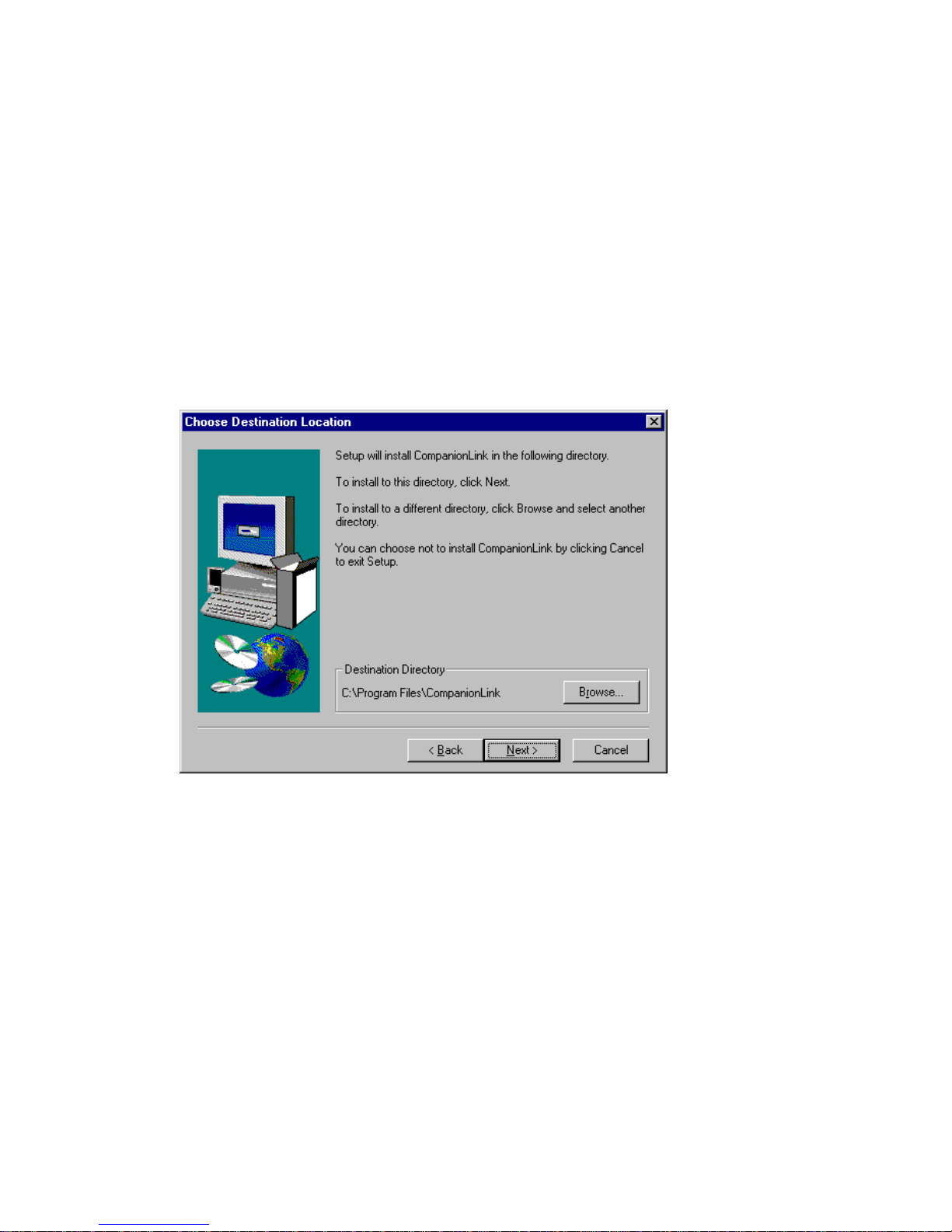
COMPANIONLINK INSTALLATION
Place the CompanionLink disk #1 in the floppy disk drive. From the Windows Start bar, select
Start >> Run and type “A:/Setup”. Select OK and run the installation program.
NOTE: COMPANIONLINK SUPPORTS WINDOWS 95/98/ME/NT/2000/XP. COMPANIONLINK
DOES NOT RUN UNDER WINDOWS 3.1 OR MACINTOSH OPERATING SYSTEMS.
The InstallShield Wizard will prompt you for the information necessary to complete the
installation process. It is best to install C
ompanionLink to the default location. An icon will be
placed on the desktop as well as in the Programs menu to run CompanionLink.

RUNNING COMPANIONLINK
The CompanionLink icon can be found in the Start menu using Start >> Program Files >>
CompanionLink. Double click on the icon to run the program.
SETTINGS This button allows you set options for your handheld organizer,
personal information manager, transfer method and other functions.
CATEGORY MANAGER Customize synchronization and select additional features. If you have
CompanionLink Professional, you will be able to select additional data
files and contact managers.
SYNCHRONIZE
This button launches the synchronization process for some organizers.
With Palm OS devices, start synchronization by pressing the HotSync
button on the docking station.
Ce manuel convient aux modèles suivants
5
Table des matières
Manuels Logiciel populaires d'autres marques


PS Audio
PS Audio PowerPlay Manuel du propriétaire

Brady
Brady LOCKOUT PRO 3.0 Manuel de service

Avaya
Avaya Interaction Center Manuel utilisateur

Texas Instruments
Texas Instruments TI-83 Plus Silver Edition Manuel

Novell
Novell GROUPWISE 8 - INTERNET AGENT Manuel utilisateur

Oracle
Oracle Application 9i Manuel utilisateur

Acer
Acer RDM Manuel utilisateur

Canon
Canon Vixia HF21 Manuel utilisateur

Canon
Canon ZR950 Manuel utilisateur

Samsung
Samsung Auto Backup Manuel utilisateur

Polycom
Polycom Vortex EF2201 Instructions d'installation et d'utilisation

Brocade Communications Systems
Brocade Communications Systems Brocade 8/12c Manuel utilisateur