
Compalcomm Penguin Lite CAP8 Manuel utilisateur
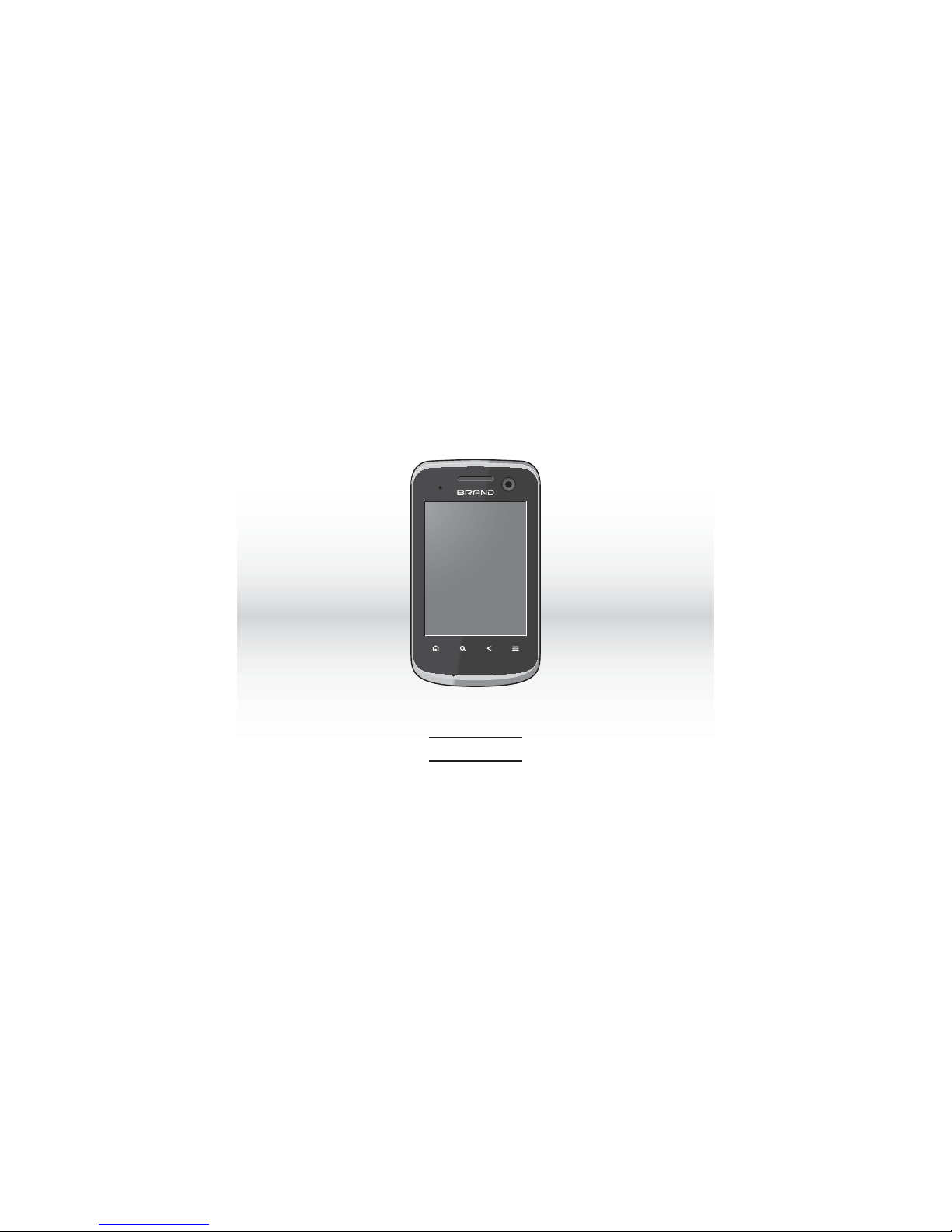
User Guide
COMPALCOMM
Penguin Lite
CAP8

2
Contents
Your Phone ................................ 3
Home Screen ........................... 12
Text Entry ................................ 17
Calls ......................................... 23
Contacts ................................... 26
Messaging ............................... 31
Email ........................................ 36
Gmail ........................................ 41
Google Talk .............................. 44
Photos & Videos ...................... 46
Music ....................................... 55
Wireless Connections .............. 58
USB Connections ..................... 61
Internet .................................... 62
Maps ........................................ 66
Latitude .................................... 70
Navigation ................................ 73
Android Manager Agent ........... 73
Android Market™ ..................... 73
YouTube™ ............................... 75
Facebook ................................. 78
Twitter™ .................................. 81
News and Weather .................. 83
Quickoffice .............................. 85
Calendar ................................... 89
Clock ........................................ 92
FM Radio ................................. 94
Calculator ................................. 95
Sound Recorder ....................... 96
Speech Recorder ..................... 96
Voice Dialer .............................. 97
Settings ................................... 97
Safety & Regulatory ............... 107

3 Your Phone
Your Phone
Phone Overview
1. Earpiece
Listen to the phone conversation from
here.
2. Camera
Use for video calls.
3. LED indicator
See “LED Indicator” on page 7.
4. Touch screen
5. Home key
Touch to go to the Home screen.
6. Search key
Touch to use Google search.
7. Menu key
Touch to open menu options.
8. Back key
Touch to go back the previous screen.
9. Microphone
1
3
4
2
7
5
9
68

Your Phone 4
1. Power button
-Press and hold to turn the device on.
-When the device is turned on, press and
hold, then select Power off to turn the
device off.
-Press to turn the screen backlight on or off.
2. Earphone jack (3.5mm)
Connect the earphone for a hands-free
conversation or to listen to music.
3. Camera
See “Photos & Videos” on page 46.
4. Volume buttons
-Press up to raise or press down to lower
sound volume.
5. Back cover
6. Memory card slot
Insert a memory card to increase device memory. See “Storage Card” on
page 7.
7. Strap holder
8. USB connector
-Connect a USB cable to transfer files to and from a computer.
-Connect the Wall/USB charger to charge the battery.
3
4
5
2
6
1
78

5 Your Phone
Package Contents
•Phone
•USB cable
•Wall/USB charger
•Battery
Battery
Your device comes with a Lithium-ion
battery. Battery consumption
depends on the signal strength,
running applications, and settings
used.
Note: Use only the supplied battery
or batteries recommended by the
manufacturer.
Before installing the battery, you
must remove the back cover first.
To remove the back cover
1. Hold the device face down.
2. Place your
fingernail on
the grip then lift
the back cover.
To replace the
back cover
Align the back
cover to the device
then press the back
cover until it snaps
into place.
Install the Battery
1. Remove the back cover.
2. Insert the
battery with
the metal
contacts facing
those on the
device.

Your Phone 6
3. To replace the back cover.
Remove the battery
1. Make sure the device is turned
off.
2. Remove the back cover.
3. Place your
fingernail on
the grip then
lift to remove
the battery.
Charge the Battery
1. Connect the
USB cable to
the Wall/USB
charger, then
connect the
mini-USB side
of the cable to the connector on
the bottom of the device.
2. Plug the Wall/USB charger into a
wall outlet.
Note: You can also charge your
phone by plugging the USB cable into
your computer and the mini-USB side
into the device.
Warning:
•Do not remove the battery while
it is charging.
•Always remove the Wall/USB
charger from the wall outlet first
before removing the USB cable
from the device.
•Do not disassemble or open the
battery.
•Do not crush, bend, deform,
puncture, or shred the battery.
•Do not immerse the battery in
water or other liquid.

7 Your Phone
LED Indicator
The LED indicator on your device
shows the battery charging status.
SIM Card
Your SIM card contains your
subscription information, phone
number and contacts.
Install the SIM Card
1. Remove the back cover.
2. Remove the battery.
3. Insert the SIM
card into the
slot with the
metal contacts
facing the front
of the device.
Remove the SIM Card
1. Remove the back cover.
2. Remove the battery.
3. Slide the SIM card out of the slot.
Storage Card
Use a compatible microSD™ card for
additional storage space to save your
pictures, videos, and other files.
Install the Storage Card
1. Open the memory card slot
cover.
LED Indicator Status
Red Battery is charging.
Green Battery full.

Your Phone 8
2. Insert the
microSD™card
into the slot
with the metal
contacts facing
the front of the
device.
3. Push the microSD™card until it
snaps into place.
Remove the Storage Card
1. Open the memory card slot
cover.
2. Push the microSD™ card into the
slot to eject card.
Note: Do not remove the memory
card while downloading or saving
files to it. Doing so may damage the
card and cause data loss.
Turn Device On and Off
•Press and hold the Power button
to turn on the device.
•When turned on, press and hold
the Power button, then touch
Power off to turn off the device.
Silent Mode
1. When turned on, press and hold
the Power button.
2. Touch Silent mode to set the
device to silent mode.
To undo silent mode, repeat the
above steps.
Airplane Mode
1. When turned on, press and hold
the Power button.
2. Touch Airplane mode to set the
device to airplane mode.

9 Your Phone
To undo airplane mode, repeat the
above steps.
Note: For safety reasons, some
functions do not work in airplane
mode.
Sleep and Wake Device
To set the device to sleep mode,
press the Power button. The
backlight turns off.
To wake the device, press the Power
button again. The backlight turns on,
and the screen is locked.
Lock and Unlock Device
To avoid accidentally touching the
screen, set the Screen timeout
setting of your device to
automatically lock the screen after
being idle for a period of time. See
“Screen Timeout” on page 101.
To manually lock the touch screen,
press the Power button to set device
to sleep mode and lock the screen.
Unlock the Touch Screen
1. Press the Power button to turn
the backlight on.
2. Drag the lock icon to the right of
the screen to unlock.
Drag to unlock.

Your Phone 10
Adjust the Volume
Your device has the following system
volumes:
•Ringer: Sounds when there is an
incoming call or when a message
is received. Press the volume up /
down buttons to increase/
decrease volume.
•Media: Sounds when music or
video is played. During music or
video playback, press the volume
up/down buttons to increase/
decrease volume.
•In-call volume: The volume level
of a phone conversation. During a
call, press the volume up/down
buttons to increase/decrease
volume.
•Alarm: Sounds when the alarm
goes off. See “Clock” on
page 92.
Do the following steps to adjust the
volume at one time.
1. Touch > Settings > Volume.
2. Drag the Ringtone, Media, or
Alarm slider to adjust its volume.
Note: If “Use incoming call
volume for notifications” is
unchecked, the notification
volume can be adjusted
separately.
3. Touch OK.
Navigate Your Device
•Touch: Touch the screen with
your finger to highlight or select
items on screen or touch the
keys on your device
•Touch and hold: Touch and hold
an item to open its options
window.
Table des matières
Autres manuels Compalcomm Téléphone portable


