Code Courier PW422003 Manuel utilisateur

User’s Guide
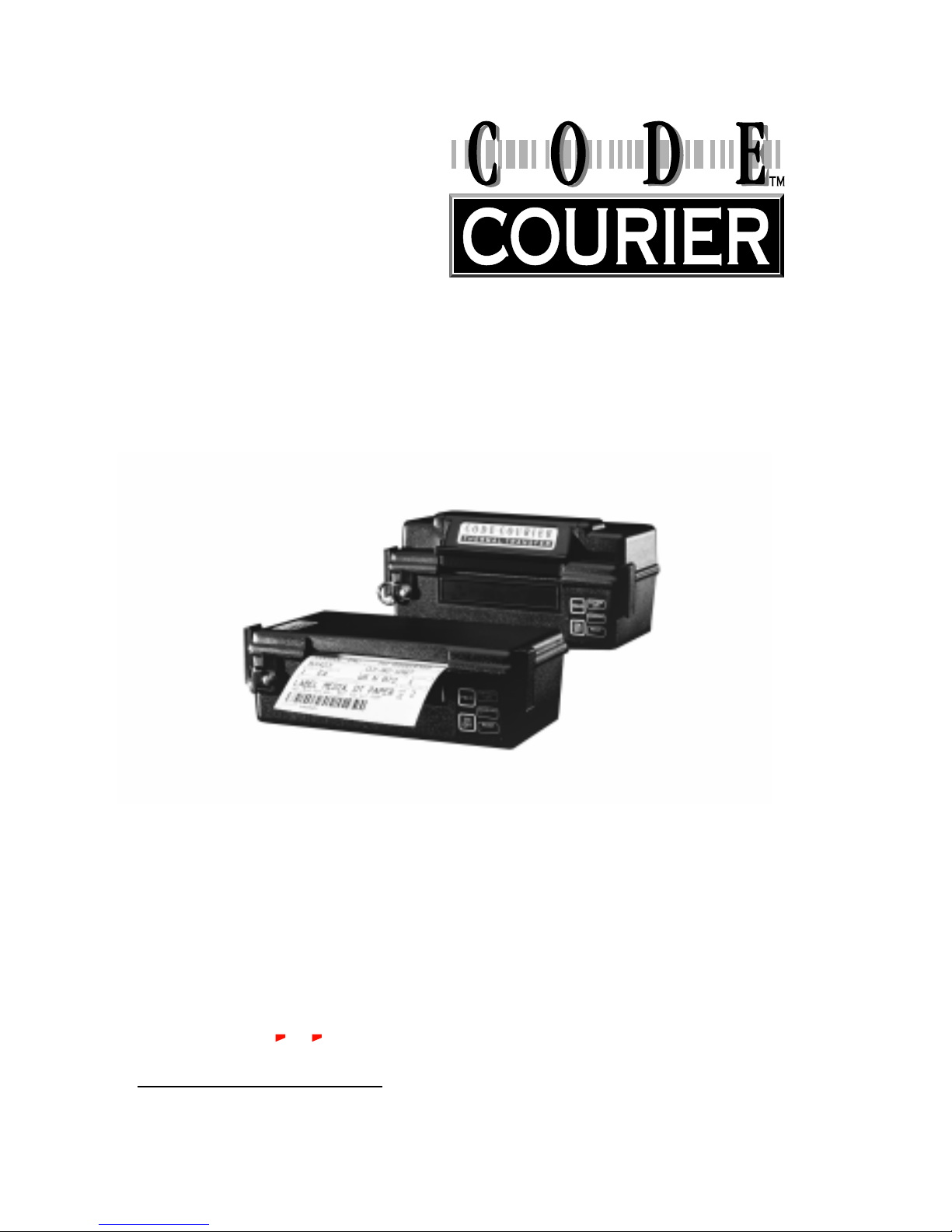
Portable bar code printer
Models PW422003
PT422003
P/N 10-00-0076
REV. F
February 22, 1999
Cognitive
An Axiohm Company
TM

Code Courier printers are manufactured by
Cognitive, an Axiohm Company
691 Corporate Circle • Golden, Colorado 80401
TEL: (303) 273-1400 • FAX: (303) 273-1414
Copyright © 1999 by Axiohm, Inc.
Code Courier®is a registered trademark of Axiohm, Inc. Microsoft®and Windows™ are
trademarks of Microsoft Corporation. Other product and corporate names used in this
publication may be trademarks or registered trademarks of other companies, and are used
only for explanation and to their owner’s benefit, without intent to infringe.
All information in this manual is subject to change without notice, and does not represent
a commitment on the part of Axiohm, Inc. No part of this manual may be reproduced for any
purpose or in any form, including electronic storage and retrieval, without the express
permission of Axiohm, Inc.
FCC Notice
This equipment has been tested and been found to comply with the limits for a Class A
digital device, pursuant to Part 15 of the FCC Rules. These limits are designed to provide
reasonable protection against harmful interference when the equipment is operated in a
commercial environment. This equipment generates, uses, and can radiate radio frequency
energy and, if not installed and used in accordance with the instruction manual, may cause
harmful interference to radio communications. Operation of this equipment in a residen-
tial area is likely to cause harmful interference in which case the user will be required to
correct the interference at his own expense.
CE Notice
Warning
This is a Class A product. In a domestic environment this product may cause radio
interference in which case the user may be required to take adequate measures.
Note:
This manual does not contain printer programming
information. Printer drivers for Microsoft Windows 95, NT,
or 3.1/3.11 are supplied with every Code Courier printer.
The supplied drivers lets users print labels from within their
favorite Windows applications, without programming.
Further information on this software is on page 23.
For those who want to control their printer directly, a file
called PROGGDE.HLP on the drivers disk contains printer
programming information in Windows Help format. You can
load and read this file using WINHELP.EXE provided with
Microsoft Windows 3.1 or above. Please refer to your
Windows documentation if you do not know how to do this.
If you need programming information and are not using
Windows (or cannot read the Help file for any other reason),
contact our Technical Support Services Organization for
assistance. Contact information is on page 22.

1
Contents
PRINTER SPECIFICATIONS.......................................................................... 2
SUPPLIED AND OPTIONAL ACCESSORIES ................................................ 3
CONTROLS, INDICATORS, AND CONNECTIONS ..................................... 5
COMMUNICATION PORT .......................................................................... 6
SETUP.......................................................................................................... 7
Opening and closing the printer ...................................................7
Installing the battery ....................................................................7
Charging the battery .....................................................................8
Loading labels or tags ...................................................................8
Installing thermal transfer ribbon .............................................10
Selecting the print mode and index method ..............................10
Printing a self-test label .............................................................. 11
USING THE PRINTER ................................................................................. 12
Turning the printer on and off ....................................................12
Feeding blank labels ................................................................... 12
Sending data to the printer ........................................................12
Automatic power management features ....................................13
ROUTINE MAINTENANCE ........................................................................ 15
WHAT TO DO IF... ..................................................................................... 17
Printer will not turn on ...............................................................18
Printer will not turn off ...............................................................18
Printer shuts off by itself ............................................................18
Printing stops ............................................................................... 18
Printer will not feed a label ........................................................19
Printer feeds too many labels .....................................................19
Host stops responding
or displays “printer not ready” message ..............................19
Poor print quality ........................................................................20
Labels do not peel from backing in peel back mode ..................20
Low battery indicator flashes continuously during charging ..20
Battery does not charge properly or will not hold a charge .....20
Printer prints an error label .......................................................21
Printer speaker beeps continuously ........................................... 21
TECHNICAL SUPPORT .............................................................................. 22
APPENDIX A: SUPPLIED SOFTWARE ......................................................... 23
APPENDIX B: RECOMMENDED PRINT MEDIA ......................................... 24

2
Print method: PW422003:
Direct thermal
PT422003:
Thermal Transfer
Print pitch: 203 or 101 DPI,
programmable
Print speed: 1, 1.5, or 2.5 IPS,
programmable
Max. media width: 4.25" 108mm
Min. media width: 2.4" 61mm
Max. media roll
diameter: PW422003:
2.15" 55mm
PT422003:
1.9" 48mm
Max. print width: 4.1" 104mm
Max. print length*: 6" 152mm
Min. form length: 0.25" 6.35mm
Min. label repeat
distance: 0.375" 9.5mm
Installed RAM: 122 kB image buffer
4 kB (default) text
buffer
Communications: RS232 serial
Indexing method: PW422003:
black bar or gap
PT422003:
black bar in DT mode;
black bar or gap in TT
mode
Text fonts: 3X5, 5X7, 8X8, 9X12,
12X16, 18X23, 24X31,
UltraFont A, B, and C
Text rotation: 0o, 90o, 180o, 270o
Graphics: Raster
Bar codes: UPCA/E/E1, ADD2/5,
EAN8/13/128, Code39,
I2OF5, Code128A/B/C,
CODABAR, Plessey,
MSI, MSI1, PDF417,
MaxiCode
Bar code rotation: 0oand 90oclockwise
Power: Internal 14.4 VDC
nicad battery except
fork lift models, which
require external 24 to
36 VDC
Battery capacity: 0.850 amp-hours @ 5
hour rate
Battery weight: 0.64 lbs. 0.29 kg.
Self discharge: Typically retains a
charge for 6 months
Battery protection: Continuous battery
monitor with automatic
low power shutoff to
prevent deep discharge
Labels per charge: 250 4.25"x 3"labels at
30% density in
standard conditions;
more than 500 in many
applications
Battery charger: Input: 120 VAC or 90 to
230 VAC (as ordered),
60 Hz 15 W
Output: 18 VDC 500
mA
Environmental: Operating: -20oto 50oC
5-85% non-condensing
relative humidity
Storage: -25oto 60oC
0-85% non-condensing
relative humidity
Size: PW422003:
8.4"H x 4.75"W x 2.75"D
213 x 121 x 70 mm
PT422003:
8.4"H x 4.75"W x 4"D
213 x 121 x 102 mm
Weight: PW422003:
3.0 lbs. 1.36 kg
PT422003:
3.3 lbs. 1.5 kg
(with battery, without
media)
*Maximum print length is at maximum width and pitch with default memory settings.
PRINTER SPECIFICATIONS

3
SUPPLIED AND OPTIONAL ACCESSORIES
Supplied accessories
Software: Intellidriver printer
drivers for Windows 95,
NT, and 3.1/3.11
Miscellaneous: Shoulder strap
Battery*: 14.4 VDC, 850 mAh,
P/N 90-12-0011
Battery charger*: 120 VAC input,
P/N 71-12-0051
or
90 to 240 VAC input,
P/N 90-12-0070-01
Power adapter* 24 to 36 VDC input
* The spare battery holder and spare paper
holder are for use with the all weather
holster.
Optional accessories
Cables:
DB9 to DB9: P/N 90-88-0079
DB9 to DB25: P/N 90-88-0078
RJ45 to RJ45: P/N 61-00-0026
Adapters:
RJ45 to DB25f: P/N 90-12-0017
RJ45 to DB25m: P/N 90-12-0018
RJ45 to DB9f: P/N 90-12-0016
Extra battery: P/N 90-12-0011
Universal carrying case: P/N 90-12-0031
Carrying handle: P/N 71-12-0003
Carrying strap: P/N 71-12-0050
All weather holster: P/N 71-12-0032
Spare battery holder*: P/N 71-12-0059
Spare paper holder*: P/N 71-12-0060
Fork lift mount kit: P/N 98-12-0000
Five slot drop-in
battery charger: Model SC5000
Other: Annual service contract
* Battery and power supply are not included
with fork lift printers. The power adapter is
supplied only with fork lift printers.

4
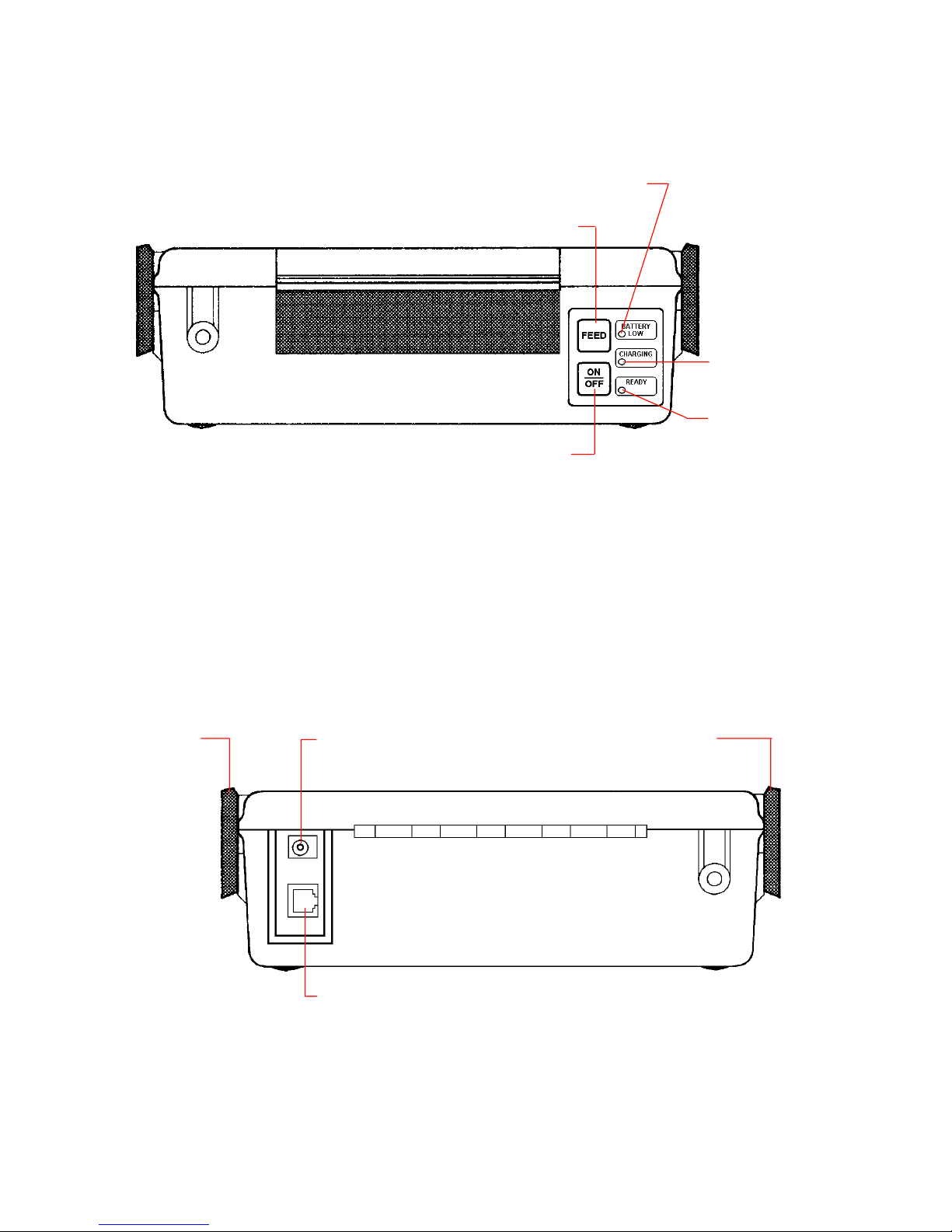
Figure 1. Code Courier front view
Figure 2. Code Courier rear view
ON/OFF button
FEED button
LOW BATTERY
indicator
CHARGING
indicator
READY
indicator
Charge jackCover clip Cover clip
Serial port

5
CONTROLS, INDICATORS, AND CONNECTIONS
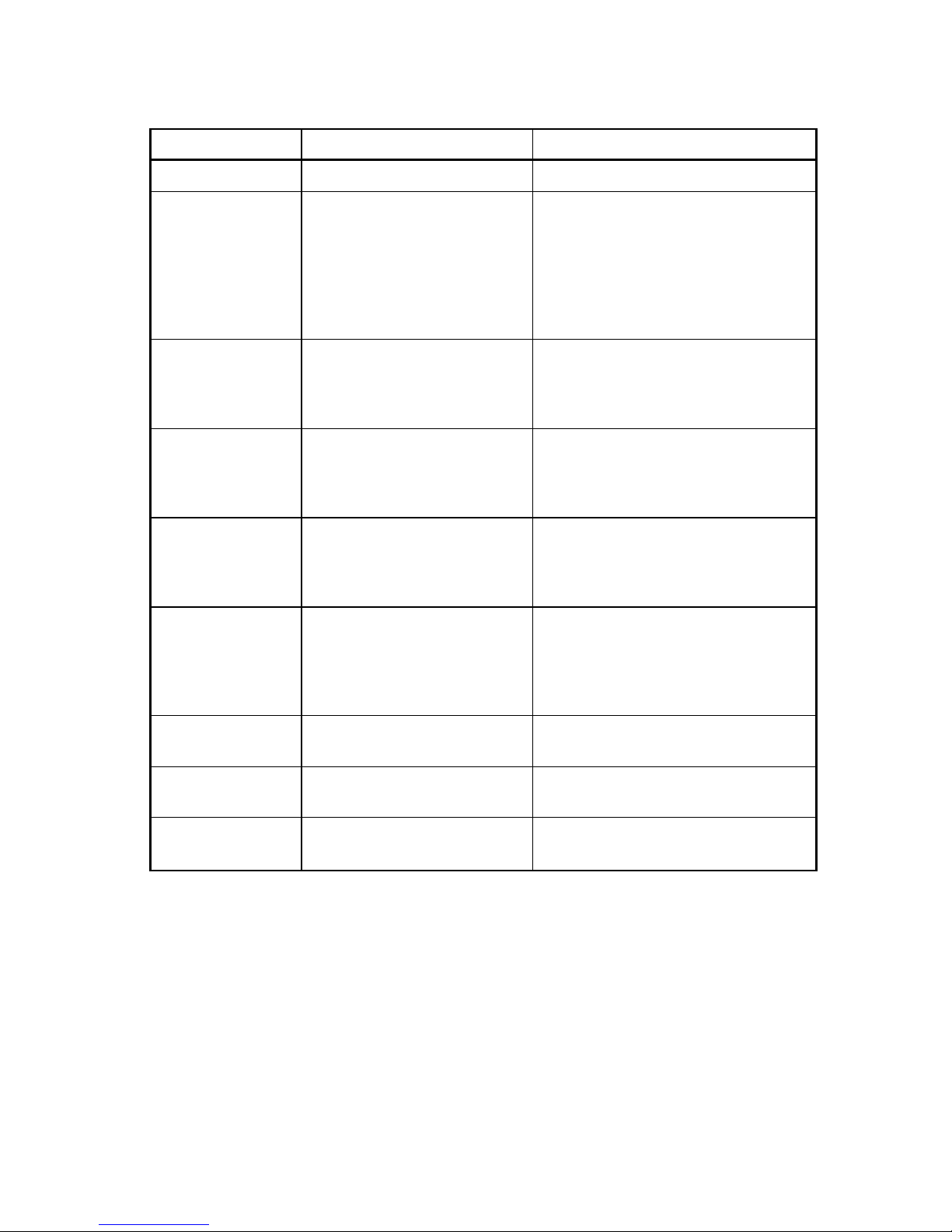
Device name Primary function Use
ON/OFF button Controls printer power PRESS - turns printer ON/OFF
FEED button Advances print media PRESS - to advance media
PRESS and HOLD while turning unit
ON - prints test label and activates
hex dump mode - cycle power to
resume normal printing
PRESS - to pause or resume batch
mode printing
LOW BATTERY Shows battery status OFF - normal condition, battery
indicator adequately charged for use
RED - battery needs recharging;
printer will shut off in 30 seconds
CHARGING Shows battery is charging OFF - normal status - no charger
indicator connected or battery fully charged
YELLOW - charger connected and
battery charging
READY indicator Indicates printer is ready to GREEN flashing - printer on and
print labels ready
OFF - low battery, battery charging,
or printer turned off
Speaker (internal) Signals printer status 1 BEEP - power on/battery OK
2 BEEPS - power off
3 BEEPS - out of paper
7 BEEPS - low battery
LONG or LOW TONE - error
Charge jack Connects to battery charger Connect to battery charger supplied
with printer
Serial port (RS232) Data input DB9 or RJ45 female connector for
connection to host controller
Cover clips Hold printer cover closed PULL bottom of clips away from
printer body to release cover

6
COMMUNICATION PORT
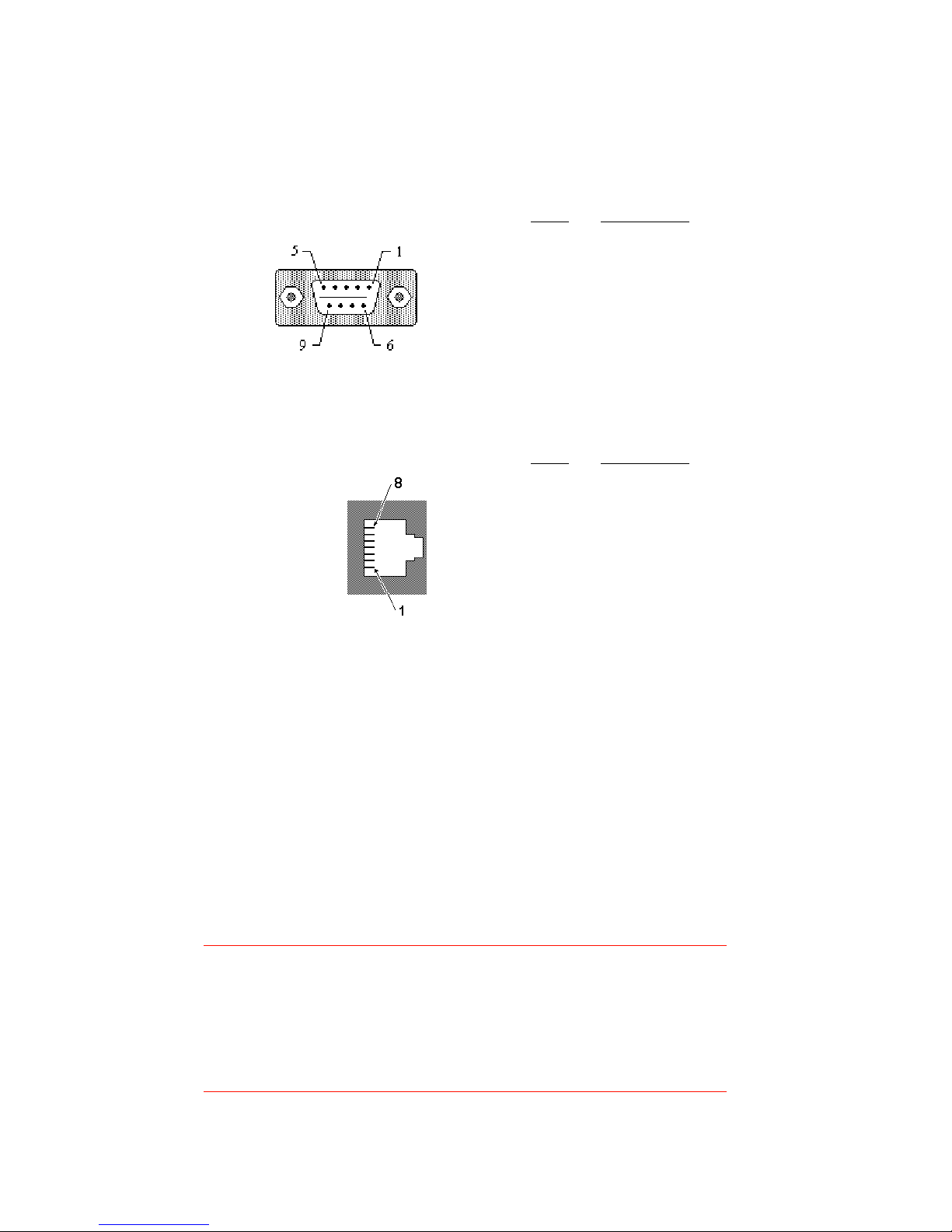
Code Courier printer has an RS232 serial communication port, wired
as shown below. (The RJ45 connector is standard; DB9 connectors are
installed on some custom printers.)
Serial input connector (DB9S)
Serial input connector (RJ45)
Serial port parameters
Code Courier printers are configured as DTE equipment, and use RTS/
CTS handshaking or XON/XOFF protocol (control characters are DC1 and
DC3). The serial port supports the following parameters:
Speed: 600, 1200, 2400, 4800, 9600, 14400, 19200, 38400, 57600
Parity: Odd, Even, or None
Word length: 7 or 8 bits
Stop bits: 1 or 2 bits
Default parameters: 9600 baud, no parity, 8 data bits, 1 stop bit
Note:
Code Courier printers require a “null modem” when
connected to another DTE device (i.e., a personal computer).
The serial cables listed as accessories on page 3 are wired
in a null modem configuration. Other cables may require an
external null modem adapter.
Pin # Description
2 RXD (printer data input)
3 TXD (printer data output)
4, 6 Connectedinternally
5 Ground (-)
7 RTS (printer busy)
8 CTS
1, 9 No connection
See “Optional Accessories” on page 3 for standard cable part numbers
and descriptions.
Pin # Description
1 CTS
2 RXD (printer data input)
3 TXD (printer data output)
4, 6 Connectedinternally
5 Ground (-)
7 RTS (printer busy)
8 Shield

7
SETUP
Opening and closing the printer
You must open the printer to change the battery or media. Two cover
clips hold the cover closed. To open the printer:
1. Place the printer on a flat surface, with the top cover facing up.
2. While holding the printer, pull the bottom of each cover clip away
from the printer body and upward.
3. Pull the top of each clip clear of the printer cover.
4. Swing the printer cover all the way open.
To close the printer:
1. Place the printer on a flat surface, with the open cover facing up.
2. Position the label stock over the paper door edge.
Note:
If you are using the optional peel-back accessory, thread
the label stock through the printer as shown in Figure 5 on
page 9.
3. Lower the printer cover and hold it closed.
4. Engage the top of each cover clip on the mating lips on the printer
cover, then press the bottom of each clip against the printer body.
The clips will snap into position.
Installing the battery
(Not applicable to externally-powered printers)
Code Courier uses an internal rechargeable battery, and is shipped
with the battery discharged and uninstalled. To install the battery:
1. Open the printer.
2. The battery tray is located to the
left of the paper holder. Place
the battery in the tray with the
battery contacts down and
toward the back of the tray.
3. If you need to load label media,
do that now. Otherwise, close
the printer. Figure 3. Battery installation
Battery
Battery
contacts

8
Charging the battery
(Not applicable to externally powered printers)
The low battery indicator glows red when the battery needs
recharging. The printer automatically shuts off 30 seconds after the
low battery indication. To recharge the battery:
1. Confirm that the battery is installed in the printer.
2. Plug the charge adapter output connector into the printer charge
jack located next to the serial input connector.
3. Plug the charge adapter AC input into a live AC outlet. Connecting
the charger automatically turns the printer on. The CHARGING
indicator glows yellow during battery charging.
Note:
Labels can print during charging, provided the battery does
not become completely discharged. The printer will not
accept data if the battery is too depleted to print labels.
4. Charge the battery for 2 to 6 hours. The CHARGING indicator will go
dark and the READY light will begin flashing when charging is done.
Battery charging will stop automatically after six hours. If the battery
has not achieved an adequate charge after six hours, the CHARGING
indicator will shut off and the LOW BATTERY indicator will begin
flashing. This indicates that the battery is probably defective.
Loading labels or tags
Media is supplied on rolls having an outside diameter of about 2". Two
support arms hold the label roll in place. One arm is spring loaded to
allow the use of different roll widths. To load label stock:
1. Confirm that the printer is off.
Note:
This is a safety measure, to assure that the printer will not
print while it is open. You may leave the printer on during
loading, but take care that you do not touch the printhead.
It may get hot if printing begins.
2. Open the printer.
3. Unwrap the new label roll.
4. Push the spring loaded support arm all the way to the left and
hold it there.
Ce manuel convient aux modèles suivants
1
Table des matières
Manuels Lecteur de codes-barres populaires d'autres marques

POSMicro
POSMicro Datalogic PowerScan D7100 Manuel utilisateur

Marson
Marson MT780 Guide de configuration rapide

NCR
NCR RealPOS Manuel utilisateur

Motorola
Motorola SE3300 Guide de configuration rapide

Element
Element P130BT Manuel utilisateur

Motorola
Motorola Symbol LS3008 Manuel d'installation et d'exploitation