CNE WLC311NRM Manuel utilisateur

User Manual
- 1 -
Chung Nam Electronics (CNE)
IEEE 802.11b/g/n WLAN USB Adapter
(Model #: WLC311NRM)
User Manual
Version 2.0
December 2008

User Manual
- 2 -
Contents
Chapter 1: Product Information .....................................................................................3
1.1 Introduction.......................................................................................................3
1.2 Features.............................................................................................................3
1.3 LED Status........................................................................................................3
Chapter 2: Installation Guide.........................................................................................4
2.1 Overview...........................................................................................................4
2.2 Installation procedure........................................................................................4
2.2.1 Software installation ...............................................................................4
2.2.2 Hardware Installation..............................................................................8
2.3 Uninstall Software ............................................................................................9
2.3.1 Uninstall the driver software...................................................................9
2.3.2 Uninstall the utility software from your PC............................................9
Chapter 3: Connect to Wireless Access Point.......................................................11
3.1 Using Ralink Configuration Utility ................................................................11
3.2 Using Windows Zero Configuration...............................................................17
Chapter 4: Regulatory information..............................................................................19
4.1 FCC Information to User ................................................................................19
4.2 FCC Guidelines for Human Exposure............................................................19
4.3 FCC Electronic Emission Notices ..................................................................19
Chapter 5: Technical Specifications ............................................................................21
Appendix A: Specifications..................................................................................21
Appendix B: Glossary...........................................................................................22

User Manual
- 3 -
Chapter 1: Product Information
1.1 Introduction
CNE WLC311NRM is a USB 2.0 pen-size WLAN USB Adapter supporting
IEEE 802.11b/g/n at 2.4GHz radio operation, The WLAN USB Adapter provides
high-speed wireless connectivity with data rate from 1 Mbps up to 135Mbps
theoretically. Additionally, wireless roaming allows the user to move among different
access points without losing the connection. The WLAN USB Adapter also provides
excellent security features such as WEP 64/128, WPA, WPA2, TKIP, AES, WPS,
PBC, PIN encryption security which make the network almost impenetrable.
Featuring high performance transmission rates, simple installation and adaptability as
well as strong security, the WLC311NRM WLAN USB Adapter is the perfect
solution for small office and home use.
1.2 Features
Complies with IEEE 802.11b/g, IEEE 802.11n Draft 2.0 standards.
1T1R Modes with 135Mbps PHY Rate for Antenna configurations.
Legacy and High Throughput Modes.
Dynamic data rate: Maximum data rate up to 135Mbps. Auto fallback
switching with 54, 48, 36, 24, 18, 12, 11, 9, 6, 5.5, 2 and 1Mbps.
Reverse Direction Grant Data Flow and Frame Aggregation.
QoS-WMM, WMM-PS.
Multiple BSSID Support.
Wireless data encryption with 64/128 encryption for security
Supporting WPS by external push button or software API.
Lower Power with Advanced Power Management.
Drivers supports Windows XP 32/64, 2000, Vista32/64, Linux, Macintosh.
1.3 LED Status
The LEDs in this WLAN USB Adapter indicate Link/Act status. It blinks at green
light when sending and receiving data.

User Manual
- 4 -
Chapter 2: Installation Guide
2.1 Overview
The WLC311NRM WLAN USB Adapter Setup Wizard will guide you through the
installation procedure for Windows 2000, XP, Vista and Linux. This Wizard will also
guide you installing the Utility and drivers.
In case you plug in the hardware before installing the software, you will be prompted
by “Found New Hardware Wizard”, please click the Cancel button, and run the Setup
Wizard program from the installation CD-ROM shipped together with the USB
Adapter.
All of following sections are written based on Windows XP.
*
Note:The comments and conditions for other OS platforms may be different from
this chapter.
2.2 Installation procedure
2.2.1 Software installation
Please follow below instructions to install the driver for WLC311NRM WLAN USB
Adapter.
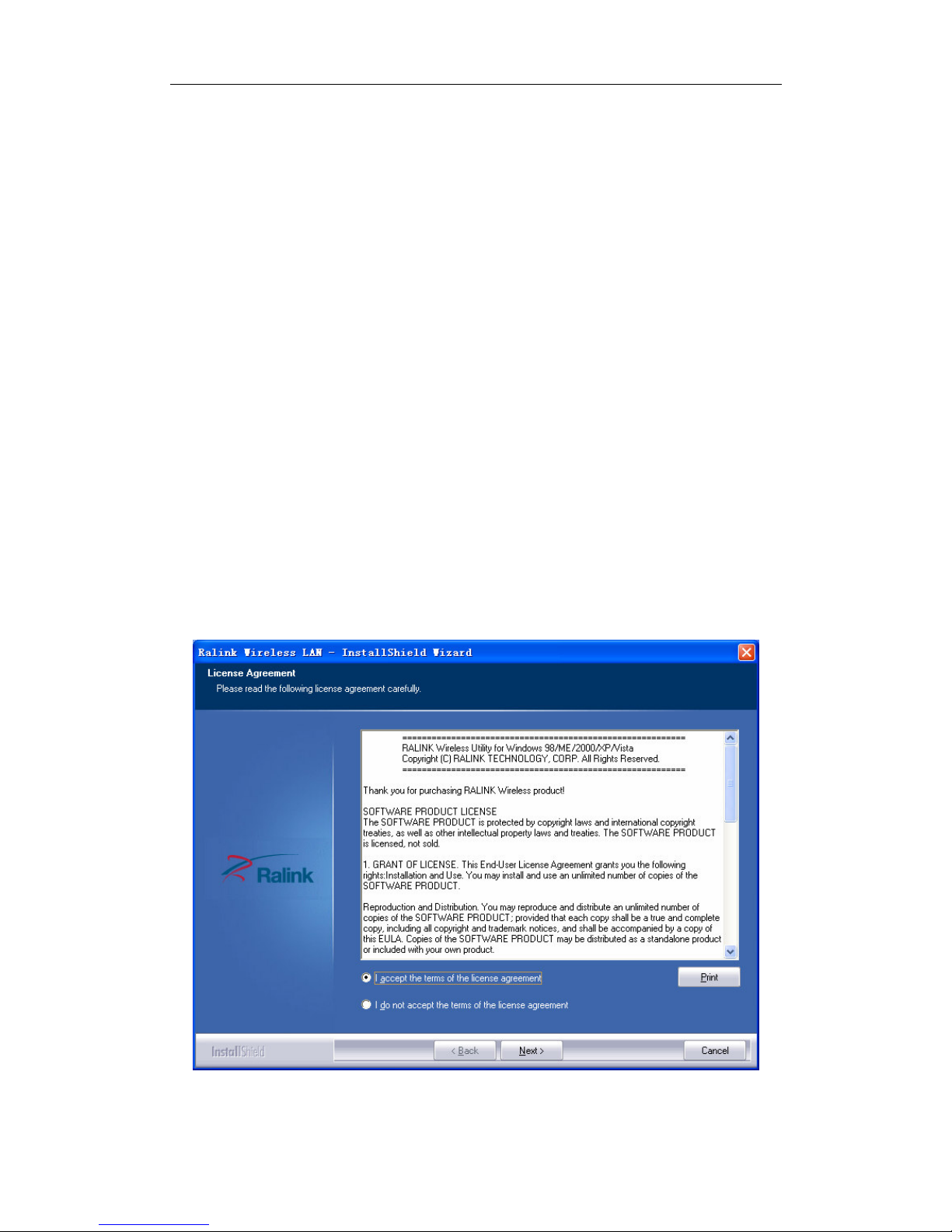
1. Insert the Resource CD into the CD/DVD-ROM drive of your computer; then
execute Setup.exe to install the driver. The system will operate automatically,
Figure 2-1 License Agreement
and the License Agreement dialog box as shown in Figure 2-1 will appear on the

User Manual
- 5 -
screen. Please read all the license agreement thoroughly and select Yes in case
you accept the terms and conditions of the license agreement, then click Next >.
2. The dialog box Setup Type shows as Figure 2-2 will allow you to choose your
wanted driver, you can select the best suit your needs. It is recommended to
choose the Install driver and Ralink WLAN Utility, and click on the button
Next >.
Figure 2-2 Setup Type to choose installed driver
3. The Setup Type dialog box as shown in Figure 2-3 appears on the screen, you
can choose either using Ralink Configuration Tool or Microsoft Zero
Configuration Tool to configure your new IEEE 802.11b/g/n USB WLAN USB
Adapter. However, it is recommended to select Ralink Configuration Tool to
configure the USB Adapter as it provides fully access to all functions of the USB
Adapter. If you prefer to use the wireless configuration tool provided by
Windows XP or Vista, please select Microsoft Zero Configuration Tool. Then
click Next to continue.

User Manual
- 6 -
Figure 2-3 Select Configuration Tool in the Setup Type
4. You have selected the setup type that best suit your needs, and you are ready to
install the program, please select the button Install in the dialog box Figure 2-4.
Figure 2-4 Ready to install the program

User Manual
- 7 -
5. Please wait for a moment and the dialog box of Setup Status as Figure 2-5 will
appear on the screen.
Figure 2-5 Setup Status
6. When the computer finish the driver installation. The screen of Figure 2-6 will
then appear. Click the Finish to complete the installation.
Figure 2-6 Install Shield Wizard Complete
7. A new icon
will appear at the lower-right corner of your computer after driver

User Manual
- 8 -
installation. If you put the mouse cursor on top of the icon, a pop up message box
will indicate to you that the WLAN USB Adapter does not exist.
8. Please plug in the WLC311NRM WLAN USB Adapter into your PC for the
hardware installation. If you want to understand the detail hardware installation
instructions, please refer to next section – Hardware Installation.
2.2.2 Hardware Installation
After successfully installation of the software driver, please plug the WLC311NRM
WLAN USB Adapter into your PC for WLAN card hardware installation. The OS
will detect the USB Adapter and find the appropriate driver automatically (In case it
does not, please follow the setup steps again as despite in Section 2.2.1) and the the
icon
will appear in your system icon box.
Figure 2-7 select the configuration of the WLAN USB Adapter
When you want to configure your WLAN USB Adapter, please right click the icon
, and a popup menu of Figure 2-7 will appear. You can click Launch Config
Utilities to start the configuration. If you want to close configuration utility, please
click Exit.
*
Note: If you want to stop configuration utility by clicking the Exit, you’ll not
be able to maintain the current wireless link connectivity to the access.
You can start configuration utility again by clicking Ralink Wireless Utility icon
from Start -> All Programs -> Ralink Wireless -> Ralink Wireless Utility.

User Manual
- 9 -
2.3 Uninstall Software
2.3.1 Uninstall the driver software
If you want to install a new WLAN USB Adapter, you have to uninstall the software
driver. Below are the procedures to uninstall the driver:
To remove any old software or this WLAN USB Adapter in Windows XP:
1. On the Windows taskbar, click the Start button, select the programmer ->
Ralink Wireless -> Uninstall - RT2870 as Figure 2-8 to uninstall the software.
Figure 2-8 uninstall utility
2. . On the Windows taskbar, click the Start button, point to Settings, and then
click Control Panel.
. Double-click the System icon, click on the Hardware tab in the System
window.
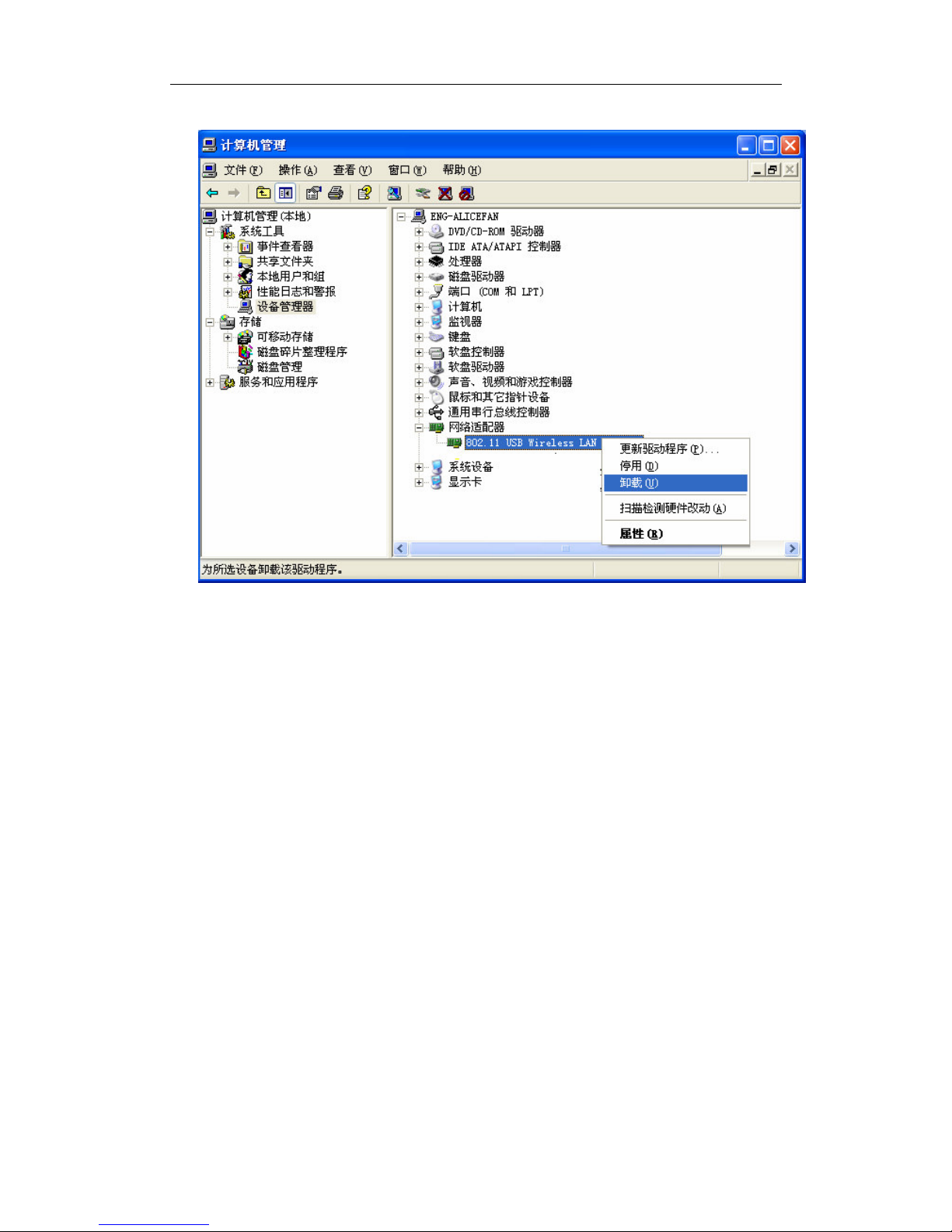
. Click on the Device Manager button, double-click Network Adapters, and
then right-click 802.11 USB Wireless LAN Card.
. Click Uninstall..., shown in above Figure 2-9, the system will uninstall the
driver software of the WLAN USB Adapter from you PC.
2.3.2 Uninstall the utility software from your PC
1. On the Windows taskbar, click the Start button, point to Settings, and then
click Control Panel
2. Double-click the Add/Remove Programs icon, find the WLC311NRM
program from the installed program list, highlight it and click the Remove
button.
3. Following the Install Shield Wizard will uninstall the utility software from
your PC.

User Manual
- 10 -
Figure 2-9 uninstall driver
Table des matières
Autres manuels CNE Adaptateur