
Clas Ohlson KX-2810 Manuel utilisateur

SUOMINORSKSVENSKAENGLISH
Ver. 200803
Article number: 18-8013/38-2892
Model: KX-2810
Mouse and Keyboard
Mus och tangentbord
Mus og tastatur
Hiiri ja näppäimistö
www.clasohlson.com

2

3
ENGLISH
Mouse and Keyboard
Art. No: 18-8013 Model: KX-2810
38-2892 KX-2810
1. Description
Keyboard and mouse; suitable for use with multimedia, Internet and various
types of computer games.
Mouse:
• Capabilityofchangingtheresolutionofthemouse.
• Quick-remousetrigger,allowingyoutore3timesfasterthanyour
opponent.
• Programmablemousebuttonsenablingyoutostartyourfavourite
programsmorequickly.
• Canbeusedondifferentsurfaces,noneedforamousemat.
Along with regular buttons the mouse also has the following buttons:
• Quick-rebutton(orange):Oneclickcorrespondstothreeclicksonan
ordinary mouse.
• Scrollwheel: Browse (Scroll) upward or downward in the document/
webpage
• Clickablescrollwheel:Canbeusedforbrowsing(scrolling)upward/
downwardandsidewaysinthedocument/webpage.Clickonceonthe
scroll wheel and then move the mouse in the direction in which you
wouldliketobrowse.
• DPIbutton: Located behind the scroll wheel.Alters the resolution of the
mouse. The scroll wheel highlights the chosen resolution in colour.
• Sidebuttons(1x2):Programmablebuttons.
• Canbeusedondifferentsurfaces,noneedforamousemat.
Keyboard:
• Thekeyboardhasprogrammableshortcutkeys,makingInternetaccess,
word processing, multimedia and game playing easier.
• Fourinterchangeablerubberkeysonthekeyboardmakeiteasiertoplay
games(toolsandregularkeysareincluded).
• Removablewristsupportforrestingyourwristsonwhilstwriting.

4
ENGLISH
2. This box contains
• Keyboard(KB-28G)
• Mouse(X-710FS)
• CD-ROMsoftwaredisc(MiniCDØ79mm)
• Instructionmanual
• Removablewristsupport
• Sixloosekeysandatoolforchangingthem
• Footpads
3. Installation
ThefollowinginstallationinstructionsapplyforWindowsXPwithService
pack2installed.
Followsteps1-3touseX-710FSasaregularmouse,withoutextra
functions.
1. ConnectthemouseleadtoafreeUSBportonthecomputer.
2. Start your computer.
3. The operating system will now automatically locate the mouse and install
the required driver.
Onlyproceedtosteps4–6ifyouwishtousetheextrafunctionson
theX-710FS.
4. InserttheaccompanyingCDintothecomputer’sCD-ROM.Thediscwill
startautomatically;clickInstallDrivers to begin the installation.
• IftheCDdoesnotstartautomatically:OpentheCDintheexplorer
menuandclickonAutorun.exe, then continue with the installation as
normal.

5
ENGLISH
Clickontherighthandpicture“X-710/750MF…” to choose the correct driver
for the mouse.
5. Clickon[Next]inthefollowingboxestocontinuetheinstallation.
6. Clickon[Finish] to restart the computer when the installation is
complete.
6
ENGLISH
4. How to programme your mouse properties
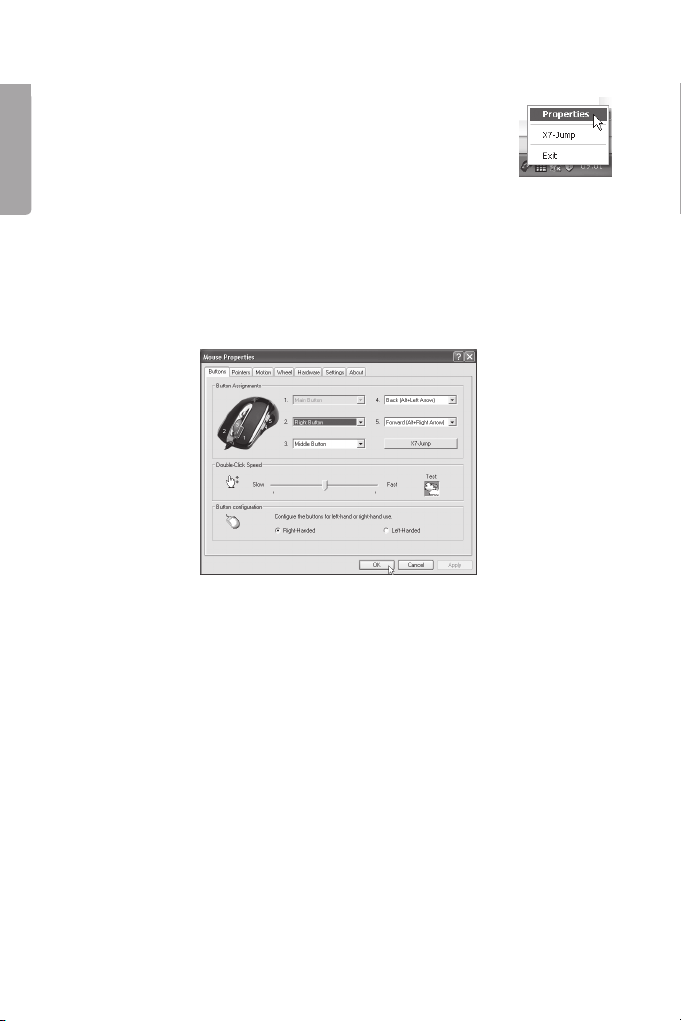
Right-clickonthemouseiconintheactivityeldnexttothe
clock,open“Properties” or “X7-jump” (button assignment
for your mouse such as button assignment, scroll wheel and
cursor movements).
• ButtonAssignments.Clickonthedownwardspointingarrowtoopen
thelistofpossiblesetupsandchooseafunctionforeachkey.See
“Settings” below for more information.
• Double-ClickSpeed.Increases/decreasesthespeedofthedouble-click
function.Double-clickon“Test”totestthesetting.
• ButtonConguration.CongurethemouseforRight-handedor
Left-handedmanoeuvring.Thisreversesthecontrolsformousebuttons
1and2.
“Properties”has7tabs,describedbelow.
Buttons Tab

7
ENGLISH
Pointers Tab
You can change the appearance of the pointer.
• ClickonthedownwardspointingarrowbeneathSchedule and choose the
settingyouwouldlike.Theavailablepointersforeachscheduleareshown
in the window at the bottom.You can view several pointers, create your
ownscheduleandthensaveitbyclickingon[Apply] and then [OK].
Motion Tab
• CursorSpeed.Setting how fast the cursor can move across the screen.
• SnapToButton.Checkthisboxtomovethecursorautomaticallytothe
highlightedbuttonineachnewdialogueboxorwindow.
• Sonar.Checkthistomarkthepointerextraclearlywhenyouclickon
[CTRL].
• Trails.Checkthistocreateatrailbehindthecursor.

8
ENGLISH
Wheel Tab
• Reversescrollingdirection
• Choosescrollingmethod:“Scroll...linesatime”, or “Scrollonepage
perscrollunit”.
• “MSIntelliMousecompatiblemode”checkthisboxifyouwantthe
mousetofunctionasaMSIntelliMouse.
Hardware Tab
All mice or other pointers connected to the computer will be shown here.
• Youcantroubleshootorcheckthemouse’sproperties.

9
ENGLISH
Settings Tab
ThescrollwheelcanbeassigneddifferentfunctionssuchasLuckyjump
under the “Buttons” tab.
• Luckyjump combines commonly used commands for Windows
environments into one convenient grid and places them right under the
cursor.Theboxtotheleftshowsallavailablecommandsthatyoucan
assigntoLuckyjump.Clickonthescrollwheel(3)toviewthemenubox,
thenclickonthedesiredfunction.
• NetJumpcombinescommonlyusedcommandsfornetbrowsing,e-
mails etc.
• Youcanchangecommands by choosing a new one from the list on the
leftandclickingontheiconontheNetthatyouwishtoswap.
• Congureyourowncommands:Clickon“New/Update”thenchoose
the icon and name of the new command. Enter the command.
About Tab (information about the driver)
Thenaltabshows,amongstotherthings,thecurrentdriver.

10
ENGLISH
5. X7-Jump
Open “X7-jump”(properties)byright-clickingonthemouseiconand
chooseX7-jump,clickonthedesiredbutton(2–5)andclickonthe
functionskey(onthekeyboard)thatyouwishtocorrespondtothedesired
mouse button.
Resolution(mouse) Colourofthescrollwheel Resolution(screen)
400DPI Nocolour 800x600
800DPI Green 1024x768
1200DPI Yellow 1152x868
1600DPI Red 1280x960
2000DPI Red 1280x1024
6. Changing the resolution of the mouse
X-710Fhasthecapabilityofchangingitsresolutionbetween:
400–800–1200–1600–2000DPI
Pushthebuttonabovethescrollwheel(1)tochangetheresolution:
1
Table des matières
Langues :
Autres manuels Clas Ohlson Accessoires informatiques


