Clarion VS715 Guide de dépannage

VS715
OWNER’S MANUAL
INSTALLATION GUIDE
DIGITAL MEDIA
PLAYER
VS715OMRev0.qxd 1/25/01 4:19 PM Page 1

1
OWNER’S MANUAL/INSTALLATION GUIDE
W
ARNING
!
THE CLARION VS715 STAND-ALONE DIGITAL MEDIA PLAYER
DESIGNED FOR REAR SEAT VIEWING OF DVD OR CD-VIDEO
MEDIA RECORDINGS ONLY.
DIGITAL VIDEO PRODUCTS ARE NOT INTENDED FOR VIEW-
ING BY THE DRIVER WHILE THE VEHICLE IS IN MOTION
SINCE SUCH USE MAY DISTRACT THE DRIVER OR INTERFERE
WITH THE DRIVER’S SAFE OPERATION OF THE VEHICLE AND
MAY RESULT IN SERIOUS INJURY OR DEATH. SUCH USE
MAY ALSO VIOLATE STATE LAW.
CLARION DISCLAIMS ANY LIABILITY FOR ANY BODILY
INJURY, INCLUDING FATALITIES, OR PROPERTY DAMAGE
THAT MAY RESULT FROM ANY IMPROPER OR UNINTENDED
USES OF THIS PRODUCT.
A
BOUT
I
NSTALLATION
Installation of mobile audio and video components requires
experience with a variety of mechanical and electrical proce-
dures. Even though this manual provides general installation
and operation instructions for your new Clarion VS715 Stand-
alone Digital Media Player, it does not show the exact installa-
tion methods for your particular vehicle.
If you do not have the required knowledge and experience to
successfully complete the installation, we strongly recom-
mend consulting an authorized Clarion Dealer about profes-
sional installation options.
T
ABLE
O
F
C
ONTENTS
Introduction...............................................................2
Care and Maintenance ..............................................4
DVD Playback Discs...................................................5
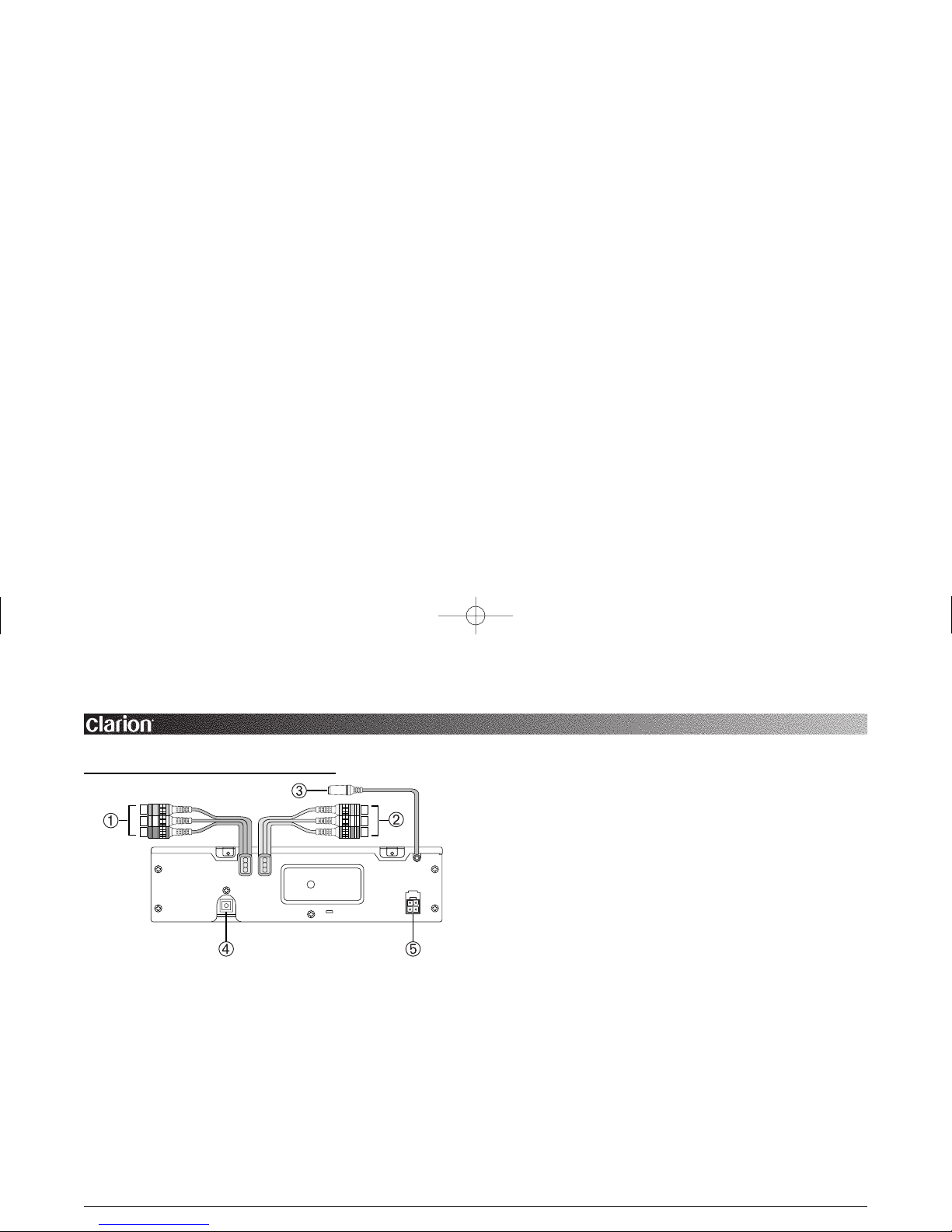
Description Of Rear Connectors..................................6
Description Of Front Controls.....................................7
Description Of IR Remote Control...............................8
Description of DVD Main Menu and Sub-Menus .......11
Description of VS715 Display Status Screen .............12
DVD Operations With The VS715.............................13
CD Operations With The VS715 ...............................17
Installation And Wiring............................................19
Troubleshooting ......................................................23
Specifications ..........................................................24
FCC Statement .........................................................24
VS715OMRev0.qxd 1/25/01 4:19 PM Page 1

VS715
STAND ALONE DIGITAL MEDIA PLAYER
2
I
NTRODUCTION
DVD video is a high-quality digital video source that pro-
vides crisp and clear images. One 12 cm disc contains either
one film or up to four hours of music content.
MP3 technology is a world recognized standard for digital
video and audio compression, thus enabling more data to be
squeezed onto a Compact Disc. MP3 technology is becom-
ing more common with cable, internet and satellite transmis-
sion. The compression offered by MP3 technology makes it
easier to transmit and record high quality video and audio
signals from your computer than in the past. The VS715
allows playback of MP3 recorded media.
The Clarion VS715 is a full-featured Digital Media Player
specifically created for the mobile environment. It is
designed to work with Clarion Multimedia devices and
Clarion Video Monitors for a complete video solution.
NOTE: The Functions described in this section may differ with the
DVD video disc used. Refer to the instructions provided with the
DVD video. Some disc functions may also differ from the
descriptions in this manual.
The VS715 DVD functions includes the following features:
•Multi-language function DVD video can store up to
eight languages for one film; select the language of pref-
erence. The languages stored on the disc can be selected
from the DVD’s Main Menu settings while in the on-
screen menu (see page 11).
•Subtitles function: A DVD video can record subtitles for
up to 32 languages and allows selection of the subtitles
seen.
•Multi-story function: When a DVD video contains more
than one story for a film, select the story you wish to
enjoy. The operation procedures vary with the disc;
observe the instructions for selecting a story provided
during playback.
•Special Effect Playback: Controls over DVD playback
include Slow Motion as well as Rapid Search forward or
backwards. Multiple-speed forward or reverse picture
search operates at 2, 4, 8, 20 times normal playback for
quick location of a desired video segment. Multiple-
speed slow forward or slow reverse search operates at
1/7, 1/6, 1/5, 1/4, 1/3, or 1/2 times normal playback
speed.
VS715OMRev0.qxd 1/25/01 4:19 PM Page 2

•Chapter/Track Playback: Skip backwards on a DVD to
start the current chapter over or skip back to the previous
chapter played. Skip forward on a DVD to advance to
the next chapter or advance multiple chapters ahead.
•Repeat Function allows for an individual chapter to
repeat over and over or the entire disc can be repeated.
•Still Frame: During the Pause function a DVD will dis-
play a single frame with perfect clarity without jitters
normally exhibited by typical VCRs while in pause.
The VS715 includes the capability of CD-Audio, CD-
Video, and MP3 recording playback:
•Digital playback including rapid search forward and
backwards. Multiple-speed forward or reverse audio
search operates at 2, 4, 8 times normal playback for quick
location of any audio segment.
•Track Playback: Skip backwards on a CD or MP3
recording to start the current track over or skip back to
the previous track played. Skip forward on the disc to
advance to the next track or advance multiple tracks
ahead.
•Repeat Function allows for an individual track repeat
over and over or entire disc can be repeated.
The VS715 has standard features which includes:
•Built-in Remote Sensor standard in the front panel for
in-dash operation of the unit without the need of an exter-
nal IR Sensor.
•Infrared Remote Control standard for convenient wire-
less operation. IR Remote Control has “Glow In The
Dark” buttons for easier night operation.
•Optional IR Sensor Input standard for convenient con-
nection to Clarion Monitors when operating the VS715
from a remote location.
•Built-in 12 Vdc operation which eliminates the need to
use power supply converters for mobile use.
•Auxiliary A/V Inputs mounted RCA input jacks that
allow easy connection to additional Clarion A/V devices.
About The Manual And Warranty
To start enjoying your new Clarion VS715, please read the
remaining instructions listed in this manual. Keep all
instructions for future reference. This product is covered by
a limited warranty (see the enclosed warranty card). Save
the sales receipt to protect your purchase and aid in war-
ranty service.
OWNER’S MANUAL/INSTALLATION GUIDE
3
VS715OMRev0.qxd 1/25/01 4:19 PM Page 3

VS715
STAND ALONE DIGITAL MEDIA PLAYER
4
C
ARE
A
ND
M
AINTENANCE
DVD Care
• Always handle the disc by the edges. Never touch the
surface. To remove fingerprints and dust, use a soft cloth
and wipe in a straight line from the center of the disc to
the outside edge.
• Take care of IR Remote Control. Keep the remote with
your DVD cases, where it is unlikely to be lost or dam-
aged.
• Keep liquids away from the DVD player, including bever-
ages and cleaning liquids. Spilling any liquid on the
VS715 can damage the electronics, resulting in an electri-
cal shock or fire.
• If the unit or remote control should become wet, turn off
all power and let an authorized Clarion Dealer clean or ser-
vice the equipment.
DO NOT ATTEMPT TO OPEN OR SERVICE THE
UNIT OR REMOTE CONTROL. THE INTERNAL
PARTS ARE NOT USER-SERVICEABLE. DOING
SO WILL VOID THE WARRANTY.
• Do not use any liquid or aerosol cleaners, anti-static spray,
or thinner to clean the disc surface.
• Do not allow coins, cleaning cloths, papers and other
objects to be pushed into the DVD slot. These objects
could connect with a voltage point inside the VS715 and
cause an electrical shock, or may short out parts causing
unit failure or fire.
Temperature and Moisture
When the inside of the vehicle is very cold and the player is
used immediately, moisture may form on the disc or the opti-
cal parts and proper playback may not be possible. If mois-
ture forms on the disc, wipe it off with a soft cloth.
If moisture forms on the optical parts of the player, allow the
player to sit for about one hour with power on. The conden-
sation will disappear naturally allowing for normal operation.
Please consult your nearest Clarion Dealer for recommenda-
tions and service.
Operation Precautions
• Do not subject the unit to direct sunlight or an extremely
VS715OMRev0.qxd 1/25/01 4:19 PM Page 4

OWNER’S MANUAL/INSTALLATION GUIDE
5
hot environment (e.g., closed windows on a hot summer
day, direct path of heater vent, etc.).
• Avoid using the unit under the following conditions:
– After extended parking on an extremely hot or cold day.
– Near strong magnetic fields.
– In an environment with excessive humidity, dust, or
vibration (e.g., off-road travel, etc.).
• Do not directly touch the disc surface. Never stick labels
on the surface of the disc or mark the surface with a pen.
• Always place a DVD disc back into its case after use.
DVD P
LAYBACK
D
ISCS
Playable discs
This DVD player can play the following discs:
Discs that cannot be played back.
It may not be possible to playback some CDs recorded on a
CD-R units. CD discs recorded on a CD-RW units cannot be
played back. The DVD video player cannot playback DVD-
R, DVD-RAM, or Photo CDs.
Regional Numbers
The DVD video system assigns a region number to DVD
video players and DVD disc by sales area. DVD video play-
ers sold in the United States can playback DVD disc with the
region number “ALL”, “1”, or any combination of numbers
that also incorporate a “1”. DVD video region numbers may
be marked on the disc jackets of the DVD case.
TV color system
This DVD player plays NTSC discs only and cannot be used
for playback of PAL or SECAM discs.
VS715OMRev0.qxd 1/25/01 4:19 PM Page 5

VS715
STAND ALONE DIGITAL MEDIA PLAYER
6
3
REMOTE SENSOR INPUT (3.5 mm Plug)
Connect the IR Sensor lead from any Clarion monitor to
the back of the VS715 to use the supplied IR Remote
Control.
NOTE:
The IR sensor mounted in all Clarion monitors, such as
the VMA7191, can be connected directly to the remote sen-
sor input to function as the remote eye for the player.
4
DIGITAL OUTPUT CONNECTOR (Toslink)
Use to connect direct digital signal to optional DSP processors
and DTS decoder units.
5
DC IN 12V (4-Pin Molex)
Use the supplied DC power cord to connect the VS715 to
the vehicle’s 12-volt electrical system.
Figure 1. The VS715’s rear connections.
D
ESCRIPTION
O
F
R
EAR
C
ONNECTORS
1
A/V OUTPUT (3 RCA Jacks)
Use an A/V Cable to connect the video and stereo L/R RCA
cables to external video monitors and audio components.
2
A/V INPUT (3 RCA Jacks)
Use an RCA video cable to connect an external video
source (eg., VDH910 VCR, or TTX001 TV Tuner) into
the VS715. When a DVD is not playing the video and
audio signals are passed to the output connectors.
VS715OMRev0.qxd 1/25/01 4:19 PM Page 6

OWNER’S MANUAL/INSTALLATION GUIDE
7
D
ESCRIPTION
O
F
F
RONT
C
ONTROLS
Figure 2. The VS715’s front control and slot.
6
DVD INSERTION SLOT
Insert a DVD disc directly into the loading slot. The unit
will automatically load the disc and start playback.
7
EJECT BUTTON
Press the eject button to remove the DVD disc. If eject is
pressed but the DVD is not removed within 15 seconds,
the mechanism will reload the disc back into the player
for disc protection.
8
IR SENSOR
Built-in IR Remote Sensor standard in the front panel for
in-dash operation of the unit without the need of an
external IR Sensor.
9
RESET BUTTON
Gently insert a slender pin into the opening to reset the
microprocessor if a voltage drop or spike inhibits proper
microprocessor operation.
VS715OMRev0.qxd 1/25/01 4:19 PM Page 7

VS715
STAND ALONE DIGITAL MEDIA PLAYER
8
9
a
t
7
e
o
5
6p
y
u
8
q
12
0
w
r
i
3
4
D
ESCRIPTION
O
F
IR R
EMOTE
C
ONTROL
Figure 3. VS715’s Remote Control.
1
POWER Button
Press to power the unit ON or OFF.
2
EJECT Button
Press the EJ button to eject DVD/CD disc media from the
player.
3
AUX Button
Changes audio and video input source selection to the
auxiliary inputs.
4
ENTER Button
Toggles the selection of the on-screen menu choices.
5
MENU Button
Press this button to display the DVD’s Main Menu and
sub-menu screens.
6
MUTE Button
Pressing this button mutes the audio output during play-
back.
7
DISP Button
Pressing this button to display the Status Display Screen
information on screen continuously during playback.
VS715OMRev0.qxd 1/25/01 4:19 PM Page 8

OWNER’S MANUAL/INSTALLATION GUIDE
9
8 9
JOG UP/DN Buttons
Scrolls UP or DN through screen options while in the on-
screen main menu.
0 q
JOG LEFT/RIGHT Buttons
Scrolls LEFT or RIGHT through screen options while in
the on-screen main menu.
w
CHAPTER/TRACK BACK Button
Skips back to start of Chapter/Track. Press multiple
times within one second to advance backwards to the pre-
vious chapters.
e
CHAPTER/TRACK AHEAD Button
Skips forward to start of the next Chapter/Track. Press
multiple times within one second to advance forward
through multiple chapters.
r
RAPID REVIEW Button
Press to start review of the disc media (Search Backward)
at 2X normal playback. Press rapid review multiple
times to advance to 4X, 8X, 20X. Press PLAY to cancel
Rapid Review to view a desired video segment.
t
RAPID PREVIEW Button
Press to start preview of the disc media (Search Forward)
at 2X normal playback. Press rapid preview multiple
times to advance to 4X, 8X, 20X. Press PLAY to cancel
Rapid Preview to view a desired video segment.
y
PLAY/PAUSE Button
Press to start playback of DVD disc media. While in play
mode, press once to pause playback and display a STILL
frame picture. Press again to resume normal playback.
u
STOP Button
Press to stop playback or cancel other functions.
i
SLOW REVIEW Button
Press to start slow review of the disc media (Slow
Backward) at 1/2 normal playback speed. Press PLAY to
cancel slow backward search to start viewing a desired
video segment.
o
SLOW PREVIEW Button
Press to start preview of the disc media (Slow Forward)
at 1/2 normal playback speed. Press PLAY to cancel
slow forward search to view a desired video segment.
p
REPEAT Button
Toggles REPEAT mode between Repeat One(Chapter),
Repeat All (Chapters), and Repeat Off modes.
VS715OMRev0.qxd 1/25/01 4:19 PM Page 9
Table des matières
Autres manuels Clarion Lecteur multimédia