Dynamic Assignment
• When using DHCP, the DHCP server should be configured to assign a static P address for each MAC address
belonging to a Meraki AP. Other features of the wireless network, such as 802.1X authentication, may rely on the
property that the APs have static P addresses.
Static Assignment
• Static Ps are assigned using the local web server on each AP. The following procedure describes how to set the
static P:
• Using a client machine (e.g., a laptop), connect to the AP wirelessly (by associating to any SS D broadcast by the
AP) or over a wired connection.
• f using a wired connection, connect the client machine to the AP either through a PoE switch or a PoE njector. f
using a PoE switch, plug an Ethernet cable into the AP’s Ethernet jack, and the other end into a PoE switch. Then
connect the client machine over Ethernet cable to the PoE switch. f using a PoE njector, connect the AP to the
“PoE” port of the njector, and the client machine to the “LAN” port.
• Using a web browser on the client machine, access the AP’s built-in web server by browsing
to http://my.meraki.com. Alternatively, browse to http://10.128.128.128.
• Click on the “Uplink Configuration” tab. Log in. The default login is the serial number (e.g. Qxxx-xxxx-xxxx), with no
password (e.g., Q2DD-551C-ZYW3).
• Configure the static P address, net mask, gateway P address and DNS servers that this AP will use on its wired
connection.
• f necessary, reconnect the AP to the LAN.
Static IP via DHCP Reservations
• nstead of associating to each Meraki AP individually to configure static P addresses, an administrator can assign
static P addresses on the upstream DHCP server. Through “DHCP reservations,” P addresses are “reserved” for
the MAC addresses of the Meraki APs. Please consult the documentation for the DHCP server to configure DHCP
reservations.
Collect Tools
You will need the following tools to perform an installation:
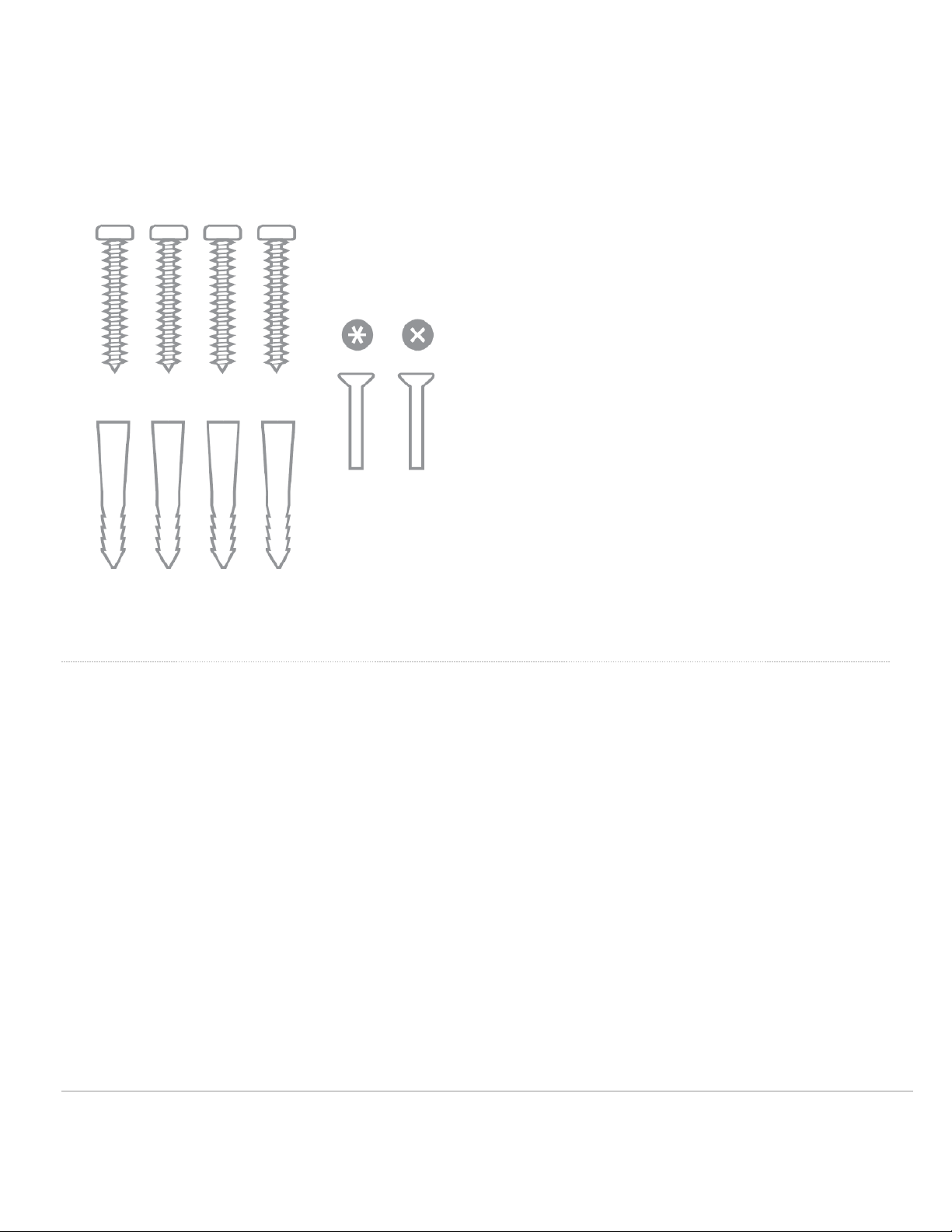
T8 Torx Screwdriver, Phillips screwdriver, Hammer, Drill with 1/4" (6.3mm) bits
9