CeeNee BeeGee 2013 Manuel utilisateur

1
CeeNee BeeGee
USER MANUAL
Version 2.0
2013
Hello, my name is CeeNee BeeGee! Thank you for taking me home, it's nice to meet you. I am a network
media player that is capable of playing 1080p/720p high definition content over your network. Moreover,
I can play your movies, music, Karaoke, photo slideshows, and flash applications on your local hard
drive. Most importantly, I can also record your Karaoke singing. Let's get set up, so we can bring joy to
the party!
Copyright© 2013 All rights reserved
CeeNee, Inc.
Website: www.ceenee.com
All rights reserved. No part of this publication may be reproduced, stored in a retrieval
system, or transmitted, in any form by means of electronics, mechanical, photocopying,
recording, or otherwise, without the prior written permission of CeeNee, Inc.

2
Disclaimer
The information in the CeeNee product documentation and on this User Manual has been
carefully checked and is believed to be accurate; however, no responsibility is assumed for
inaccuracies.
CeeNee, Inc. reserves the right to make changes without further notice to any products to
improve reliability, function or design. CeeNee, Inc. does not assume any liability arising out of
the application or use of any product or circuit described; neither does it convey any license
under its patent rights of others.
The CeeNee consumer product line is for home use only. The CeeNee general policy
does not recommend the use of its consumer products in life support applications wherein a
failure or malfunction of the product may directly threaten life or injury. Per the terms and
conditions of sales of CeeNee, Inc., the user of CeeNee products in life support applications
assumes all risks of such use and indemnifies CeeNee, Inc. against all damages.

3
TABLE OF CONTENTS
Disclaimer....................................................................................................................................... 2
Product Safety................................................................................................................................. 4
Recording your CeeNee Product Information ................................................................................ 5
Product Overview ........................................................................................................................... 6
Package Contents ........................................................................................................................ 6
Connections................................................................................................................................. 7
Getting Started................................................................................................................................ 8
Quick Start................................................................................................................................... 8
Installation................................................................................................................................... 8
Typical connection diagram for Karaoke ..................................................................................... 13
Using the Remote Control......................................................................................................... 14
Usage & Navigation...................................................................................................................... 17
Menus........................................................................................................................................ 17
Home......................................................................................................................................... 17
Video...................................................................................................................................... 18
Music.. ................................................................................................................................... 20
Photo...................................................................................................................................... 22
Karaoke.................................................................................................................................. 24
Applications........................................................................................................................... 30
1. File Explorer............................................................................................................... 31
2. KaraokeCloud............................................................................................................. 39
Web browser.......................................................................................................................... 47
YouTube................................................................................................................................ 47
Settings .................................................................................................................................. 48
1. Video-Audio............................................................................................................... 48
2. Video .......................................................................................................................... 51
3. Music.......................................................................................................................... 51
4. Photo........................................................................................................................... 52
5. Karaoke....................................................................................................................... 53
6. Recording.................................................................................................................... 60
7. System ........................................................................................................................ 60
8. Network...................................................................................................................... 63
9. Shared Network.......................................................................................................... 66
Codec Support........................................................................................................................... 68
Video Containers................................................................................................................... 68
Video Code Format................................................................................................................ 68
Audio Containers................................................................................................................... 69
Audio Codec Format.............................................................................................................. 69
Photo Containers.................................................................................................................... 69
CeeNee Technical Support........................................................................................................ 70
Troubleshooting............................................................................................................................ 71
KEYBOARD............................................................................................................................. 73
HISTORY.................................................................................................................................. 74


4
Product Safety
Follow all instructions.
Heed all warnings.
Do not operate the device near water to avoid the risk of electric shock or damage.
Do not throw, shake, or drop the device, otherwise damage may occur.
Avoid exposing the product to moisture, high humidity, or dust.
Do not attempt to repair or service the product yourself. Opening or removing the covers
may expose you to the risk of high voltages, electric shock, and other hazards. If repair is
required, please contact your dealer and refer all servicing to qualified service personnel.
Do not touch the power cord during lightning. Avoid handling the power cord during
electrical storms to avoid electric shock.
Unplug this apparatus during lightning storms or when unused for long periods of time.
Do not overload power strips or extension cords. Overloading an electrical outlet can
result in fire, electric shock, or device damage.
Never push foreign objects into the device.
Hold the outer power connector when removing the power cable. Pulling the power cable
itself may damage the wires inside the cable, and it can cause fire, or electric shock.
Unplug this apparatus when it is not being used for an extended period of time.
Do not spray chemical on, or near the device.
Maintain a distance of at least 3 feet between the device and any heat source, i.e. radiator,
heater, oven, amplifier, etc...
Do not operate the product close to smoke.
Do not operate in a high heat environment over 95 °F (degrees Fahrenheit).
Do not use the product in an enclosed environment, or else the device may get damaged.
Do not touch the connector with wet hands to avoid the risk of electric shock.
Do not block any ventilation openings. Install in accordance with the manufacturer’s
instructions.
Operating environment. Temperature: 40 °F ~ 95 °F, Humidity: 20% ~ 80% non-
condensing.
For additional safety information, please refer to www.ceenee.com.

5
Recording your CeeNee Product Information
In the following table, please write the serial and model numbers of your new CeeNee BeeGee
product.
You can find this information on the label at the bottom of the device. You should also note the
date of purchase. This information may be required when requesting technical support.
Serial Number:
Model Number:
Purchase Date:
System and Software Notes:

6
Product Overview
This user manual provides step-by-step instructions for installing and using your new media
player. For the latest CeeNee product information and news, please visit us at www.ceenee.com.
The CeeNee BeeGee is an all-in-one high end HD Karaoke Network Media Player. It is a high-
definition (HD) USB 2.0/3.0 and networked media player that attaches to home entertainment
system through a variety of audio/video interfaces. It supports up to Full HD (1080P) video
playback (through an HDMI connection) or standard definition for TVs with lower capabilities.
High-fidelity digital audio is also supported from an optical interface. The five USB ports and
an SD card slot are available to connect external storage devices. With the advanced built-in
mixer, and auto volume control, customers can be guaranteed that they have the best
entertainment experience. The included remote control lets you quickly browse through your
media library and configure settings.
Package Contents
CeeNee BeeGee HD Karaoke Network Media Player
AC Adapter
HDMI Cable
Composite A/V Cable
Remote Control
2 AAA Batteries
Quick Start Guide
USB Wi-Fi dongle
* USB Mini-B Host Adapter (Optional)
* Mini USB/OTG Cable (Optional)
* USB 3G/4G dongle (Optional)

7
Connections
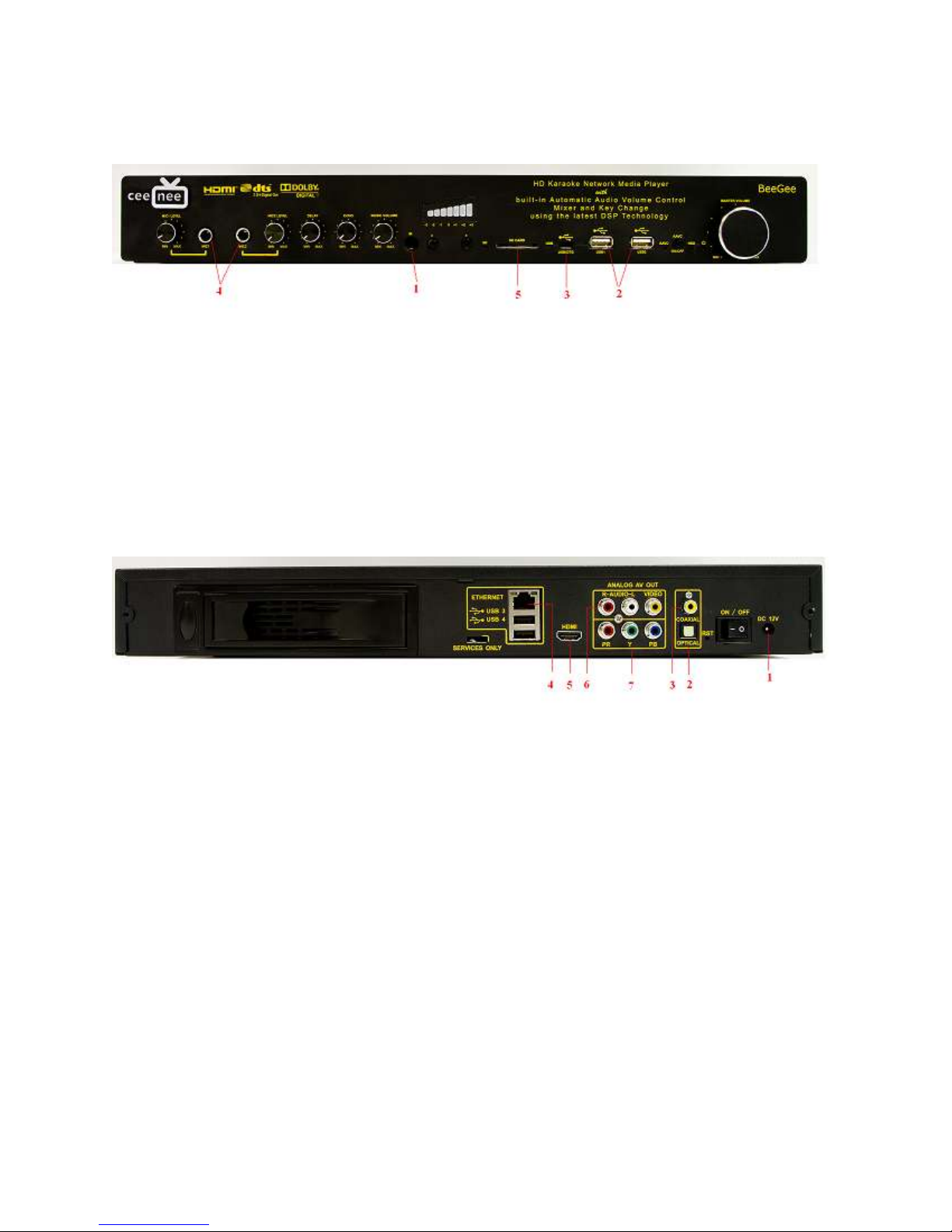
Front Panel
1. One Infrared Receiver
2. Two USB ports
3. One USB/OTG port
4. Two MIC connectors
5. SD card slot
Back Panel
1. One 12V power adapter
2. One Optical audio connector
3. One Coaxial audio connector
4. One 10/100/1000 Ethernet port
5. One HDMI port
6. One Composite A/V connectors
7. One Component connectors
Connecting devices
1. USB external drive
2. SD/SDHC Card
3. Network storage devices

8
Getting Started
Quick Start
Connect the CeeNee BeeGee media player to your TV or entertainment unit through the desired
interface option.
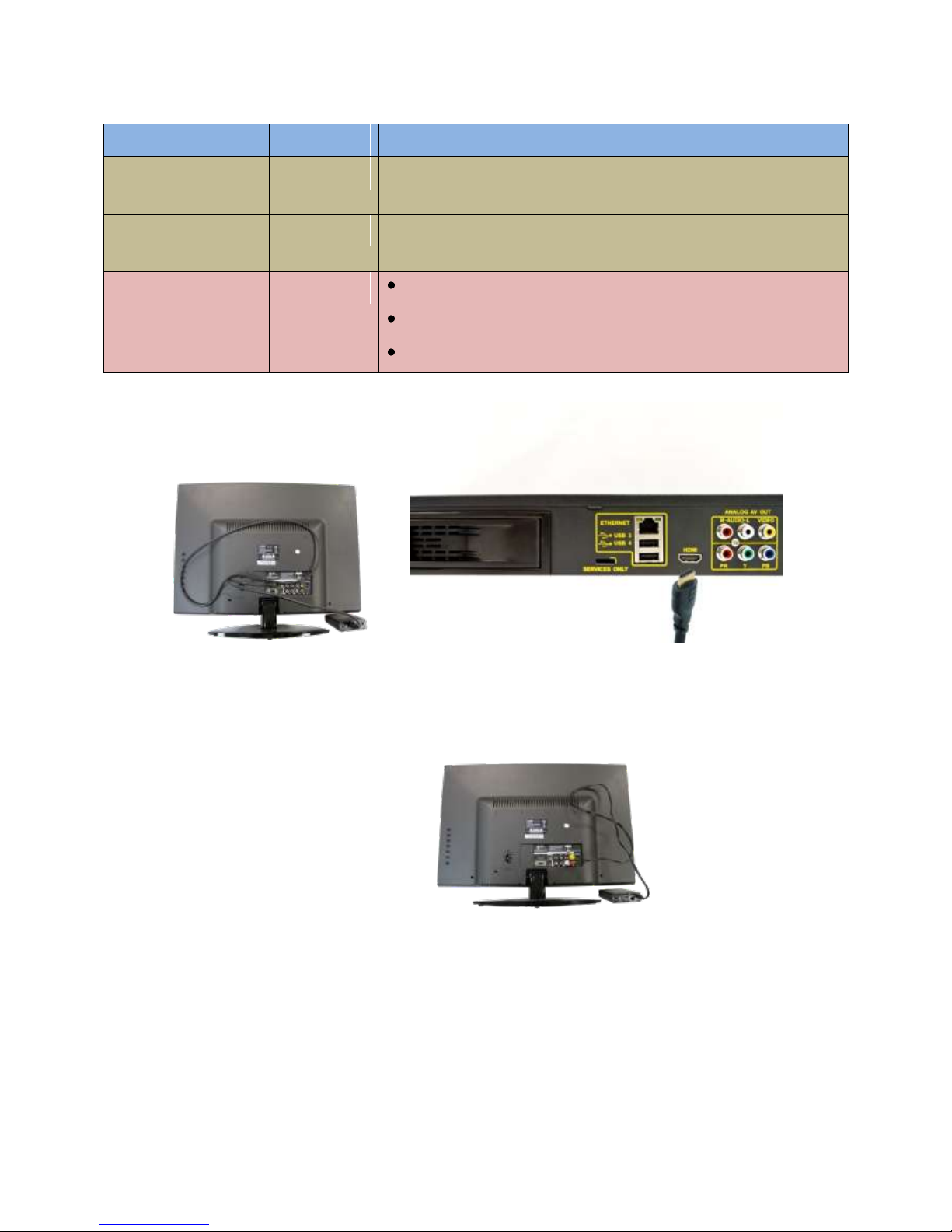
1. Connect your CeeNee BeeGee to the TV set using the HDMI cable or Composite AV
cable or Component cable.
2. To connect the player to the Internet/Network: connect the Ethernet cable to the Ethernet
port or connect a WiFi USB dongle/ an optional 3G/4G dongle to the USB connector.
3. Connect the Red and White of Composite cable between A/V connectors to TV. To use
the optical digital sound, connect the optical cable and/or the coaxial cable from the
player to amplifier.
4. Connect the AC adapter to the wall unit and to CeeNee BeeGee and turn the switch to
ON.
5. Insert a USB drive/a SD card (not included)/ or an internal hard drive that store(s) your
favorite movies, music, Karaoke songs, flash applications (including games) and photos
to the player.
6. Insert two AAA batteries into the remote control device.
7. Wait a moment for the player to search for contents, and then enjoy!
Installation
Step 1: Connect the CeeNee BeeGee media player to your TV or entertainment unit through the
desired interface option.
The below figures illustrate the cable connections supported by the CeeNee BeeGee media
player. The standard connection uses the included composite AV cables.
Choosing the Best Connection
The quality of the media contents depends on the quality of your TV and its connection to the
CeeNee BeeGee media player.

9
Connection
Quality
Connections
HDMI
BEST
Specialized, high-definition connector
COMPONENT
BETTER
Red, Green, and Blue
COMPOSITE
GOOD
Yellow = video
Red = right audio
White = left audio
For High Definition TV
For Standard Definition TV

10
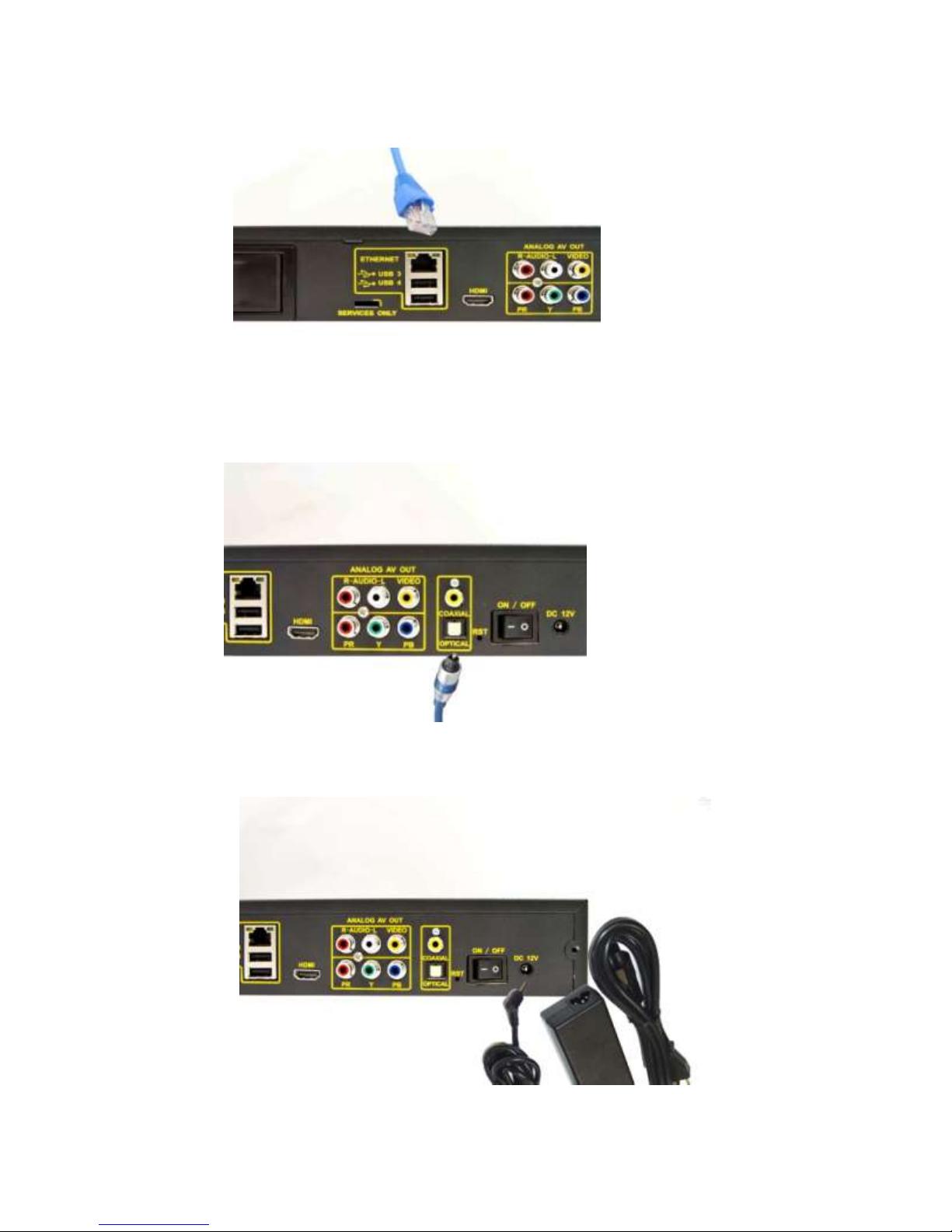
Step 2: Insert the network cable or USB Wi-Fi dongle or USB 3G/4G dongle (This step is
optional and only required if networking and internet browsing is desired).
Step 3: Insert the optical digital cable (Optical digital cable is not included).
Step 4: Connect the AC adapter
Table des matières
Autres manuels CeeNee Lecteur multimédia