
Caton NVD1000D Manuel utilisateur

H.264 HD Network Decoder
NVD1000D
User Manual
Caton Technology Corporation© 2014

NVD1000D User Manual
Contents
1 Introduction...............................................................................................................1
1.1 Abstract ............................................................................................................1
1.2 Applications .....................................................................................................1
1.3 Main Features...................................................................................................2
1.4 Panel design.....................................................................................................2
1.4.1 Front Panel.............................................................................................2
1.4.2 Rear Panel..............................................................................................3
2 Front Panel Control..................................................................................................4
2.1 Power up ..........................................................................................................4
2.2 Control Method................................................................................................4
2.2.1 Basic Operations....................................................................................4
2.2.2 Menu Overview.....................................................................................5
3 Web Control..............................................................................................................7
3.1 Log In...............................................................................................................7
3.2 Basic Setting ....................................................................................................9
3.3 AV Setting ......................................................................................................11
3.4 Status..............................................................................................................12
3.4.1 Decoding Status...................................................................................12
3.4.2 Log.......................................................................................................12
3.4.3 Alarm...................................................................................................13
3.5 System Information........................................................................................13
3.5.1 Network...............................................................................................13
3.5.2 System Info..........................................................................................14
3.5.3 Reboot..................................................................................................14
3.5.4 Upgrade ...............................................................................................14
3.5.5 Date Time............................................................................................15
4 Technical Parameters.............................................................................................16
4.1 Video Decoding Index ...................................................................................16
4.2 Network Index ...............................................................................................16
4.3 Interface Index ...............................................................................................16
4.4 Environment Index.........................................................................................17
4.5 Physical Index................................................................................................17

NVD1000D User Manual
1 Introduction
1.1 Abstract
Caton NVD1000D is a portable network video decoder, especially for high
definition video transmission and playing over internet. NVD1000D can be deployed
in various streaming applications such as point to point transmission, live streaming,
video conference, digital signage and so on.
NVD1000D applies H.264 advanced video processing standard, supports
FULL-HD 1080P60 video decoding and display. OLED screen and Web UI control
enable user configure NVD1000D conveniently and efficiently.
The NVD1000D also supports TS streaming output and can achieve low latency
HD video transmission over the Internet by combining with Caton NVE series
products. NVD1000D supports R2TP (Reliable Real time Transport Protocol), which
is Caton proprietary transport protocol especially designed to solve the QoS problems
for live video transmission over Internet.
1.2 Applications
1

NVD1000D User Manual
1.3 Main Features
Support FULL-HD 1080P/60fps decoding and display, support HD/SD-SDI,
HDMI or CVBS video output;
Various streaming protocols, TS Over UDP, TS Over RTP, TS Over HTTP and
R2TP(Reliable Real time Transport Protocol)
Support Caton proprietary protocol R2TP, which applies virtual QoS mechanism
to ensure high quality and reliable transmission over unmanageable network
environment;
Easy to configure, support OLED screen and front panel control, support web
browser control;
Embedded Linux OS, reliable and virus proof, provides open API based on HTTP
for system integration;
1.4 Panel design
1.4.1 Front Panel
(1) Indicator Light: Indicate the current device status. The 4 lights represent (from
top to bottom):
i. Decoding Light: Green represent right decoding status, Red represent
abnormal decoding status.
ii. Input Light: Green represent right IP input status, Red represent abnormal IP
input status.
iii. Streaming Light: Green represent right Streaming interface connecting status,
Red represent abnormal Streaming interface connecting status.
iv. Control Light: Green represent right Control interface connecting status, Red
represent abnormal Control interface connecting status.
(2) OLED Screen: Display the basic configuration & parameters of the device.
(3) Control Buttons: Include “Select”, “Adjust”, “Enter” and “Esc”.
2

NVD1000D User Manual
1.4.2 Rear Panel
(1) SDI: Output HD/SD-SDI HD/SD Video & Audio Signals.
(2) HDMI: Output HDMI HD Video & Audio Signals.
(3) CVBS & Analog: Output Analog SD Video & Audio Signals.
(4) Streaming: Network interface to input IP Streaming for decoding.
Control: Network interface to control the device through Internet.
(5) USB(x2): Mount USB flash disk to save or apply the configuration file.
(6) Reset: To recover to the default settings.
(7) Power: Connect the power adapter to power up the device.
3

NVD1000D User Manual
2 Front Panel Control
2.1 Power up
Power up NVD1000D, OLED screen will display as follows:
2.2 Control Method
2.2.1 Basic Operations
Through the NVD1000D front panel, user can do the following operations:
(1) Unlock: Slide the “Select” button and the “Adjust” button from left to right at
the same time to unlock the OLED screen. The screen will be locked if there is
no operation over 1 minute.
(2) Enter: Press the “Enter” button to enter the submenu or save the modifications.
(3) Esc: Press the “Esc” button to return to the upper menu or cancel the
modifications.
(4) Select: Press the “Select” button to select the menu or select the position of
parameters.
(5) Adjust: Press the “Adjust” button to select the option or modify the parameter
value.
Steps to configure parameters through front panel:
Slide the “Select” button to select the menu, press the “Enter” button to enter the
edit mode:
4

NVD1000D User Manual
To modify the value of parameters, slide the “Select” button to select the position
of parameters. After the cursor moved to the right position, slide the “Adjust” button
to adjust the value of parameters (Slide the “Adjust” button towards the left to
decrease the value, Slide towards the right to increase the value). Press the “Enter”
button to save the modifications, press the “Esc” button to cancel the modifications.
To change the option of parameters, slide the “Adjust” button to select the option.
Press the “Enter” button to save the modifications, press the “Esc” button to cancel
the modifications.
2.2.2 Menu Overview
Eth1 IP Address: To view or set the Streaming IP address of device.
User can set custom Streaming IP address of device.
Eth1 IP Netmask: To view or set the Streaming IP subnet mask of device.
User can set custom Streaming IP subnet mask of device.
Eth1 IP Gateway: To view or set the Streaming IP gateway of device.
5

NVD1000D User Manual
User can set custom Streaming IP gateway of device.
Eth2 IP Address: To view or set the Control IP address of device.
User can set custom Control IP address of device.
Eth2 IP Netmask: To view or set the Control IP subnet mask of device.
User can set custom Control IP subnet mask of device.
Eth2 IP Gateway: To view or set the Control IP gateway of device.
User can set custom Control IP gateway of device.
Current Channel: To view or select the current channel of programs to decode.
Play Caching: To view or set the decode buffering.
6
NVD1000D User Manual
3 Web Control
3.1 Log In
User can configure the device via Internet. Take the follow steps to log in before
using web UI control:
(1) Prepare a PC with web browser.
(2) Connect PC and the device through network interface.
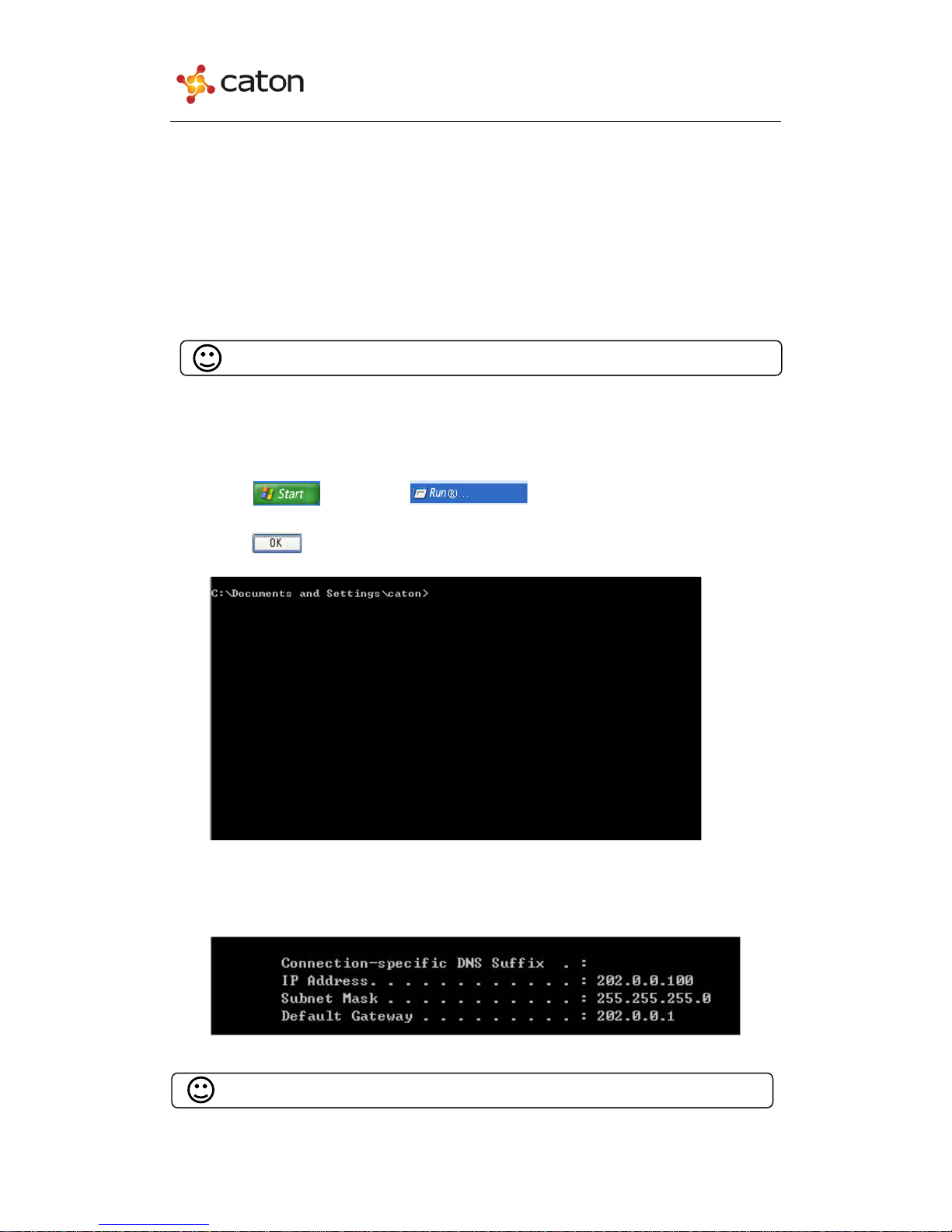
(3) Make sure that the IP address of the device and PC are in the same network
segment:
Click , then click , and input “CMD” in the textbox.
Click , it will display the following window:
Input “ipconfig”, and press the “Enter” Key:
Tips: IE 8.0 or Firefox6.0 or higher version is recommended.
Tips: 202.0.0.100 is the local IP address of PC.
7

NVD1000D User Manual
Confirm the IP address of the device through the front panel:
As the IP address of the device and PC are not in the same network segment, user
needs to modify the device local IP address to make sure that the IP address of the
device and PC are in the same network segment (eg. Set the device Control IP address
to be 202.0.0.18). And make sure the IP address is not occupied by other devices,
which might cause IP address conflict.
(4) Open the web browser of PC, input the IP address of the device, and it will
display the following window:
(5) Input the account name and the password to log in. The default account name and
password are both “admin”.
Tips: 192.168.50.18 is the Control IP address of the device.
8
Table des matières
Autres manuels Caton Convertisseur de média

Caton
Caton Vpro 5100 Manuel utilisateur

Caton
Caton IVP-3000 Series Manuel utilisateur

Caton
Caton NVE 902 Manuel utilisateur

Caton
Caton NVP-990 Series Manuel utilisateur

Caton
Caton NVP-903 Series Manuel utilisateur

Caton
Caton NVP-903 Series Manuel utilisateur

Caton
Caton NVP-903 Series Manuel utilisateur

Caton
Caton CatonCaster HD422 Manuel utilisateur


