
Canyon CNP-WF518 Manuel utilisateur

CNP-WF518
Wireless USB Adapter
User Manual

Table of Contents
INTRODUCTION..............................................................................................................................3
SAFETY PRECAUTIONS ...................................................................................................................3
PACKAGE CONTENTS.......................................................................................................................4
HARDWARE OVERVIEW..................................................................................................................4
GETTING STARTED........................................................................................................................5
CONNECTING TO DEVICE ...............................................................................................................5
INSTALLING DEVICE DRIVER .......................................................................................................5
BASIC OPERATION........................................................................................................................6
INTERNET CONNECTION WIZARD ...............................................................................................6
DEVICE CONFIGURATION ..............................................................................................................8
TROUBLESHOOTING...................................................................................................................18
APPENDIX ........................................................................................................................................19
TECHNICAL SPECIFICATIONS .....................................................................................................19

Thank you for purchasing CANYON CNP-WF518. We sincerely wish you to enjoy
the 802.11b/g wireless network adapter. It is an easy-to-install device that connects
to PC (Ad-Hoc mode for peer-to-peer file sharing) or connects to a wireless
router/access point (for internet connection). To fully utilize the functions and
features of CANYON CNP-WF518, please read through the user manual before
you get started.
Introduction
Safety Precautions
Please observe all safety precautions before using the device. Please follow all
procedures outlined in this manual to properly operate the device.
zDo NOT attempt to disassemble or alter any part of the device that is not
described in this guide.
zDo NOT place the device in contact with water or any other liquids. The device
is NOT designed to be liquid proof of any sort.
zIn the event of liquid entry into device interior, immediately disconnect the
device from the computer. Continuing use of the device may result in fire or
electrical shock. Please consult your product distributor or the closest support
center.
zTo avoid risk of electrical shock, do not connect or disconnect the device with
wet hands.
zDo NOT place the device near a heat source or directly expose it to flame.
zNever place the device in vicinity of equipments generating strong
electromagnetic fields. Exposure to strong magnetic fields may cause
malfunctions or data corruption and loss.
zAll images in the user manual are for user reference only. Actual products
might differ slightly than images shown here.

Package Contents
Product Image Item Name
CNP-WF518 Main Unit
Warranty Card
Quick Guide
Driver CD
Hardware Overview
USB Connector Connects to PC
LED Indicator Connects to cable/DSL modem or other Ethernet devices
LED IndicatorUSB Connector

Getting Started
Before using CANYON CNP-WF518, please make sure that the PC and the device
are within range of an access point (802.11b, 802.11g, or 802.11b/g).
Connecting to Device
1. Power on PC.
2. Insert the device into
an USB 2.0 slot.
3. Insert Driver CD into
CD-ROM to start driver
installation.
NOTE:
It is recommended to install
driver with Driver
Installation Wizard which
will install both device
driver and utility program.
Installing Device Driver
1. Upon inserting Driver
CD, the configuration
menu should pop up
automatically.
2. Please proceed with
Driver Installation
Wizard to install
driver.
3. Click on Install Driver
&Utility for Wireless
USB Adapter to
continue.
NOTE:
Please click on Ok when prompted to install Unsigned Driver. This is a Windows
system warning that indicates the specific driver program is not certified by
Windows.

4. Select preferred setup
language.
5. Click on Next to
continue or Cancel to
exit.
6. Click Next again at
InstallShield Wizard
page or Cancel to exit.
7. Click on Install to
initiate installation
process or Cancel to
exit.
8. Click on Finish to
complete driver
installation.
Basic Operation
Before setting up the device, please make sure that wireless network is setup and
access point/wireless router is functioning properly.
Internet Connection Wizard
1. Click on 11bg Wire-
less LAN USB Utility
desktop shortcut icon
to execute utility
program.
NOTE:
Utility program will only be
available when installing
driver from Drive CD.

2. The Utility main page
will be displayed as
shown.
3. To setup basic wireless
network with existing
access point or wire-
less router, click on Set
Wizard on tool bar
menu.
4. Select connection
mode. Station
(infrastructure)
mode is recommended
for Internet access.
5. Click on Next to
continue or Cancel to
exit.
NOTE:
The device will be restarted
upon selecting AP option.
6. Select desired wireless
connection and click on
Next to continue or
Cancel or exit.
7. Click on Refresh to
update wireless
connection list.
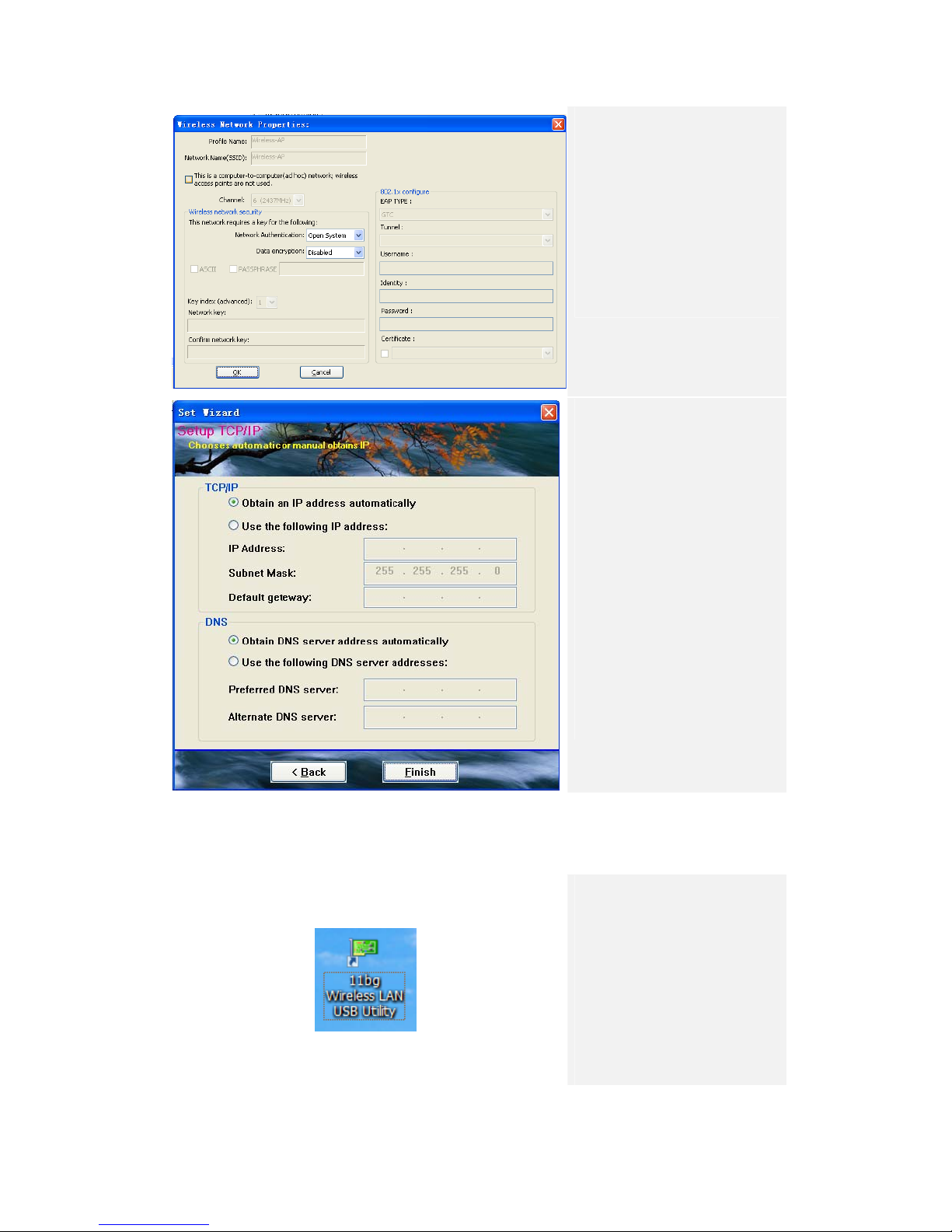
8. Review wireless
network settings.
9. Enter Passphrase
(WEP) or Network
Key (WPA/WPA2) if
required.
10. Click on Ok to continue
or Cancel to exit.
11. Select Obtain an IP
address automati-
cally and Obtain DNS
server address auto-
matically when DNS
service is enabled in
the wireless network.
12. Select Use the
following IP address
only when required by
network administrator.
13. Click on Finish to
complete installation.
Device Configuration
Click on 11bg Wire- less
LAN USB Utility desktop
shortcut icon to execute
utility program.
NOTE:
Utility program will only be
available when installing
driver from Drive CD.

1. General
The General tab displays current wireless connection information. Click on ReNew IP to
release and renew IP address.
General Information:
zStatus: Wireless network Associated, AD-HOC Mode or Not Associated.
zSpeed: The data transfer rate of the current connection.
zType: The type of the current wireless connection, Infrastructure, AD-HOC
zEncryption: Current data encryption method.
zSSID: The unique name of the wireless network.
zSignal Strength: The signal quality of the current wireless connection.
zLink Quality: The link quality of the current wireless connection.
Internet Protocol (TCP/IP):
zMAC Address: The MAC Address of the Adapter.
zIP Address: The IP Address of the Adapter.
zSubnet Mask: The Subnet Mask of the Adapter.
zGateway: The Default Gateway address of the Adapter.
Others:

zShow Tray Icon: Show USB Wireless LAN Utility icon in Windows Notification Area.
zDisable Adapter: Disable the wireless adapter.
zRadio off: Turn off the radio broadcasting/receiving activities of the wireless adapter.
zWindows Zero Config: Enable this function if desired to configure wireless
connection by Windows wireless adapter configuration program.
2. Profile
The Profile tab adds, removes, edits, duplicates, and sets default a wireless network
profile. Click on each button to start profile configuration.
NOTE:
Follow below instructions to configure device connecting to a wireless network providing
PC Internet access (Infrastructure mode) and connecting to another PC directly (AD-HOC
mode). Please be advised that switching between 2 modes requiring reset of the device
thus connection to other devices will be temporarily disabled.
Autres manuels pour CNP-WF518
1
Table des matières
Autres manuels Canyon Adaptateur


