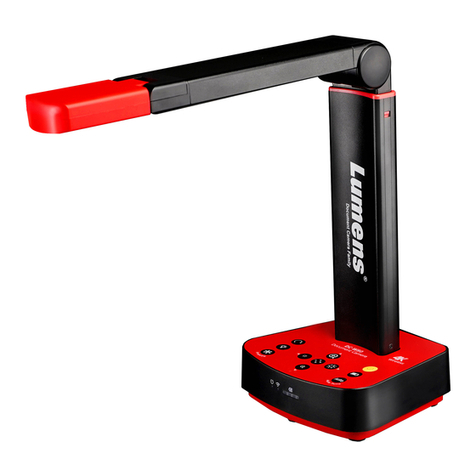
Califone DiggiDitto DC596 Manuel utilisateur

DiggiDitto™ DC596
Smart Camera with Image Recognition
User Manual
visit us online at califone.com
2 DiggiDitto™ DC596—Smart Camera with Image Recognition
visit us online at califone.com
DiggiDitto™ DC596—Smart Camera with Image Recognition 3
Thank you for purchasing the Califone® DiggiDitto DC596 Smart
Camera with Image Recognition.
We encourage you to visit our website, www.califone.com, to
register your product for its warranty coverage, to sign up to receive
our newsletter, download our catalog, and learn more about the
complete line of Califone audio visual products, including portable
and installed wireless PA systems, multimedia players and recorders,
headphones and headsets, computer peripheral equipment, visual
presentation products, and language learning materials.
Key Features
• Provides an easy to use learning solution by simply linking with a
computer
• Uses image recognition technology to present a variety of cur-
riculum content
• Includes multimedia support – sound, image, video/ash, docu-
ment (MS Ofce, PDF), web
Document Camera
• High-resolution projection (2 million pixels, UXGA 1600 ×1200)
• Saves and edits pictures
• Integrated microphone
• Records video with sound
• Splits Screen
• Zooms in/out
• Rotates and ips
• Prints view directly
Image Recognition Tool
• Initiates sounds or pictures as it recognizes images
• Identies objects as well as images
• Creates a database of images
• Links each image to a minimum of one and a maximum of
seven different images, sounds, documents, ash les, and web
pages.
Annotation Software
• Use as an electronic blackboard - write on top of pictures, com-
puter screen.
• Choose from among four annotation backgrounds
• Choose pen color, width, transparency
• Draw geometrical shapes
• Save annotated images
DiggiDitto™ DC596
Smart Camera with Image Recognition

visit us online at califone.com
4 DiggiDitto™ DC596—Smart Camera with Image Recognition
visit us online at califone.com
DiggiDitto™ DC596—Smart Camera with Image Recognition 5
Important Safety Information
Attention: All safety and operating instructions should be read
before operating appliance. All operating and use instructions should
be followed when operating the appliance. Heed and adhere to all
warnings on the appliance and in the operating instructions. Retain all
safety and operating instructions for future reference.
Water and moisture: Do not use the appliance near water; i.e.,
bathtub, washbowl, kitchen sink, laundry tub, wet basement, or
swimming pool.
Ventilation: Do not situate the appliance so that its location or
position interferes with its proper ventilation. For example, the
appliance should not be situated on a bed, sofa, rug, or similar
surface that may block the ventilation openings. The appliance should
not be placed in a built-in installation, such as a bookcase or cabinet,
that may impede the ow of air through the ventilation openings.
Heat: Situate the appliance away from heat sources such as radiators,
heat registers, stoves, or other appliances (including ampliers) that
produce heat.
Power sources: Connect the appliance only to a power supply type
described in the operating instructions or marked on the appliance.
Grounding or polarization: Precautions should be taken so that the
grounding or polarization means of the appliance are not defeated.
Power cord protection: Power supply cords should be routed so
that they are not likely to be walked on or pinched by items placed
upon or against them, paying particular attention to cords at plugs,
convenience receptacles, and the point where they exit from the
appliance.
Cleaning: The appliance should be cleaned only as recommended by
the manufacturer. Always unplug before cleaning the device. Use a
damp soft-cloth for cleaning. Do not use volatile solvent.
Non-use periods: Unplug the appliance power cord from the outlet
when left unused for a long period of time.
Object and liquid entry: Care should be taken so that objects do not
fall and liquids are not spilled into the enclosure through openings.
Damage requiring service: The appliance should be serviced by
qualied service personnel when (a) the power supply cord or the
plug has been damaged, (b) objects have fallen or liquid has been
spilled into the appliance, (c) the appliance has been exposed to
rain, (d) the appliance does not appear to be operating normally or
exhibits a marked change in performance, or (e) the appliance has
been dropped or the enclosure damaged.
Servicing: The user should not attempt to service the appliance
beyond that described in the operating instructions. All other
servicing refers to a qualied service personnel.
Location: Place the device on a stable surface to prevent injuries or
damage. Do not place directly under sunlight. Keep the camera away
from acid or alkali gasses. Do not place in humid, dusty or windy
locations. Keep within the recommended environment: temperature
of 0ºC to 45ºC (32ºF to 113ºF), humidity of less than 75%.
Abnormal functionality: If this equipment functions abnormally,
such as smoke, smell, or noise, immediately unplug and call for
professional assistance.

visit us online at califone.com
6 DiggiDitto™ DC596—Smart Camera with Image Recognition
visit us online at califone.com
DiggiDitto™ DC596—Smart Camera with Image Recognition 7
1. Package Contents
The following materials are included with your Califone® DiggiDitto
DC596 Smart Camera:
• DiggiDitto DC596 Camera Head with attached USB Cord
• DiggiDitto DC596 Camera Base
• Carrying Case
• USB Extender Cable
• Software CD
• User Manual
Table of Contents
1. Package Contents ............................................................7
2. Setup and Installation .....................................................8
2.1 Install DC596 Program File .......................................8
2.2 Setup of the DC596 driver .........................................9
3. Basic Operation .............................................................10
3.1 Camera Tab ............................................................ 10
3.2 Capture Frame ........................................................ 11
3.3 Pen Palette .............................................................. 11
3.4 Make Tab ................................................................. 12
3.5 Teach Tab ................................................................13
3.6 Big Screen ...............................................................14
4. Detailed Functions ........................................................15
4.1 Main Menu ...............................................................15
4.2 Cursors ....................................................................18
4.3 Main Toolbar ............................................................ 18
4.4 Camera Tab ............................................................. 19
4.4.1 Capture Window ............................................ 22
4.4.2 Record Movie Window ................................... 23
4.4.3 Pen ............................................................... 24
4.5 Make Tab ................................................................. 26
4.5.1 Add Recognized Images ................................28
4.5.2 Add Alternate Images .................................... 28
4.5.3 Link Files .......................................................28
4.6 Teach Tab ................................................................31
5. Troubleshooting .............................................................36
6. Specications ................................................................39
7. Warranty .........................................................................41

visit us online at califone.com
8 DiggiDitto™ DC596—Smart Camera with Image Recognition
visit us online at califone.com
DiggiDitto™ DC596—Smart Camera with Image Recognition 9
2. Setup and Installation
After inserting the CD into the computer CD drive, the following
image will appear on the screen. Press on the appropriate installation
button.
If the computer does not show the above screen, the software can
also be installed manually: Insert Installation CD → Install DC596
Program File → Connect DC596 to the Computer → Finish
2.1 Install DC596 Program File
1. Insert the installation CD into the CD drive and click the
setup.exe le.
The Install Shield Wizard will be presented.
2. Press Next to start the installation process.
3. When the installation is complete, click the OK button.
An DC596 icon appears on the Desktop as well as on the
Start Menu.
2.2 Setup of the DC596 driver
After installing the DC596 device driver, complete the following
steps:
1. Connect the USB cable to the computer.
2. Verify that the driver is responding correctly:
• Driver setup procedure (auto conguration): USB Con-
nect → New hardware detection → Driver auto congu-
ration → Compliant message display → Press Continue
→ Finish
• Driver setup procedure (manual conguration): USB
Connect → New hardware detection → Driver manual
conguration → Locate driver → Compliant message
display → Press Continue → Finish

visit us online at califone.com
10 DiggiDitto™ DC596—Smart Camera with Image Recognition
visit us online at califone.com
DiggiDitto™ DC596—Smart Camera with Image Recognition 11
3. Basic Operation
3.1 Camera Tab
3.2 Capture Frame
Open to view images
other than what the
camera sees.
Save to save edited image.
Crop to pick out an
image out of an image.
Copy copies the image
to paste onto another
document.
Ver.Flip image along
the vertical axis.
Hor.Flip image along
the horizontal axis.
3.3 Pen Palette

visit us online at califone.com
12 DiggiDitto™ DC596—Smart Camera with Image Recognition
visit us online at califone.com
DiggiDitto™ DC596—Smart Camera with Image Recognition 13
3.4 Make Tab 3.5 Teach Tab

visit us online at califone.com
14 DiggiDitto™ DC596—Smart Camera with Image Recognition
visit us online at califone.com
DiggiDitto™ DC596—Smart Camera with Image Recognition 15
3.6 Big Screen
Press the Previous and Next
buttons to move through your
recognized images.
Shortcut:
Press the volume
button to mute the
sound.
Play and pause
(shortcut: F3 key)
Press the Previous and Next
buttons to move through your
recognized images.
Shortcut:
Press the volume
button to mute the
sound.
Play and pause
(shortcut: F3 key)
, keys, keys
4. Detailed Functions
4.1 Main Menu
The advanced buttons are located on the Main Menu at the top of
the screen above the toolbar. This menu includes the File, Modes,
Window, and Help tabs.
File includes the following items:
• New: To open new project folders. Each project is a presentation.
It is possible to have multiple projects or multiple lessons in a
single project.
• Open: To open an existing project.
• Save: To save a new or edited project.
• Import: To import a project to another computer. Importing nxp
formatted les will result in a directory of the same name in the
project folder.
• Export: To export a project from one’s own computer. When
a project is exported, the resulting le will have the extension
“nxp” and will be placed on the Desktop if a different location is
not selected.
• Print: To print a page(s) or a selection (can also specify where to
print).

visit us online at califone.com
16 DiggiDitto™ DC596—Smart Camera with Image Recognition
visit us online at califone.com
DiggiDitto™ DC596—Smart Camera with Image Recognition 17
By selecting Print, the following pop-up will appear to set the
details of printing. The scale as well as how many copies of the
image can be customized. An image that has been rotated, or
split etc., will only print the regular view.
• Recently Opened Files: Recently opened projects.
• Exit: To exit the program.
Modes
Three modes are included in the DC596:
• Camera: Document camera mode, where it is possible to rotate,
compare, zoom in and out, and edit images in this mode.
• Make: To make, edit, and link up projects that utilize the image
recognition feature of the device.
• Teach: To present to a classroom or to a single pupil using the im-
age recognition feature.
Tools
Several tools are included within the DC596:
• Split Screen: To divide the screen in two for comparison.
• Focus: To focus the image when the image shown on-screen is
out of focus.
• Freeze Frame: To freeze a moving image to edit, save, or compare.
• Change Camera Resolution: Changes the camera resolution from
1600 × 1200 to 800 × 600 and vice versa. This changes the cam-
era resolution for the document camera only and is not available
in other modes.
• Image Capture: For capturing and/or editing images.
• Record Movie: To record a short video clip of up to 10 minutes.
• Zoom: Includes zoom in, zoom out, and reset.
• Rotate: Able to rotate 90 degrees clockwise, counterclockwise,
and 180 degrees.
• Recognition: For starting/stopping recognition. This is applicable
only for the Make and Teach modes.
• Pen: For writing/drawing/erasing on the screen of the whole
monitor.
• Camera Setting: To select the behavior of the camera.
Window
• Full Screen: To maximize the window size. For the case of the
Teach Mode, only the right pane gets enlarged.
• Move Toolbar: The toolbar can be placed on the top or on the bot-
tom.
Help
• About DC596: For version information.

visit us online at califone.com
18 DiggiDitto™ DC596—Smart Camera with Image Recognition
visit us online at califone.com
DiggiDitto™ DC596—Smart Camera with Image Recognition 19
4.2 Cursors
The many cursors shown throughout this program are dened below.
Move To shift/move in any direction.
Move To shift/move in any direction, specically
when zoomed-in.
Grab Image To grab and shift/move the position of the
image.
Split Screen To shift the image left and right.
Cursors within the Pen functionality
Pen The cursor changes to a pen when you are
writing on the board.
Marker The cursor changes to a marker when you are
drawing on the board.
Eraser The cursor changes to an Eraser when you are
erasing the board.
Figures The cursor changes to that of a gure when you
are constructing gures.
4.3 Main Toolbar
The Main Toolbar is divided into three parts: left, center, and right.
The left has three tabs: Camera, Make, and Teach. The center has the
function icons for the different tabs. The right has the Full Frame,
Lock Toolbar, and Toggle Toolbar.
Left Center Right
The icons change from tab to tab, from Camera to Make to Teach.
Camera Tab
Make Tab
Teach Tab
4.4 Camera Tab
The Camera tab shows the document camera window. When an
object is placed under the camera, the object (e.g., a computer
monitor or a TV connected to the PC) is shown on the monitor. The
uses here are similar to that of other document cameras.
Table des matières
Autres manuels Califone Caméra de documents