C-me UF5 Manuel utilisateur

1
USB MIDI Master Keyboard
○○○○○○○○○○○○○○○○○○○○○○○○○○○○○○○○○○○○○○
Warning:
Improper connection may cause damage to the device.
Copyright:
Copyright of the manual belongs to Central Music Co. Anyone
must get a written permission from Central Music Co. before copying
any part of the manual to any kind of media.
(c) Central Music Co. 2004
Open the package
Please check all the items in your UF keyboard package:
USB MIDI Master keyboard 1 pcs
AC adapter 1 pcs
USB cable 1 pcs
User's manual 1 pcs
CD-ROM for device driver 1pcs
Sustain pedal 1 pcs (included with UF8 ONLY, optional for
UF5/6/7)
Thank you for choosing CME UF Professional Master
MIDI Keyboard with Built-in USB
Please keep all the important information here
Attach your invoice or receipt here
for reference
Purchase date Serial(on the back of the keyboard)
Dealer's name and addr.
Dealer's tel.

USB MIDI Master Keyboard
2
PRECAUTIONS
IMPORTANT
Always follow the basic precautions listed below to avoid the possibility of
serious injury or even death from electrical shock, damages, fire or other
hazards. These precautions include, but are not limited to, the follows:
1. Read and understand all the instructions.
2. Always follow the instructions on the instrument.
3.Before cleaning the instrument, always remove the electric plug from
the outlet as well as the USB cable. When cleaning, use a soft, dry cloth. Do
not use gasoline, alcohol, acetone, turps or any other organic solution; do
not use liquid cleaner or spray cleaner, or too wet cloth.
4. Do not use the instrument near water or moisture, such as bathtub,
washbasin, or washing poor in the kitchen, or similar places.
5. Do not place the instrument in an unstable position where it might acci-
dentally fall over.
6. Do not jam sinks or holes of the instrument; those sinks of holes are
used for air circulation to prevent the instrument from overheating. Do not
place the instrument near heat sink or any places with poor air circulation.
7. Always use the AC adaptor included with the instrument; do not use any
other AC adaptor.
8. Do not place anything on the power cord. Make sure the power cord is set
on a safe place, so nobody will step on it and no body will get trip over by it.
9. Do not overload the outlet and AC cable to avoid fire or electrical shock.
10. Do not insert anything in the instrument, which may cause fire or elec-
trical shock. Do not splash any kind of liquid to the instrument.
11. Do not disassemble the instrument in case of accidental electrical shock.
12. Always take the instrument to qualified service center in need of repair.
You will cause yourself in danger if you open or remove the cover, and im-
proper assembly may cause electrical shock in the future use.
13. Unplug all the connectors and take the instrument to qualified service
center if anything in the below list happens:
A. The power cord or connector get hurt or worn out.
B. Any liquid get in the instrument.
C. The instrument gets rain or water splash.
D. The instrument dose not work properly after following all the in-
structions regarding to troubleshooting.
E. The instrument falls down or gets broken.
F. The instrument functions poorly.
14. Do not use the instrument when thundering; otherwise the thundering
may cause long-distance electrical shock.
15. Do not use the instrument when there is gas leak nearby.

3
USB MIDI Master Keyboard
Keep this manual in safe place
CAUTION:
Setting up
Do not connect the instrument when thundering.
Do not set up the cord or outlet to moisture place, except for that the outlet
is specially designed for moisture.
When the power cord is connected to the AC outlet, do not touch the naked
part of cord or connector.
Always follow the instructions carefully when setting up the instrument.
WARING:
Do not expose the instrument to rain or moisture, to avoid fire or electrical
shock.
Other precautions:
Keep the instrument away from electrical interface source, such as fluores-
cent light and electrical motor.
Keep the instrument away from dust, hear and vibration.
Do not expose the instrument to sun light.
Do not place heavy object on the instrument; do not place containers with
liquid on the instrument.
Do not touch connectors with wet hand
Central Music Co. is not responsible for any damage or data loss caused by
improper operation to the instrument.
All the pictures and LCD display in the manual are used for demonstration;
they may be different from a real instrument.
Features
Professional Master MIDI Keyboard with Built-in USB
49/61/76 keys with Initial Touch/Aftertouch(UF5/6/7)
88keys Hammer Effect with Initial Touch/Aftertouch(UF8)
Pitch wheel and Modulation wheel
8 assignable knobs, preset function includes Cutoff / Resonance / Attack /
Release / Pan / Reverb / Chorus / Tempo
9 assignable faders(sliders), preset function includes channel volume(chn1-
chn16) and Master volume, Drawbar organ
LED display 9 control buttons for Program change, Transpose, Octave,
Channel, Split, Dual and others.
6 Sequencer remote control buttons: REC, PLAY, STOP, FF, REW, BACK-
WARD
BC(Breath Controller) port
1 MIDI out port
Sustain pedal and Volume pedal connector
USB MIDI port, power can be supplied with USB
USB Drivers for Win2000/XP and Mac OSX USB MIDI
Compatible with major sequencer and audio software
Optional Firewire expansion board for IEEE 1394 audio interface

USB MIDI Master Keyboard
4
1.Connection ............................................................ 5
1.1 Front panel ................................................................................. 5
1.2 Rear panel ................................................................................. 6
1.3 Connect UF to tone generators ................................................. 7
1.4 Add UF to computer music system ........................................... 8
1.5 Driver installation ....................................................................... 9
2.Play the instrument ............................................... 9
2.1 Turn on the instrument .............................................................. 9
2.2 Play the demo song ................................................................... 9
2.3 Reset .......................................................................................... 9
2.4 Value adjustment and display ................................................. 10
2.5 Select voice .............................................................................. 10
2.6 Pitch bend wheel ..................................................................... 10
2.7 Modulation wheel ..................................................................... 10
2.8 Adjust volume and customize faders ..................................... 10
2.9 Transpose................................................................................ 11
2.10 Octave shift ............................................................................. 11
2.11 All notes off ............................................................................. 13
3.Advanced functions ............................................. 13
3.1 Change MIDI channel .............................................................. 13
3.2 Edit voice and customize knobs .............................................. 13
3.3 Send initializing sysx ................................................................ 14
3.4 Adjust velocity curve ................................................................. 15
3.5 Split .......................................................................................... 15
3.6 Dual .......................................................................................... 16
3.7 After touch ................................................................................. 17
3.8 Drawbar organ ......................................................................... 17
4.Computer music system connection .................. 17
4.1 Sequencer remote control ....................................................... 17
4.2 Select MIDI route ...................................................................... 18
5.Appendix ............................................................. 18
5.1 Controller parameters list........................................................ 18
5.2 Troubleshooting ....................................................................... 20
5.3 Specifications .......................................................................... 21
5.4 MIDI implementation chart ....................................................... 22
5.5 Index ......................................................................................... 23
Contents
Contents

5
USB MIDI Master Keyboard
1.Connection
1.1 Front Panel
Sequencer remote control
Those buttons are used to control external sequencer.
Voice editing knobs
8 assignable knobs with preset for voice editing.
Volume Faders
8 assignable faders (sliders) with preset for channel volume.
Master Volume
Master volume fader for external tone generator (GM standard.)
Knob Func
This button is used to switch knob function.
Fader Func
This button is used to switch fader function.
LED display
The LED displays related information of the keyboard.
Function buttons
Those buttons are used to make a lot of functions of the keyboard.
Data dial
Data dial is used to adjust current value.
Inc/Dec Button
Increase or decrease current value by one when pushed.
Connection

USB MIDI Master Keyboard
6
1.2 Rear panel
MIDI OUT
All the MIDI messages from the UF keyboard or from USB
transmission will be outputted to external MIDI devices via MIDI
OUT terminal.
SUSTAIN PEDAL
A sustain pedal can be connected to SUSTAIN PEDAL terminal.
The sustain pedal will generate MIDI controller #64 message.
CONTROLLER PEDAL
A controller pedal can be connected to CONTROLLER PEDAL
terminal. The controller pedal will generate MIDI controller
message, the controller # is assignable
To assign a controller # for the pedal, press DRAWBAR and A.
TOUCH at the same time, then the current controller # (11) will be
displayed on the LED, now we can use DEC/INC button or the
data dial to change the controller # to any number from 0 to 127.
B.C.(Breath Control)
A breath controller (such as YAMAHA BC3) can be connected to
B.C. jack. The breath controller will generate MIDI controller #2
(assignable) message.
To assign a controller # for the B.C.jack, press PROGRAM and
OCTAVE at the same time, then the current controller # (02) will
be displayed on the LED, now we can use DEC/INC button or the
data dial to change the controller # to any number from 0 to 127.
Note: The B.C. jack only works when the keyboard is powered by
AC. Adapter.
USB
USB port is used to connect the UF keyboard to computer by an
Connection

7
USB MIDI Master Keyboard
Connection
USB cable for bi-direction data transmission.
CABLE HOOK
Keep the power cord in the CALBE HOOK when necessary for
good power connection.
POWER INLET
Power supply goes from the A.C. adapter to the POWER INLET.
POWER SWITCH
POWER SWITCH is used to turn on or turn off the UF keyboard.
1.3 Connect UF to tone generators
Warning: Turn off all the devices before connection
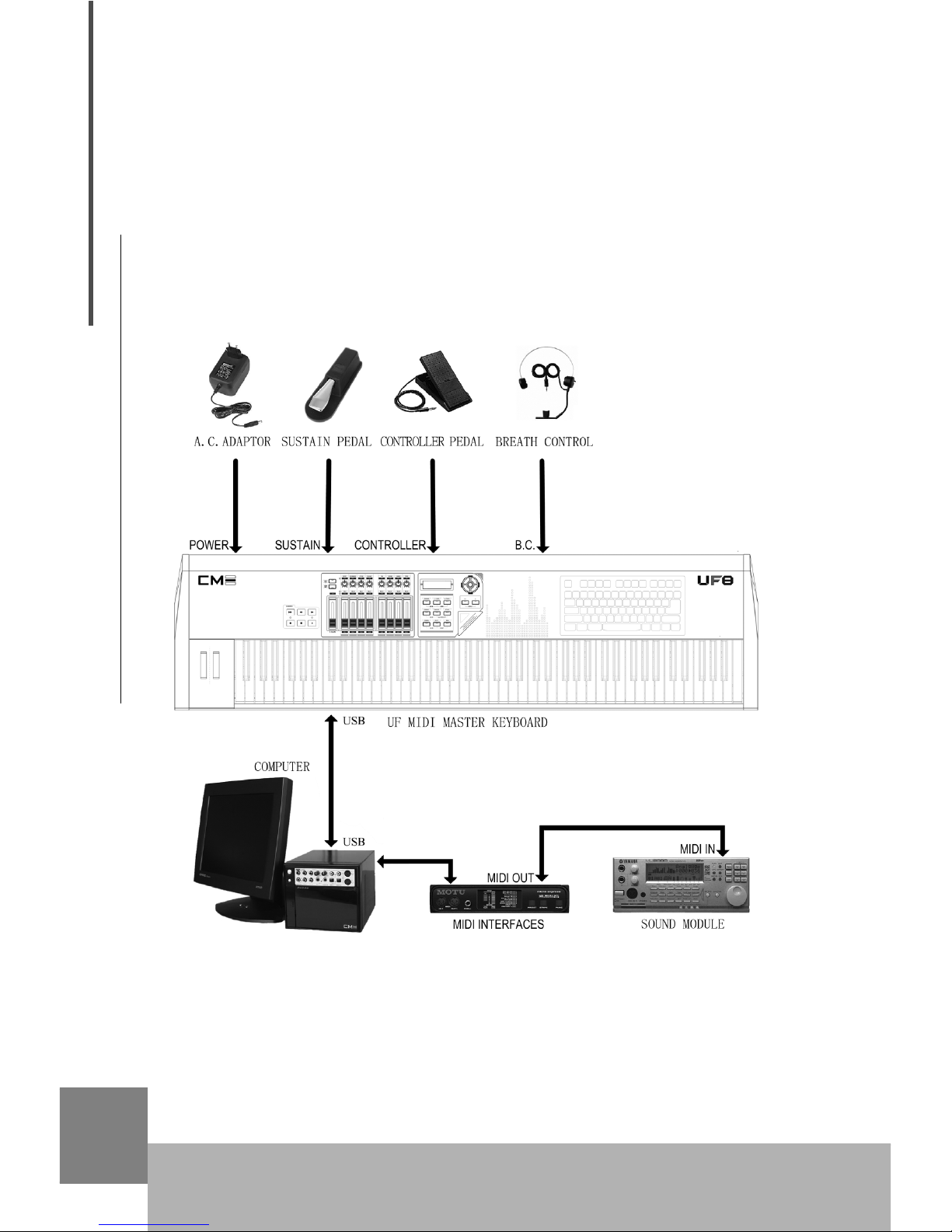
Connect UF to a tone generate then you can play
1.3.1 Connect UF MIDI OUT to tone generator MIDI IN via MIDI cable
1.3.2 Connect tone generator to speaker system, or use head-
phone instead
1.3.3 Switch tone generator HOST SELECT to "MIDI" if there is a
HOST SELECT in the tone generator
1.3.4 Plug AC adaptor's output connector to UF DC IN
1.3.5 Please refer to the figure for connections with Sustain pedal

USB MIDI Master Keyboard
8
(included with UF8), Controller pedal, or Breath Controller(such as
YAMAHA BC3).
1.3.6 Now you can play the tone generator with UF keyboard.
1.4 Add UF to computer music system
You can add UF keyboard to the computer music system, then
you can use UF as the master MIDI keyboard of the system to play
music as well as input other MIDI messages.
Connection
1.4.1 Connect UF USB port to your computer USB port via the USB
cable supplied with the UF keyboard.
1.4.2 Install USB driver in the computer(See chapter 1.5)
1.4.3 Install then start your MIDI sequencer software and soft syn-
thesizer (such as SampleTank).
1.4.4 Connect your audio out to the stereo system.

9
USB MIDI Master Keyboard
Hint:
You can also use MIDI cable to connect UF keyboard to computer music
system via a MIDI interface, in this way you do not have to make USB
connection, nor to install USB driver.
1.5 Driver installation
1.5.1 Connect UF to computer via USB cable
1.5.2 Power on the computer
1.5.3 Insert UF CD-ROM to computer
1.5.4 Follow instructions in the README file to finish the installation.
Hint:
When using USB cable to connect UF keyboard to computer music
system, you must install the UF driver to the computer; otherwise the system
will not accept the device.
2. Play the instrument
2.1 Turn on the instrument
You can find the Power switch in the rear panel. Make sure all the
devices are properly connected before turn on the keyboard.
2.2 Play the demo song (DEMO)
There is one demo song in the UF keyboard. You can play the
demo song according to below steps:
2.2.1 Turn on UF keyboard, tone generator, and speaker system
2.2.2 Set proper volume for speaker system to avoid damage to
your ear
2.2.3 Push V.CURVE and A.TOUCH on UF front panel at the
same time to play the demo song. Push the two buttons again to stop.
2.3 Reset
By using "Reset" function, you can restore the UF keyboard to
its factory default settings. (Without "Reset", the keyboard always memo-
rize its recent settings.)
2.3.1 Push SPLIT and DUAL" on UF front panel at the same
time and keep the buttons hold down for at least two seconds to acti-
Play the instrument

USB MIDI Master Keyboard
10
vate reset function.
2.3.2 During the reset process, the LCD flashes until reset process
is finished.
Hint:
Reset function will clear all of your settings to the keyboard!
2.4 Value adjustment and display
2.4.1 Data dial
Please notice that for current selected function, the value will be
displayed on LCD. When you rotate the Data dial, current value will be
changed accordingly, and the LCD will display the new value.
2.4.2 DEC / INC button
Please notice that for current selected function, the value will be
displayed on LCD. When you push DEC/INC button, current value will
be changed accordingly, and the LCD will display the new value.
Hint:
1.If you push and hold down the button for 0.5 second, the value will repeat-
edly decrease or increase.
2.If you push DEC and INC at the same time, current value will return
to factory default.
2.4.3 LCD
The LCD displays all the related information of the keyboard.
2.5 Select voice (PROGRAM)
This button is used to change the voice of current channel.
2.5.1 After you push this button, LCD will display current voice
number, then you can use Data dial or DEC/INC button to change the
voice number. The new voice number will be displayed on the LCD.
Hints:
1.Voice number range is 0-127.
2.
Play the instrument
Ce manuel convient aux modèles suivants
2
Table des matières
Autres manuels C-me Clavier électronique