
BT Vision+ Manuel utilisateur

Job No. 1931
Client BT
Project BT Vision guide Cardinal v8
Revision 3-DR
Modified 30/10/13
Created 15/10/13
To set up, follow this guide or the online video at bt.com/help/tv/setupguide
User Guide
BT TV
Keep this guide
somewhere safe
You might need
it from time
to time.
Easy set-up

Not long now until you can sit back and enjoy the shows you love.
How to set up
Just follow the few simple steps starting on page 4 of this guide.
Set-up’s easy and takes less than half an hour.
Need some help?
No problem – give us a call on 0800 111 4567, go to bt.com/help/tv
or check Help & Settings in the main menu.
Important note about your broadband
Your broadband needs to be up and running before you set up
BT TV. It might not be up and running until midnight on your
broadband activation day. And if you’ve got a new broadband
service, the line needs time to settle – usually between three
and ten days. Your new BT TV might pause and stutter during
this period but don’t worry as it’s only temporary.
Welcome
2 BT TV – welcome

Easy set-up
1 Before you start
2 Connect your BT Home Hub
3 Connect your aerial
4 Connect your TV
5 Turn it on
6 Follow on-screen steps
Easy set-up

3 Think about where to put your BT Vision+ box. You can put it
wherever you want, as long as it’s near:
• a TV aerial socket or cable
• a mains power socket
• your TV and other TV equipment (e.g. amp or DVD player),
if you’re planning to connect them
If you’ve ordered Extra TV channels, you’ll need to connect your
BT Vision+ box to your BT Home Hub using an Ethernet cable (see
the next page). For more about these channels, go to page 26 or
bt.com/tvfrombt.
You need a digital TV aerial
Your BT Vision+ box needs an aerial that can receive digital
TV signals (external or in the loft). If you haven’t got one
(e.g. you’ve been using satellite or cable TV), call us on
0800 800 150 and, for a small charge, we can fit a new
aerial for you.
The digital TV channels you get depend on where you live
and the quality of your aerial and cables. If you have trouble
watching live or recorded digital programmes, it could be
because your aerial or cables need replacing.
For help see pages 23–25, call 0800 111 4567 or go to
bt.com/help/freeview.
2 Make sure your broadband’s working properly (your Hub’s
Broadband or status light should be glowing steady blue. If it isn’t,
see your BT Broadband User Guide at bt.com/help/broadband).
Don’t worry if your BT Home Hub looks slightly different from the
one shown here. As long as you’re using the one we sent recently,
it’ll still work with BT TV.
Don’t plug in your BT Vision+ box yet. We’ll tell you when.
Ethernet cable Power cable HDMI cable Aerial cable
BT Vision+ box™User guide Remote control Batteries
Two Powerline adapters
(see page 22)
Another Ethernet cable
Extra kit
You might also have
been sent these items:
Toset up, follow this guide or the online video at bt.com/help/tv/setupguide
User Guide
BT TV
Easyset-up
Howto use BT Vision
Help bt.com/help/tv
1 Check your box contents
1Before you start
Or watch our set-up video at bt.com/help/tv/setupguideBT TV – easy set-up
54
Easy set-up

1 4
2 3
OPTION B
Use this option if your BT Home Hub’s in another room and you haven’t ordered Extra TV channels*
1 Using one of your Ethernet cables (yellow ends), connect your
BT Home Hub’s Ethernet port 1 to one of your Powerline adapters
(it doesn’t matter which one).
2 Plug Powerline adapter 1 into
a mains power socket (not an
extension lead) and switch it on.
3 Plug Powerline adapter 2 into a mains power socket (not an
extension lead) and switch it on.
4 Using the other Ethernet cable, connect this Powerline adapter
to your BT Vision+ box’s LAN socket.
When both of your Powerline adapters are connected, their lights
should glow green.
2Connect your BT Home Hub
OPTION A (Recommended)
Use this option if your Hub’s close enough to your BT Vision+ box to connect using
an Ethernet cable or if you’ve ordered Extra TV channels*
1 Using an Ethernet cable (yellow ends), connect
your BT Vision+ box’s LAN socket to your
BT Home Hub’s Ethernet port 1
BT Vision+ box
BT Vision+ box
LAN socket
BT Home Hub
BT Home Hub
Powerline
adapter 1
Powerline
adapter 2
Ethernet port
Ethernet
port
LAN
socket
To connect your Hub, follow Option A on this page or Option B on the next page.
We recommend Option A for the best, most reliable connection.
* Extra TV channels won’t work with Powerline adapters. To find out more about them, see page 26.
Or watch our set-up video at bt.com/help/tv/setupguideBT TV – easy set-up
76
Easy set-up

4Connect your TV
If your TV doesn’t have an HDMI socket
An HDMI cable gives the best picture and sound quality and is
needed to watch in high definition (HD). It can be used with most
modern TVs, but if your TV doesn’t have an HDMI socket, you can
use a SCART cable to watch in standard definition instead. If you
haven’t already got one, you can buy one from most electrical
stores or from bt.com/shop
1 Unplug your existing aerial cable from your TV and plug it into
your BT Vision+ box’s RF In socket.
2 Using your new aerial cable, connect your BT Vision+ box’s
RF Out socket to the ‘RF In’ socket of your TV.
3Connect your aerial
1 Using your HDMI cable, connect your BT Vision+ box’s HDMI
socket (marked HDMI) to an HDMI socket on your TV.
1 2
Typical HDMI cable
Make sure your HD TV is on the correct audio visual (AV)
channel. Some TVs will do this automatically
1
Typical SCART cable
BT Vision+ box
TV aerial
RF In
socket
RF Out
socket
HDMI
socket
HDMI
cable
Your TV
Your TV
Or watch our set-up video at bt.com/help/tv/setupguideBT TV – easy set-up
98
Easy set-up

Double check that your broadband’s working. If it is…
1 Turn on your TV and select the correct HDMI or SCART input (e.g.
by using the audio visual (AV) or button on your TV remote)
depending on which type of cable you used in step 4.
2 Using your new power cable, connect your BT Vision+ box to a
mains power socket and switch it on.
3 Your BT Vision+ box’s power light will glow blue after a few seconds.
4 Wait for your BT Vision+ box to start for the first time. This might take
up to 30 minutes if your BT Vision+ box needs a software update.
BT Vision+ box power light not on?
Press the power button. Still not on? Go to page 22.
5Turn it on
What happens if you get a software update
We update all our BT Vision+ boxes from time to time. If an
update becomes available after your new BT Vision+ box is
sent to you, your box will automatically detect it as soon as
it’s connected. Your box will automatically restart a few times,
so please let it finish before continuing. If the update starts
while you’re setting up, you’ll need to start set-up again.
1 When you see this screen, you’re ready to continue set-up.
2 Get your BT remote control and insert its batteries.
6Follow on-screen steps
3 Using your remote, follow the on-screen steps to complete set-up
(e.g. press on your remote to ‘Continue’). Don’t worry, you
can change settings again after set-up, if you need to.
4 When you’ve finished set-up, you should see the main menu screen.
Read the next section to find out how to get the most out of your
BT TV.
5 If you’ve been sent a viewing card to watch BT Sport through your
aerial, you should now follow the steps that came with the card.
Got Extra TV channels?
Your channels should start within 15 minutes of completing
the set-up of your BT Vision+ box. If they haven’t started
after 24 hours, call 0800 111 4567.
Begin
You are a few easy steps away from getting your Vision+ box set up correctly.
This will only take a few moments.
Press arrows to
move around
the TV screen
Press Select
to choose the
options you want
(e.g. ‘Continue’)
Power
socket Power button
and light
BT Vision+ box
Or watch our set-up video at bt.com/help/tv/setupguideBT TV – easy set-up
1110
Easy set-up


How to use BT TV
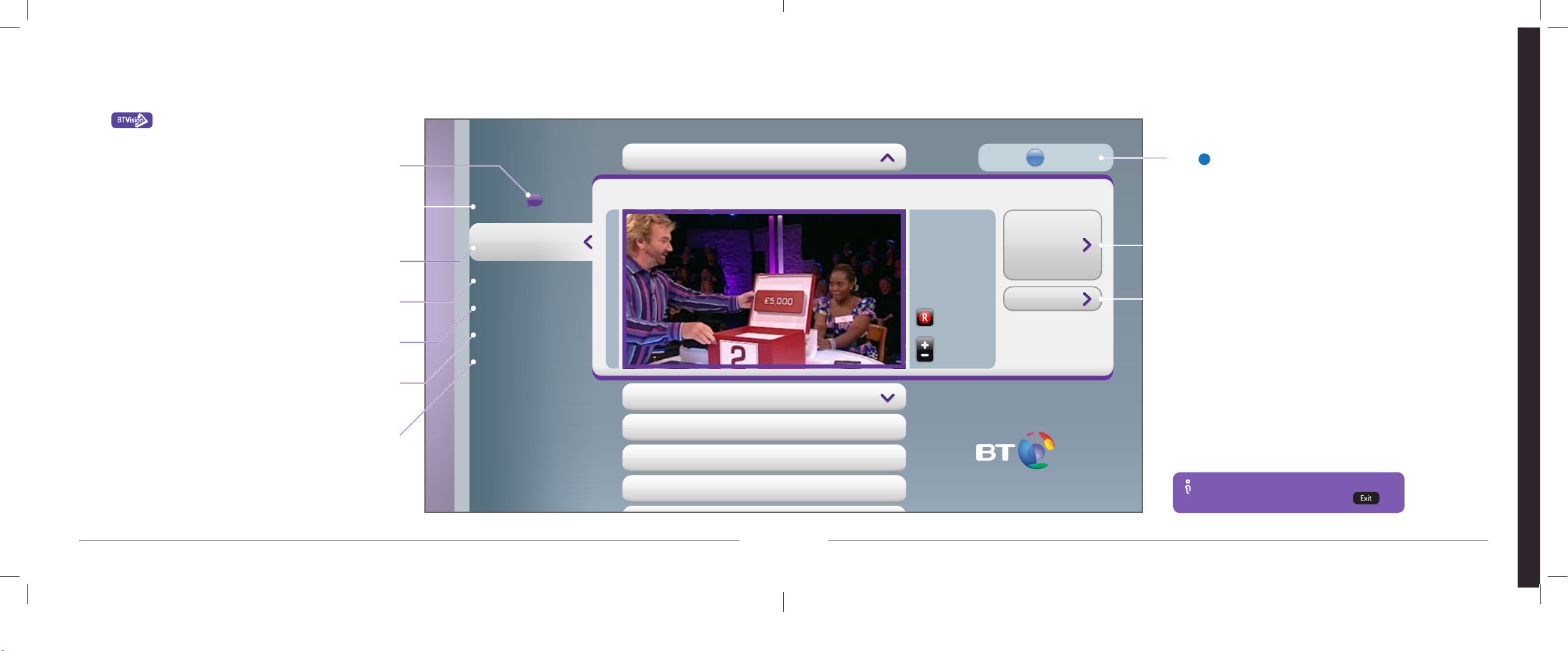
Your BT TV at a glance
Using your remote
Finding what to watch
Recording live TV
Pausing and rewinding live TV
Watching On Demand programmes
Controlling your TV with your remote
How to use BT TV
Press to Search
My TV
Recordings
Catch Up
On Demand
Help & Settings
Search
TV Channels
Channel 4: Deal or No Deal
Record
Kids
Sport
Shopping
News
Entertainment
TV Guide
Favourites
Change
Channel
1
Your BT TV at a glance
Press on your remote to see the main menu.
New Message
News from the BT TV team.
My TV
See what you’re Currently Watching, plus your Bookmarks,
Playlists, Downloads and My Messages.
TV Channels
See digital and broadband TV channel listings.
Recordings
See what’s recorded, recording or scheduled to be recorded (see page 17).
Catch Up
Catch up with shows you might have missed.
On Demand
The latest and best-rated programmes from our On Demand library of shows
and movies, so you can watch what you want, when you want (see page 18).
Help & Settings
Lots of help if you need it, including video guides. Plus change your
settings, do a manual channel scan or check your signal strength.
TV Guide
Find what you want to watch or record (see page 17).
Favourites
Keep track of your favourite channels (see page 19).
Press to search
Search digital TV, On Demand, Extra TV channels, recordings
and help articles.
Remember…
To get to live TV at any time, press .
How to use BT TV
See our top picks of what to watch at bt.com/tvfrombtHow to use BT TV
1514
Table des matières
Autres manuels BT Décodeur

BT
BT YouView Manuel utilisateur

BT
BT DB-T2200 Manuel utilisateur

BT
BT Business Total Broadband Manuel utilisateur

BT
BT Vision Manuel utilisateur

BT
BT Vision Manuel utilisateur

BT
BT Pro Manuel utilisateur

BT
BT DTR-T2100 Manuel utilisateur

BT
BT YouView Manuel utilisateur

BT
BT YouView Manuel utilisateur

BT
BT YouView+ Manuel utilisateur


