
Broadcom Symantec MC-S400 Manuel utilisateur

24 Aug 2021
Broadcom, the pulse logo, Connecting everything, Avago Technologies, Avago, the A logo, Symantec, the Symantec logo, the Checkmark logo, Blue Coat, and the Blue Coat
logo are among the trademarks of Broadcom and/or its affiliates in the United States, certain other countries, and/or the EU. Copyright © 2021 Broadcom. All Rights Reserved.
The term “Broadcom” refers to Broadcom Inc. and/or its subsidiaries. For more information, please visit www.broadcom.com.
1 — Unpack the Appliance
Unpack the shipping package for the appliance and verify it
includes the following:
MC-S400 appliance
(2) AC power cords
(1) Null-modem serial cable
Grounding Hardware
2- and 4-post slide-rail kit
Accessing Appliance Documentation
Software License Agreement
Hardware Warranty Information
2 — Connect Cables
It is recommended that you plug in cables, verify LEDs, and
configure and license the appliance before mounting it in an
equipment rack. Make sure the appliance is on a flat, level
surface when performing the initial configuration. If you would
rather mount the appliance before performing configuration
tasks, skip to Mount the Appliance.
The following procedure describes a typical deployment for
MC-S400
appliances (as shown in Figure 1). For information
on other deployments, see the
Management Center
software
documentation, available at:
techdocs.broadcom.com
NOTE: Network cables are not included with the appliance.
Make sure to use only straight-through Ethernet cables.
Category 5E cables or better are recommended for
1000Base-T operation. Category 6A cables are
recommended for 10GBase-T operation.
Figure 1: MC-S400 Deployment
Management Center Quick Start Guide
MC-S400 Appliance
MC-S400
2
Management Center
Quick Start Guide
To deploy the appliance and connect cables:
1. Deploy the ProxySG appliance per the instructions in the
ProxySG Quick Start Guide.
2. Connect an Ethernet cable to the MC-S400’s LAN 1:0
port and connect the other end of the cable to the LAN
switch. The appliance auto-negotiates 10/100/1000
Base-T speed and duplex settings.
3. Connect an Ethernet cable to the MC-S400’s MGMT 0:0
port and connect the other end of the cable to the man-
agement network switch.
4. Connect the included null-modem cable to the
MC-S400’s DB9 Serial port and connect the other end
of the cable to a serial terminal or workstation with termi-
nal emulation software. The serial connection is used to
perform the appliance’s initial configuration.
5. Connect the included power cords to the MC-S400’s
power inlets and connect the other ends of the power
cords to a power source.
3 — Power On the Appliance and
Verify LEDs
To verify the appliance is operational:
1. Confirm the appliance’s power cords are securely
connected to a power source.
2. If the appliance does not automatically power on, press
the rear soft power switch.
NOTE: The state of the appliance’s soft power switch (on
or off) is retained when power is removed. This may ne-
cessitate pressing the power switch when reapplying
power to the appliance.
3. As the appliance boots, verify the following:
The power LED turns amber.
Near the end of the boot cycle, the Power LED alter-
nates between amber and green, indicating an uncon-
figured state.
After the boot cycle has completed, the LCD panel dis-
plays information about the appliance, such as model,
serial number, and IP address, which can be scrolled
through with the Right and Left Arrows.
Following the initial configuration and licensing, the
Power LED turns green.
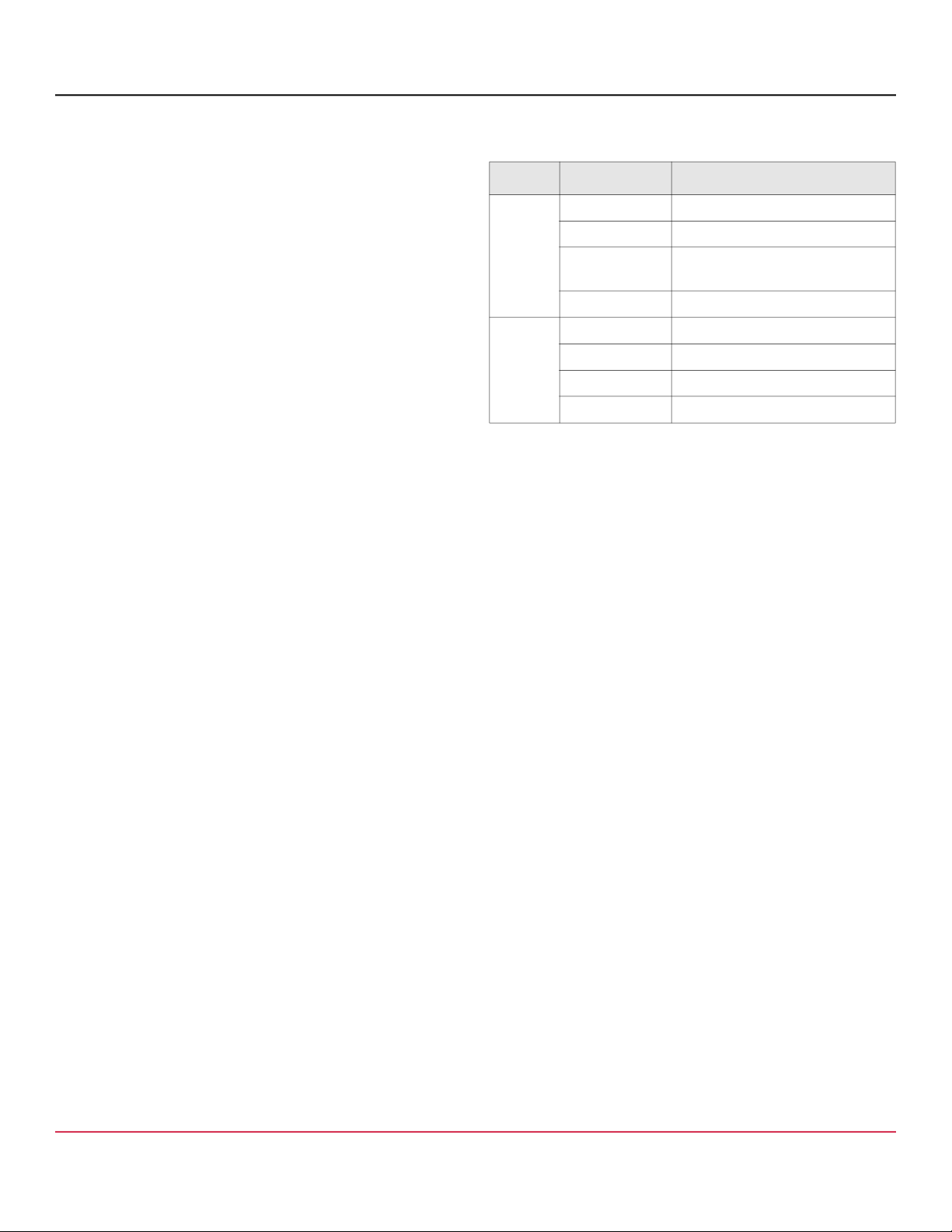
During operation, the front-panel status LEDs indicate the
following states:
4 — Perform the Initial Configuration
NOTE: To initialize the appliance, you need the following:
appliance IP address; primary DNS server IP address;
default gateway IP address; subnet mask; console
password for advanced CLI commands.
To perform the initial configuration for the appliance:
1. Confirm the appliance’s DB9 Serial port is connected to
a serial terminal or workstation with terminal emulation
software.
2. Open a terminal emulation program, such as Microsoft
HyperTerminal®, PuTTY, Tera Term, or ProComm™,
and configure it to use the following settings:
3. Power on the appliance (if it is not already powered on)
and, when prompted, press Enter three times.
4. When prompted, enter network configuration parame-
ters. If the appliance is connected to a network, the Con-
figuration Wizard attempts to verify the DNS server
address and auto-detect link settings.
NOTE: The first time the MC-S400 boots, it requires approx-
imately 5 minutes to initialize the RAID array, after which the
appliance begins a one-time RAID synchronization that
takes approximately 4–5 hours. You can view the status of
LED Color Description
Power
Status
Off Powered off or no power present
Amber Booting
Amber/green
alternating
Not yet initialized
Green Powered on and configured
System
Status
Off Powered off or no power present
Green Normal
Amber System fault or not yet licensed
Amber blinking Critical fault
Baud rate: 9600 bps Data bits: 8
Parity: none Stop bits: 1
Flow control: none

MC-S400
3
Management Center
Quick Start Guide
the RAID synchronization with the show raid array com-
mand in the Management Center CLI. The appliance is fully
operational during RAID synchronization.
5 — License the Appliance
After the appliance has been initialized, complete the
installation by licensing the appliance. Typical Management
Center deployments require configuration of an HTTP Proxy
to connect to the licensing servers. If the deployment
includes access to the Internet, you do not need to configure
the HTTP Proxy.
To license the appliance:
1. Open a terminal emulation program and log in to the
appliance.
NOTE: Confirm the appliance’s DB9 Serial port is con-
nected to a serial terminal or workstation and that the ter-
minal emulation software is configured as in Perform the
Initial Configuration.
2. When prompted with the Serial Console welcome
screen, to access CLI, press: 1
3. To access privileged commands, enter: enable
4. When prompted, enter the enable Password specified
during the initial configuration.
5. (Optional) If the appliance requires an HTTP Proxy to
access the licensing server, configure HTTP Proxy set-
tings by entering:
# configure t
(config)# proxy-settings
(config-proxy-settings)# host <proxy-IP
address>
(config-proxy-settings)# port <proxy
port>
(config-proxy-settings)# enable
6. To license the appliance, enter: licensing load
7. To verify the license, enter: license details
8. Exit CLI.
NOTE: After the license has been successfully installed,
wait at least one minute for services to start before
attempting to log in to the Management Console window.
6 — Verify Connectivity
Once the appliance has been initialized and licensed, verify
you can log in to the appliance’s Management Console
window.
To log in to the appliance’s Management Console window:
1. Open a browser and enter the appliance’s IP address
and port number. For example, an IP address of
192.168.2.42 with a port number of 8082 (the default),
would be: https://192.168.2.42:8082
2. When prompted, enter the admin Username and Pass-
word, then click Login. The Management Console win-
dow opens.
NOTE: The admin username and password for the
Management Console is unique and separate from the
admin username and password for CLI.
7 — Perform a Graceful Shutdown
Before mounting the appliance, log in to CLI and perform a
graceful shutdown of the appliance.
To perform a graceful shutdown:
1. Open a terminal emulation program and log in to the
appliance.
NOTE: Confirm the appliance’s DB9 Serial port is con-
nected to a serial terminal or workstation and that the ter-
minal emulation software is configured as in Perform the
Initial Configuration.
2. When prompted with the Serial Console welcome
screen, to access CLI, press: 1
3. To access privileged commands, enter: enable
4. When prompted, enter the enable Password specified
during the initial configuration.
5. Enter: shutdown
WARNING!
Do not power off the appliance with the soft pow-
er switch or by removing the power cables! Abruptly removing
power can result in irreparable data loss. Always use the
shutdown command from CLI to power off the appliance.

MC-S400
4
Management Center
Quick Start Guide
8 — Mount the Appliance
The slide-rail kit included with the appliance allows it to be
mounted in a 4- or 2-post equipment rack. The slide-rail kit
includes the following parts:
NOTE: Installation of the slide rails requires an M4 nut driver
or adjustable wrench and a #2 Phillips head screwdriver. If
you are working alone, a mechanical lift is also required.
NOTE: The following procedure documents installation for 4-
post equipment racks (as shown in Figure 3). For 2-post instal-
lation, see the S-Series WebGuide, available at:
techdocs.broadcom.com/sseries
Rack Warnings and Precautions
CAUTION! Before mounting the appliance:
Power off the appliance (see Perform a Graceful
Shutdown) and disconnect all cables.
Verify that the weight of the system does not exceed the
rack’s fully populated weight limit. For more information,
refer to the manufacturer’s instructions included with
the rack.
For weight stability, load the rack from the bottom up.
Read the “Rack Mount Warnings” section of the Safety
and Compliance Guide.
Take adequate safety and grounding measures to avoid
creating an electrical shock hazard and to prevent
bodily injury.
The appliance is heavy. A two-person lift or mechanical
aid is recommended to lift the appliance from the carton
and install it in the rack.
Do not place objects on the appliance or use it as a
work surface. Its mounting hardware does not support
additional weight.
Item
(2) Front brackets
(2) Inner rails
(2) Rear brackets
(2) Center brackets
(2) Rack ears
(8) M6x13 screws
(8) M6 cage nuts
(10) M4x4L screws
(4) M3L4 screws
MC-S400 Rail Kit
Figure 2: MC-S400 Slide-Rail Installation

MC-S400
5
Management Center
Quick Start Guide
Broadcom reserves the right to make changes without further notice to any products or data herein to improve reliability, function, or design. Information furnished by Broadcom is believed to be accurate and reliable. However, Broadcom does not assume
any liability arising out of the application or use of this information, nor the application or use of any product or circuit described herein, neither does it convey any license under its patent rights nor the rights of others. (2021.08.24, 12:49:28)
Install the Appliance into the Rack
To install the appliance into a 4-post equipment rack:
1. Disassemble the two slide-rail assemblies. Extend the
inner rails while pressing the center release tabs, then
fully remove them (a).
2. Attach the two inner rails to the chassis sides, aligning
the rails with the mounting posts on the chassis, then
slide the rails forward until they snap into place. Secure
each rail with two M4x4L screws (b).
3. Attach the two rack ears to the chassis, aligning them
with the raised screw holes and orienting them with the
captive screw heads toward the front of the appliance.
Secure each rack ear with two M3L4 screws.
4. Install the two outer rails into the 4-post equipment rack (
c
):
Secure the rear brackets to the front brackets with six
M4x4L screws, three per side, placed equidistantly. Do
not yet fully tighten the side-mounting screws.
Attach the two outer rails to the rack, extending the rails
as necessary to fit the rack. Secure the front and rear
brackets with two M6 rack screws each. Do not yet fully
tighten the rack screws.
Fully tighten the side-mounting screws, three per side,
securing the rear brackets to the front brackets.
Inspect the outer rails, making sure they are installed at
the same level in the rack and free of defects, damage,
and debris. Verify the rails extend and retract smoothly
and stop at the slide-stop.
5. Install the chassis into the 4-post equipment rack (d):
Align the inner rails attached to the appliance with the
outer rails in the rack and slide the appliance half-way
into the rack.
Fully tighten the M6 rack screws securing the outer rails
to the rack.
Press the release tabs on the inner rails and gently
slide the appliance all the way into the rack.
Tighten the captive thumbscrews on the appliance’s rack
ears to prevent the appliance from sliding out of the rack.
6. Reconnect the cables as documented in Connect Cables
and verify the appliance is functioning as in Power On the
Appliance and Verify LEDs.
See below for support and additional documentation.
Symantec Technical Support
For Symantec technical support, case management,
licenses, and product downloads, go to:
support.broadcom.com/security
Management Center Software Documentation
Go to techdocs.broadcom.com and type
“management center” in the search field, then click
Management Center.
Appliance Documentation
S Series WebGuide (Maintenance and Upgrades)
techdocs.broadcom.com/sseries
S400 Series Safety and Compliance Guide
techdocs.broadcom.com/s400
Table des matières
Autres manuels Broadcom Contrôleurs

Broadcom
Broadcom MegaRAID SAS 9361-24i Manuel utilisateur
Broadcom
Broadcom 440X Manuel utilisateur

Broadcom
Broadcom BROADCOM HT1000 Manuel utilisateur

Broadcom
Broadcom NetXtreme/NetLink BCM5718 Series Manuel

Broadcom
Broadcom HBA 9405W-16e Manuel utilisateur

Broadcom
Broadcom NetXtreme BCM57 Series Manuel utilisateur

Broadcom
Broadcom MegaRAID SAS 9380-8i8e Manuel utilisateur

Broadcom
Broadcom MegaRAID SAS 9480-8i8e Manuel utilisateur


