Breeze BRZ2-202 Manuel utilisateur

Breeze Player Installation Guide
for BRZ2-202 Android Player
Version 2.2
August 2016

BREEZE PLAYER INSTALLATION GUIDE (BRZ2-202)
2
Copyright © 2016 Keywest Technology, Inc. All Rights Reserved
14563 W 96th Terrace • Lenexa KS 66215 USA • Need Support? Mailto:Support@keywesttechnology.com
TABLE OF CONTENTS
TECHNICAL SUPPORT.......................................................................................................................... 3
HARDWARE
Install a Breeze Player .................................................................................................................... 4
Audio Connection .......................................................................................................................... 5
Dual/Cloned HDMI Output ............................................................................................................ 6
BREEZE PLAYER APPLICATION
Stop the Breeze Player Application ................................................................................................ 7
Start the Breeze Player Application ................................................................................................ 8
NETWORK CONNECTIONS
Static IP Address ............................................................................................................................ 9
Wireless Connection .................................................................................................................... 11
Confirm Connectivity ................................................................................................................... 13
BREEZE SERVER COMMUNICATION ................................................................................................ 14
Register a Breeze Player .............................................................................................................. 15
RESOLUTION & SCREEN SETTINGS
Screen Resolution ........................................................................................................................ 16
Screen Zoom ............................................................................................................................... 19
Screen Orientation ...................................................................................................................... 20
BREEZE PLAYERS TOOL ..................................................................................................................... 21

BREEZE PLAYER INSTALLATION GUIDE (BRZ2-202)
3
Copyright © 2016 Keywest Technology, Inc. All Rights Reserved
14563 W 96th Terrace • Lenexa KS 66215 USA • Need Support? Mailto:Support@keywesttechnology.com
TECHNICAL SUPPORT
Questions or issues can be submitted to the Keywest Technology Technical Support department by
phone, e-mail, or the helpdesk ticketing system.
Contact information:
Phone: 1-800-331-2019, Option #2
E-mail: tech@keywesttechnology.com
Helpdesk: http://helpdesk.keywesttechnology.com
DOCUMENTATION
Breeze Quick Start User Manual:
http://support.keywesttechnology.com/downloads/Breeze2/Getting%20Started%20with%20Breeze.pdf
BREEZE ARCHITECTURE
Breeze is a hybrid SaaS (Software-as-a-Service) product. Accessing the Breeze server with a web browser means
access is reliant upon the local Internet connection.
Breeze Players, the devices that sit behind screens and run the digital signage, rely on the local network
and the Internet to communicate with the Breeze server. If a network connection between the server and
players is interrupted or absent, the players are not able to receive updated content from the server, such as
changes in content, playlist, and schedules.

BREEZE PLAYER INSTALLATION GUIDE (BRZ2-202)
4
Copyright © 2016 Keywest Technology, Inc. All Rights Reserved
14563 W 96th Terrace • Lenexa KS 66215 USA • Need Support? Mailto:Support@keywesttechnology.com
HARDWARE
PLAYER ACCESSORI ES
Your Breeze Player includes the following accessories:
12V power supply (1)
Wireless antenna (1)
HDMI® Cables (2)
Mounting kit (1)
If the player equipment that you received did not include all of the accessories, please notify the Keywest
Technology Technical Support department.
INSTALL A BREEZE PLAYER
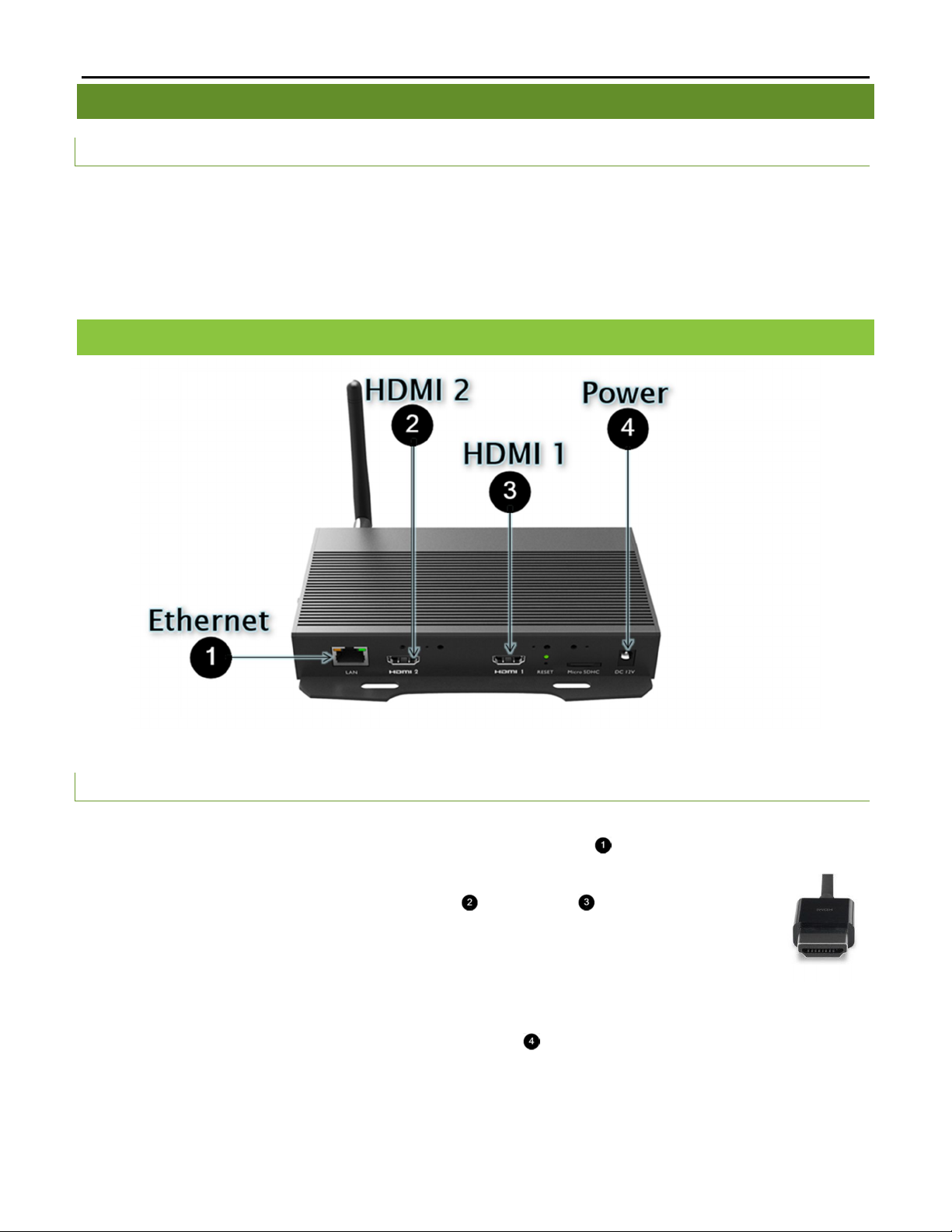
The player requires three connections to function at the most basic level: Internet, video signal, and power.
BASI C CONNEC TIONS
1. Ethernet:
a. Connect an Ethernet cable to the Ethernet port labeled LAN ( ) on the Breeze Player.
2. Video Output:
a. Connect the HDMI cable to an HDMI2 ( ) or HDMI1 ( ) on the Breeze Player.
(Both HDMI1 and HDMI2 ports have the same output.)
b. Connect the other end of the HDMI cable to the monitor, television screen, or video
distribution system.
3. Power:
a. Plug the power cord into to the 12V power supply and the electrical outlet.
b. Plug the 12V power supply into the Breeze Player ( ).
Please refer to the Wireless Connection section on page 11 to utilize a wireless network connection instead of
an Ethernet cable.
Note: Typically a wired network connection is more reliable and higher speed than a wireless connection.
HDMI Cable

BREEZE PLAYER INSTALLATION GUIDE (BRZ2-202)
5
Copyright © 2016 Keywest Technology, Inc. All Rights Reserved
14563 W 96th Terrace • Lenexa KS 66215 USA • Need Support? Mailto:Support@keywesttechnology.com
INSTALL A BREEZE PLAYER (CONTINUED)
HDMI carries audio to the Breeze Player as part of the video signal.
External speakers can provide audio when the screen or monitor connected to the player does not
possess audio capabilities.
AUDI O CO NN EC TI ON
4. Audio (Optional):
a. Connect external speakers to the audio port ( ) on the Breeze Player.
AUDIO VOLUME
There are many places to adjust the volume of a playlist and even specific media items in the playlist.
1. Volume control for media in a playlist in the Breeze Editor Media Properties
2. Volume control for zones in a playlist in the Breeze Editor Zone Properties
3. Volume control of the attached screen or external speakers
4. Media volume control in the Breeze Player device settings
Note: Please see the Breeze Player Application section on page 7 if accessing the device settings menu is
unfamiliar.

BREEZE PLAYER INSTALLATION GUIDE (BRZ2-202)
6
Copyright © 2016 Keywest Technology, Inc. All Rights Reserved
14563 W 96th Terrace • Lenexa KS 66215 USA • Need Support? Mailto:Support@keywesttechnology.com
INSTALL A BREEZE PLAYER (CONTINUED)
The BRZ-202 model of Breeze Player generates two identical video output signals. This means the player output
can be displayed on two screens utilizing just one player.
DUA L HDMI OU TPUT (CLONED HDMI OU T PU T)
5. Dual HDMI Output (Optional):
a. Plug an HDMI cable into the HDMI2 ( ) or HDMI1 ( ) output port.
b. Connect the other end of the HDMI cable to the first digital signage screen.
c. Plug an HDMI cable into the unused HDMI output port ( ) or ( ).
d. Connect the other end of this HDMI cable to the second digital signage screen.
Note: Please be aware, the two video outputs from the player are clones. This is simply one video signal split
into two video outputs. The two screens connected to a BRZ-202 model will ALWAYS display the exact
same content at the same time.

BREEZE PLAYER INSTALLATION GUIDE (BRZ2-202)
7
Copyright © 2016 Keywest Technology, Inc. All Rights Reserved
14563 W 96th Terrace • Lenexa KS 66215 USA • Need Support? Mailto:Support@keywesttechnology.com
BREEZE PLAYER APPLICATION
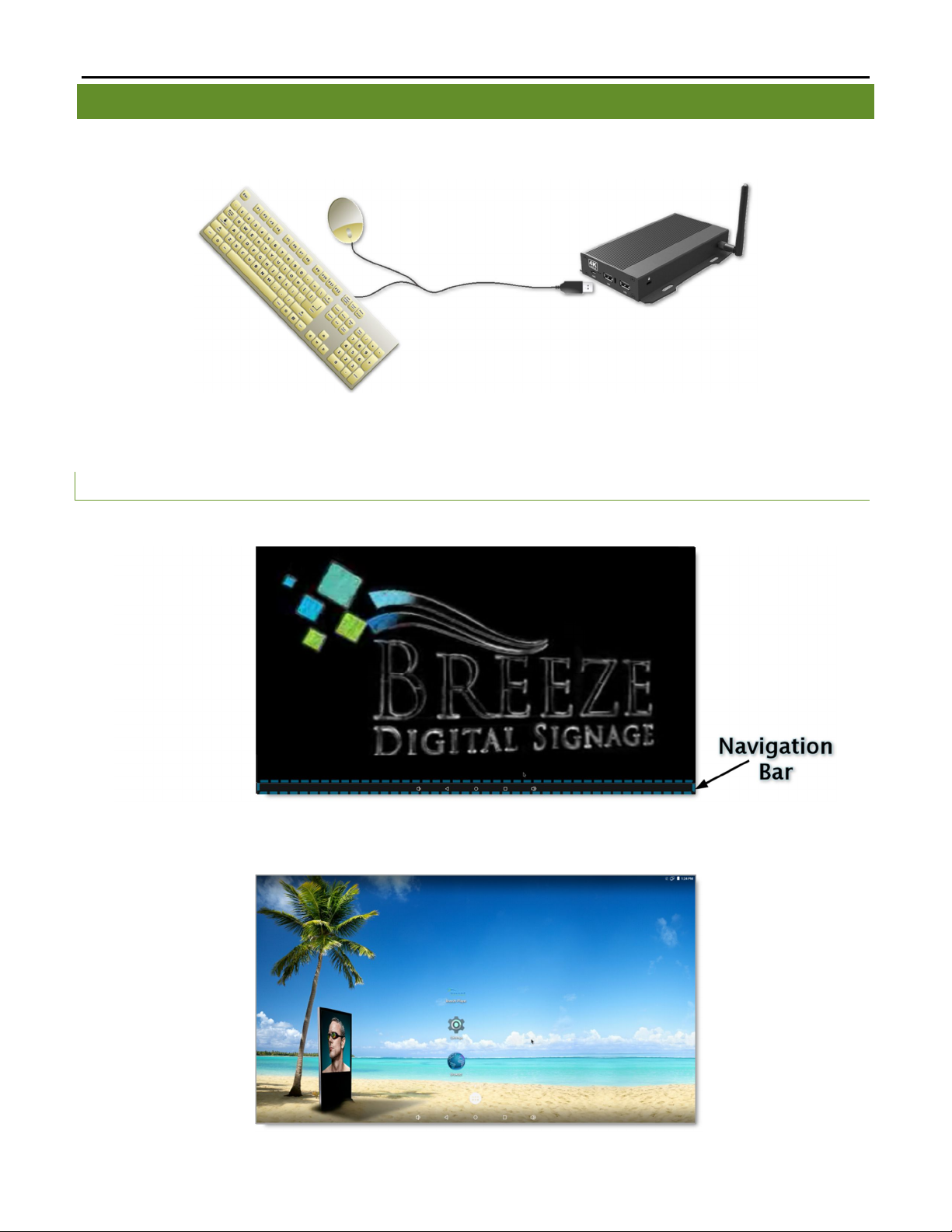
To stop the Breeze Player application, you will need to physically connect a mouse and keyboard to the player
device.
The Breeze Player application runs the digital sign, and this application must be closed to view the desktop and
accomplish tasks such as modifying device settings and testing network connectivity.
STOP THE BR EE Z E PLAY ER APP LI CATI ON
1. Click the mouse button and the Navigation Bar appears at the bottom of the screen over the playlist.
2. Select the circle button from Navigation Bar. This closes the Breeze Player application and reveals the
player device desktop.

BREEZE PLAYER INSTALLATION GUIDE (BRZ2-202)
8
Copyright © 2016 Keywest Technology, Inc. All Rights Reserved
14563 W 96th Terrace • Lenexa KS 66215 USA • Need Support? Mailto:Support@keywesttechnology.com
BREEZE PLAYER APPLICATION
It is important to remember to restart the Breeze Player application after it has been stopped. Failure to restart
the Breeze Player application will result in a digital sign that displays nothing but a computer desktop.
START THE BR EEZ E PLAY ER AP PL IC ATI ON
1. To restart the Breeze Player application, select the Breeze Player icon on the desktop.
Note: If a registration tool appears after the Breeze Player icon is selected, the player is not connected to a
Breeze server. Please refer to the Connect to a Breeze Server section on page 14 for more information about
this topic.

BREEZE PLAYER INSTALLATION GUIDE (BRZ2-202)
9
Copyright © 2016 Keywest Technology, Inc. All Rights Reserved
14563 W 96th Terrace • Lenexa KS 66215 USA • Need Support? Mailto:Support@keywesttechnology.com
NETWORK CONNECTIONS
Out of the box, the Breeze Player device is configured to use DHCP. DHCP is a network protocol which
automatically obtains an IP address for the player device after installation is complete. If the player device does
not receive an IP address automatically, please contact your network administrator.
STATIC IP ADDRESS
A static IP address can be configured for a wired or wireless connection. Please contact your network
administrator to be assigned an open static IP address.
ASSIGN A STATI C IP ADDRE SS
1. Stop the Breeze Player application.
2. Select the Settings icon on the desktop.
3. The first section in the Settings menu is called Wireless & networks. Select Ethernet in Wireless &
networks to set a static IP address for the player device.

BREEZE PLAYER INSTALLATION GUIDE (BRZ2-202)
10
Copyright © 2016 Keywest Technology, Inc. All Rights Reserved
14563 W 96th Terrace • Lenexa KS 66215 USA • Need Support? Mailto:Support@keywesttechnology.com
ASSIGN A STATI C IP ADDRE SS (CON TINU ED)
4. In the Ethernet settings, click on Ethernet Ip mode
5. Select static in the Ethernet Ip mode window.
6. After selecting static, the Ethernet window appears. Enter the appropriate network information in the
fields. It is highly recommended to obtain a static IP address from your network administrator.
7. When the network information is complete in the Ethernet window, click the CONNECT button.
8. Click the circle button in the Navigation Bar to return to the player desktop. Restart the Breeze Player
application.
Table des matières
Autres manuels Breeze Lecteur multimédia