Braton Group Database Manager Manuel utilisateur

Database Manager
User manual
DMAN-US- 01/12/06

The information in this manual is not binding and may be
modified without prior notice.
Supply of the software described in this manual is
subject to a user license. The software may not be used,
copied or reproduced on any medium whatsoever, except in
accordance with this license.
No portion of this manual may be copied, reproduced or
transmitted by any means whatsoever, for purposes other
than the personal use of the buyer, unless written
permission is obtained from Braton Groupe sarl.
©2006 Braton Groupe sarl,
All rights reserved.
TEKLYNX and its products are registered trademarks of
Braton Group Sarl or its subsidiaries. All other trademarks
and product names are the property of their respective
owners.

Table of Contents
Chapter 1: Connecting to database files . . . . . . . . . . . . . . . . . . . . . . . . . 1-1
Database Connections window . . . . . . . . . . . . . . . . . . . . . . . . . . . . . . . . . . 1-1
Connect the Database Manager module to the database . . . . . . . . . . . . . . 1-1
Modify the database connection parameters . . . . . . . . . . . . . . . . . . . . . . . . 1-5
Remove a connection. . . . . . . . . . . . . . . . . . . . . . . . . . . . . . . . . . . . . . . . . . 1-5
Chapter 2: Database file structure . . . . . . . . . . . . . . . . . . . . . . . . . . . . . . 2-7
Database Structure window . . . . . . . . . . . . . . . . . . . . . . . . . . . . . . . . . . . . . 2-7
Choose a database from the list of connections. . . . . . . . . . . . . . . . . . . . . . 2-8
Choose a table in a database. . . . . . . . . . . . . . . . . . . . . . . . . . . . . . . . . . . . 2-8
Add a table to the active database . . . . . . . . . . . . . . . . . . . . . . . . . . . . . . . . 2-8
Delete a table in the active database . . . . . . . . . . . . . . . . . . . . . . . . . . . . . . 2-9
View/hide active table’s data . . . . . . . . . . . . . . . . . . . . . . . . . . . . . . . . . . . 2-10
Define a key field . . . . . . . . . . . . . . . . . . . . . . . . . . . . . . . . . . . . . . . . . . . . 2-10
Define a field’s type of content . . . . . . . . . . . . . . . . . . . . . . . . . . . . . . . . . . 2-10
Define a field’s maximum size . . . . . . . . . . . . . . . . . . . . . . . . . . . . . . . . . . 2-11
Allow an empty field . . . . . . . . . . . . . . . . . . . . . . . . . . . . . . . . . . . . . . . . . . 2-11
Chapter 3: Database contents. . . . . . . . . . . . . . . . . . . . . . . . . . . . . . . . . 3-13
Edit Database window . . . . . . . . . . . . . . . . . . . . . . . . . . . . . . . . . . . . . . . . 3-13
Select records according to their content . . . . . . . . . . . . . . . . . . . . . . . . . . 3-14
Use the content of a field to find a record. . . . . . . . . . . . . . . . . . . . . . . 3-14
Select all identical records. . . . . . . . . . . . . . . . . . . . . . . . . . . . . . . . . . 3-14
Select an identical record. . . . . . . . . . . . . . . . . . . . . . . . . . . . . . . . . . . 3-15
Find a record according to its row in the table . . . . . . . . . . . . . . . . . . . . . . 3-15
Create a new record. . . . . . . . . . . . . . . . . . . . . . . . . . . . . . . . . . . . . . . . . . 3-16
Duplicate a record . . . . . . . . . . . . . . . . . . . . . . . . . . . . . . . . . . . . . . . . . . . 3-16
Modify a record. . . . . . . . . . . . . . . . . . . . . . . . . . . . . . . . . . . . . . . . . . . . . . 3-17
Sort a series of records by alphanumerical order. . . . . . . . . . . . . . . . . . . . 3-17
Delete a record . . . . . . . . . . . . . . . . . . . . . . . . . . . . . . . . . . . . . . . . . . . . . . 3-18

ii Database Manager - User manual
Chapter 4: Database queries. . . . . . . . . . . . . . . . . . . . . . . . . . . . . . . . . . 4-19
Database Query window . . . . . . . . . . . . . . . . . . . . . . . . . . . . . . . . . . . . . . 4-19
Add a query . . . . . . . . . . . . . . . . . . . . . . . . . . . . . . . . . . . . . . . . . . . . . . . . 4-19
Select/deselect one or more fields . . . . . . . . . . . . . . . . . . . . . . . . . . . . . . . 4-20
Modify the order of fields selected . . . . . . . . . . . . . . . . . . . . . . . . . . . . . . . 4-20
Create a filter using predefined data . . . . . . . . . . . . . . . . . . . . . . . . . . . . . 4-21
Apply a logical operator to several filters . . . . . . . . . . . . . . . . . . . . . . . . . . 4-23
Sort the list of filters . . . . . . . . . . . . . . . . . . . . . . . . . . . . . . . . . . . . . . . . . . 4-24
Remove a filter . . . . . . . . . . . . . . . . . . . . . . . . . . . . . . . . . . . . . . . . . . . . . . 4-24
Modify a filter in SQL . . . . . . . . . . . . . . . . . . . . . . . . . . . . . . . . . . . . . . . . . 4-25
Choose an existing query in a database . . . . . . . . . . . . . . . . . . . . . . . . . . 4-26
Chapter 5: Printing . . . . . . . . . . . . . . . . . . . . . . . . . . . . . . . . . . . . . . . . . . 5-27
The Print window . . . . . . . . . . . . . . . . . . . . . . . . . . . . . . . . . . . . . . . . . . . . 5-27
Display options . . . . . . . . . . . . . . . . . . . . . . . . . . . . . . . . . . . . . . . . . . . . . . 5-28
Preview the document . . . . . . . . . . . . . . . . . . . . . . . . . . . . . . . . . . . . . . . . 5-28
Display the label design software. . . . . . . . . . . . . . . . . . . . . . . . . . . . . . . . 5-28
Select a document to be printed. . . . . . . . . . . . . . . . . . . . . . . . . . . . . . . . . 5-28
Create a new label template for printing. . . . . . . . . . . . . . . . . . . . . . . . 5-28
Select an existing label template . . . . . . . . . . . . . . . . . . . . . . . . . . . . . 5-29
Select a printer . . . . . . . . . . . . . . . . . . . . . . . . . . . . . . . . . . . . . . . . . . . . . . 5-29
Configure the selected printer . . . . . . . . . . . . . . . . . . . . . . . . . . . . . . . . . . 5-29
Select records to be printed . . . . . . . . . . . . . . . . . . . . . . . . . . . . . . . . . . . . 5-30
Selecting records manually . . . . . . . . . . . . . . . . . . . . . . . . . . . . . . . . . 5-30
Selecting records automatically . . . . . . . . . . . . . . . . . . . . . . . . . . . . . . 5-31
Configure the print media . . . . . . . . . . . . . . . . . . . . . . . . . . . . . . . . . . . . . . 5-31
Display the selected printer’s properties. . . . . . . . . . . . . . . . . . . . . . . . . . . 5-32
Define the number of printed pages according to a field . . . . . . . . . . . . . . 5-32
Launch printing. . . . . . . . . . . . . . . . . . . . . . . . . . . . . . . . . . . . . . . . . . . . . . 5-33
Launch printing manually each time . . . . . . . . . . . . . . . . . . . . . . . . . . 5-33
Update variable with database . . . . . . . . . . . . . . . . . . . . . . . . . . . . . . . . . . 5-33
Merge Database attached to document . . . . . . . . . . . . . . . . . . . . . . . . 5-33
Allow the database to be edited . . . . . . . . . . . . . . . . . . . . . . . . . . . . . . 5-34
Stop printing . . . . . . . . . . . . . . . . . . . . . . . . . . . . . . . . . . . . . . . . . . . . . . . . 5-34
Refresh database view. . . . . . . . . . . . . . . . . . . . . . . . . . . . . . . . . . . . . . . . 5-34
Close a document . . . . . . . . . . . . . . . . . . . . . . . . . . . . . . . . . . . . . . . . . . . 5-34
Chapter 6: Index . . . . . . . . . . . . . . . . . . . . . . . . . . . . . . . . . . . . . . . . . . . . 6-35

CHAPTER 1
Connecting to database files
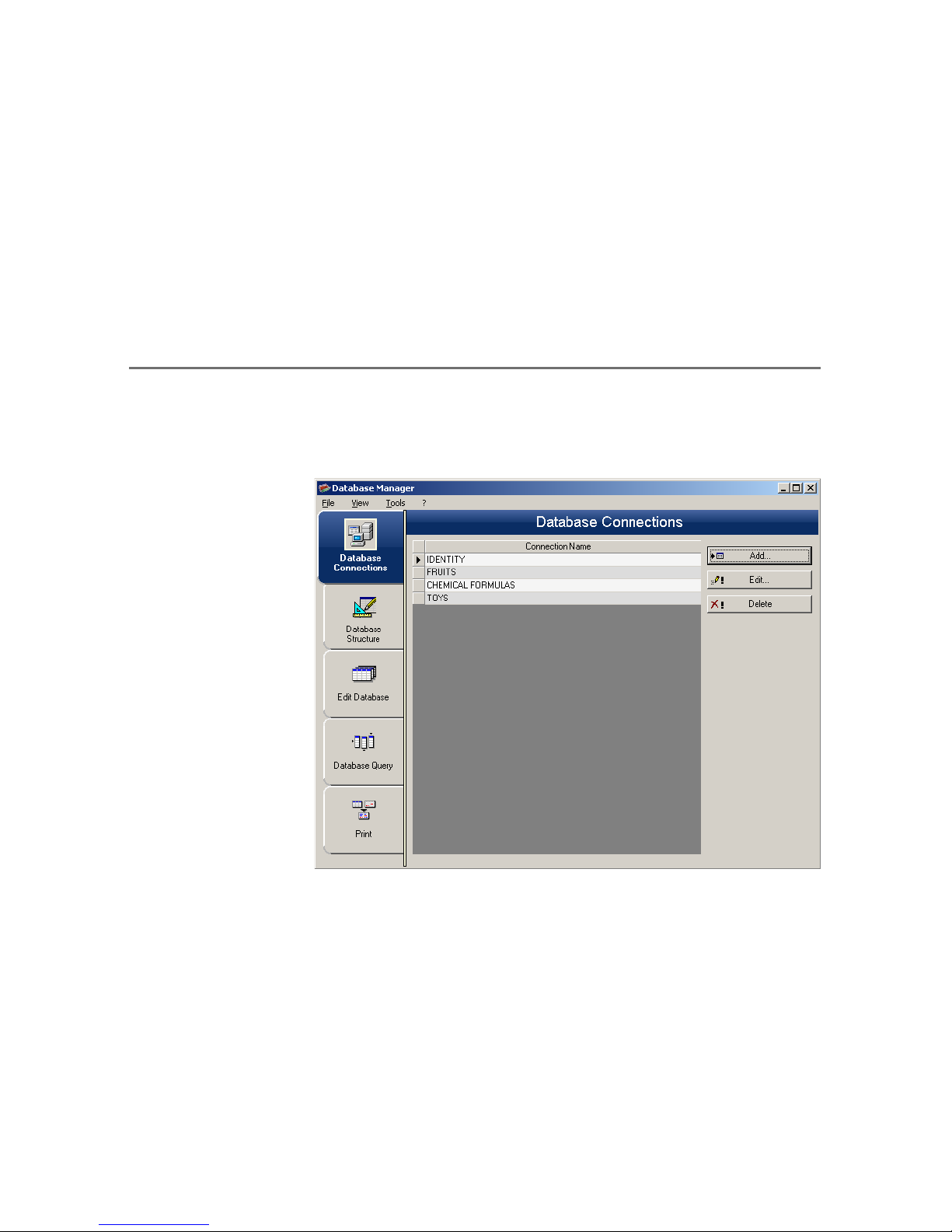
Database Connections window
Figure 1
The Database Connections window is used to connect the
software to the various database files that are to be used.
Connect the Database Manager module to the
database
Database Manager must be open in the Database
Connections window.

Chapter 1 - 2 Database Manager - User manual
1 Go to File > Open.
A File selection dialog box will open allowing you to browse
for and select the database of your choice.
This dialog box is limited to the following database types:
Access (*.mdb)
Excel (*.xls)
Dbase(*.dbf)
Note
A wizard is available to help you connect the software
to the most frequently used databases. Choose the
format option that matches your database format. If the
format required is not available, do the following:
1 Click Add...
2 Select a database type from the list
- or -
3 Select Others
4 Click Connection Setup
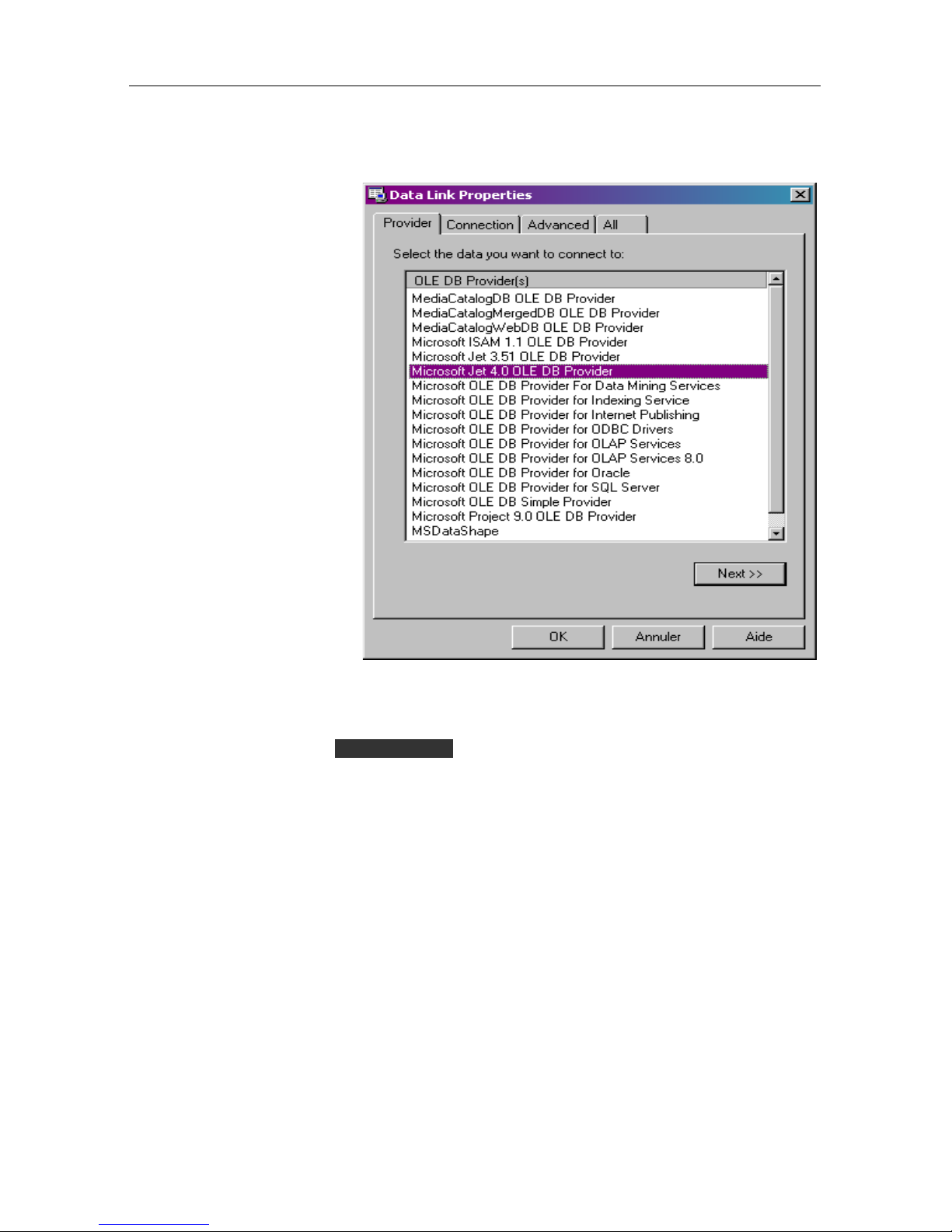
5 Click the Provider tab of the dialog box

Connecting to database files Chapter 1 - 3
6 Select the required provider
7 Click Next >>
Note
The choice of provider changes according to the
system’s type of database.
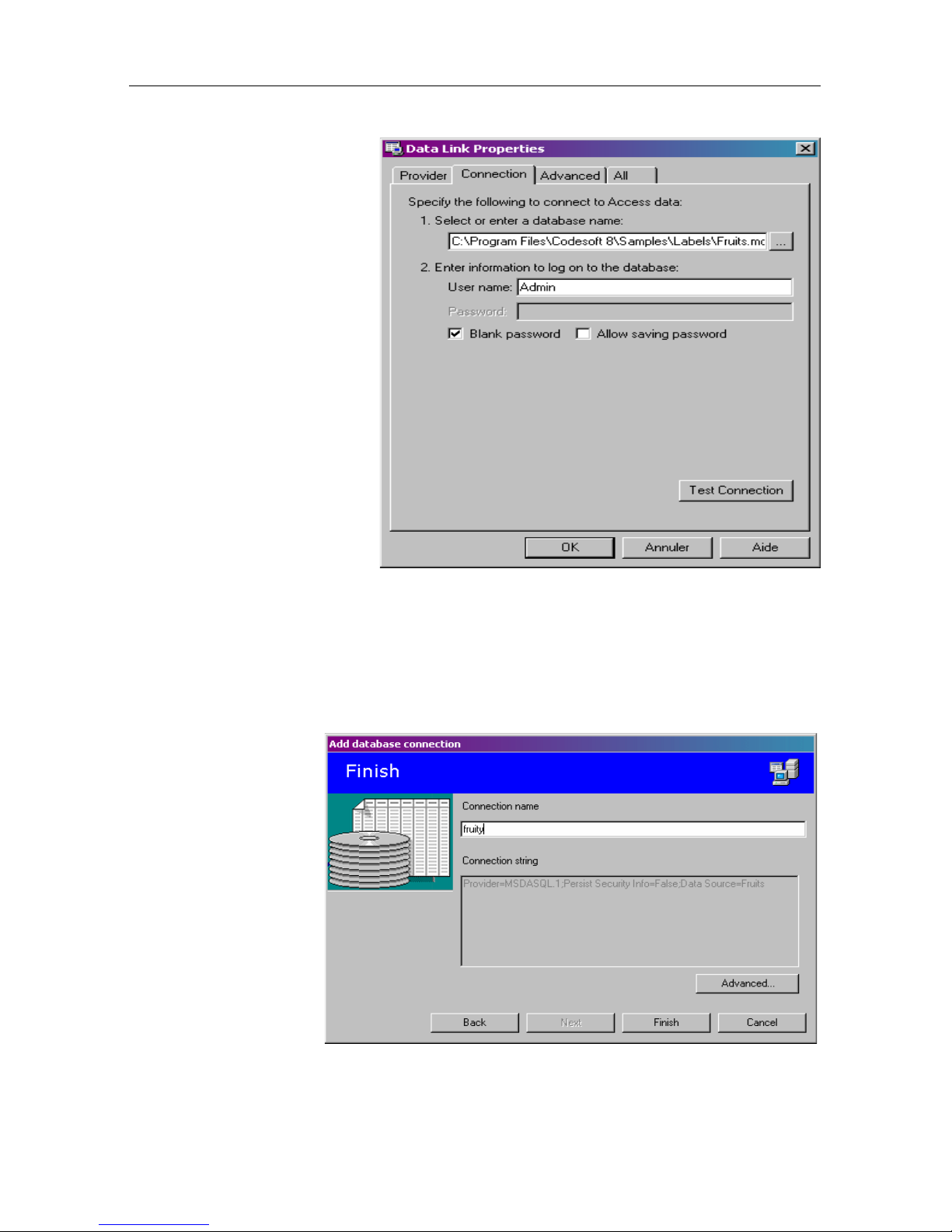
8 Click the ’...’ search button
9 Select a file
10 Click Open

Chapter 1 - 4 Database Manager - User manual
11 Click OK
12 Click Next
13 Enter a name for the connection
14 Click Finish

Connecting to database files Chapter 1 - 5
Note
You can repeat this procedure as often as necessary to
obtain the required number of connections.
Modify the database connection parameters
Database Manager must be open in the Database
Connections window. The required connection must be
selected.
1 Click Edit
2 Make the required changes
Remove a connection
Database Manager must be open in the Database
Connections window. The required connection must be
selected.
1 Click Remove

Chapter 1 - 6 Database Manager - User manual
Autres manuels pour Database Manager
1
Table des matières
Autres manuels Braton Group Logiciel
Manuels Logiciel populaires d'autres marques

PS Audio
PS Audio PowerPlay Manuel du propriétaire

Brady
Brady LOCKOUT PRO 3.0 Manuel de service

Avaya
Avaya Interaction Center Manuel utilisateur

Texas Instruments
Texas Instruments TI-83 Plus Silver Edition Manuel

Novell
Novell GROUPWISE 8 - INTERNET AGENT Manuel utilisateur

Oracle
Oracle Application 9i Manuel utilisateur

Acer
Acer RDM Manuel utilisateur

Canon
Canon Vixia HF21 Manuel utilisateur

Canon
Canon ZR950 Manuel utilisateur

Samsung
Samsung Auto Backup Manuel utilisateur

Polycom
Polycom Vortex EF2201 Instructions d'installation et d'utilisation

Brocade Communications Systems
Brocade Communications Systems Brocade 8/12c Manuel utilisateur