
Bodet Scorepad Manuel utilisateur


2
Precautions
Protect the device against splashed liquids, rain and excessive solar radiation.
Do not use the device if damaged or uncertain.
Check mains voltage.
Do not open the unit case: no user-serviceable parts inside. If the unit case must be opened,
call a qualied service technician. Always switch o the device and unplug all cables before opening.
The information contained in this document may be changed without prior notice.

3
Table of contents
Precautions 2
1. Introduction 4
Installation 4
Packing list 4
2. Safety and handling 5
Important information on safety 5
Important information on handling 5
3. General view of the Scorepad 6
Overview of the Scorepad 6
Accessories 7
Communications 8
4. Start-up 9
Device commissioning 9
Icons and information in the screen header bar 10
General menu information and functions 10
Customise the start screen 11
5. Menus 11
Welcome message (Home page) 11
Change the time 12
Lists of settings for each menu type 12
6. Club access by sport 13
7. Using the TeamEditor application 14
8. Update Scorepad 16
9. Importing content into Scorepad from a USB stick 17
Recommendation on the size of the files 19
10. Exporting content from the Scorepad onto a USB stick 20
11. Display of sponsor logos on the HDMI output 21
12. Configuration of the 8 favourite sports 22
13. Scorepad configuration for multiple rooms 23
14. Configuring an Alpha interface 24
15. Technical data 28
Electrical 28
Mechanical 28
7” LCD touch screen 28

4
1. Introduction
Bodet Sport provides various types of scoreboards (indoor, outdoor, damp environments, etc.)
congurable for a wide range of sports. These scoreboard ranges are controlled by a single Scorepad
console featuring a keyboard and touch screen to facilitate operation.
Options and accessories are provided for use with the Scorepad console:
- 4-hour battery extension
- Start/Stop hand switch
- Possession console
IMPORTANT: This manual describes all features of the console. However, depending on your
conguration, some features, sports or options will not be available.
Installation
Please refer to the installation manual matching your Scorepad console.
Packing list
Check that the Scorepad packaging contains the following components and accessories according to
your Scorepad version:
Scorepad Quick start guide
Mains power supply

5
2. Safety and handling
IMPORTANT: Failure to apply these instructions may result in damage to your Scorepad. Before using
the Scorepad, please read all information on safety and handling.
Important information on safety
USE
Handle the Scorepad carefully. It is built in plastic (unit case) and glass (touch screen) and contains
sensitive electronic components. The Scorepad may be damaged if dropped, burnt, punctured, crushed
or brought into contact with liquids. Never use a damaged Scorepad: for instance, if it has a cracked
screen, as this may cause injury.
CHARGING AND POWER SUPPLY
Charge the Scorepad with the mains adapter supplied. Using damaged cables or chargers, or charging
in very humid conditions may cause re, electrocution, injury, or damage to the product or other property.
When the BODET mains adapter is powering or charging the Scorepad, make sure the connector is
securely tted into the adapter before plugging it into a mains outlet (green indicator LED when charging).
Important information on handling
CLEANING
Immediately clean the Scorepad if it comes into contact with a substance likely to stain or damage
the touch screen. Use a wipe suitable for computer screens. Prevent any liquids from penetrating the
device. Do not use cleaning products or compressed air. We recommend that the Scorepad is thoroughly
cleaned after each use to prevent each user being infected with the coronavirus (COVID-19).
USING CONNECTORS AND KEYS
Never force a connector into a port and never depress a key with excessive pressure: doing so may
cause damage not covered by the warranty. If you have trouble seating the connector in the port, this is
probably because the connector does not match the port. Check for an obstruction and make sure the
connector matches the port format.
OPERATING TEMPERATURE
The Scorepad is designed to operate at ambient temperatures ranging from 0°C to +40°C. The Scorepad
may be damaged and its battery life shortened if used or stored out of this temperature range. Avoid
exposing the Scorepad to sudden changes in temperature or humidity. During use or while charging the
battery, it is normal for the Scorepad to heat up.
6
3. General view of the Scorepad
Overview of the Scorepad
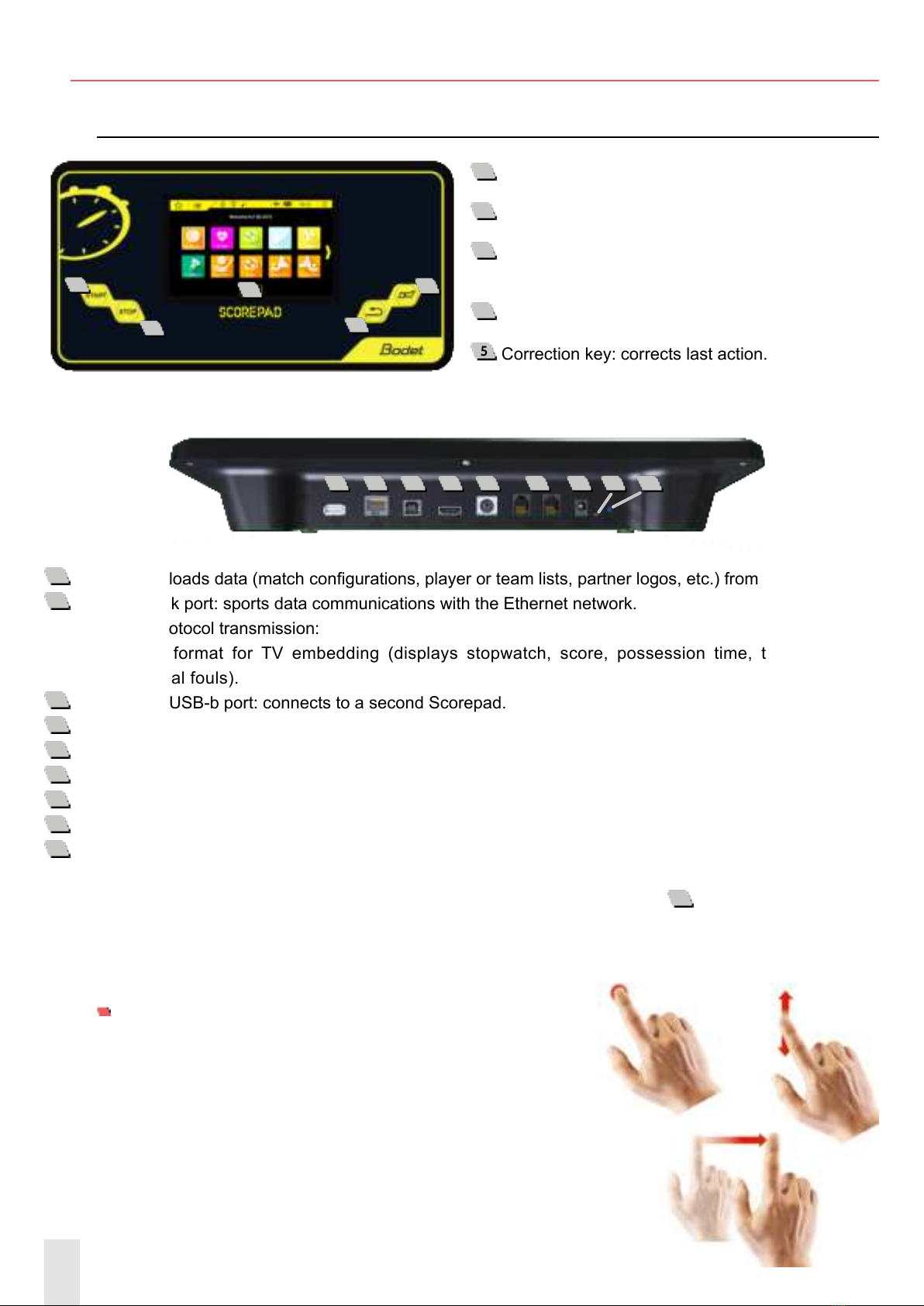
1 Start key: starts the stopwatch.
2 Stop key: stops the stopwatch.
3 LCD touch screen: congures all sports display
settings.
4 Buzzer key: immediately starts or stops buzzer.
5 Correction key: corrects last action.
1 USB-a port: loads data (match congurations, player or team lists, partner logos, etc.) from a USB drive.
2 RJ45 network port: sports data communications with the Ethernet network.
Sports protocol transmission:
- Simple format for TV embedding (displays stopwatch, score, possession time, total fouls and
individual fouls).
3 USB-b port: USB-b port: connects to a second Scorepad.
4 HDMI port: connects to a TV-type display device.
5 Mini DIN port with lock: BODET sports data bus to connect to a Bodet scoreboard.
6
2 RJ12 ports: connect to additional consoles (referee whistle, possession console, Start/Stop hand switch, etc.).
7 Jack socket: power supply and battery charger.
8 1 green LED: indicates mains power ON.
9 1 RESET button: turn o the keyboard.
In case of a frozen screen (unresponsive touch screen) press the RESET button 9. In case of malfunction,
try to restart the Scorepad (refer to chapter 4: Star-up) or try to turn it o by pressing the RESET button
(refer to chapter 3. Overview of the Scorepad).
7’’ LCD TOUCH SCREEN: CAPACITIVE MULTI-TOUCH
It only takes a few simple gestures (touch, drag and sweep)
to use the Scorepad touch screen:
1 32 4 5 6 7 8 9
1
2
34
5

7
Accessories
BATTERY EXTENSION
The battery extension provides extra runtime for the Scorepad in the event of a mains power-out (up to
4 hours) so that the Scorepad can remain in service for the duration of the match.
This Lithium-ion battery is installed exclusively by our technical sta:
- in-factory for new consoles.
- on consoles in service: our customer support team installs and tests the device for correct
operation.
Note: The standard battery supplies a power reserve for continuous console operation of
approx. 15 minutes. This battery is therefore not designed to power the Scorepad for the
full duration of a match.
START/STOP HAND SWITCH
The Start/Stop hand switch connects to the Scorepad via the RJ12
port. It is used to start and stop the stopwatch.
POSSESSION CONSOLE
The possession console is used with the possession digit displays (Basketball or Water Polo).
This console connects to the Scorepad via the RJ12 port.
1 Buzzer key: immediately stops buzzer.
2Starts or stops the possession time count.
3Correction mode: short press on : the display ashes. Press to
increase possession time by 1 second steps or press to decrease
by 1 second. Press to return to normal mode. Correction is possible
up to 90 sec.
4 Reset possession time to 14 seconds.
5 Possession time is reset according to the sport being played (if pressed and the game time stopwatch value
is less than the possession time value: digit displays are reset).
6 Resets possession time display only if possession time is stopped (the display (24) is also reset). Cancels
24 or 14 sec RESET if pressed < 2 sec after pressing the RESET key.
1
2
3
4
5
6

8
Communications
HDMI
The HDMI output allows the Scorepad to communicate with display devices via an HDMI cable.
For instance, it can be used to display sports data on an LCD-type screen.
The HDMI output resolution is 1280 x 720 pixels.
Background colour or image are now user-selectable.
NETWORKING PROTOCOL OPTION
The Scorepad uses a networking protocol to send data to various display devices (TV, remote screens,
press control room, etc.) depending on the protocol selected (enabled by our technical sta (see page 13).
IMPORTANT
These options are installed exclusively by our technical sta:
- In-factory for new consoles.
- On consoles in service: our customer support team installs and tests the device for correct
operation.
IMPORTANT: The secondary keyboard function with oset of faults and individual points is only avai-
lable for basketball sports.
Do not disconnect the cables during the match, however if this happens let the desks restart the com-
munication between them.

9
4. Start-up
Device commissioning
Starting the Scorepad: Press and wait for logo to display .
Powering o the Scorepad: Press (or the key until the conrmation pop-up appears):
A conrmation screen comes up. Click OK .
Selecting a sport: Press the desired sport:
Changing or exiting a sport: Press :
A conrmation screen comes up. Click OK .
Starting or stopping the stopwatch: Press or
Manually starting the buzzer: Press
Correcting the last action: Press

10
Icons and information in the screen header bar
The icons in the screen header bar show information on the console:
Status icons Meanings
Home Returns you to the home screen at any time. Note: A conrmation window
appears to conrm your choice.
Settings Access console conguration menus: advanced user menu and technician
menu.
Locking Locks the touch screen.
Brightness Individually adjusts the brightness of the console touch screen and scoreboards
(score and possession time displays).
Communication
status
Shows wired or radio communication status.
indicates communication is OK. Weak reception: 1 bar, average reception:
2 bars, good reception: 3 bars.
indicates communication problems.
indicates communication is too weak between the console and the scoreboards.
WiFi Indicates Scorepad is connected to an existing WiFi network. (Function not
available on this version).
Network Indicates Scorepad is connected to your existing LAN.
USB Indicates a USB drive is connected.
Battery level
Indicates battery level or charge status.
indicates low battery level.
Time Shows console time.
O Powers down the console. Note: A conrmation window appears to conrm
your choice.
General menu information and functions
Save and OK are used to save settings and close the relevant window.
Cancel closes the relevant window without saving changes.
Rename is used to change the name of a conguration or team in the Scorepad.
Copy is used to duplicate a conguration, a team, a menu, or a setting. A window opens to save under a
new name.
Delete is used to delete the conguration.
Advanced settings/Technician menu opens a new window to access advanced settings or the technician
menu.
Autres manuels pour Scorepad
9
Table des matières
Autres manuels Bodet Contrôleurs


