Blizzard SOLAR CELL Manuel utilisateur

Blizzard Lighting, LLC
www.blizzardlighting.com
Waukesha, WI USA
Copyright (c) 2016
SOLARTM

Page 2
Solar Cell™ User Manual - Rev. A (c) 2016 Blizzard Lighting, LLC
TABLE OF CONTENTS
Solar Cell™ LED Fixture 1
1. Getting Started 3
What’s In The Box? 3
Getting It Out Of The Box 3
Powering Up! 3
Getting A Hold Of Us 3
Safety Instructions (Don’t Stick Your Hand In The Toaster!) 4
2. Meet The Solar Cell™ LED Fixture 5
Features 5
DMX Values In-Depth 5
The Solar Cell™ Pin-up Picture 6
3. Setup 7
Fuse Replacement 7
Connecting A Bunch Of Solar Cell™ Fixtures 7
Data/DMX Cables 7
Cable Connectors 8
3-Pin??? 5-Pin??? Huh? 8
Take It To The Next Level: Setting up DMX Control 8
Fixture Linking (Master/Slave Mode) 9
Mounting/Rigging 9
4. Operating Adjustments 10
The Control Panel 10
Control Panel Menu Structure 11
DMX Mode 11
Set the Channel Mode and Starting DMX Address 11
Auto, Sound Active, & Manual Adjustments 11
Auto Mode 11
Sound Active Mode 11
Fade Scroll / Flash Scroll 12
Dimming Mode Selection 12
Manual LED Intensity Level Settings 12
Dimensional Drawings 12
5. Appendix 13
A Quick Lesson On DMX 13
Troubleshooting 13
Keeping Your Solar Cell™ As Good As New 14
Returns (Gasp!) 14
Shipping Issues 14
Tech Specs 15

Page 3
Solar Cell™ User Manual - Rev. A (c) 2016 Blizzard Lighting, LLC
1. GETTING STARTED
What’s In The Box?
• 1 x Solar Cell™ LED Fixture
• An Ever-So-Handy Power Cord
• This Lovely User Manual
Getting It Out Of The Box
Congratulations on your purchase of the mega bright Solar Cell™ LED blinder effect
that is built to outshine the competition (yuk, yuk)! Now that you’ve got your Solar
Cell™ (or hopefully, Cells!)
, you should carefully unpack the box and check the
contents to ensure that all parts are present and in good condition. If anything
looks as if it has been damaged in transit, notify the shipper immediately and keep
the packing material for inspection. Again, please save the carton and all packing
materials. If a xture must be returned to the factory, it is important that the xture
be returned in the original factory box and packing.
Powering Up!
All xtures must be powered directly off a switched circuit and cannot be run off
a rheostat (variable resistor) or dimmer circuit, even if the rheostat or
dimmer channel is used solely for a 0% to 100% switch.
AC Voltage Switch - Not all xtures have a voltage select switch, so please verify that
the xture you receive is suitable for your local power supply. See the label on the
xture or refer to the xture’s specications chart for more information. A xture’s
listed current rating is its average current draw under normal conditions. Check the
xture or device carefully to make sure that if a voltage selection switch exists that it
is set to the correct line voltage you will use.
Warning! Verify that the voltage select switch on your unit matches the
line voltage applied. Damage to your xture may result if the line voltage
applied does not match the voltage indicated on the voltage selector switch.
All xtures must be connected to circuits with a suitable Ground (Earthing).
Getting A Hold Of Us
If something is wrong, please just visit our website at www.blizzardlighting.
com/support and open a support ticket. We’ll be happy to help, honest.
Blizzard Lighting
N24 W23750 Watertown Rd Suite B
Waukesha, WI 53188 USA
www.blizzardlighting.com
414-395-8365
Disclaimer: The information and specications contained in this document are
subject to change without notice. Blizzard Lighting™ assumes no responsibility or
liability for any errors or omissions that may appear in this user manual. Blizzard
Lighting™ reserves the right toe update the existing document or to create a new
document to correct any errors or omissions at any time. You can download the
latest version of this document from www.blizzardlighting.com.
Author: Date: Last Edited: Date:
J.Thomas 1/20/2016 J.Thomas 1/21/2016

Page 4
Solar Cell™ User Manual - Rev. A (c) 2016 Blizzard Lighting, LLC
SAFETY INSTRUCTIONS
• Please keep this User Guide for future use. If you sell the unit to someone
else, be sure that they also receive this User Guide.
• ALWAYS make sure that you are connecting to the proper voltage, and that
the line voltage you are connecting to is not higher than that stated on the
decal or rear panel of the xture.
• Make sure there are no ammable materials close to the unit while operating.
• The unit must be installed in a location with adequate ventilation, at least
20in (50cm) from adjacent surfaces. Be sure that no ventilation slots are
blocked.
• ALWAYS secure xture using a safety chain. NEVER carry the xture by its
cord. Use its carrying handles.
• DO NOT operate at ambient temperatures higher than 104°F (40°C).
• In the event of a serious operating problem, stop using the unit immediately.
NEVER try to repair the unit by yourself. Repairs carried out by unskilled people
can lead to damage or malfunction. Please contact the nearest authorized
technical assistance center. Always use the same type spare parts.
• NEVER connect the device to a dimmer pack.
• Make sure the power cord is never crimped or damaged.
• Never disconnect the power cord by pulling or tugging on the cord.
• Avoid direct eye exposure to the light source while it is on.
Caution! There are no user serviceable parts inside the unit. Do not
open the housing or attempt any repairs yourself. In the unlikely event
your unit may require service, please contact Blizzard Lighting at www.
blizzardlighting.com/support.

Page 5
Solar Cell™ User Manual - Rev. A (c) 2016 Blizzard Lighting, LLC
2. MEET THE SOLAR CELL™ LED FIXTURE
MAIN FEATURES
• 2* 100W ultra-bright 3200-3500K warm white LEDs
• High impact 2-pixel strobe effects
• Built-in auto programs and sound active mode
• 80° beam angle
• Internal fan cooling system
• User selectable 32-bit dimming modes, icker free
• Manual pendulum angle adjustment (left/right) with locking knobs
• PowerCON® “TRUE” compatible power connections
• Tough-as-nails IP44-rated enclosure
• Compact, high quality housing
CONTROL:
• USITT DMX-512, 2/6-channel DMX modes
• Standalone, auto, master/slave, & sound active modes
• 3-pin DMX input and output
• Easy-to-use, 4-button LED control panel
DMX Values In-Depth (2-Channel Mode)
Channel Value What It Does
1 000 <--> 255 LED 1 Intensity (0% <--> 100%)
2 000 <--> 255 LED 2 Intensity (0% <--> 100%)
DMX Values In-Depth (6-Channel Mode)
Channel Value What It Does
1 000 <--> 255 Dimmer
2
000 <--> 009
010 <--> 255
Strobe
No Function
Strobe (slow <--> fast)
3
000 <--> 009
010 <--> 079
080 <--> 159
160 <--> 229
230 <--> 255
Built-in Programs
No Function
LED 1 Intensity
LED 2 Intensity
LED 1 + LED 2 Intensity
Built-in Programs
4 000 <--> 255 Auto (slow <--> fast)
5 000 <--> 255 LED 1 Intensity (0% <--> 100%)
6 000 <--> 255 LED 2 Intensity (0% <--> 100%)

Page 6
Solar Cell™ User Manual - Rev. A (c) 2016 Blizzard Lighting, LLC
Figure 1: The Solar Cell™ Pin-Up Picture
Manual 20°
Pendulum Angle
Adjustment with
Locking Knobs
2* 100W
3200-3500K
Warm White
LEDs
Figure 2: The Rear Connections
Mounting
Bracket
with
Locking
Knobs
Safety
Cable
Loop
4-button
LED Control
Panel
Power
Output
Power
Input
DMX
Input
DMX
Output
Locking
Knobs

Page 7
Solar Cell™ User Manual - Rev. A (c) 2016 Blizzard Lighting, LLC
3. SETUP
Fuse Replacement
CAUTION! The Solar Cell™ utilizes a high-output switch-mode power
supply with an internal fuse. Under normal operating conditions, the
fuse should not require replacement. The fuse is eld replaceable,
however it is an advanced procedure suited to qualied individuals.
Should your Solar Cell™ fuse require replacement, please contact
Blizzard Lighting for instructions, or to return your unit for service.
Connecting A Bunch of Solar Cell™ Fixtures
You will need a serial data link to run light shows using a DMX-512
controller or to run shows on two or more xtures set to sync in master/
slave operating mode. The combined number of channels required by all
the xtures on a serial data link determines the number of xtures the
data link can support.
Fixtures on a serial data link must be daisy chained in one single line.
Also, connecting more than 32 xtures on one serial data link without
the use of a DMX optically-isolated splitter may result in deterioration of
the digital DMX signal. The maximum recommended cable-run distance
is 500 meters (1640 ft). The maximum recommended number of
xtures on a serial data link is 32 xtures.
Data/DMX Cabling
To link xtures together you’ll need data cables. You should use data-
grade cables that can carry a high quality signal and are less prone to
electromagnetic interference.
For instance, Belden© 9841 meets the specications for EIA RS-485
applications. Standard microphone cables will “probably” be OK, but
note that they cannot transmit DMX data as reliably over long distances.
In any event, the cable should have the following characteristics:
2-conductor twisted pair plus a shield
Maximum capacitance between conductors – 30 pF/ft.
Maximum capacitance between conductor & shield – 55 pF/ft.
Maximum resistance of 20 ohms / 1000 ft.
Nominal impedance 100 – 140 ohms

Page 8
Solar Cell™ User Manual - Rev. A (c) 2016 Blizzard Lighting, LLC
Cable Connectors
Cables must have a male XLR connector on one end and a female XLR
connector on the other end. (Duh!)
CAUTION: Do not allow contact between the common and the x-
ture’s chassis ground. Grounding the common can cause a ground
loop, and your xture may perform erratically. Test cables with an
ohm meter to verify correct polarity and to make sure the pins are not
grounded or shorted to the shield or each other.
3-Pin??? 5-Pin??? Huh?!?
If you use a controller with a 5 pin DMX output connector, you will need to use a 5 pin to 3-pin adapter.
They are widely available over the internet and from specialty retailers If you’d like to build your own, the
chart below details a proper cable conversion:
Conductor 3-Pin Female
(Output)
5-Pin Male
(Input)
Ground/Shield Pin 1 Pin 1
DMX Data (-) Pin 2 Pin 2
DMX Data (+) Pin 3 Pin 3
Not Used. No Connection. No Connection.
Take It To The Next Level: Setting Up DMX Control
Step 1: Connect the male connector of the
DMX cable to the female connector (output)
on the controller.
Step 2: Connect the female connector of the
DMX cable to the rst xture’s male connec-
tor (input). Note: It doesn’t matter which
xture address is the rst one connected.
We recommend connecting the xtures in
terms of their proximity to the controller,
rather than connecting the lowest xture
number rst, and so on.
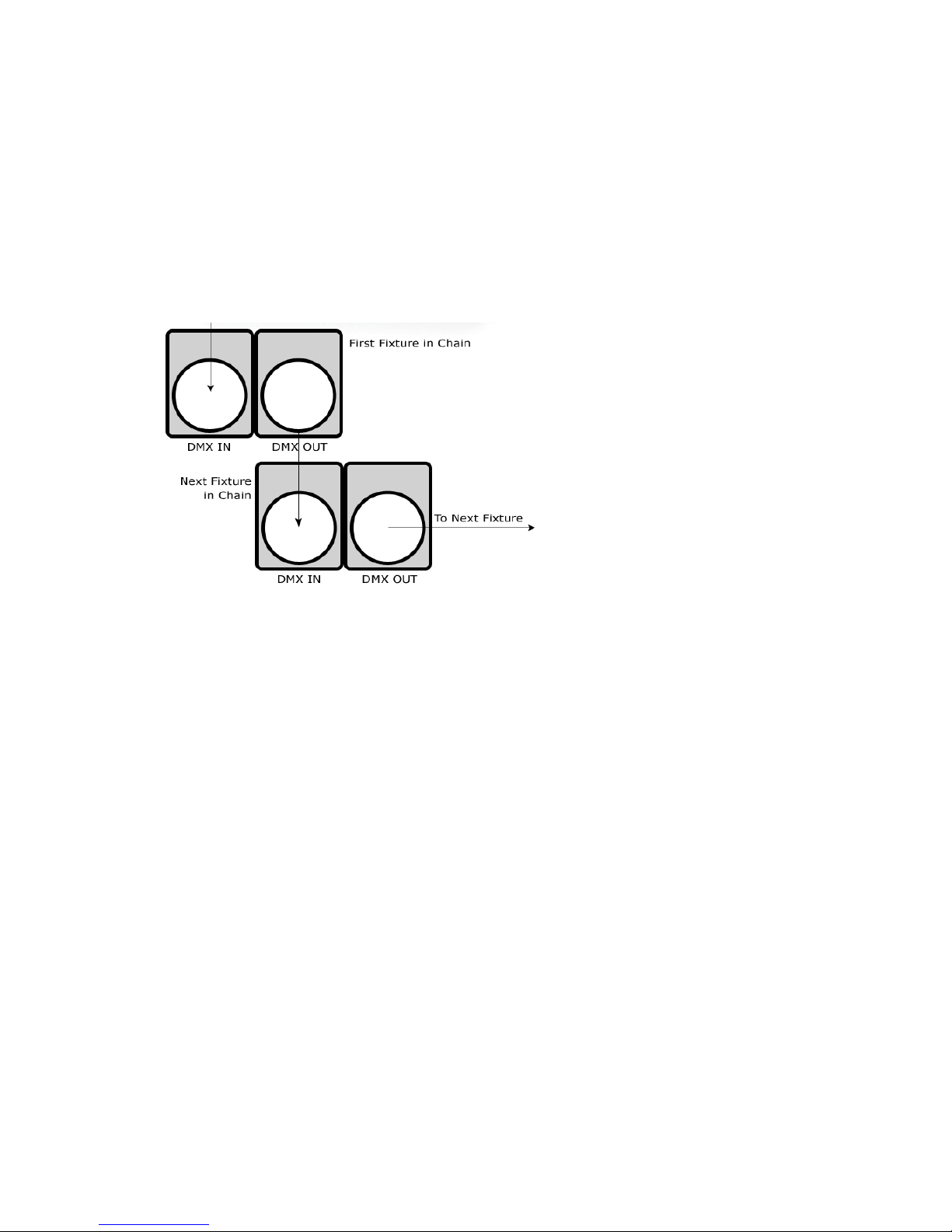
Step 3: Connect other xtures in the chain
from output to input as above. Place a DMX
terminator on the output of the nal xture
to ensure best communication.

Page 9
Solar Cell™ User Manual - Rev. A (c) 2016 Blizzard Lighting, LLC
Fixture Linking (Master/Slave Mode)
1. Connect the (male) 3-pin connector side of the
DMX cable to the output (female) 3-pin connector of
the rst xture.
2. Connect the end of the cable coming from
the rst xture which will have a (female) 3-pin
connector to the input connector of the next xture
consisting of a (male) 3-pin connector. Then,
proceed to connect from the output as stated above
to the input of the following xture and so on.
A quick note: Often,
the setup for Master-
Slave and Standalone
operation requires that
the rst xture in the
chain be initialized for
this purpose via either
settings in the control
panel or DIP-switches.
Secondarily, the xtures
that follow may also re-
quire a slave setting.
Check the “Operating Adjustments” section in this manual for com-
plete instructions for this type of setup and conguration.
Mounting & Rigging
This xture may be mounted in any SAFE position provided there is
enough room for ventilation.
It is important never to obstruct the fan or vents pathway. Mount the
xture using a suitable “C” or “O” type clamp. The clamp should be
rated to hold at least 10x the xture’s weight to ensure structural sta-
bility. Do not mount to surfaces with unknown strength, and ensure
properly “rated” rigging is used when mounting xtures overhead.
Adjust the angle of the xture by loosening both knobs and tilting the
xture. After nding the desired position, retighten both knobs.
• When selecting installation location, take into consideration lamp
replacement access (if applicable) and routine maintenance.
• Safety cables MUST ALWAYS be used.

Page 10
Solar Cell™ User Manual - Rev. A (c) 2016 Blizzard Lighting, LLC
4. OPERATING ADJUSTMENTS
The Control Panel
All the goodies and different modes possible with the Solar Cell™
are accessed by using the control panel on the front of the xture.
There are 4 control buttons below the LED display which allow you to
navigate through the various control panel menus.
<MENU>
Is used to navigate to the previous higher-level menu item.
<UP>
Scrolls through menu items and numbers in ascending order.
<DOWN>
Scrolls through menu items and numbers in descending order.
<ENTER>
Is used to select and conrm/store the current selection.
The control panel LED display shows the menu items you select from
the menu map on page #11. When a menu function is selected, the
display will show immediately the rst available option for the selected
menu function. To select a menu item, press <ENTER>.
Use the <MENU> and/or the <UP/DOWN> buttons to navigate the
menu options. Press the <ENTER> button to select the menu function
currently displayed, or to enable a menu option. To return to the previ-
ous option or menu without changing the value, press the <MENU>
button.
MENU UP DOWN ENTER
Table des matières