BJcast BJ60S Manuel utilisateur

BiJie meeting box
Type
BJ60S
user's manual
November, 2020, Edition A

Content
1 Product Information....................................................................................................................................................... 4
1.1 Equipement packaging...................................................................................................................................... 6
1.2 Equipement Interface......................................................................................................................................... 7
1.3 Device connection............................................................................................................................................... 7
1.3.1 AP hotspot connection.................................................................................................................... 7
1.3.2 STA/wired connection......................................................................................................................8
2 Display box setting......................................................................................................................................................... 9
..........................................................................................................................................................................................9
2.1 System information presentation................................................................................................................... 9
2.1.1 Discover mode interface.................................................................................................................10
2.1.2 Short code mode interface...........................................................................................................11
2.2 Display box configuration interface............................................................................................................. 12
........................................................................................................................................................................................12
2.2.1 Preparation before configuration............................................................................................... 12
2.2.2 Configuration interface..................................................................................................................13
2.3 Device ID.............................................................................................................................................................. 13
2.4 Wallpapers........................................................................................................................................................... 14
2.5 Interface setting................................................................................................................................................. 15
2.6 Wired network.................................................................................................................................................... 17
2.7 WiFi network....................................................................................................................................................... 17
2.7.1 AP mode............................................................................................................................................ 18
2.7.2 STA mode.......................................................................................................................................... 19
2.8 About us............................................................................................................................................................... 20
2.9 More settings...................................................................................................................................................... 20

Content
2.9.1 Select language................................................................................................................................21
2.9.2 Wireless display mode................................................................................................................... 22
2.9.3 Picture scale...................................................................................................................................... 24
2.9.4 Competion mode............................................................................................................................ 24
2.9.5 Maximum number of screens...................................................................................................... 25
2.9.6 Authorized access function.......................................................................................................... 26
2.9.7 Miracast HDCP................................................................................................................................. 26
2.9.8 Miracast channel..............................................................................................................................27
2.9.9 Reboot plan.......................................................................................................................................28
2.9.10 Restart now.....................................................................................................................................29
2.9.11 NTP server.......................................................................................................................................29
3 Terminal wireless display instructions................................................................................................................ 31
........................................................................................................................................................................................31
3.1 Miracast on Android device............................................................................................................................31
3.2 Android device APP display............................................................................................................................32
3.3 Airplay on iOS device........................................................................................................................................33
3.4 iOS device APP display.....................................................................................................................................33
3.5 Windows8/10 WiDi display.............................................................................................................................34
3.6 Windows PC client software display............................................................................................................ 35
3.7 Airplay on Mac OS.............................................................................................................................................36
3.8 Mac OS PC client software display............................................................................................................... 37
3.9 USB transmitter display....................................................................................................................................38
4 Troubleshooting.................................................................................................................................................................. 39

Important information
I
Safety precautions
Note
Before using BJ60S meeting box, please read this manual carefully and keep it properly for future reference.
To turn off the main power supply, the plug must be pulled out of the power socket.The power
socket should be installed close to the wireless equipment, which is easy to operate.
To prevent electric shock, do not open the case.
Please entrust the maintenance matters to qualified equipment maintenance service personnel.
This symbol is used to warn the user that the uninsulated power supply in the meeting box may be
sufficient to cause electric shock.
Therefore, do not touch any parts inside the meeting box to prevent danger.
This symbol is used to remind the user that it contains important information about the
operation and maintenance of wireless display equipement.
Read this information carefully to avoid problems.
Warning: in order to prevent fire or electric shock, the meeting box is supposed to avoid being exposed to rain
or humidity. Unless the power pin is fully inserted, the plug of the meeting box cannot be used in the extension
cord power socket or other sockets.

Important Information
II
Important safety measures
These safety instructions can maintain a long service life of BiJie meeting box and prevent fire and electric shock. Please
read carefully and pay attention to all warnings.
install
Please do not place the BiJie meeting box in the following environment:
A rickety car, shelf, or table;
Close to a water, bath or damp room;
A place with direct sunlight and close to a heating unit or thermal radiation unit;
A dusty, smoky or steamy environment;
On paper or cloth, cushion or carpet.
If you want to install the meeting box on the ceiling:
Do not install by yourself;
Installation work must be entrusted to qualified technicians to ensure standard operation and prevent personal
injury;
The ceiling must be strong enough to withstand the weight of the BiJie meeting box (including supports) and
must be installed in accordance with local building codes;
Please consult your local dealer for details.
Notes on fire and electric shock
In order to avoid hot air accumulation inside the meeting box, make sure that the ventilation is in good condition
and the vent is not blocked. A minimum of 10 cm should be left between the meeting box and the wall.
Do not let paper and paper scraps fall into the inside of the meeting box. Do not insert metal objects such as wires or
screws into the equipment. If any object is found falling into the equipment, the power supply must be cut off
immediately, and then the qualified maintenance service personnel shall be entrusted to take out the object.
Do not place any objects on top of the meeting box.
Do not touch the power plug in thunderstorm days. This may cause electric shock or fire.
The operating power supply of the power adapter of the conference box is 100 ~ 240 V 50 / 60 Hz AC. Before using
the equipment, it is necessary to confirm whether the power supply used meets the requirements of the equipment.
Use the power cord carefully. Damaged or worn power cord may cause electric shock or fire.
Do not use the power cord not attached to the equipment;
Do not bend or pull the power cord excessively;
Do not put the power cord under the equipment or other heavy objects;
Do not cover the power cord with blanket or other soft materials;
Do not heat the power cord;
Do not touch the power plug with wet hands.

Important Information
III
Under the following circumstances, it is necessary to turn off the meeting box, unplug the power cord and ask
qualified maintenance personnel to repair the equipment:
The power cord or plug is damaged or worn;
There is liquid flowing into the equipment or the equipment is exposed to rainwater;
You follow the instructions in the user's manual, but the device is not working properly;
The equipment falls to the ground or the chassis is damaged;
Obvious abnormal changes in equipment performance indicate that maintenance is needed.
Disconnect the power cord and other wires when moving the equipment.
Turn off the equipment and unplug the power cord before cleaning the chassis.
If the device is not used for a long time, turn off the device and unplug the power cord.

Product Instructions
4
1 Product Information
BJ60S meeting box is an enterprise level wireless display device. It is compatible with Airplay, Miracast, WiDi and
BJCast wireless display protocols. It supports smart phones and PC computers to conduct screen image and display on
the same screen through wireless way. It is the best choice for enterprises to efficiently work, wireless display for
education and release products for exhibition.
1-1
Main advantages:
Wireless display: It supports the video, music, PPT and other multimedia content from mobile phone, pad and
PC to TV, projector and other terminal devices for wireless sharing and viewing.
hotspot coverage: BJ60S supports AP hotspot function and can provide local hotspot coverage.
Independent audio :Independent 3.5mm audio output interface is provided to facilitate audio system
integration.
Support zoom:in the case of multi-channel projection, you can touch the icon to enlarge the target screen.
Terminal compatibility: Fully compatible with Android, iOS, Windows system intelligent terminal equipment,
support Miracast①, Airplay②, WiDi③, BJCast④protocols.
USB transmitter display (Optional):Optional USB transmitter, PC (Windows / MAC) computer can use it to
wirelessly display.

Product Instructions
5
1-2
1-3

Product Instructions
6
Note:
1.Miracast①:Miracast users can browse photos taken by smartphones on large screen TVs, share notebook screens in real time
through meeting room projectors, or watch live TV programs from home TV set-top boxes on tablets. Miracast via Wi-Fi certified Wi-Fi
direct™ form a connection without having to access any Wi-Fi network.
2.AirPlay②:Airplay protocol is a kind of playing technology added by apple in iOS and OS X system. It can transfer the video
image of iPhone, iPod touch, iPad and MAC to the device supporting Airplay.
3.WiDi③:Widi (Intel Wireless Display) is the full name of wireless high-definition technology. It realizes the wireless connection
between computer and display device through WiFi signal.
4.BJCast ④:BJCast protocol is a wireless display protocol independently developed by our company, which supports the
transmission and sharing of mirror images between mobile devices.
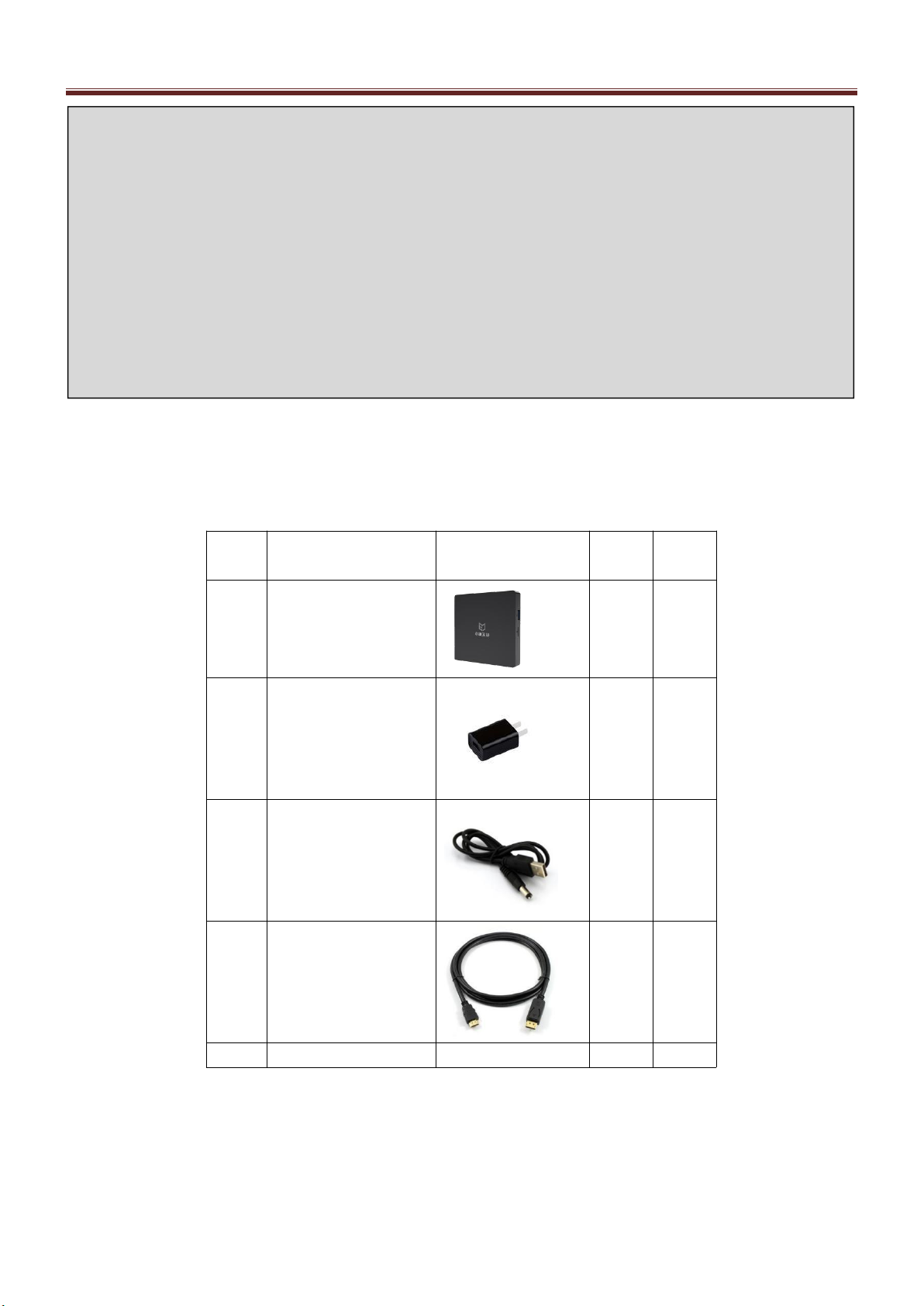
1.1 Equipement packaging
No.
Product
Apperance
Numb
er
Unit
1
BiJie Meeting Box*
host
1
set
2
Power adapter*5V2A
1
set
3
DC power line
1
piece
4
HDMI cable
1
piece
5
certification
1
set

Product Instructions
7
1.2 Equipement Interface
No.
Interface name
Interface number
1
front
LED indicator light * 1
2
Left
USB interface*1
3.5mm audio output interface * 1
LAN*1
Reset key*1
3
back
Power button*1
HDMI video output interface*1
USB interface*1
DC5V interface*1
1.3 Device connection
1.3.1 AP hotspot connection
Connect the meeting box and TV (or projector) through HDMI cable, and the display box will be powered on.
The first time the meeting box is powered on, the AP hotspot is turned on by default. The mobile phone and PC can
directly connect to the SSID of the wireless display box to cast the screen.
Table des matières
Manuels Système de conférence populaires d'autres marques

Kramer
Kramer VIA GO Manuel utilisateur

AVT
AVT MAGIC AC1 Go Manuel utilisateur

ProSoft Technology
ProSoft Technology AN-X4-AB-DHRIO Manuel utilisateur

Sony
Sony PCS-I150 Manuel utilisateur

Middle Atlantic Products
Middle Atlantic Products VTC Series Manuel utilisateur

Prentke Romich Company
Prentke Romich Company Vanguard Plus Mode d’emploi