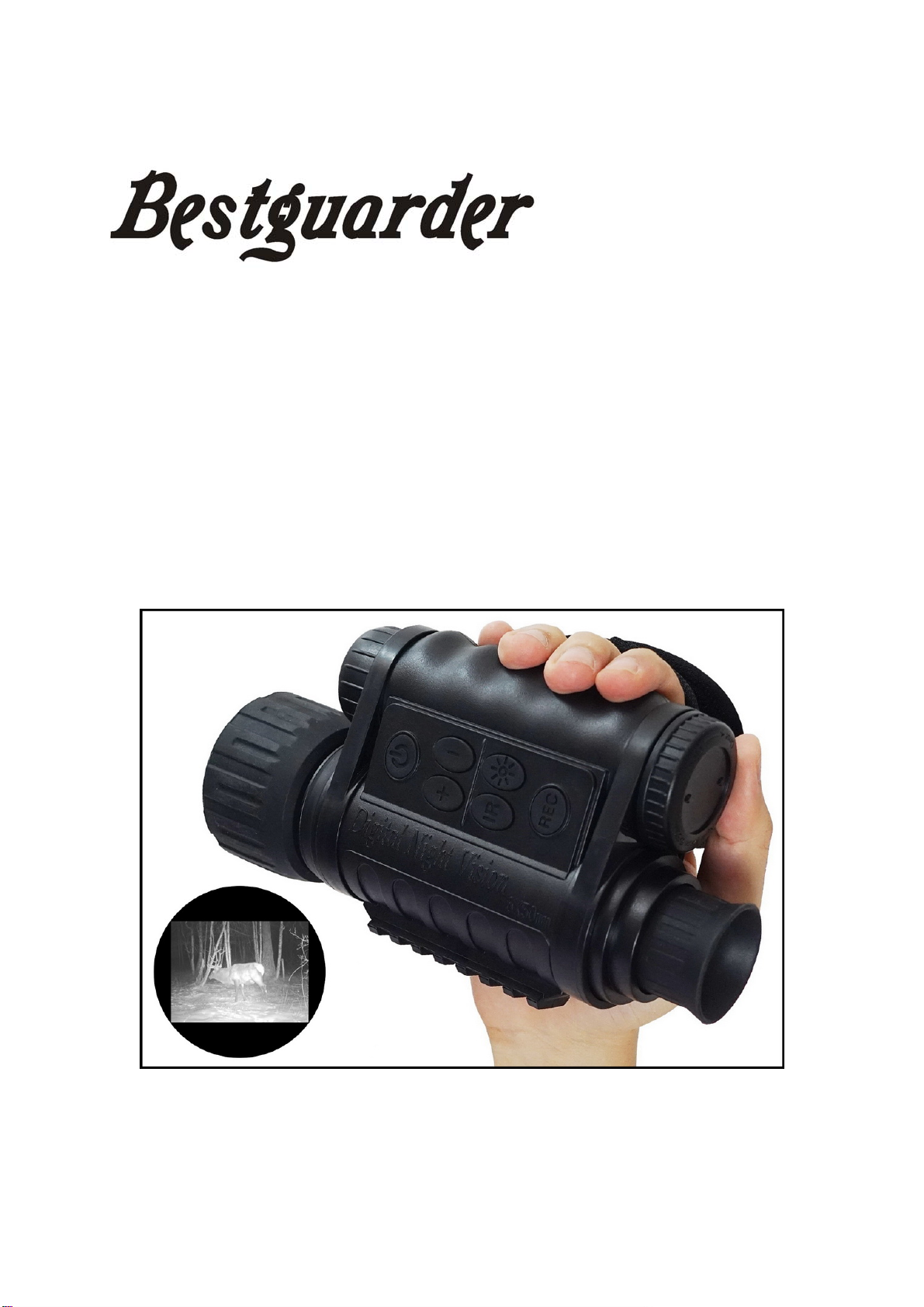
screen, rotate the eyepiece (eye-cup) until the display icons or edges of the display
screen appear sharp to your eye. Remove the lens cover from the front of the
objective lens. Note: since the device uses digital night vision technology (not analog
“Gen 1”, etc.), the unit cannot be damaged by exposure to normal indoor or outdoor
light levels-however, you should avoid pointing it directly at the sun or other very
bright light sources to avoid overloading the sensor.
3) TURN ON IR LIGHT(IF NEEDED), ADJUST OBJECTIVE LENS FOCUS FOR
SUBJECT DISTANCE
If the image is too dark to easily view (in most building interiors, and outdoors when
away from artificial lighting), press the IR button to turn on the Infrared LED light. If
the image is too bright after turning on the IR light (when viewing at close range),
press the IR button again to reduce the IR light level. If the image is still too dark after
turning on the IR light, try pressing the Image Brightness button once or twice to
lower the frame rate of the digital sensor. If the image is not sharp, rotate the
objective lens barrel to change the focus until the subject appears sharp. Do not
re-adjust the Display (Eyepiece) Focus (as set in Step 2), unless the display icons are
un-sharp.
OTHER OPERATIONS
zAUTO POWER OFF
If a button has not been pressed for 10 minutes, the display screen will drop to
50% brightness level. If no button is pressed within one minute after that, the unit
will power off to extend battery life. Pressing any button quickly any time before
the unit turns off will return the screen to full brightness level and reset the auto off
countdown process, without changing any other settings
zICON OVERLAY ON/OFF
The user has the option to control how the icons are displayed on the LCD screen.
Normally, when any button is first pressed, ALL icons are displayed for 5 seconds,
but no change to the unit’s settings is made (the Record and IR buttons is an
exception-image capture begins immediately the first time “Record” is pressed,
and the IR light turns on at the first press of “IR”). If the same button is pressed
again, the button performs its function, and the display icons remain visible for 10
seconds after the last press, before turning off automatically. To display all icons
constantly, press and hold the IR button for 3 seconds. Repeat to switch back to
auto icon overlay (only visible for 10 sec. max following the use of a button)
zUSING THE DIGITAL ZOOM
Press the “+” button (B) to zoom in. Press the “-” button (B) to zoom out. Hold the
button down to zoom in/out rapidly. The Digital Zoom icon at the lower left corner
of the display will indicate the magnification factor, from 1.0x to 5.0x (in 0.1x
increments).
zSELECTING PAL OR NTSC VIDEO OUTPUT
The Video Output jack is set to NTSC format (30fps TV standard in the USA,
- 9 -