
beatXP VECTOR Manuel utilisateur

Feedback and Complaint
Customer Support : +91 7303-762-766
Website : www.beatxp.com
Beat The Limits
Please Read This Instruction Manual
Carefully Before Use
Instruction Manual
PASSION REIMAGINED
VECTOR

We are a fit-tech brand that leverages technological innovations and
strives to create a connected wellness ecosystem to deliver high quality
fitness products.
Thank you for choosing beatXP Vector as your Fitness Partner.
This manual will guide you through the features and usage of the beatXP
Vector smartwatch so that you have the best experience.
In case of any queries, please feel free to reach out to us. The contact
details are on the last page of this manual.
About Us
We are Grateful!
Contents Table
What’s In The Box
Product Features
Quick Fit Strap
Download and Connect to App
Connection with Bluetooth for Calling
Tips to Boost Performance
How to interchange straps
Charging instructions
Functions and Features
Troubleshooting
Disclaimer
Warranty Clause
Specifications
1
1
2
2
5
6
7
8
9
19
20
21
22
..........................................................
..........................................................
..........................................................
..........................................................
..........................................................
..........................................................
..........................................................
..........................................................
..........................................................
..........................................................
..........................................................
..........................................................
..........................................................

beatXP Vector smartwatch perfectly fits your wrist.
Tip: While using any Health Parameter Monitoring, please wear your watch
a little tightly and measure with the watch facing upwards.
To get detailed records of your day-to-day activities and health status, you can
download beatXP TRAK application. You can connect your watch to your
phone in a few simple steps. Please follow the instructions given on the next
page and enjoy all the features of your beatXP Vector smartwatch.
Quick Fit Strap
Download & Connect with App
What’s in the box
1 x Vector Smartwatch
1 x Charging Dock
1 x Warranty Card
1 x Sticker
1 x Offer Card
1 x User Manual
Product Features
1.30” Ultra
HD Display
Capacious
Battery
Instant
Notifications
Sleep
Monitor
Multiple
Sports Modes
One-Tap
Bluetooth
calling
24X7 Health
Parameters
Monitoring
Camera &
Music Control
Stock Market
Tracker
60Hz
Refresh Rate
Find My
Device
IP67
Water Resistance
24/7
1 2

4
Check out the following steps to download and install beatXP
Smartwatch App to begin your fitness journey:
When you turn the watch ON for first time, you will be presented with QR
Code. If you miss it, go to the app list by pressing the crown button once.
Then scroll to the bottom and click on the QR Code option.
Use scanner on your phone to scan the QR Code and fill in your details on our
website and download the app.
Alternatively, you can download the beatXP TRAK app from Google Play
Store (for Android devices) or Apple App Store (for iOS devices).
Open the beatXP TRAK application and go to the device page. Click on Add
Device card, allow permissions requested by the app and select your watch
from the list to connect.
Follow steps presented by the app to set up your watch completely. In case
you still cannot use ‘Calling’, follow steps on the next page.
3

Tips to Boost the Performance
Please upgrade the beatXP TRAK application to the latest version from
Google Play Store (for Android devices) or Apple App Store (for iOS
devices).
Recommended device system:
1.
2.
for Android 4.4 or above
for iOS 9.0 or above
6
Connection with Bluetooth for Calling
Go to the phone’s bluetooth settings and search for beatXP Vector.
Click on the watch name and connect it to Bluetooth. A pop-up
will appear. Check the contact sharing and click on Pair.
The watch should now be connected to your phone for calling.
Make a call from your watch and talk seamlessly.
Go to the Settings page of your phone.
Select and connect with beatXP Vector.
Click on Pair.
Upon successful connection, the Bluetooth Calling function
can be used.
Make a call from your watch and talk seamlessly.
iOS Devices
Android Devices
5
Once your watch is connected to beatXP TRAK app correctly,
Once your watch is connected to the beatXP TRAK app correctly,

7 8
How to Interchange Strap
You can customize the strap of your smartwatch
with any universal 20mm Strap. To detach the
strap, pull the pin at the back. Similarly connect
the new strap by pulling down the pin and fitting
it.
Charging Instructions
Turn the watch over, align and attach the charging
pins to the magnet and gold pins. You will see the
charging icon on your watch within 5 seconds.
Fully charging the device can take up to 3 hours.
The battery circle will become full when the watch
is done charging.
Please clean your watch before charging to avoid
sweat or dirt corroding or damaging the gold pins.
Change Watch Faces
Long press the screen and the watch will go into edit mode. Swipe right or
left to choose the adjacent watch face and click on any watch face to confirm.
For customizing the watch faces or designing your own, go to the beatXP
TRAK app and select a watch face from the watch face gallery and sync it
with the watch. You can also design your watch face accordingly.

Stress Monitoring:
After wearing the watch properly, open the ‘Stress’
application on it and measure the amount of
psychological pressure you are feeling.
Activity Tracking:
Open the ‘Activity Tracking’ application on your watch to see
how many steps your have moved, how many calories you
have burnt and how much distance you have traveled today.
10
9
Sports Modes:
beatXP Vector supports more than 100+ sports modes from Fitness,
Leisure, Competition Classes, Dance Classes, Ball Games etc. including
Running, Walking, Treadmill, Mountaineering, Cycling, Basketball, Zumba,
Baseball etc. The watch only shows a partial number of these modes at a
time to reduce clutter. You can customize the list according to your
convenience. To customize the list from your watch, go to Sports →
Customize → Add and then select the modes you want from various
categories and click Save.
Heart Rate Monitoring:
Wear your watch properly, neither too tight nor too loose
and go to the ‘Heart Rate’ application on your watch. The
watch automatically starts measuring Heart Rate (The
watch does not give a final reading as Heart Rate is
dynamic and shows the current value in real- time).

Stock Market:
You can add stock prices in your watch f rom the beatXP
TRAK
mobile application and get real-time updates directly
on your watch whenever you want.
SpO2 Monitoring:
After wearing the watch properly, open the ‘SpO2’
application on your watch to measure your Blood Oxygen.
Keep your watch facing upwards while measuring.
World Clock:
You can add multiple time zones in your watch from the
beatXP
TRAK
mobile application.
Blood Pressure: After wearing your watch properly, open
the Blood Pressure application on the watch to measure
the amount of blood pressure at that time.
Breathing Exercises:
In the menu bar, click on Breathing Exercise to exercise
proper breathing. You can adjust the speed from the
watch itself in the settings.
11 12
Sleep Tracking:
Wear your watch properly before going to sleep. The watch
will record your sleep time and you can see the complete
detailed data on the app after your nap.
Music Control:
You can control music playback of your phone directly
from your watch without having to take your mobile
phone out of your pocket.

Device Out of Range:
Turn the ‘Device Out of Range’ reminder ON in your mobile
application. Now, whenever your watch gets disconnected from
the app, the watch will alert you.
Menstrual Health:
You can track female menstrual cycle directly from your
watch. Just record all settings in the app and the watch will
provide updates directly.
Voice Assistant:
You can talk to the AI assistant of your mobile phone directly
from your watch (Please note that your phone’s assistant
should have the setting ON to work while your phone is
locked for the best experience).
Calling:
The beatXP
Vector
smartwatch supports Bluetooth Calling.
Connect your watch to the phone according to instructions
provided earlier and go to the Phone application in your
watch and dial whoever you want to talk to.
Notifications:
The beatXP
Vector
supports instant notifications. Turn ON
the settings and permissions from your Phone app to
receive the notifications directly on your watch.
13 14
Always On Display:
beatXP
Vector
(1.30” Ultra HD Display) is an AOD smartwatch
and supports 2 AOD faces- (analog and digital). The two faces
are always on and aesthetically look appealing, also saving
more power compared to other watches.
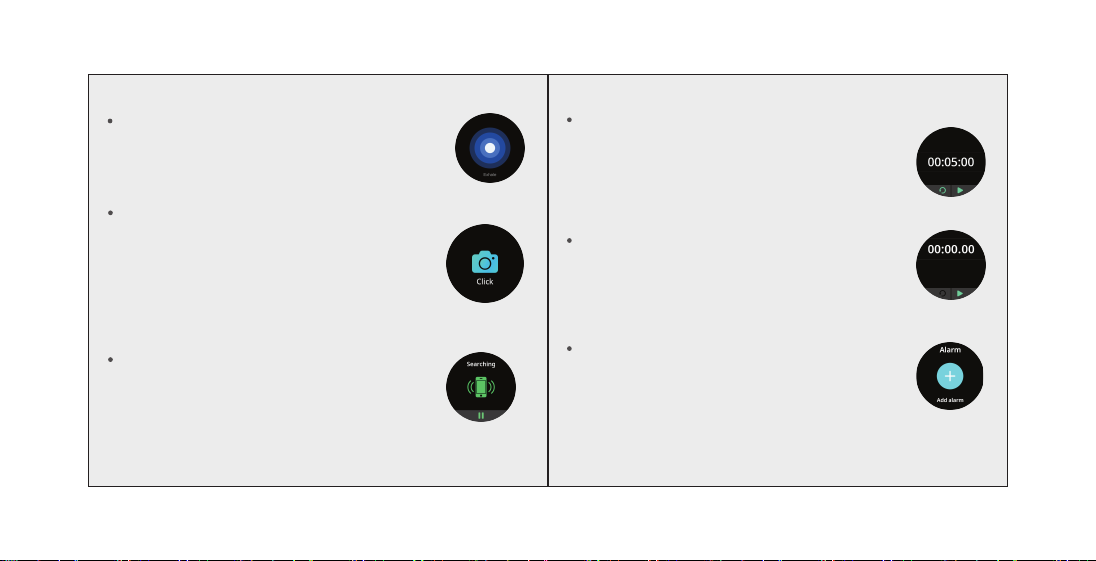
Find My Phone:
When your watch is connected to mobile application, swipe
up on the home screen and click on the Find My Phone
icon or go to the app on the watch. Press Play to find your
phone.
15 16
Stopwatch:
Your watch supports electronic timer count, hence you can
record time taken during multiple activities.
Timer:
You can also set yourself multiple targets with the timer
application in the smartwatch to push your limits.
Alarm:
You can set an alarm directly on your watch so that you
never miss any important meeting or event.
Camera Shutter:
You can use your smartwatch as a shutter to take photos from
your mobile phone. To use it, go to the beatXP
TRAK
app, Click
on device and then choose Camera option to turn the camera
ON. Then tap on the ‘Click’ icon showing on your smartwatch
to take pictures.
Breathe Rate:
Measure the current respiratory rate. (Values are for
reference only and cannot be used on as medical basis).
Table des matières
Autres manuels beatXP Montre


