
Bascom CLIENT Manuel utilisateur

BASCOM CLIENT
User Manual

Questions about your camera system? Please visit our online help center. Here you can nd the
most recent articles about how to operate your system.
Visit: www.bascom.support
Online Help Center

Internet modem
Bascom Recorder
1. Installing the software / How to login
Step 1 Connect the recorder to the internet
Connect the recorder with a networkcable to your modem or router (the ‘box’ from your internet).
Use these connections:
• On the recorder: Internet or WAN
• On your router or modem: Ethernet or LAN
Step 2 Install the software
Download your software for : Windows or Apple OS X.
Step 3 Open the software
BSC1234567891011
Enter the code that is displayed under the QR code on the left side
of your recorder. This code always starts with RSV or BSC.
admin
The default password is “admin”
Click “Login” to connect
admin
The default username is “admin”
9000

2. Main view Menu
1
11
10
12
13
14
15
2
9
3
867
45
1
11
10
12
13
14
15
2
9
3
8
6
7
4
5
Main View Access the live view of the cameras
Remote Playback Access camera recordings
Remote Setting Camera and recorder settings
System cong Software settings
Streaming Quality If your internet is fast enough, you can use Main Stream. Otherwise, use Sub Stream or Mobile Stream
Full Screen mode Set the live view to full screen. Menu buttons will be hidden
Layout Display 1/4/8/16 video channels
Stop all channels Stop the playback for all channels
Open all channels Start the playback for all channels
Sound Enable or disable sound (if the camera has the microphone option)
Numerical zoom Click to zoom-in the channel. When the icon appears, press and hold the left button of your mouse to drag the area
Manual record Start/stop manual recording
Manual capture Save a snapshot of the current camera image.
Channels No connection / Connected
Optical zoom Click to enter Zoom lens conguration - Available for PRO and PLUS cameras

Search, Playback & Backup
The playback function gives you the ability to search for and play previously recorded videos as well
as snapshots. You have the choice of playing video that matches your recording schedule, manual
recordings or motion events only. The backup function gives you the ability to save important events
on your computer.
3. Remote Playback Menu
Search Date Search by a date to play back. Note : Days with recordings show an orange triangle
Camera Selection Choose the channels you want to search & play
Search Start the Search
Download Download the recordings
Play Start the playback
Stop Stop the playback
Motion Recording In yellow color
Continious Recording In green color
Start all channels Start the playback for all channels
Stop all channels Stop the playback for all channels
1
2
3
8
9
10
6
7
4
5
4 5 6
1
2
7 98 10
3

4. Remote Setting
Channel / Channel
Channel / Live
Channel / Image Control
Choose the channel to congure
Give a name to the camera
Date format which needs to be displayed
Time format which needs to be displayed
Refresh Rate of the camera
Transparency of the block behide the date/time
Show the camera name in live view
Show the camera time in live view
Check the box if you want to hide the live view
Choose the channel to congure
Select the desired built-in IR cut lter mode
Set the delay time of IR-CUT switching
Select the desired LED mode
Mirrior Camera image vertical
Mirrior Camera image horizontal
Rotate the camera image by 90 °
Set the ip angle
To enable or disable Backlight compensation
To enable or disable 3D noise reduction function
Automatically adjust the brightness and contrast
Set the 3D noise reduction level
Automatic Gain Control
Congure white balance
Set the shutter mode
Exposure time of the camera
Heats the camera in case of fog and snow
Delete channel
Add channel manually
Camera online
Camera ofine
Channel menu

Channel / Motion Detection
Channel / Video Cover
Record / Encode
Choose the channel to congure
Enable or disable motion detection
Set the sensitivity level. Level 1 the lowest
sensitivity level while level 8 is the highest
sensitivity level.
Choose the channel to congure
Enable or disable privacy zone
Record menu
To congure general settings
This menu allows you to congure motion settings. When motion is detected by one or more cameras, the system can alert you by sending an email alert
and/or send push notications to your mobile app.
This menu allows you to create privacy zone(s) if you want to partially cover some certain part of the image. You can create up to 4 privacy zones in any
size and location on the camera image. Enable the Privacy Zone and choose how many zones you need. The zone(s) appear as a “red box”. Click the edge of
the red box and drag it to any size to create a privacy zone.
Motion Detection Area: The whole screen is marked for motion
detection (red blocks) as default. If you want to disable the motion
detection on a certain area, click the grid cursor and then drag the
mouse to highlight the scope to unmark the area into transparent
blocks. After setting is completed, click the “Save” button to make
the area setup effective.
Choose the channel to congure
How large the recorded image will be
The number of frames per second the system will record
H.265 is default, H.264 to support older cameras
The camera automatically chooses the correct setting between CBR (constant bitrate) and
VBR (variable bitrate). Please do not change the settings manually
If you want to set the bitrate by yourself, then choose User-dened mode. If
you want to select the predened bitrate, choose Predened mode
This parameter corresponds to the speed of data transfer that the system will use to
record video.
IFrame is the frame that is used as the primary reference point that is compared to the
other frames in the stream
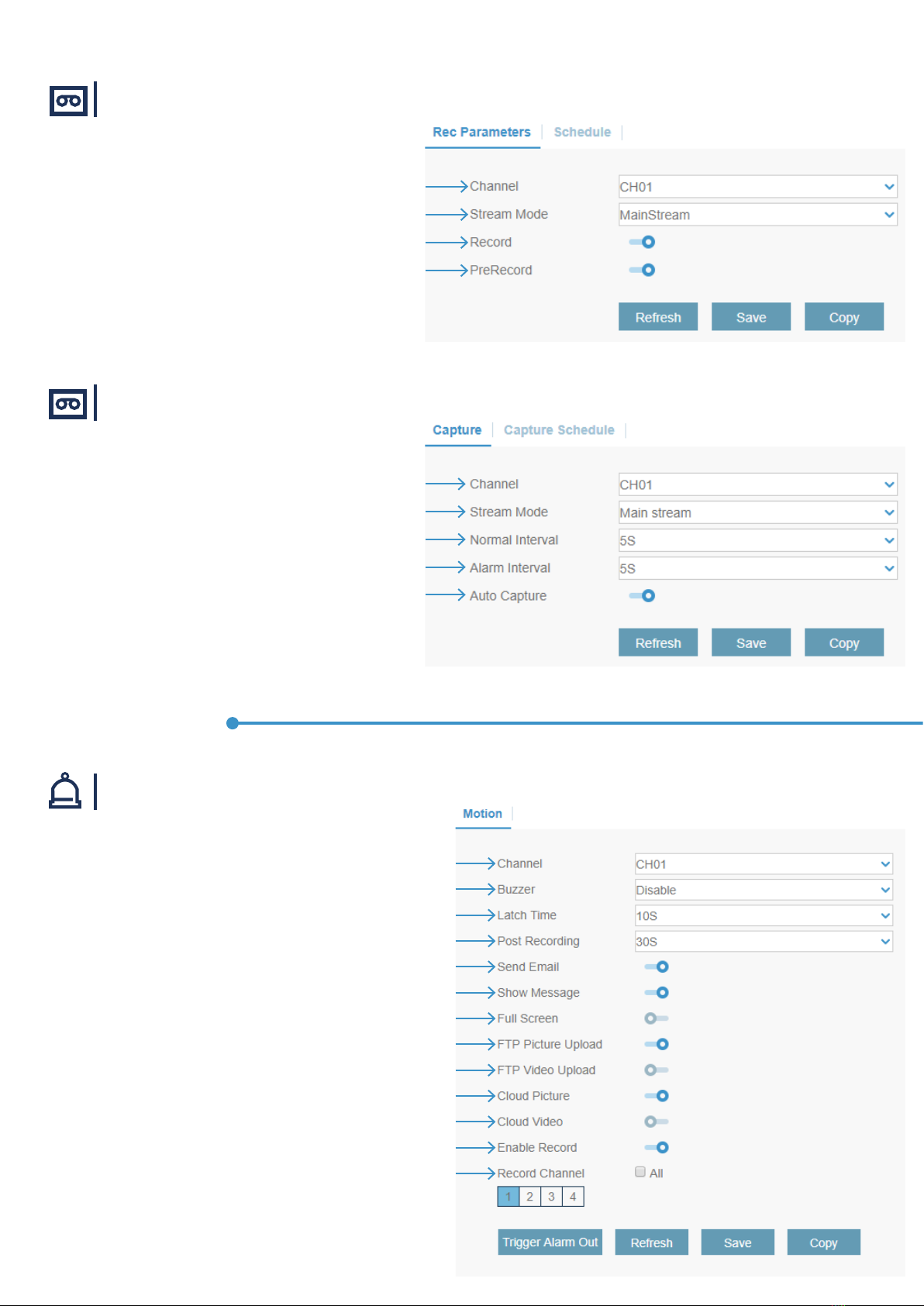
Record / Record
Record / Channel
Alarm / Motion
Choose the channel to congure
Choose the recording quality. If you choose Dualstream, the system will
record in both Mainstream & Substream
Enable or disable the record
If this option is enabled, the system starts recording a few seconds before
an alarm event (motion detection for example) occurs. Use this option if
your primary recording type is motion or I/O alarm based
Choose the channel to congure
Select the image resolution by mainstream or substream
Time interval to capture an image in normal recording
Time interval to capture an image when motion or IO alarm is triggered
Enable or disable automatic capture function
Choose the channel to congure
The system can use its internal buzzer to emit an alarm tone. You can set the buzzer
duration in seconds when the motion is detected
How many seconds the system starts recording before an event occurs
How many seconds the system stops recording after an event occurs
Receive an email when motion is detected
Display the alarm icon on the screen when motion is detected
When motion is detected, the channel goes to full screen
Upload alarm images to FTP server when motion is detected
Upload alarm video to FTP server when motion is detected
Upload alarm images to cloud server when motion is detected
Upload alarm video to cloud server when motion is detected
Enable or disable record when motion is detected
Choose which channel(s) you want to record when the motion
detection is triggered
Alarm menu

Alarm / I/O
Select the event type
Check the box to enable the monitoring of the event
Set the buzzer duration when the event occurs. To disable buzzer, select Disable
Check the box to display a message on the screen when No Space on Disk, Disk
Error,or Video Loss events happen.
Receive an email when an event occurs
This is an optional function. Determine how long the external alarm device has to
make sound
Choose the I/O channel to congure
There are 3 alarm types: Normally-Open, Normally-Close, and OFF. Choose the one to match
your sensor type, or choose OFF to close the sensor trigger function
The system can use its internal buzzer to emit an alarm tone. You can set the buzzer
duration in seconds when a sensor is triggered
How many seconds the system starts recording before an alarm sensor is triggered
How many seconds the system stops recording after an alarm sensor is triggered
Receive an email when the sensor is triggered
Display the alarm icon on the screen when sensor is triggered
When sensor is triggered, the corresponding channel will be switched to the full screen mode
Upload alarm images to FTP server when I/O alarm is triggered
Upload alarm video to FTP server when I/O alarm is triggered
Upload alarm images to cloud server when I/O alarm is triggered
Upload alarm video to cloud server when I/O alarm is triggered
Choose which channel(s) you want to record when the I/O alarm is triggered
Alarm / Exception
Alarm / Alarm Schedule
You can connect external sensor I/O alarm devices to the system.
You can choose at what time you want to receive
the notications on your devices.
Select the option you want to set. Place all green
bars in the timeline by left-clicking and dragging
the mouse over the timeline.

Network / General
Network menu
General menu :
When DHCP is active, the router will assign automatically all the network parame-
ters to your system. When DHCP is not active, you must set them manually:
IP Address: The IP address identies the system in your network. It consists of
four groups of numbers between 0 to 255, separated by periods. For example,
“192.168.001.100”.
Subnet Mask: Subnet mask is a network parameter which denes a range of IP
addresses that can be used in a network. If IP address is like a street where you
live, then subnet mask is like a neighborhood. The subnet address also consists of
four groups of numbers, separated by periods. For example, “255.255.000.000”.
Gateway: This address allows the system to access the Internet. The format of the
Gateway address is the same as the IP Address. For example, “192.168.001.001”.
DNS1/DNS2: DNS1 is the primary DNS server and DNS2 is a backup DNS server.
Usually it should be enough just to enter the DNS1 server address.
Port conguration menu :
Web Port: This is the port that you will use to log in remotely to the system (e.g.
using the Web Client). If the default port 80 is already taken by other applications,
please change it.
Client Port: This is the port that the system will use to send information through.
If the default port 9000 is already taken by other applications, please change it.
RTSP Port: Default is 554, if the default port 554 is already taken by other applica-
tions, please change it.
UPNP: UPNP makes it easy to connect to your system remotely. You do not need to
congure manually port forwarding on your router.
P2P: P2P makes it possible to scan the QR-code from the system on your smart-
phone and have access to your cameras for everywhere.
PPPoE menu :
This is an advanced protocol that allows the system to connect to the network
more directly via DSL modem. Only use this function when you are an expert.
Check the “Enable PPPOE” box, and then enter the Username & Password of the
PPPoE.Click Save to save. The system will reboot to active the PPPoE settings.
Wireless menu :
You will need a Wi-Fi dongle to use this function (available on our website).
Check the option Enable.
Click on Scan in the SSID eld and double-click to select your WLAN net-
work.
Enter your WLAN password under Password.
Click on Join.
Save all settings with Save.
Table des matières
Autres manuels Bascom Enregistreur vocal


