
Bafo BF-2103 Manuel utilisateur

User’s Manual
USB2.0 Slim CD-R/RW
BF-2103
Notice:
If you have any problem with this product, please do not open it or try to fix it by
yourself. The warranty void if the seal is broken.

USB 2.0 Slim CD-R/RW User’s Manual 1
CONTENTS
1. Introduction-------------------------------------------------------------2
2. Package Content-----------------------------------------------------2
3. Product Features-----------------------------------------------------2
4. System Requirements----------------------------------------------2
5. Part Name and Functions----------------------------------------3
6. Driver Installation----------------------------------------------------3
6.1 Windows®98 installation--------------------------------------------------------4
6.2 Windows®98 un-installation---------------------------------------------------7
6.3 Windows®ME installation------------------------------------------------------8
6.4 Windows®2000 installation----------------------------------------------------9
6.5 Windows®XP installation-----------------------------------------------------10
6.6 MAC installation-----------------------------------------------------------------11
6.7 MAC un-installation-------------------------------------------------------------13
7. FAQ-------------------------------------------------------------------------13
8. Disclaimer--------------------------------------------------------------14
9. FCC Statement-------------------------------------------------------14
10.Technical Support------------------------------------------------14

USB 2.0 Slim CD-R/RW User’s Manual 2
1. Introduction
This USB2.0 Slim CD-R/RW provides an easy way to carry and flexible interface
solution.
This device supports USB 2.0 standard compliance interface, which enables people
to easily connect to Desktop PC or Notebook or Mac machine without opening
case.
2. Package Content
Hardware:
USB Slim CD-R/RW body
Power adapter (DC-5V)
USB 2.0 A-B cable
A Blank CD-RW disk
Warranty Card
Carry Bag
Software:
Driver software
User’s Manual
CD Recording Software
3. Product Features
USB specification revision 2.0 compliant
Portable CD-R/RW, easy way to backup files and share data
Easy way to use CD Recording software to make a CD
CD-R/RW Drive feature
1) WRITE: 8X-Speed(CD-R) /8X-Speed(CD-RW)
2) READ: Max 24X-Speed
3) Just Link: buffer under-run error prevention system
4) Recommend Media
CD-R: TAIYO YUDEN, EBOSS, TDK, CyQ’ve, Acer, Super
Blue
CD-RW: SIGMA
4. System Requirements
PC
IBM PC 486DX4-100 MHz or higher or compatible system
Available USB port t
CD-ROM drive
Windows®98SE, Windows®ME, Windows®2000,Windows®XP
MAC
Power PC G3, G4, or i-Mac
Available USB port
CD-ROM drive
Mac OS 8.6 or higher

USB 2.0 Slim CD-R/RW User’s Manual 3
5. Part Name and Functions
5.1 Back Panel
5.2 Front Panel
5.2.1Busy LED: When read or write, Busy LED will blink on. Please do not turn
off PC power when Busy LED been blinking turn on.
5.2.2Emergency Eject: If you cannot use Eject Button to let the CD-Tray out
when there is a media in CD-Tray. Please use tip of any object to press this
hole and force the CD-Tray jump out.
5.2.3Eject Button: OPEN/CLOSE CD-Tray.
Power Jack
USB Jack
Headphone Jack
CD-Tray
Busy LED
Emergency Eject
Eject Button

USB 2.0 Slim CD-R/RW User’s Manual 4
6. Driver Installation
6.1 Windows®98 Installation
6.1.1 Connect the USB port of USB 2.0 Slim CD-R/RW to USB port of PC with a
USB cable.
6.1.2 The “Add New Hardware Wizard” dialog box appears as below, clicks on
“Next” to continue.
6.1.3 Chose “Search for the best driver for your device (Recommended)” then
click “Next”
6.1.4 Select “Specify a location” and type D:\DRIVER\BF-2103\WINDOWS (D:
represents CD-ROM) in the dialog box, then click “Next”

USB 2.0 Slim CD-R/RW User’s Manual 5
6.1.5 Windows®will search the driver for this device. Make sure the driver that
Windows®found is “D:\DRIVER\BF-2103\WINDOWS\TPP300.INF”,then
click “Next”.
6.1.6 Click “Finish” to complete the installation procedure of “BAFO USB Storage
Adapter”.
6.1.7 After Windows® installed all the driver, you have to check “My
Computer”-“Control Panel”-“System”-”Device Manager” to make sure
the driver has already installed, in the “Hard disk controllers” it will show a
“BAFO Storage Adapter Bridge Module” and in the “Universal Serial Bus
controller” it will show a new item of “BAFO USB Storage Adapter”

USB 2.0 Slim CD-R/RW User’s Manual 6
6.1.8 Double click on “My Computer” icon on the desktop, if the driver has
already installed and can work properly, you can see a new CD-ROM icon
and named “E:” appears on the Desktop.
.
USB 2.0 Slim CD-R/RW User’s Manual 7
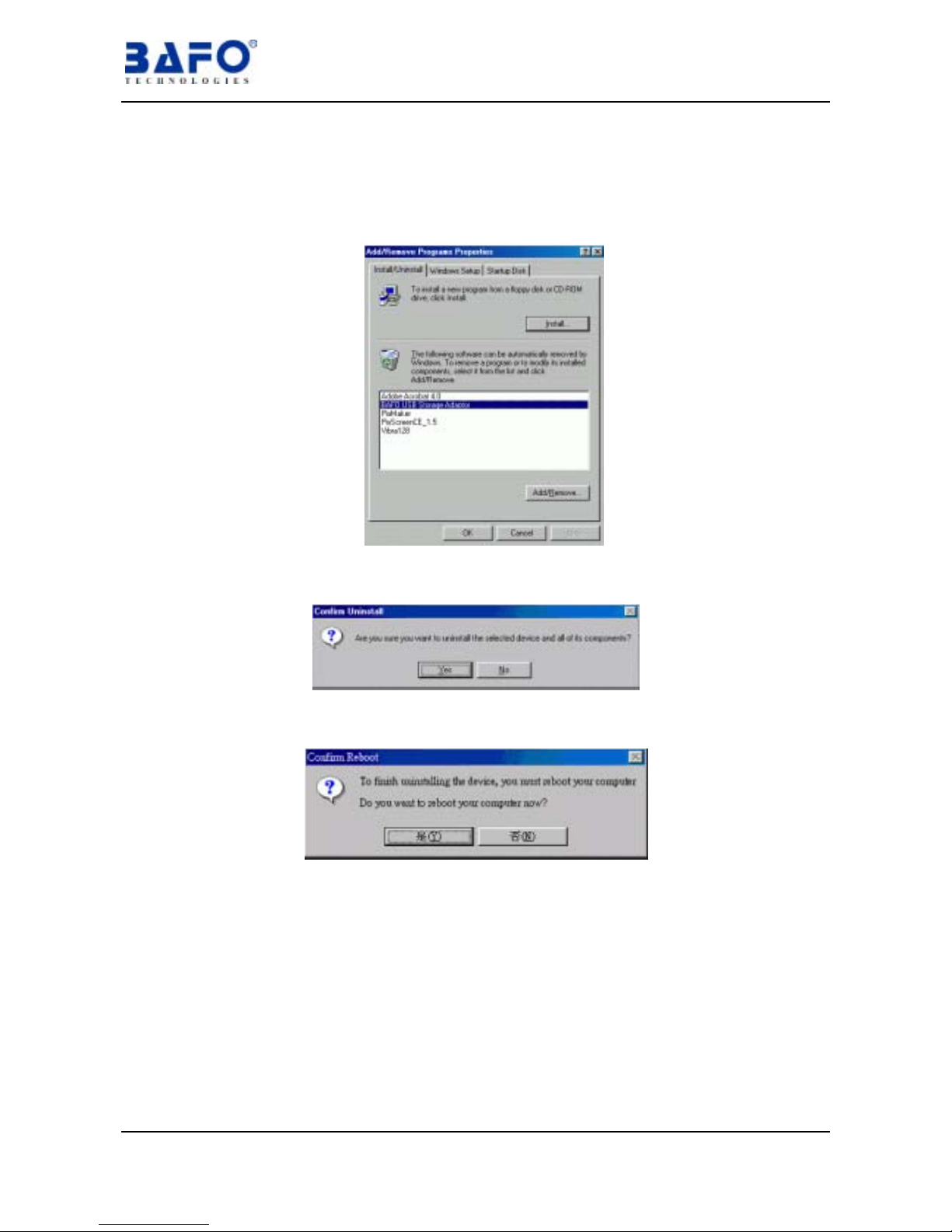
6.2 Windows®98 un-installation
6.2.1 Click on “Control Panel”-“Add/Remove Programs”the display as below will
show. Select “BAFO USB Storage Adapter” and click on “Remove” to
un-install it. Click “OK” to continue.
6.2.2 Click “Yes” to confirm un-install.
6.2.3 Click on “Yes” to restart computer and complete uninstall procedure.

USB 2.0 Slim CD-R/RW User’s Manual 8
6.3 Windows®ME installation
It doesn’t need to install any driver at Windows®ME
6.3.1 Connect the USB port of USB 2.0 Slim CD-R/RW to PC’s USB port via USB
cable. System will auto detect the device then load driver and create a new
CD-ROM icon named “Compact Disc (E:)” appears on the Desktop.
.
6.3.2 After Windows® installed the driver, you have to check the “System”-”Device
Manager” and make sure the driver has already installed, in the “Universal
Serial Bus controller” it should has a new item of “USB Mass Storage
Device” and in the “CDROM” there will have “MATSHITA UJDA340” (This
model number will vary with different CD-RW).

USB 2.0 Slim CD-R/RW User’s Manual 9
6.4 Windows®2000 installation
It doesn’t need install any at Windows®2000
6.4.1 Connect USB port of USB 2.0 Slim CD-R/RW to USB port of PC with a USB
cable. System will auto detect the device then load driver and create a new
CD-ROM icon named “Compact Disc (E:)” appears on the Desktop.
6.4.2 After Windows® installed the driver, you have to check the
“System”-”Device Manager” and make sure the driver has already installed,
in the “Universal Serial Bus controller” it should has a new item of “USB
Mass Storage Device” and in the “DVD/CD-ROM drivers” there will have
“MATSHITA UJDA340” (This model number will vary with different
CD-RW).
Table des matières
Manuels Lecteur CD/CDR populaires d'autres marques


SmartDisk
SmartDisk Firewire CD-R/W Manuel utilisateur

Axis
Axis CD-ROM SERVER Manuel utilisateur

LG
LG CRD-8322B Manuel utilisateur

Memorex
Memorex 32023234 - 52x32x52x External USB2.0 CD... Instructions d'installation

Yamaha
Yamaha CD Recordable/Rewritable Drive CRW3200 Manuel utilisateur

Sony
Sony CRX230AE Manuel utilisateur


