Aztech M64-32 Fiche d'information produit

Windows® 95, Windows® 98, Windows NT® 4.0 are registered trademarks of Microsoft Corp.
All other company or product names are trademarks or registered trademarks or service marks of their
respective owners.
Graphics
Card
M64-32
Easy Start
Read Me First
Version 1.0

2
Graphics Card Easy Start
Part 15 FCC Compliance Statement
This device complies with Part 15 of FCC Rules. Operation is subject to the following two conditions:
1. This device may not cause harmful interference, and
2. This device must accept any interference received, including interference that may cause undesired
operation.
Operating Environment
For Home or Office Use
Notice
This equipment has been tested and found to comply with the limits of a Class B digital device, pursuant to Part 15
of the FCC Rules. These limits are designed to provide reasonable protection against harmful interference in a
residential installation. This equipment generates, uses and can radiate radio frequency energy and, if not installed and
used in accordance with the instructions, may cause harmful interference to radio communications. However, there is
no guarantee that interference will not occur in a particular installation, if this equipment does cause harmful
interference to radio or television reception, which can be determined by turning the equipment off and on, the user
is encouraged to try to correct the interference by one or more of the following measures:
Reorient or relocate the receiving antenna.
Increase the separation between the equipment and receiver.
Connect the equipment into an outlet on a circuit different from that to which the receiver is
connected.
Consult the dealer or an experienced radio/TV technician for help.
Caution
To comply with the limits for the Class B digital device according to Part 15 of FCC Rules, this device must be installed
in computer equipment certified to comply with the Class B limits. All cables used to connect the computers and
peripherals must be shielded and grounded. Operation with non-certified/shielded cables may result in radio/TV
interference.
Modification
Any modification not expressly approved by the manufacturer of this device could void the users authority to operate
the device.
Party Responsible for Product Compliance:
Aztech Labs, Inc.
45645 Northport Loop East
Fremont, CA 94538, U.S.A.

3
Graphics Card Easy Start
About this
Easy Start This booklet provides a quick setup for your M64-32
Graphics Card. It touches on the key installation procedures
and allows you to setup your modem within minutes!
Installation Notes
•The graphics and screens illustrations shown in this easy start may differ from
what you see in your system, but the steps still apply.
•A Philips Screwdriver is required for the card installation.
•The documentation for your computer should come in handy during the card
installation. Have it ready by your side.
•It is recommended that any existing Graphics Card be removed before installing
your new Graphics Card.
Safety Precaution
•Do not remove your card from its protective bag until you are ready to install it.
•Always try to hold your card by its edges. Avoid touching any electronic
components on your card.
•Static electricity can cause permanent damage to your card. To prevent such a
damage, you must ground yourself during the installation:
» Use a grounding strap, which is a coiled wire with a clip at one end and an
elastic strap at the other. Wear the strap around your wrist and attach the
clip to any non-painted metal surface of your computer chassis. OR
» If you do not have a grounding strap, touch any non-painted surface of
your computer chassis before you begin installation, and again every minute
or so until the installation is completed.

4
Graphics Card Easy Start
Package
Please see that you have the following items in your package. For any items that is
missing, please contact your dealer immediately.
•M64-32 Graphics Card
•This Easy Start Guide
•Installation CD
Software Requirements
For your card to perform to its fullest capabilities, ensure that your system is installed
with the following:
Windows®95 OSR2.1 (or later versions)
OR
Windows®98
OR
Windows NT®4.0 upgraded with Service Pack 3 (or later versions)
DirectX6.0 (or later versions)
Installation Procedures
Step 1 Upgrade your Windows®95 OSR2.0 to Windows®95 OSR2.1
(Ensure that presently you have OSR2.0 installed. By installing the USB upgrade,
Windows®95 OSR2.0 will be upgraded to OSR2.1.)
OR
Upgrade your Windows NT®4.0 with Service Pack 3 or later
Step 2 Install and connect the Graphics Card to your PC.
Step 3 Install the Graphics Card driver.
Step 4 Install the DirectX driver that comes with your Installation CD.
(for Windows®95/98 only)
For systems that do not meet the software requirements

5
Graphics Card Easy Start
Installing the Graphics Card
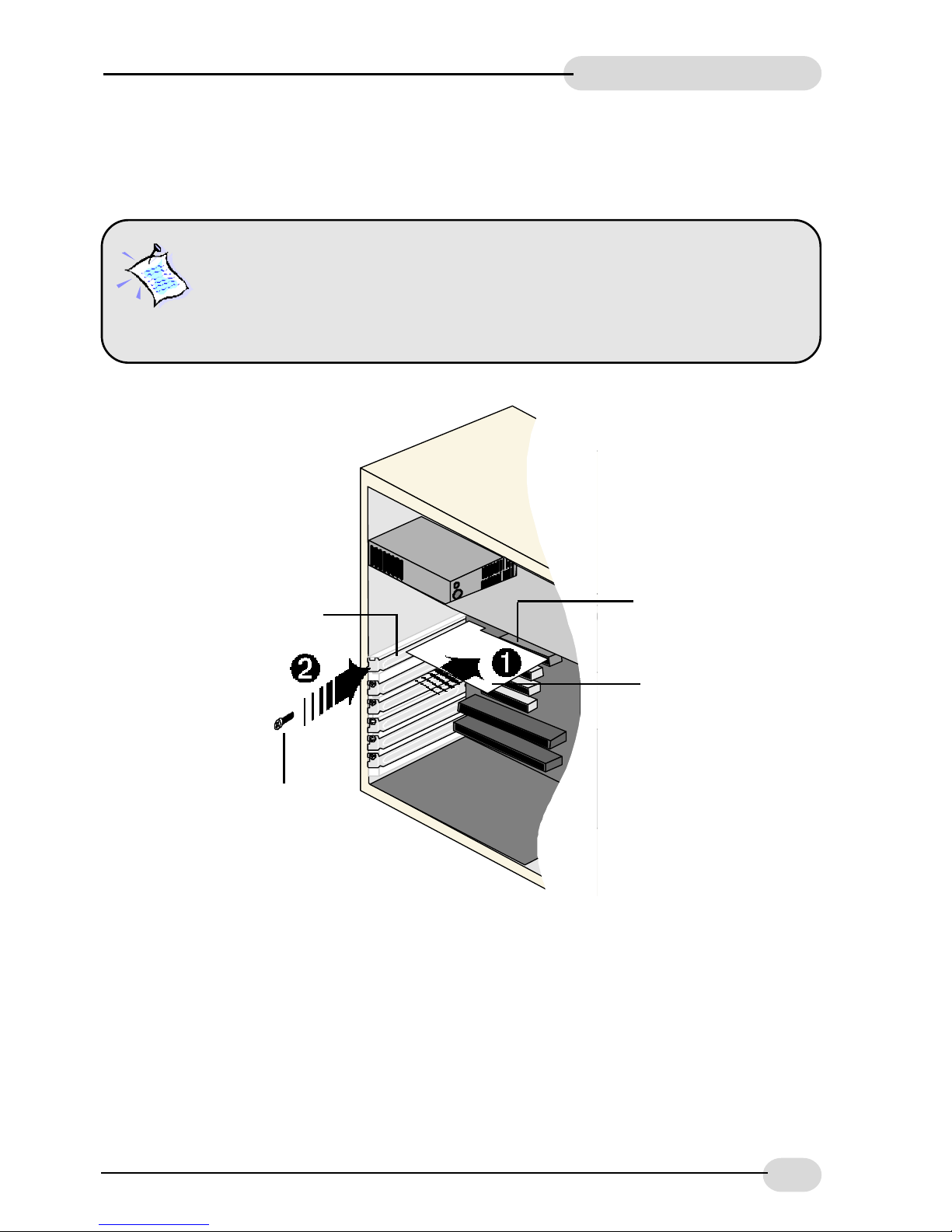
Remove the cover of your computer. Select an available AGP-Bus Slot and remove its
cover plate.
ÊInsert the Graphics Card firmly into the AGP Bus Slot.
ËSecure the Graphics Card with a mounting screw.
Replace the cover of your computer.
Mounting Screw
Graphics Card
Cover Plate AGP Bus Slot
Power off your computer and any connected devices before connecting
your modem card!
Static electricity can cause permanent damage to your card. You have to
ground yourself during the installation by touching any non-painted surface of the
computer's chassis every minute or so.

6
Graphics Card Easy Start
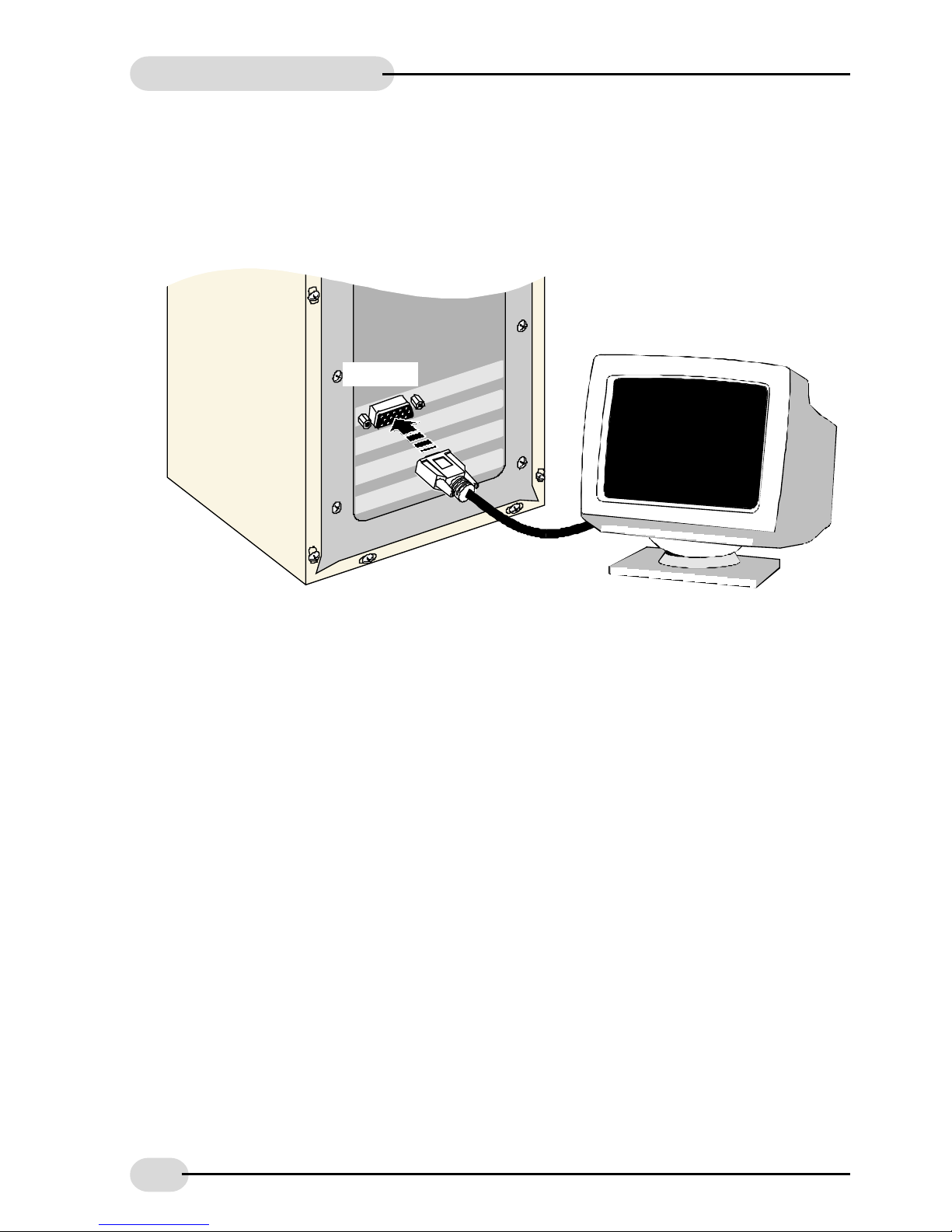
Connecting the Graphics Card
PC Monitor
VGA Port
15-pin cable
1. Connect the standard 15-pin cable from your PC Monitor to the VGA Port on the
Graphics Card.

7
Graphics Card Easy Start
For Windows®95
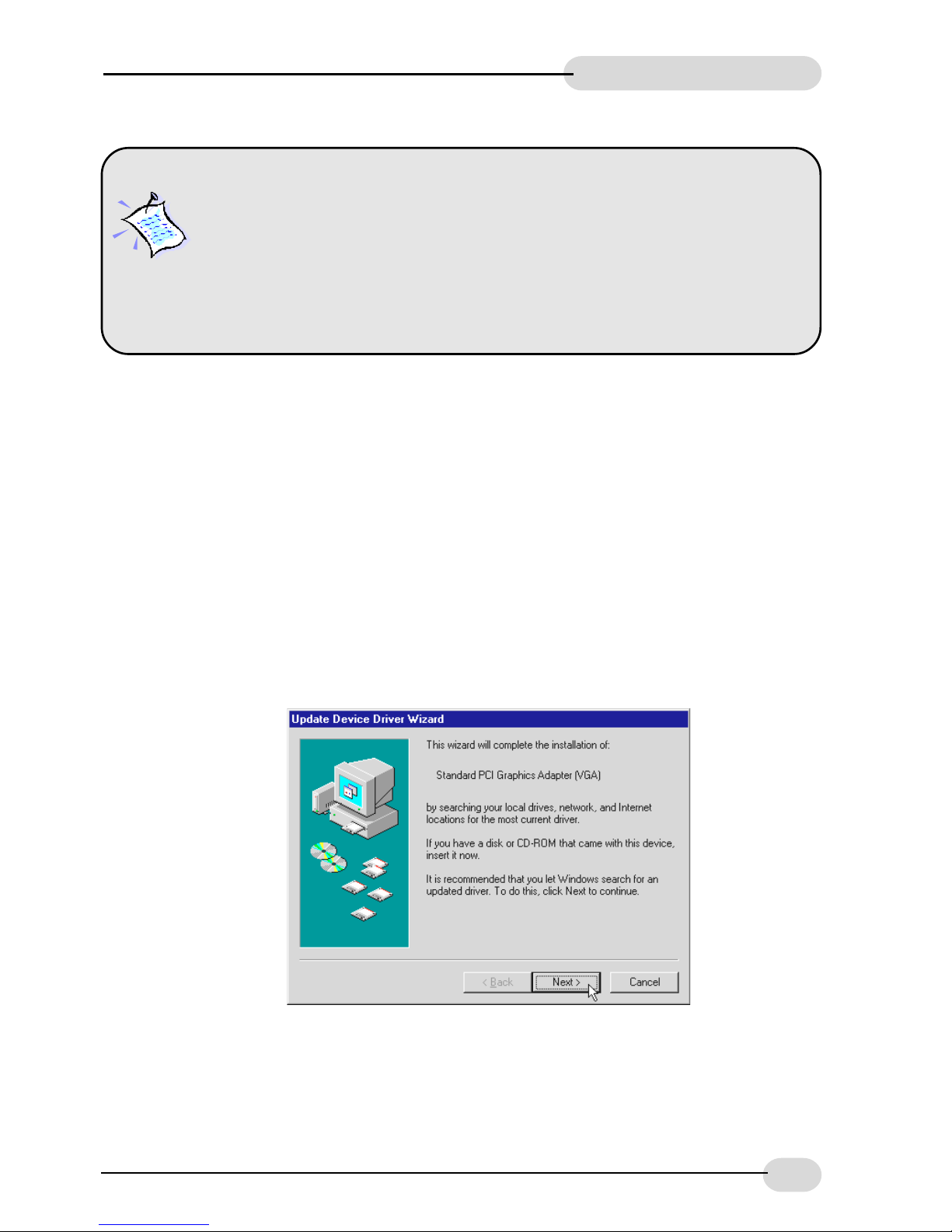
1. Power on your computer and start Windows. Windows will detect the newly-
installed Graphics Card and prompts for its driver. Place the Installation CD into
your CD-ROM drive and click Next.
Installing the M64 Graphics Card Driver
in Windows®95/98/NT®4.0
Your PC system may also have a standard Graphics Card drivers. You may
choose to install the standard Graphics Card driver instead of theM64 Graphics
Card driver that comes with theM64 Installation CD. In this case, do not place
the M64 Installation CD into your CD-ROM drive. When prompted with Update
Device Driver Wizard dialog boxes, click Next to accept the default settings for
standard Graphics Card driver and restart your system when prompted.
However, do take note that the performance of M64 Graphics Card will only be
fully optimised when installed with the M64 Graphics Card driver.

8
Graphics Card Easy Start
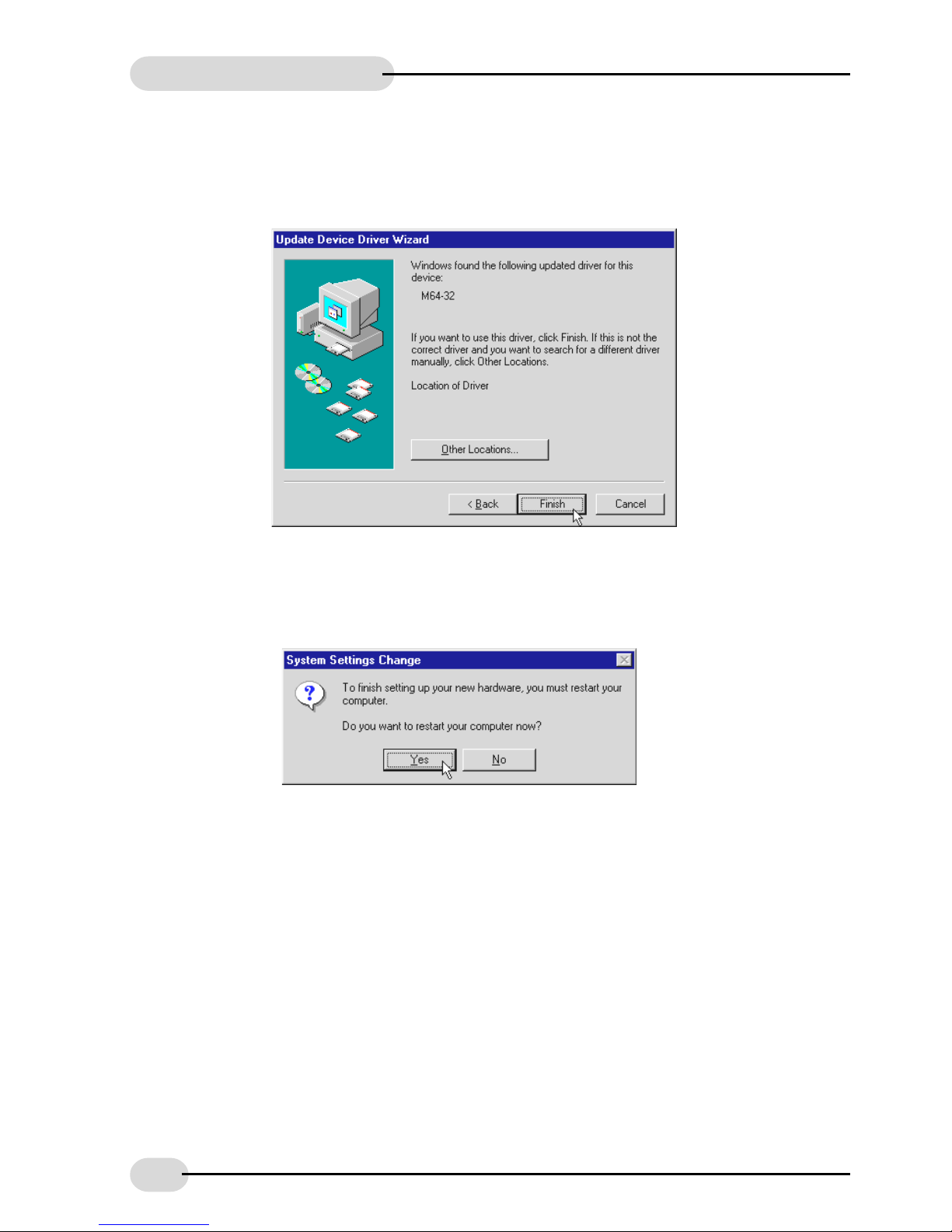
3. When prompted to restart the system, click Yes. New changes will take effect
upon system restart.
2. Windows will prompt that it has located the M64 Graphics Card driver.
Click Finish to use the driver found.

9
Graphics Card Easy Start
For Windows®98
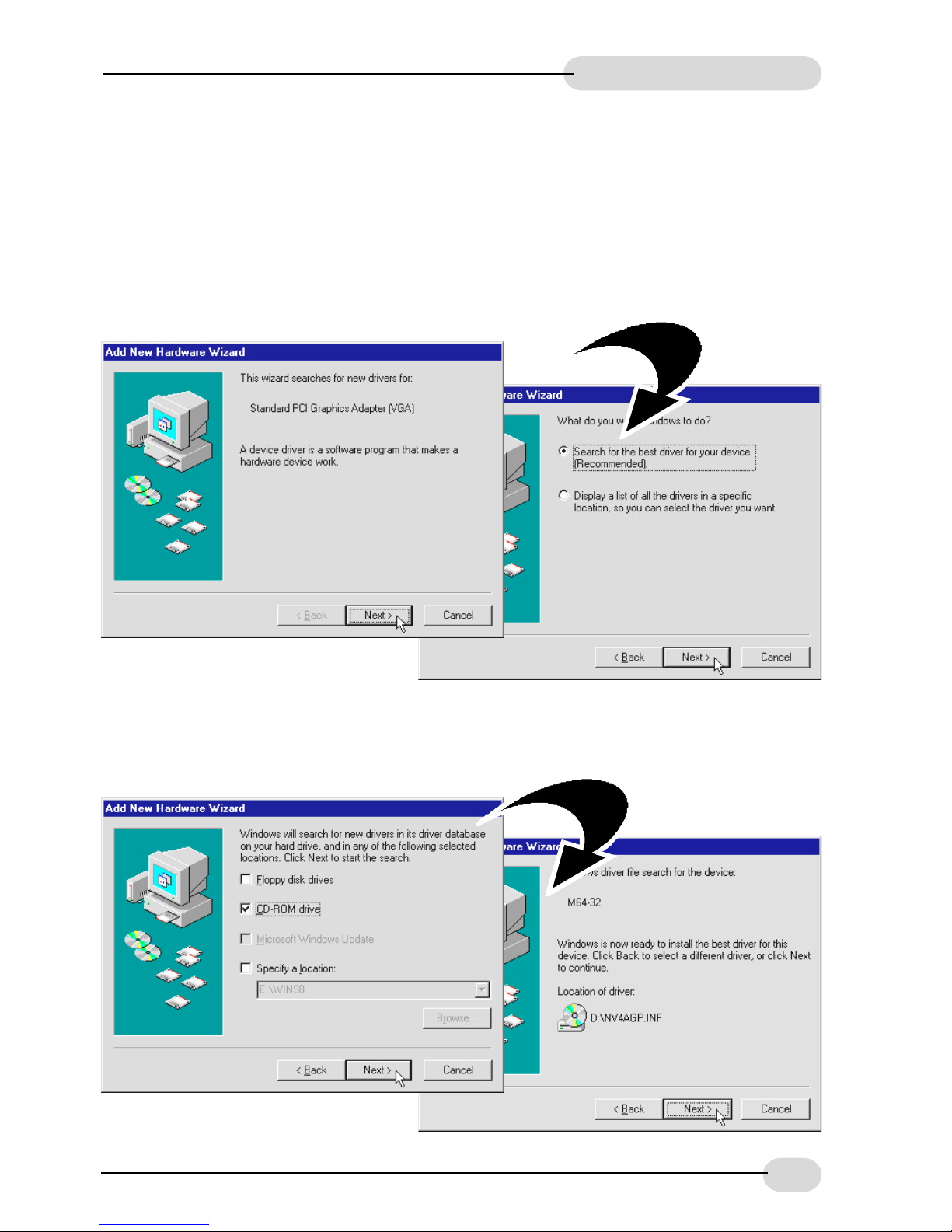
1. Start Windows®98. Windows will detect the newly-installed Graphics Card. Place
the Installation CD into your CD-ROM drive and click Next.
2. Click the option "Search for the best driver for your device. (Recommended)"
and click Next to proceed.
3. Select the option CD-ROM drive for the source of your driver and click Next.
4. Click Next again to proceed installation with the driver found.

10
Graphics Card Easy Start
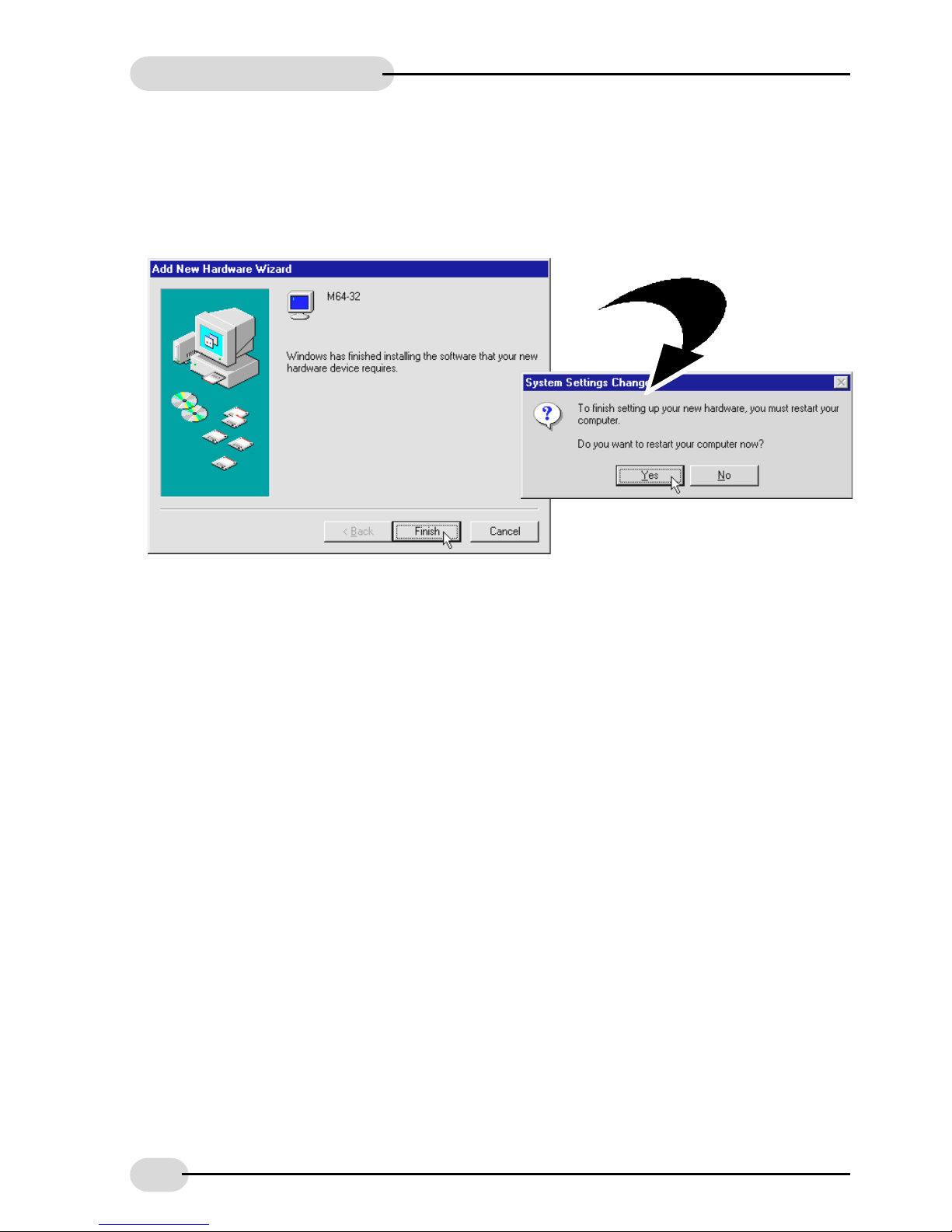
5. To complete the driver installation, click Finish.
6. When prompted to restart the system, click Yes. New changes will take effect
upon system restart.
For Windows NT®4.0
1. Start Windows NT® 4.0.
2. Place the Installation CD into your CD-ROM drive.
3. From the Windows NT®taskbar, click Start > Run... .
4. In the Run text box, type "D:\winnt4\setup.exe" and click OK.
(Assuming Dis your CD-ROM drive letter. Else, substitute the letter accordingly.)
The system will start installing the driver.
Follow the on-line instructions to complete the driver installation.
Autres manuels pour M64-32
2
Table des matières
Autres manuels Aztech Carte vidéo
Manuels Carte vidéo populaires d'autres marques

Gainward
Gainward GeForce GTX 690 4GB Manuel utilisateur

ATI Technologies
ATI Technologies RADEON 137-40225-20 Manuel utilisateur

MSI
MSI N220GT series Manuel utilisateur

ATI Technologies
ATI Technologies RADEON 7000 MAC EDITION Manuel utilisateur

SIIG
SIIG aurora Manuel utilisateur

ClearSpeed
ClearSpeed ClearSpeed Advance e720 Manuel utilisateur