Axis T92A10 Manuel utilisateur

ENGLISH ESPAÑOL
INSTALLATION GUIDE
AXIS T92A10 Protective Housing


AXIS T92A10 Installation Guide Page 3
ENGLISH
AXIS T92A10 Housing
Follow these instructions to complete the installation of AXIS T92A10 and the Axis network
camera:
Warning!
High voltage - the electrical connection should be made by an authorized electrician.
Please observe relevant national and local regulations for the installation.
Axis Network Cameras
The following camera models are supported:
Note:
Before you begin, make sure that the AXIS T92A10 package contents, power supply, and the
required cables, tools, and documentation are available. See “Package contents” on page 4.
1. “Package contents” on page 4
2. “Install the bracket” on page 5
3. “Install the camera in the housing” on page 6
4. “Connect the power cable to the camera” on page 7
5. “Route the cables to the housing” on page 9
6. “Connect the power cable to the housing” on page 9
7. “Complete the installation” on page 10
Camera Model: Comment:
• AXIS P1311
• AXIS Q1755
• AXIS 210
• AXIS 210A
• AXIS 211
• AXIS 211A
• AXIS 211M
• AXIS 211W external antenna required, see www.axis.com
• AXIS 221
• AXIS 223M

Page 4 AXIS T92A10 Installation Guide
Package contents
Bag 1: 3 rectangular spacers
2 small cable glands
1 large cable gland
1 allen key
Bag 2: 1 large hexagonal screw nut
2 small hexagonal screw nuts
2hexheadcapscrews
2 Phillips screws
2washers
1 clear plastic spacer
Bag 3 1 large black washer
2 small black washers
3 flathead screws (3 different lengths)
AXIS T92A10
1
1
1
110 V AC-24V AC adaptor
AXIS T92A10 Power supply
wall bracket
To power the AXIS T92A10 housing
Built-in 12V DC power supply for the Axis Network Camera.
Wall bracket with internal cable channels
Printed installation guide Instructions on how to install the camera on the network
Axis Network Camera (not included)
Supported models: AXIS P1311, AXIS Q1755, AXIS 210/210A, AXIS 211/211A/211M/211W,
AXIS 221, AXIS 223M
Cables and connector (not included)
1 network cable Shielded Twisted Pair (STP) cable recommended.
If using a bracket with an external cable channel, the RJ45
connector is attached after the cable has been pulled through
the cable gland
1 RJ45 connector
Tools (not included)
1 Phillips screw driver
1 flathead screw driver
1 small (2mm) flathead screw driver
1 RJ45 crimp tool See note on RJ 45 connector above
1

AXIS T92A10 Installation Guide Page 5
ENGLISH
Install the bracket
Install the mount for AXIS T92A10 on a wall ceiling or pole and make sure the screws and plugs are
appropriate for the material (wood, metal, sheet rock, stone). Install the wall bracket as explained
below.
1. Install the wall bracket/holder on a wall,
ceiling or pole using screws appropriate for
the weight of the housing and the material.
2. Attach the rubber gasket and make holes for
the cables.
3. Pull a sufficient length of the cables
through for the housing and camera
(approximately 50cm, or 20 inches).
4. Proceed to “Install the camera in the
housing” on page 6.
2
cables
cables
A - Wall bracket (internal cable channel)
rubber gasket

Page 6 AXIS T92A10 Installation Guide
Install the camera in the housing
AXIS T92A10 comes with a pre-installed 12V DC power supply.
1. The housing is shipped with three black plastic spacers. Use one, two or three spacers between
the camera and holder and make sure that the camera lens is positioned more than 2mm above
the heater and that the cables are not in contact with the heater:
• AXIS P1311 - 1 spacer
• AXIS Q1755 - 1 spacer
• AXIS 210/210A - 2 spacers
• AXIS 211/211A/211M/211W - 2 spacers
• AXIS 221/223M - 1 spacer
2. Secure the camera, spacer(s) and holder with one of the three screws (flathead) and clear
plastic spacer (fig.1).
3. Fit the slots on the holder to the positioning screws (fig.2).
4. The camera should be positioned so the lens is 1-2mm (approx. 1/16 inch) from the housing
window. Slide the holder to a suitable position and tighten the positioning screws when
satisfied.
3
positioning
screws for
holder
heater
positioned here
clear plastic spacer
rectangular
spacer(s)
holder
Axis Network
camera
flathead screw
FIG.1
FIG.2

AXIS T92A10 Installation Guide Page 7
ENGLISH
Connect the power cable
to the camera
1. Insert the red (+) and black (GND)
wires in the green terminal connec-
tor and tighten screws to secure
wires (fig.3 and fig.4).
2. Connect the green terminal
connector to the Axis network
camera (fig.4).
Note:
The camera models have different
terminal connectors; be sure to fol-
low the correct description for the
installed camera.
Red/black power cable
+ / GND Wire Connector board Camera
+ Red DC Power (+) Camera DC Power (+)
GND Black GND Camera (GND)
Power to
camera
GND
+
FIG.3
+12V DC red
GND black
4

Page 8 AXIS T92A10 Installation Guide
Axis network cameras - power terminal connectors
FIG. 4
AXIS 211/211A/211M/211W AXIS 221
AXIS 210/210A AXIS 223M
AXIS Q1755 AXIS P1311
+ GND
RS-232
RESET
NETWORK / POWER
POWER
PWR NET
ACAC
DC+
GND
12345678910
GND +
+ GND
GND
+
GND
+
GND
+

AXIS T92A10 Installation Guide Page 9
ENGLISH
Route the cables to the housing
The following instructions describe the installation of the housing on a bracket with an internal
cable channel.
The cable glands are not needed if the cables are routed through the wall bracket.
1. Route the cables through the holes on the underside of the housing.
2. Attach AXIS T92A10 to the wall bracket using the supplied screws.
3. Connect the network cable to the network connector on the camera.
4. If applicable, connect the I/O cables to the connectors as described in the installation guide
supplied with the camera.
5. Proceed to “Connect the power cable to the housing” on page 9.
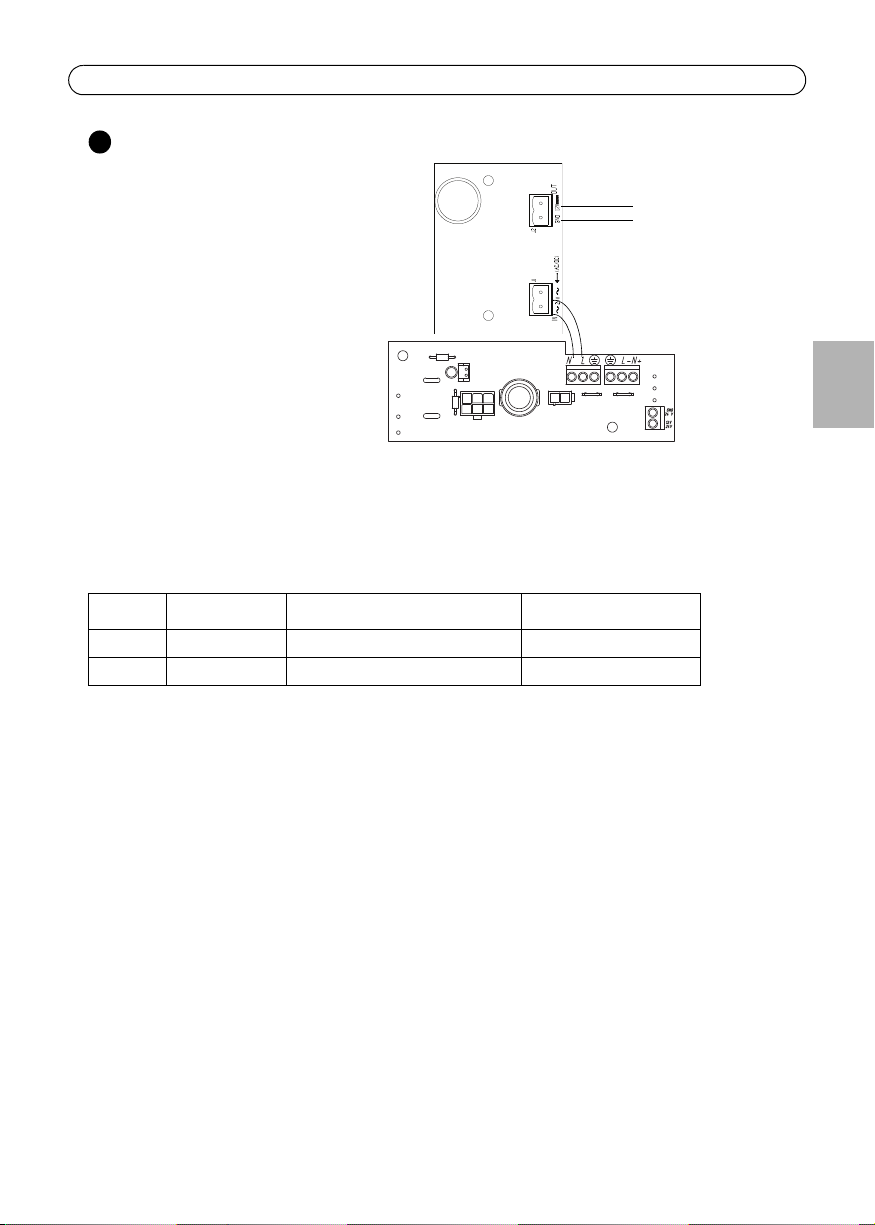
Connect the power cable to the housing
Follow the instructions below to connect the 24V AC power cable to AXIS T92A10.
Warning!
High voltage - the electrical connection should be made by an authorized electrician.
Please observe relevant national and local regulations for the installation.
1. Using the small flathead screw
driver, loosen the screws in the
Power in connector on the connec-
tor board (fig.7).
2. Insert the 24V AC wires in the
connector and tighten the screws to
secure the wires.
3. Connect screw 1 and 3 on the 110V
AC Power supply to the 24V cable (fig.8).
4. Do not apply power until the installation is
complete and all wires and cables have been
connected.
5. Proceed to “Complete the installation” on page
10.
5
6
Power in (24V AC)
24V AC
heater connector
FIG.7
screws
13
Wall
mounting
screw
FIG.8

Page 10 AXIS T92A10 Installation Guide
24V AC Wiring distances
The following are the recommended maximum distances for 24V AC with a 10% voltage drop. (10%
is generally the maximum allowable voltage drop for AC-powered devices.)
Complete the installation
1. Check that all cables and wires in the housing are properly connected.
2. Connect the AC mains power cable and check that the LEDs on the camera light up according
to the description in the Installation Guide.
3. Secure the Power supply with a wall mounting screw (fig.8).
4. Follow the instructions in the Installation Guide to install the camera on the network.
5. Once the installation is complete and the camera focus has been set, close the lid and tighten
the screws to lock the housing using the supplied hexagonal key.
6. The installation is now complete.
Note:
The Axis network camera installation guide is shipped with the camera or is available from
the Axis web site at www.axis.com
Total vA consumed 22 20 18 16 14 12 10 AWG
40 35 44 70 112 179 285 452 Feet
Maximum distance from transformer to housing
Wire guage
7
Table des matières
Langues :
Manuels Dispositif de protection populaires d'autres marques

nxt
nxt BIA-nXt-DPC 1-22 Manuel utilisateur

TFortis
TFortis SG-Switch Manuel utilisateur

BERNINI DESIGN
BERNINI DESIGN Be172 Manuel utilisateur

Rayleigh Instruments
Rayleigh Instruments RI-ENERGYSET-3P-ESS-50-100 Manuel utilisateur

GE
GE Multilin 3 Series Manuel utilisateur

E.K.T.
E.K.T. ke-DP01 Manuel utilisateur