
axiim Q UHD Manuel utilisateur
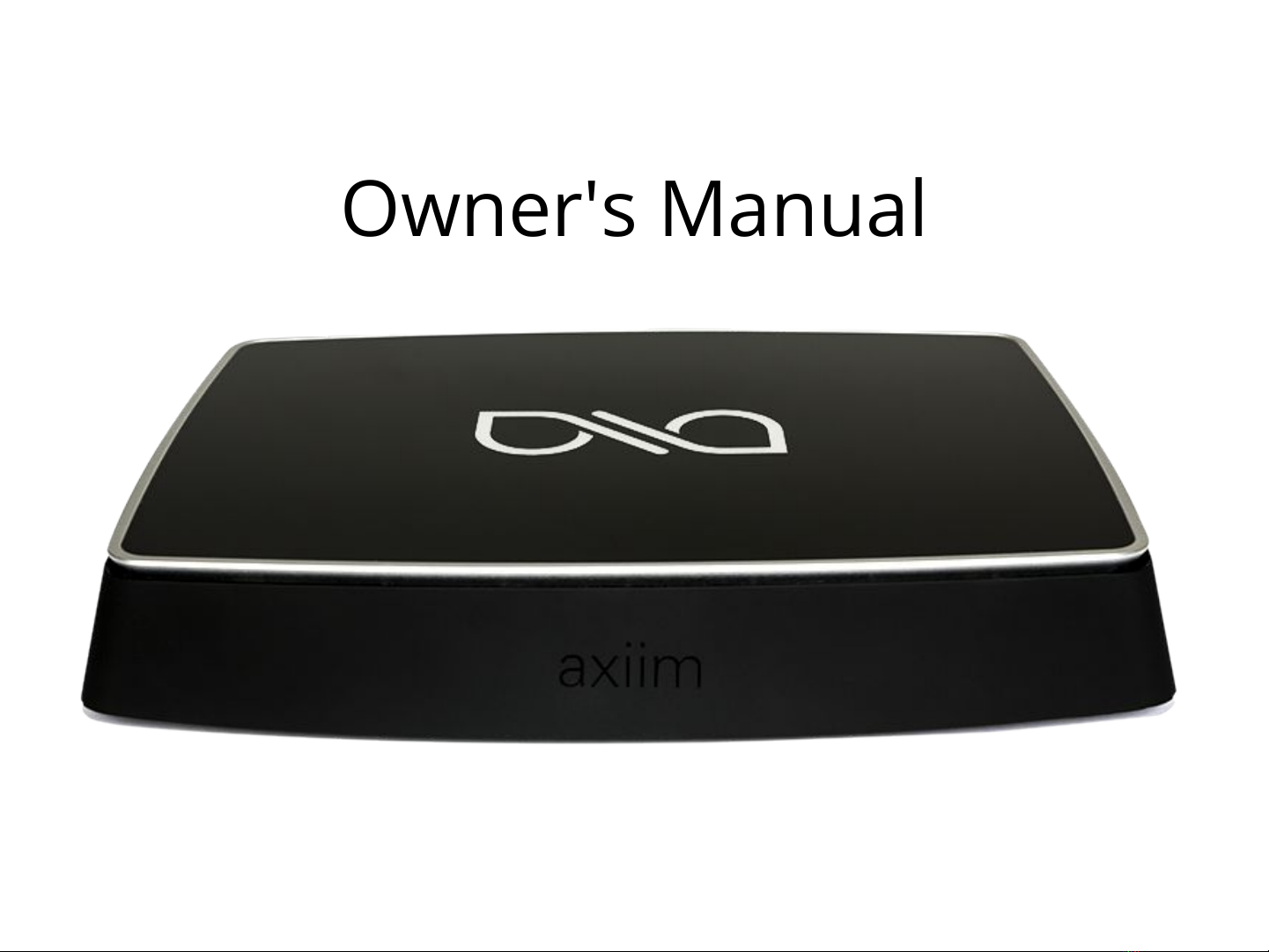
Axiim Q UHD Media Center
Owner's Manual

Table of Contents
•Warnings and Hazards
•First Run Setup
•Audio/Video
–EQ
–Per Speaker Settings
–Distance Settings
•Speaker Settings
– Setup
– Volume
– Distance
– Reset
•HDMI Connections
–HDMI-out and output
–CEC
–ARC
•I/O connections
– USB
– eSATA
– IR
•Codec support
•Bluetooth
•Remote
– Status
– Custom Keys
– Battery Level
– IR Support
• WiFi
•Personalize your Q
– Device Name
– Accent Color
– Screensaver
– Timezone
•Firmware Update
•Support
•Physical
•Electrical

Axiim Q UHD First Run Setup
First Run: The “First Run” wizard is presented to the user in three different ways. All three cases listed below will
perform the same “First Run” setup procedure.
1. When the device is first powered on out of the box for the first time.
2. After a “Factory” firmware reset.
3. When a user selects “First Run” option in the UI under Support.
We have provided a run through of the “First Run” wizard outlined below:
1. Welcome to Axiim Q Setup! Select Continue to proceed through the first run wizard.
2. Select wireless network - Note: If you have it wired to Ethernet this “Select A Wireless Network” section will be
skipped.
3. “Enter Passphrase for Wireless Network”: Enter the passphrase for the wireless network you have selected.
4. Select “Skip” to continue to the next step in the wizard.
5. WIRELESS SPEAKER SETUP: The Axiim Q UHD will search for speakers automatically. Once the Q is finished
searching the number of speakers found will be displayed. Press “Continue” if the number of speakers are
correct on the screen. Note: if the number is not correct check to make sure all your speakers are powered and
press the “Search Again” button in the UI.
6. Select a speaker in the list of unassigned speakers on the left of the screen.
7. After an unknown speaker has been selected the LED on the speaker and a locator tone will play from the
selected speaker.
8. Now find the corresponding location on the screen with the speaker playing the tone based on placement of
the speaker in your room.
9. Repeat for the remaining unassigned speakers until you have assigned a location for each speaker in your
system and select “Continue”.
10. SPEAKER SETUP HAS CHANGED. WHAT DO YOU WANT TO DO? Press “Save” to continue and save your speaker
configuration or “Discard” to go back to speaker setup.
Note: The Axiim Q UHD supports the following network security protocols: WPA2, WPA, WEP
***** You are now ready to enjoy your Axiim Q UHD! *****

Factory Reset
Warning: This will erase ALL settings and return the unit back to its original factory settings.
You may perform a factory reset of the software on the Axiim Q UHD wireless audio system by follow this procedure.
1. Press the “Q” icon on the remote to bring up the on screen HDMI selector menu.
2. Follow the on screen menu to the “Q” -> Settings -> More -> Support -> Factory Reset.
3. Under “Factory Reset” you will be asked if you want to continue? Select “Yes” to go back to factory settings.
4. After you have performed a “Factory Reset” the Axiim Q UHD will reboot back into “First Run” setup.
First Run again
The “First Run” wizard is available through the UI by following the this procedure.
1. Press the “Q” icon on the remote to bring up the on screen HDMI selector menu.
2. Follow the on screen menu to the “Q” -> Settings -> More -> Support -> First Run.
3. After you have selected you “First Run” you will be able to follow the initial out of the box setup.
Audio Settings
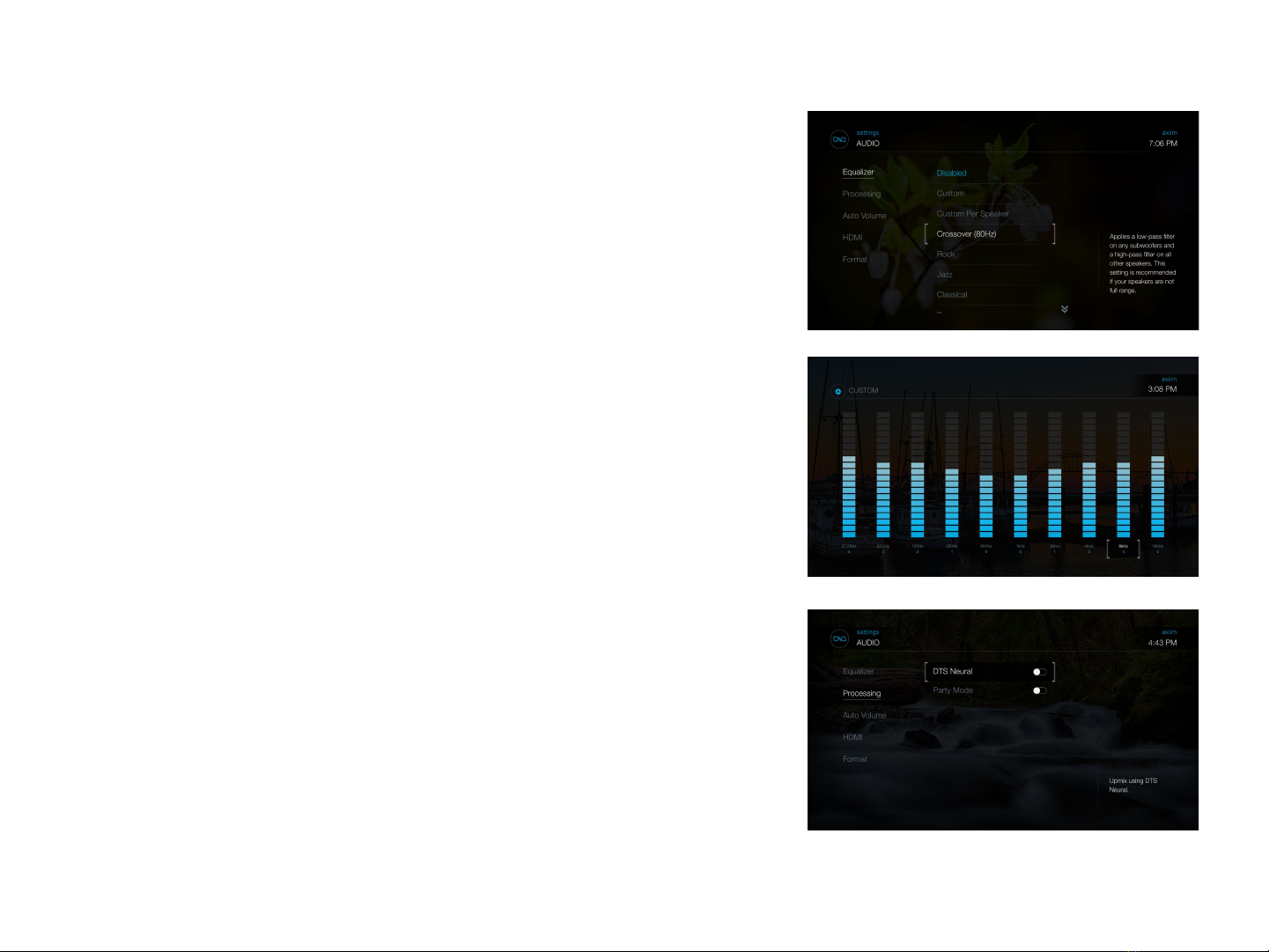
Equalizer: The Axiim Q UHD has a global 10 band graphic equalizer and 10-band
graphic equalizer per-speaker for fine tuning audio. Please note, you
cannot use both equalizers at the same time.
Example: If you make changes to the per-speaker EQ and then decided to edit
the global EQ your per-speakers EQ settings will not be applied.
●Disabled
●Custom
●Other
Processing
DTS Neural: The Axiim Q UHD supports DTS Neural upmixing. When this option
is enabled, a surround sound version will be automatically created from
any stereo or 5.1 source content. This lets you utilize all of your speakers
no matter what content you are playing.
Party Mode: When this option is enabled any audio will be sent to all your
speakers at once. This is useful when you want to place speakers around
your house or outside and have the same content playing on all of them.
This option can not be used at the same time as DTS Neural.
Super Stereo Mode: When playing stereo content, turn all speakers into Left
and Right speakers. The Center and Subwoofer will receive a mix of Left
and Right.
Audio Settings
Auto Volume
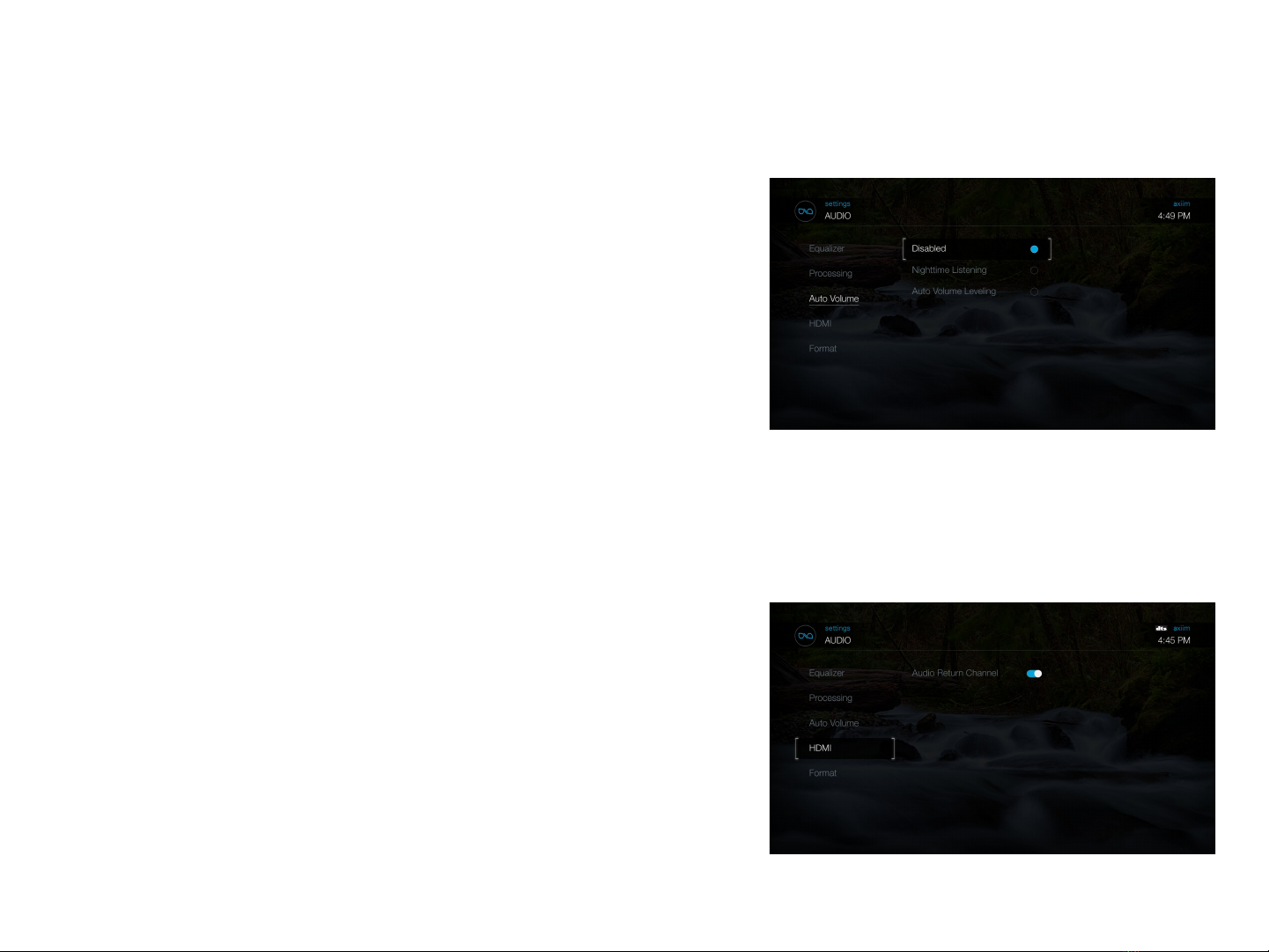
Nighttime Listening:
When this option is enabled, loud audio, especially bass, is automatically
volume adjusted down to allow for movie watching in situations where you
may not want to disturb your neighbours.
Auto Volume Leveling:
When this option is enabled, low volume audio will be turned up and high
volume audio will be turned down automatically. This can be useful when
watching TV where the commercial volume is much louder than the show.
Dolby Dynamic Range Compression:
This option allows fine tuning of the automatic volume adjustments made
while listening to Dolby content. “Off” will not automatically adjust Dolby
content volume, “On” will always automatically adjust Dolby content volume
to bring down high volume content and bring up low volume content. The
default of “Auto” will look at the incoming Dolby audio to determine
whether to apply Dynamic Range Compression.
HDMI
Audio Return Channel: Audio Return Channel, or HDMI-ARC, enables a TV
to send the Axiim Q UHD audio over HDMI. HDMI-CEC must be enabled for
ARC.
HDMI Audio Out: When this option is enabled the Axiim Q UHD will also
send audio to your TV via HDMI as well as any connected speakers.
Format: This shows the currently playing audio format on the Axiim Q
UHD.
Speaker Settings
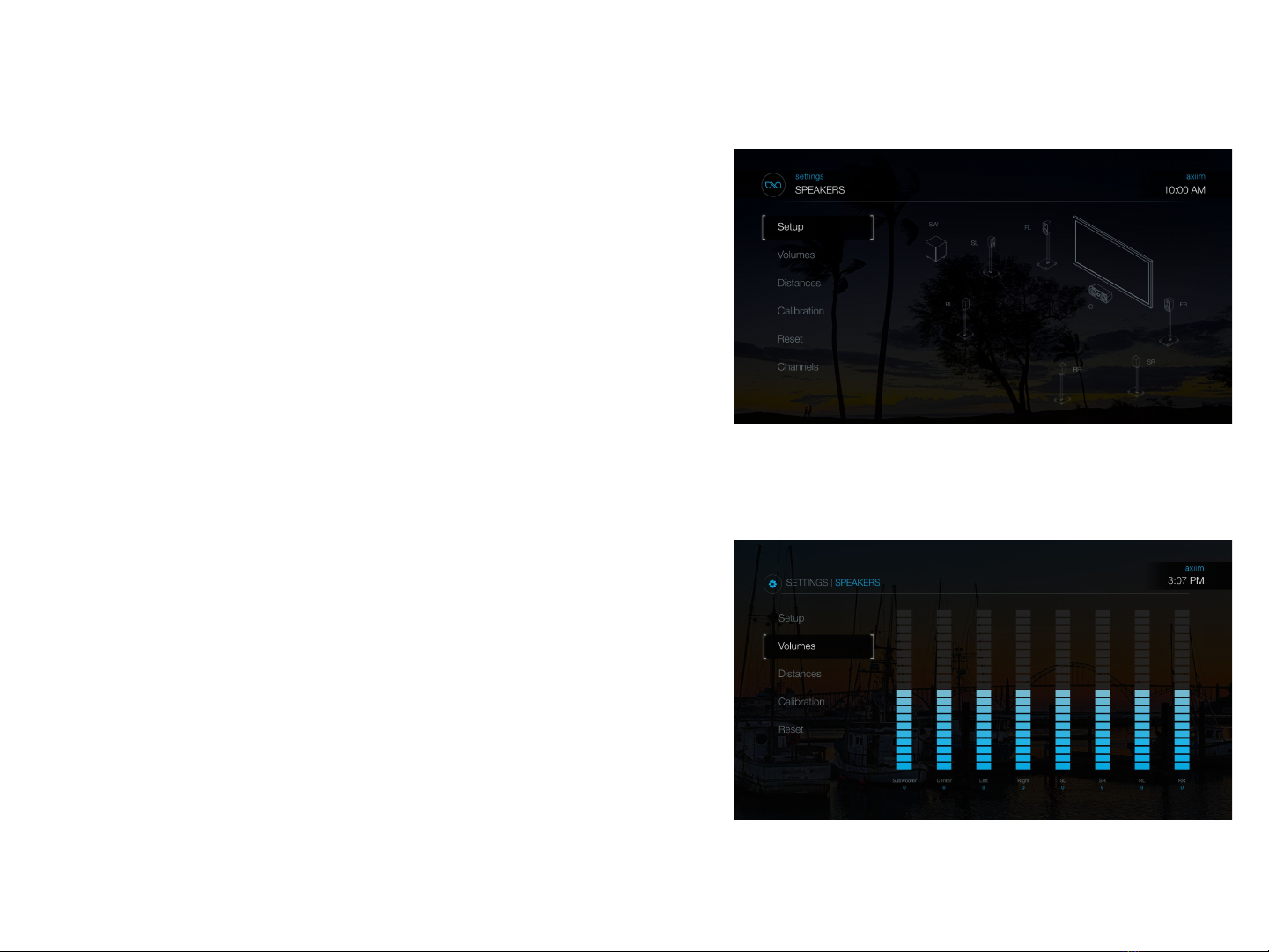
Speaker Setup: The speaker Setup allows you to reconfigure your speaker
configuration in your home.
1. Press the “Q” icon on the remote to bring up the on screen HDMI
selector menu.
2. Follow the on screen menu to the “Q” -> Settings -> Speakers ->
Setup.
3. When you select “Setup” the Axiim Q UHD will search for wireless
speakers. Once the Q is finished searching the number of speakers
found will be displayed. Press “Continue” if the number of speakers
are correct on the screen.
4.
Note: If the number is not correct check to make sure all your speakers are powered and
press the “Search Again” button in the UI.
5. Select a speaker in the list of unassigned speakers on the left of the
screen.
6. After an unknown speaker has been selected the LED on the
speaker and a locator tone will play from the selected speaker.
7. Now find the corresponding location on the screen with the
speaker playing the tone based on placement of the speaker in
your room.
8. Repeat for the remaining unassigned speakers until you have
assigned a location for each speaker in your system and select
“Continue”.
9. SPEAKER SETUP HAS CHANGED. WHAT DO YOU WANT TO DO?
Press “Save” to continue and save your speaker configuration or
“Discard” to go back to speaker setup.
10. To Exit and Save hit the “Q” button on the remote. You may also
use the navigation wheel or back arrow on the remote to exit the
configuration.
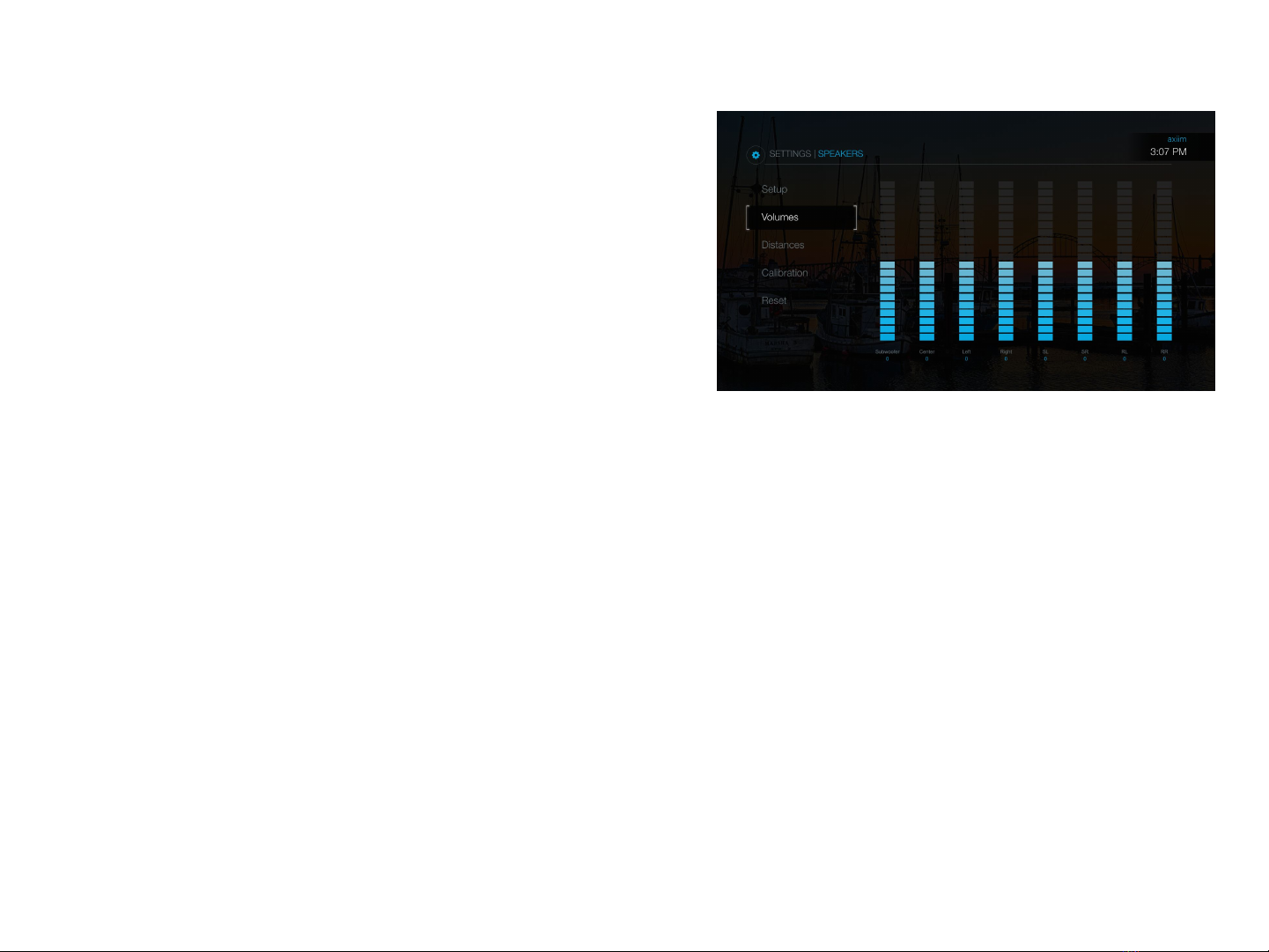
Speaker Settings
Speaker Volumes:
Using the speaker volume adjustment you can change the
volume of each audio channel. Based on the location relative to
the listening position you may want to increase or decrease the
volume of some channels to achieve more balance multi-channel
experience.
1. Press the “Q” icon on the remote to bring up the on screen
HDMI selector menu.
2. Follow the on screen menu to the “Q” -> Settings -> Speakers ->
Volumes.
3. Under “Volumes” setting you can navigate to each speaker and
adjust the volume.
4. To Exit and Save hit the “Q” button on the remote. You may
also use the navigation wheel or back arrow on the remote to
exit the configuration.
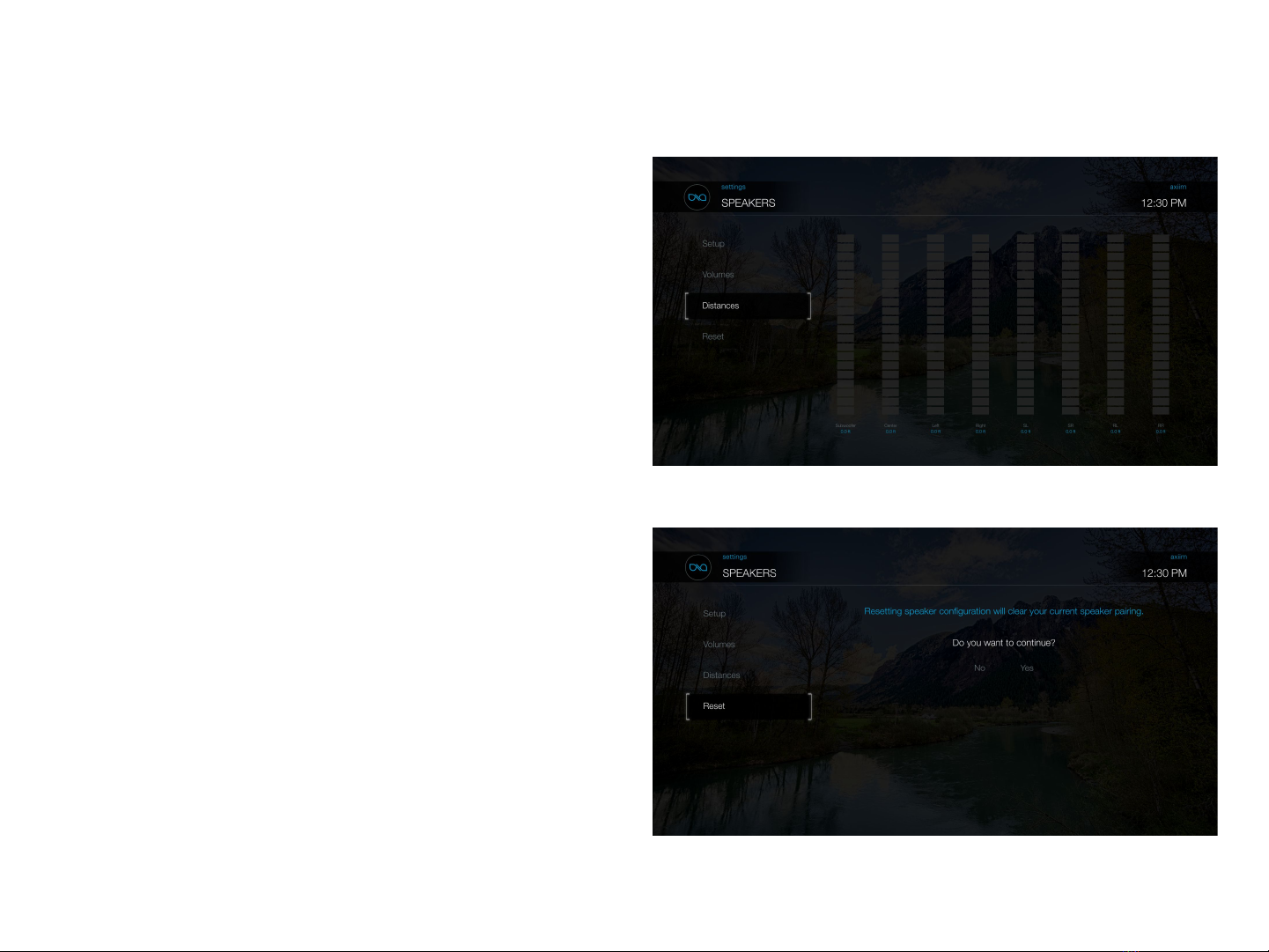
Speaker Settings
Speaker Distance adjustment:
The speaker distance adjustment allows you to add
time delay to each audio channel. Adding time delay will
allow you to optimize the loudspeaker’s acoustic for
your unique multi-channel configuration.
1. Press the “Q” icon on the remote to bring up the on
screen HDMI selector menu.
2. Follow the on screen menu to the “Q” -> Settings ->
Speakers -> Distance.
3. Measure the distance from each speaker to the
listening location in your room.
4. Under “Distance” setting you can navigate to each
speaker and adjust the distance.
5. To Exit and Save hit the “Q” button on the remote.
You may also use the navigation wheel or back arrow
on the remote to exit the configuration.
Speaker Reset:
Resetting the speaker configuration will clear your
current speaker pairing.
1. Press the “Q” icon on the remote to bring up the on
screen HDMI selector menu.
2. Follow the on screen menu to the “Q” -> Settings ->
Speakers -> Reset.
3. Reset your speaker configuration by selecting “Yes” in
the screen. Note: You will have to go back through
“Speaker Setup” or “First Run” to reconfigure and pair
your wireless speakers.
4. To Exit and Save hit the “Q” button on the remote.
You may also use the navigation wheel or back arrow
on the remote to exit the configuration.

HDMI Connections
HDMI Inputs:
The Axiim Q UHD has six HDMI 2.0a input ports for connecting
your HDMI devices (Blu-ray, streaming box, game console, etc.).
Each HDMI input supports 4K resolution passthrough, as well as
Dolby Vision and HDR10. Each HDMI input support HDMI-CEC
(Consumer Electronics Control). CEC allows devices to identify
and send controls to each other.
HDMI Output:
The Axiim Q UHD has one HDMI 2.0a output to connect to your
display or TV. The HDMI output supports HDMI-CEC and ARC
(Audio Return Channel).
HDMI-CEC:
The Axiim Q UHD supports the HDMI-CEC (HDMI Consumer
Electronics Control) protocol which enables automatic control
and discovery of devices compatible with HDMI-CEC. HDMI-CEC
must be enabled for Audio Return Channel (ARC). This feature is
what allows an icon to be automatically displayed for
compatible HDMI device and remote controls to be passed
through.
HDMI-ARC:
The Axiim Q UHD supports Audio Return Channel (ARC) which
allows audio to be sent from your TV back to the Q for playback
over the wireless speakers. This allows a Smart TV with Apps to
utilize the wireless speakers. HDMI-CEC is required to be
enabled for this feature.
Table des matières


