
Avita CN6613 Mode d’emploi

e-manual
avita-americas.com
CN6613
Laptop

2
CN6613_e-manual - V.00
IMPORTANT SAFETY
INSTRUCTIONS
Some of the following information may not apply to your particular
product; however, as with any electronic product, precautions should
be observed during handling and use.
• Read these instructions.
• Keep these instructions.
• Heed all warnings.
• Follow all instructions.
• Do not use this apparatus near water.
• Clean only with dry cloth.
• Do not block any ventilation openings. Install in accordance with
the manufacturer’s instructions.
• Do not install near any heat sources such as radiators, heat registers,
stoves, or other apparatus (including amplifiers) that produce heat.
• Protect the power cord from being walked on or pinched particularly
at plugs, convenience receptacles, and the point where they exit
from the apparatus.
• Only use attachments / accessories specified by the manufacturer.
• Unplug this apparatus during lightning storms or when unused
for long periods of time.
• Refer all servicing to qualified service personnel. Servicing is
required when the apparatus has been damaged in any way, such
as power-supply cord or plug is damaged, liquid has been spilled
or objects have fallen into the apparatus, the apparatus has been
exposed to rain or moisture, does not operate normally, or has
been dropped.

3
CN6613_e-manual - V.00
CAUTION: RISK OF EXPLOSION IF BATTERY IS REPLACED BY AN
INCORRECT TYPE. DISPOSE OF USED BATTERIES ACCORDING TO
THE INSTRUCTIONS.
Battery safety!
This device contains a built-in battery, improper use of which may
result in explosion. Do not heat, open, puncture, mutilate, or dispose
of the product in fire. Do not leave the device in direct sunlight for
an extended period of time, which could cause melting or battery
damage. The battery in this device is not user replaceable and
should only be replaced by AVITA or a AVITA Authorized Service
Provider.
ADDITIONAL SAFETY INFORMATION
• The AC adapter and apparatus shall not be exposed to dripping
or splashing and no objects filled with liquids, such as vases, shall
be placed on the apparatus.
• Always leave sufficient space around the product for ventilation.
Do not place product in or on a bed, rug, in a bookcase or cabinet
that may prevent air flow through vent openings.
• Do not place lighted candles, cigarettes, cigars, etc. on the product.
• Care should be taken so that objects do not fall into the product.
• Do not attempt to disassemble the cabinet. This product does not
contain customer serviceable components.
• To prevent the risk of fire or electric shock, do not expose this
apparatus to rain or moisture.
• Do not play your headset at high volume. Hearing experts warn
against extended high-volume play.

4
CN6613_e-manual - V.00
FCC information
This device complies with Part 15 of the FCC Rules. Operation is subject
to the following two conditions: (1) This device may not cause harmful
interference, and (2) this device must accept any interference received,
including interference that may cause undesired operation.
This equipment has been tested and found to comply with the
limits for a Class B digital device, pursuant to Part 15 of FCC Rules.
These limits are designed to provide reasonable protection against
harmful interference in a residential installation. This equipment
generates, uses, and can radiate radio frequency energy and, if not
installed and used in accordance with the instructions, may cause
harmful interference to radio communications.
However, there is no guarantee that interference will not occur in a
particular installation. If this equipment does cause harmful interference
to radio or television reception, which can be determined by turning
the equipment off and on, the user is encouraged to try to correct
the interference by one or more of the following measures:
•Reorient or relocate the receiving antenna.
•Increase the separation between the equipment and receiver.
•Connect the equipment into an outlet on a circuit different from that
to which the receiver is connected.
•Consult the dealer or an experienced radio/TV technician for help.
Warning: Changes or modifications not expressly approved by the
party responsible for compliance could void the user’s authority to
operate the equipment.
Warning: the AC adapter is used as disconnect device and it should
remain readily operable during intended use. In order to disconnect
the mains plug from mains completely, the AC adapter should be
disconnected from the mains socket outlet completely. The socket-
outlet shall be installed near the equipment and shall be easily
accessible.

5
CN6613_e-manual - V.00
SAR
The radiated output power of this device is below the FCC radio
frequency exposure limits. Nevertheless, the device should be used
in such a manner that the potential for human contact is minimized
during normal operation.The exposure standard for wireless devices
employs a unit of measurement known as the Specific Absorption
Rate, or SAR. The SAR limit set by the FCC is 1.6 W/Kg. Tests for SAR
are conducted using standard operating positions accepted by the
FCC with the device transmitting at its highest certified power level
in all tested frequency bands. Although the SAR is determined at the
highest certified power level, the actual SAR level of the device while
operating can be well below the maximum value. This is because the
device is designed to operate at multiple power levels so as to use only
the power required to reach the network. In general, the closer you
are to a wireless base station antenna, the lower the power output. To
avoid the possibility of exceeding the FCC radio frequency exposure
limits, human proximity to the antenna should be minimized.
For body worn operation, this device has been tested and meets the
FCC RF exposure.

6
CN6613_e-manual - V.00
Important Safety Instructions .................................................. 2
Getting Started ....................................................................... 7
Getting to know your Laptop ........................................................... 7
Charging your Laptop ................................................................... 11
Turning your Laptop on ...................................................................12
Put your Laptop to Sleep ....................................................................14
Power Management .............................................................................15
Basics ....................................................................................... 16
Start menu ............................................................................................... 16
Action center ......................................................................................... 19
Task view .................................................................................................. 21
Using the touchpad ............................................................................ 22
Using the keyboard ............................................................................. 25
Fingerprint recognition ................................................................. 28
Connections and Setup .......................................................... 30
Inserting a microSD card ................................................................... 30
External display ..................................................................................... 31
Connecting to a Wi-Fi network ....................................................... 33
Airplane mode ...................................................................................... 35
Bluetooth ...................................................................................... 36
Brightness ...................................................................................... 37
Volume ..................................................................................................... 38
Troubleshooting ...................................................................... 39
Specifications ........................................................................... 41
Legal and Safety Notices ......................................................... 42
Contents
7
CN6613_e-manual - V.00
Getting Started
Getting to know your Laptop
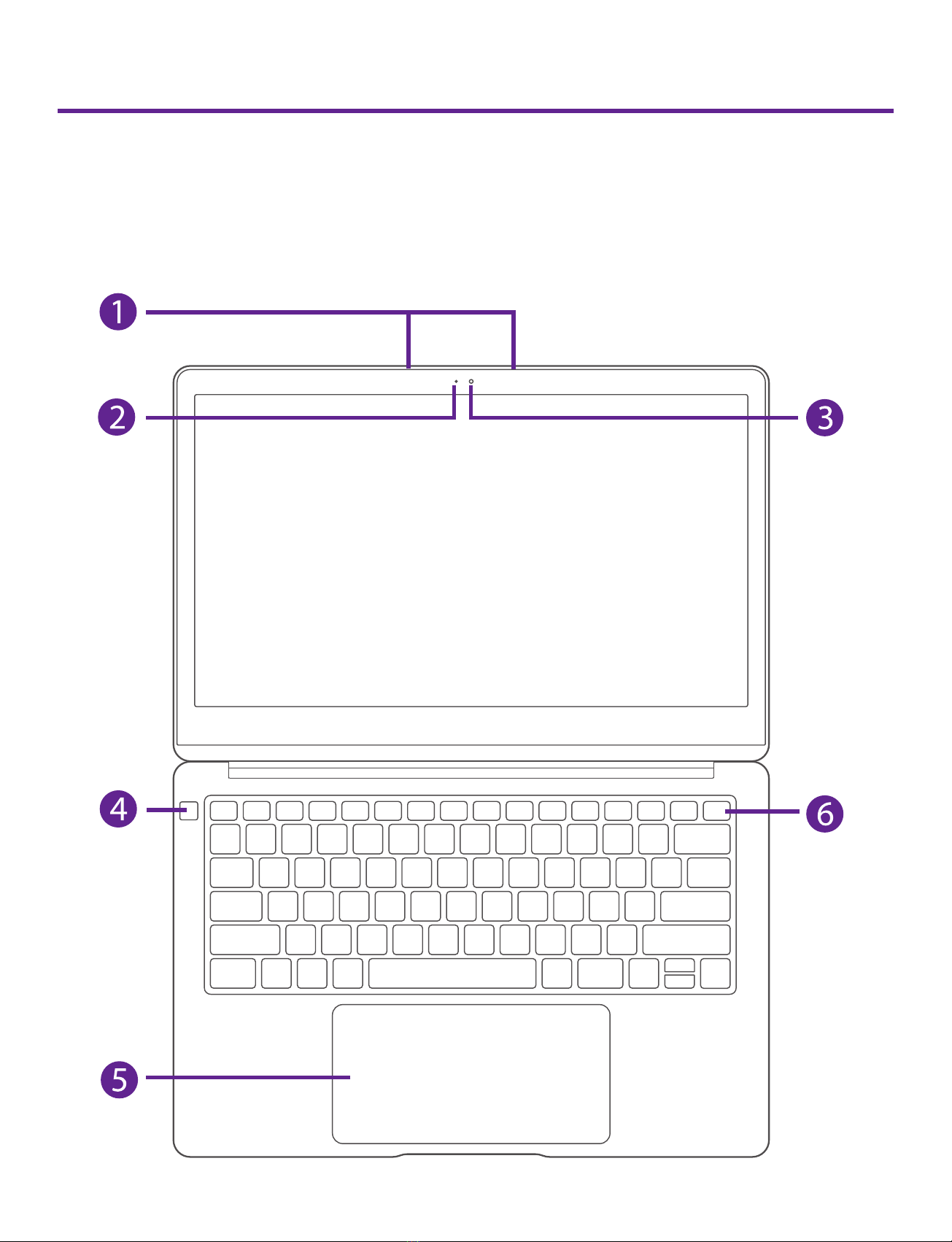
Top view

8
CN6613_e-manual - V.00
Camera
The built-in camera allows you to take still photos and record
videos.
Camera indicator
The camera indicator lights up when the built-in camera is in
use.
Power button
Press and hold it to turn the Laptop on or off.
Touchpad
Move the cursor and selects options.
Functions as a mouse.
Microphone
For voice input.
Fingerprint sensor
Scan a fingerprint to unlock the screen.
Power indicator
The power indicator lights up when the Laptop is powered
on and blinks slowly when the Laptop is in Standby mode.
Refer to the Fingerprint recognition section on page 28 for
more information.
9
CN6613_e-manual - V.00
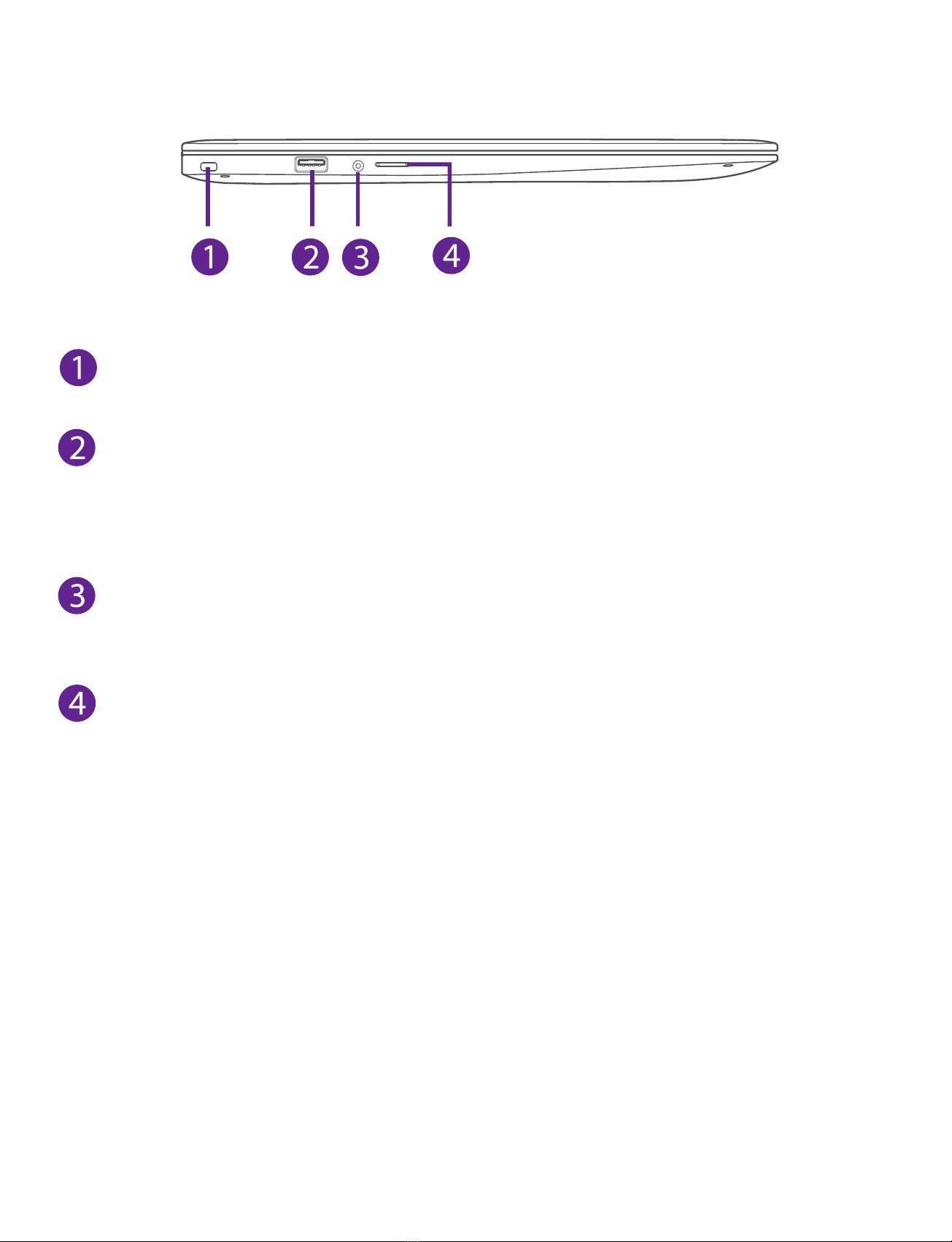
Left side
MicroSD card reader
Accept microSD card (up to 128GB).
Headphones jack
Headphones connection for personal listening.
USB port
Connect to a USB storage device or a mouse, keyboard, or
camera.
Security lock slot
10
CN6613_e-manual - V.00
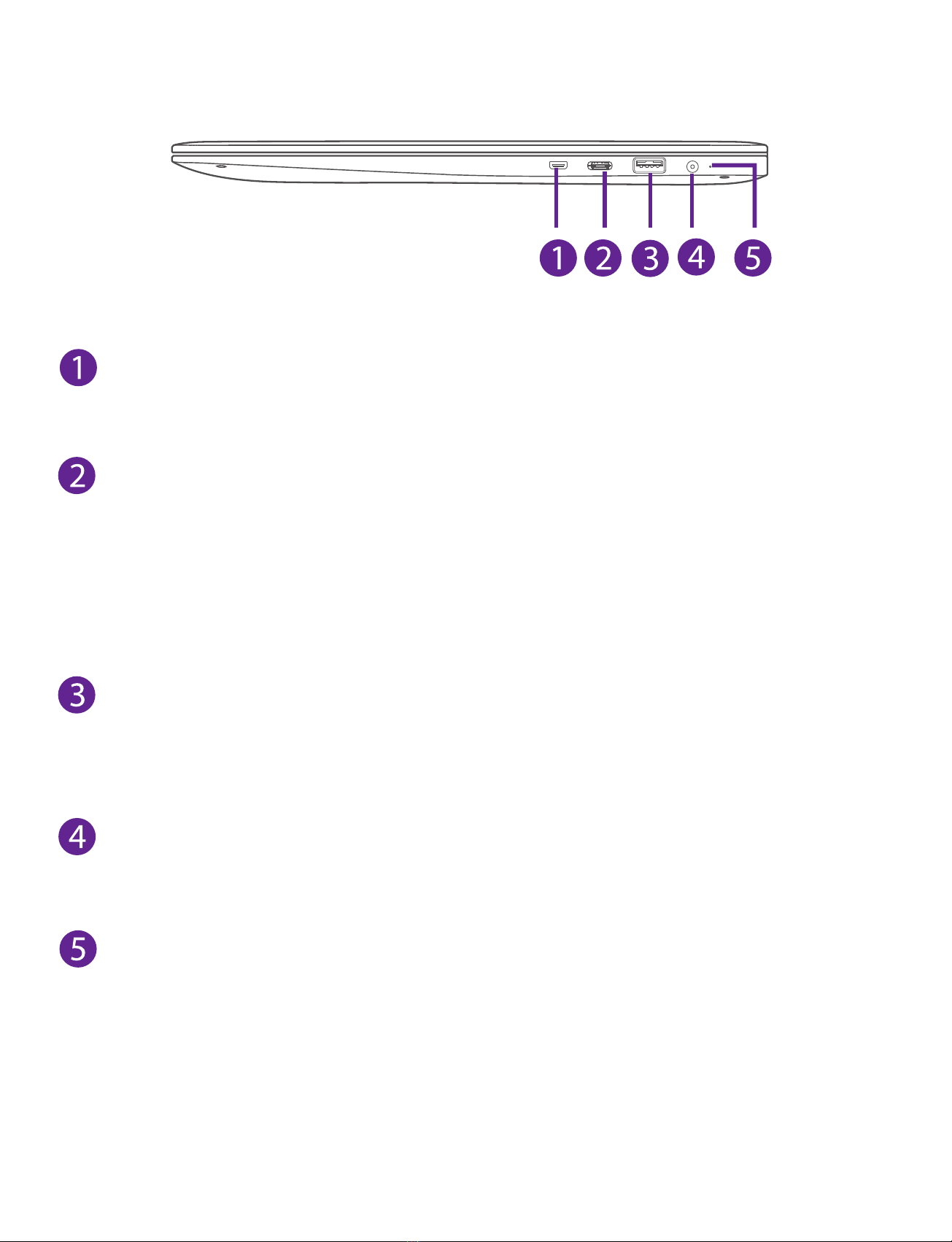
Right side
micro-HDMI OUT port
Connect to a TV or a display device.
USB Type-C port (5V DC, 1.5A)
Connect to a USB storage device or a mouse, keyboard, or
camera.
Supports PD 2.0 charging and DisplayPort™ audio/video
output.
DC jack
Connect with 19V DC charger.
Charging indicator
Show the battery's charge status.
- Orange: Charging
- Green: Fully charged
- Orange (blinking): Low battery
USB port
Connect to a USB storage device or a mouse, keyboard, or
camera.
Table des matières
Autres manuels Avita Ordinateur portable

Avita
Avita PURA Mode d’emploi

Avita
Avita CN6F14 Series Mode d’emploi

Avita
Avita NS14A6 D Manuel utilisateur

Avita
Avita MAGUS NS12T5 Mode d’emploi

Avita
Avita ADMIROR Manuel utilisateur

Avita
Avita PURA Manuel utilisateur

Avita
Avita CN6314F551 Manuel utilisateur

Avita
Avita LIBER NS13A Manuel utilisateur

Avita
Avita Essential NE14A2 Manuel utilisateur

Avita
Avita LIBER V Manuel utilisateur


