Aviosys IP Power 9258 HP Manuel utilisateur

- 1 -
IP Power 9258 HP
User Manual
Firmware Version: 1.16
Date Released: 01/10/2013

- 2 -
Warning: Any changes made to this equipment without permission may cause damages to the device!
IMPORTANT NOTICE
1. IP Power 9258 HP was designed for indoor use, we carry no responsibility for possible
damages caused by outdoor use, especially in the rain.
2. Please use the power adapter provided by the dealer, we carry no responsibility for the
possible damage from using power adapters not.
4. Do not shake the IP Power 9258 HP in any fashion.
5. Please contact the dealer If IP Power 9258 HP is not working properly.
6. Place the product in a well-ventilated place
Copyright © 2012 All rights reserved. No part of this publication may be reproduced, stored in a
retrieval system, or transmitted in any form or by any means, electronic, mechanical,
photocopying, recording or otherwise, without the prior written consent of us.
All trademarks and products mentioned in this document are the properties of us.

- 3 -
Table of Content
1.) WELCOME......................................................................................................5
Introduction.................................................................................................................................................. 5
Minimum System Requirements................................................................................................................. 5
2.) PRODUCT OVERVIEW...................................................................................6
Features......................................................................................................................................................... 6
Specification.................................................................................................................................................. 6
Package Contents ......................................................................................................................................... 7
3.) INTERFACE DESCRIPTION...........................................................................8
Front View..................................................................................................................................................... 8
Rear View...................................................................................................................................................... 9
Rear View.................................................................................................................................................. 9
4.) HARDWARE SETUP ....................................................................................10
5.) SOFTWARE SETUP .....................................................................................11
Installing IP Power Software......................................................................................................................11
Using IP Edit................................................................................................................................................12
IP Service......................................................................................................................................................15
6.) HARDWARE INTERFACE............................................................................16
Reset..............................................................................................................................................................16
Restart..........................................................................................................................................................16
How to Replace Fuse...................................................................................................................................16
7.) WEB INTERFACE.........................................................................................17
Connecting to the 9258 HP .........................................................................................................................17
The Control Console....................................................................................................................................18
Power Control Settings:............................................................................................................................18

- 4 -
System Configuration:..............................................................................................................................18
Advance Settings......................................................................................................................................18
Information...............................................................................................................................................18
Log Out.....................................................................................................................................................18
Power Control Settings ...............................................................................................................................19
Power Controls .........................................................................................................................................19
Scheduler Settings ....................................................................................................................................21
Ping Settings.............................................................................................................................................24
PC Control Settings ..................................................................................................................................28
Ethernet to RS232.....................................................................................................................................30
System Configuration..................................................................................................................................31
User Management.....................................................................................................................................31
Change Password......................................................................................................................................32
Network Settings ......................................................................................................................................33
PPPOE Settings ........................................................................................................................................34
Date & Time.............................................................................................................................................35
Advance Configuration...............................................................................................................................36
Maintenance..............................................................................................................................................36
DDNS .......................................................................................................................................................37
IP Server & CNT......................................................................................................................................37
Telnet & Snmp Settings............................................................................................................................38
Email Settings...........................................................................................................................................38
Blacklist....................................................................................................................................................39
Information..................................................................................................................................................40
System ......................................................................................................................................................41
Log............................................................................................................................................................41
Http Command .........................................................................................................................................43
XML Information .....................................................................................................................................46
8.) CONTROLLING THE DEVICE......................................................................47
CGI HTTP Commands...............................................................................................................................47
Serial Com (RS-232) Control......................................................................................................................47
Serial Port (RS-232) .................................................................................................................................47
Telnet............................................................................................................................................................49
9.) FREQUENTLY ASKED QUESTIONS (F.A.Q)..............................................50

- 5 -
1.) Welcome
Introduction
The IP Power 9258 HP is a state of the art Power Distribution Unit (PDU) & Remote Power
Control (RPC) system. It allows you to control up to 4 separate devices remotely via the internet.
Using a web browser, you can control the power to your devices from virtually anywhere.
The various applications of the 9258 HP includes: Power Management, Server Management,
Internet Controllable Timer, System Integration, Remote Power Control in Remote
locations, & etc.
Minimum System Requirements
Operating Systems: WINDOWS Operating Systems (IE5.0+SPI
RJ45 LAN & Internet HUB & Switch
Internet (For remote access) or Ethernet Network (Internal Network use) with some type of Internet
connection, (i.e. ADSL, Cable, Dial up or any other forms of Internet service)

- 6 -
2.) Product Overview
Features
1. Control each output On, Off, or Reboot of up to 4 different power sources.
2. Built in Web Server Design, directly access Power Control from webpage.
3. Power scheduler and built in internal clock to enable daily, weekly, and monthly Power
cycles
4. Auto Ping (Watch dog) capability to monitor each output
5. Self Auto Ping - Monitors 9258 HP to make sure device is working properly.
6. IP Service - Search utility, to easy to find your IP Power on internet hassle free.
7. Http Command generator for integration
8. E-mail functionality for notifying user.
9. Log capabilities to store device information and usage.
10. Hardware Watchdog design to make sure devices are working properly
11. IP Blacklist capability to block unwanted IP Address.
12. CNT Technology – For quick and Easy setup, just plug and play
13. Each outlet name can be assigned by user and memorized on webpage.
14. Support HTTP CGI commands / Telnet Commands / RS232 inter control for easy for
system integration
15. IP Service: Easily Find your device on the internet without having to remember
complicated IP’s
16. Password Base64 encryption for internet protection.
17. Supports UPNP (Universal Plug & Play)
Specification
1.) Total Input power up to 15A/110V or 10A/240V
2.) Each Output: 6A/110V or 6A/240V
3.) Dimensions: 260 x 115 x 43 (L x W x H)
4.) Weight: 0.96kg

- 7 -
Package Contents
1.) 9258 HP Unit x 1
2.) 9258 HP Installation CD
4.) RJ45 Cable x 1 (Optional)
5.) Input Power Cable
(Optional)

- 8 -
3.) Interface Description
Front View
RS232 Serial Port
Reset Button:
To reset to original manufacture settings,
hold down the reset button with a pen or
a pin for 10 second s until hear a long beep
sound
Restart Button:
The restart button just resets the device by
turning off and then turning on the power.
Power Status Indicator:
The Power Status Indicator

- 9 -
Rear View
Rear View
Rear View
4 Output Power Ports:
Connect up to 4 separate devices
that will be controlled by the 9258
HP. Ports 1-4
1 Input Power Ports:
The input power sends power to
the 9258 HP.
1 Power Switch:
The Power switch turns on the
device power
Fuse System: To prevent electrical
surges from damaging the unit. The
9258 HP comes with 1 spare fuse
in the unit.
TYPE:U/C GFE 10A 250V (PF)

- 10 -
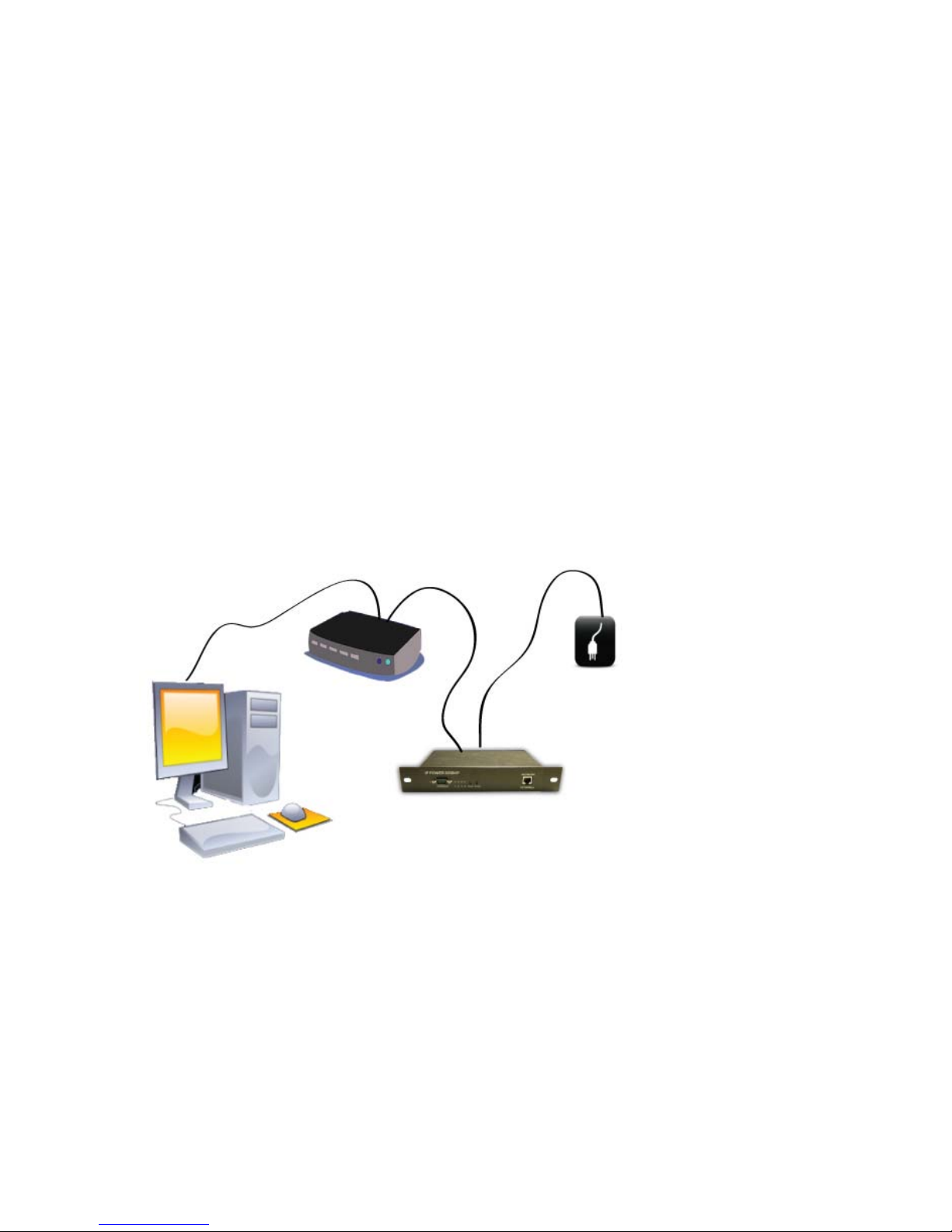
4.) Hardware Setup
1.) Connect the IP Power 9258 HP to a HUB or Router using a RJ45 network cable.
2.) Connect the power adapter to the IP Power 9258 HP.
3.) Connect the HUB or Router to the internet (May through ADSL/XDSL modem).
4.) Connect the power adapters of under control electric equipment to corresponding out port of
IP Power 9258-HP.
5.)Turn on the computer and the power adapter of IP Power 9258-HP
* For 220-250V, please use power cable that can support 10A current.
Max. output current: (total of each four outlets) 10A, (each outlet) 6A.
* For 100-120V, please use power cable that can support 15A current.
Max. Output current: (total of each four outlets) 15A, (each outlet) 6A.
Table des matières
Autres manuels Aviosys Unité de distribution d'énergie