ATO iSee 360i Manuel utilisateur

iSee 360i
User’s Manual
Edition 1.7
May 4, 2006

-ii- iSee 360i User’s Manual
Copyright
ATO reserves the right to make improvements in the products
described in this manual at any time without prior notice.
ATO makes no representation or warranties with respect to the
contents hereof and specifically disclaims any implied
warranties of merchantability or fitness for any particular
purpose. Further, ATO reserves the right to revise this manual
and to make changes in its content without obligation to notify
any person or organization of such revision or change.
This manual is copyrighted, all rights reserved. It may not be
copied, photocopied, translated, or reduced to any electronic
medium or machine-readable form without ATO’s prior
permission.
Manual copyright ©2006, Advanced Technology Office LLC.
Edition 1.7, May 2006.
Licenses and Trademarks
ATO and the ATO logo are trademarks of Advanced
Technology Office LLC. All other licenses and trademarks are
property of their respective owners.

iSee 360i User’s Manual -iii-
Contents
Section 1. Getting Started..................................................1
Getting iSee Information ...................................................1
Meet the iSee 360i ............................................................1
What You Can Do With the ISee 360i...........................1
Features of the ATO iSee 360i......................................2
What You Need to Use the iSee 360i ...............................2
Supported iPods............................................................3
PC Requirements ..........................................................3
iSee 360i Controls.............................................................4
Accessories.......................................................................5
Standard iSee 360i Accessories ...................................5
Optional Accessories.....................................................6
Precautions .......................................................................7
Section 2. Setting Up Your iSee........................................9
Note the Serial Number and Register Your Product.........9
Step 1: Load the Battery in the iSee ...............................10
Step 2: Charge the iSee Battery .....................................12
Step 3: Install iSee files on your iPod .............................12
Enabling iPod Disk Use...............................................12
Disabling iTunes Auto-Launch ....................................13
Installation Options......................................................13
If Asked to Restart Your Computer .............................13
Step 4: Insert Your iPod in the iSee................................18
Plug In Headphones....................................................20
Step 5: Turn On the iSee Power.....................................20
A Final Step ....................................................................21
Battery Life and Battery Charging...................................22
Using the Battery Level Indicator ................................22
Battery Charging and the On/Off LED.........................22
Shutting Down the iSee ..................................................22
Normal Shutdown........................................................22
Emergency Shutdown and Reset................................23
Removing the iPod..........................................................23

Table of Contents
-iv- iSee 360i User’s Manual
Section 3. Using the iSee ................................................ 25
Using the iSee Control Panel ......................................... 25
Viewing the Main Screen................................................ 27
Navigating the iSee Menus............................................. 27
Navigating a Settings Menu ........................................... 28
Playing Videos................................................................ 29
Changing Audio Volume ............................................. 30
Onscreen Indicators.................................................... 31
Changing Video Settings ................................................ 31
Video Settings............................................................. 31
Video Browse Settings................................................ 33
Listening to Music........................................................... 34
Changing Music Settings................................................ 35
Music Settings............................................................. 36
Song List Settings ....................................................... 37
Viewing Photos and Slide Shows................................... 38
Adding Background Music to a Slide Show ................ 39
Changing Photo Settings................................................ 40
Photo Settings............................................................. 40
Changing System Settings ............................................. 42
Changing Mosaic Settings.............................................. 43
Section 4. Recording Video............................................. 45
Video Recording Setup................................................... 45
Video Recording to the iPod........................................... 46
If You’re Using a Camcorder .......................................... 47
Recorded Video File Size ............................................... 47
Recording from Battery Power ....................................... 47
Changing the Record Settings........................................ 48
Viewing with the Standard Dock..................................... 49
Section 5. Using iPod Play-Through Mode.................... 51
How iTunes and iSee Share Your iPod.......................... 51
Three Ways to Use iPod................................................. 51
Using iPod Play-through................................................. 52
Section 6. About VidiScape Software ............................ 55
Section 7. Maintenance and Troubleshooting .............. 57
Frequently Asked Questions .......................................... 57
iSee Firmware ................................................................ 58
Finding the Firmware Version..................................... 59
Updating iSee Firmware ............................................. 59
Viewing Release Notes............................................... 60
Troubleshooting Tips ...................................................... 60

iSee 360i User’s Manual -v-
Appendix A: Specifications .............................................63
Mechanical Specifications ...........................................63
Communication and Interface .....................................63
Encoding and Decoding ..............................................64
Video and Audio ..........................................................65
Appendix B: Technical Support......................................67
Returning Your iSee........................................................67
Packing Your iSee ..........................................................67
Shipping Your iSee to ATO.............................................68
Appendix C: Warranty......................................................69
Index ..................................................................................71

Table of Contents
-vi- iSee 360i User’s Manual
This page intentionally left blank.

iSee 360i User’s Manual -1-
Section 1. Getting Started
Congratulations! Thank you for purchasing the ATOTM iSeeTM
360i Video Recorder for the Apple iPod®. This remarkable,
high-performance entertainment center turns your iPod mobile
digital device into a full-featured video player and photo display
with music. And together with its Standard Dock, your iSee
turns into a personal video recorder (PVR) as well.
Getting iSee Information
• Look at the iSee Quick Setup Guide to get your iSee up and
running in a hurry.
• Use this iSee 360i User’s Manual to learn how to record and
play videos, listen to music, and view photos on your iSee
360i. You’ll find more installation details here, too.
• See the manual Using VidiScape with Your iSee to learn
how to use VidiScape software to manage and convert
music, video, and picture files and download them to your
iSee.
Meet the iSee 360i
The iSee 360i is a mobile video accessory for the Apple iPod
product line. Plugging your iPod into the iSee 360i lets you
show video, view photos, and play music that you have placed
on the iPod using software from the iSee’s accompanying
application disc. The software lets you convert and compress
video files and store them on the iPod, all ready for playback
on the iSee. And besides playing files, the iSee also functions
as a handheld Personal Video Recorder.
What You Can Do With the ISee 360i
• Record compressed video to the iPod for playback.
• Play videos with sound, using the iPod’s headphones or
external speakers.
• Show photos individually or in slide shows.
• Zoom in and pan your digital photos.
• Play MP3 music.
• View video and photos, and play music, on the iSee or on
your TV.
• Protect your iPod and charge its battery.

Section 1. Getting Started
-2- iSee 360i User’s Manual
Features of the ATO iSee 360i
• Elegant, lightweight mobile design: Look and feel of a
single unit with iPod docked.
• Handy iPod-like control panel: Easy to operate for iPod
veterans.
• 3.6” high-quality LCD screen: Watch high-quality content
in a mobile environment.
• User-friendly graphical interface: Intuitive and easy to use
for an effortless entertainment experience.
• Replaceable, rechargeable 2,200 mAh battery: Enjoy
video, music, and pictures for up to four hours, while
supplying additional power to the iPod.
• Double-duty AC adapter: Charges both the iSee and the
iPod at the same time.
• Video in: Record from TV, DVD, VCR, TiVo, camcorder or
other analog video source.
• Audio in: Record audio, along with video, from any analog
source.
• Video out: View video and photos on any TV.
• Audio out: Listen to audio on any external sound system.
• Multiple video formats (MPEG-2 or 4, Windows Media 9
or 10): iSee transcodes video files into MPEG-4.
• Image decode (JPEG): Turn the iPod into a photo viewer.
• Slide show mode: Create personal slide shows for family
and friends.
• Powerful video and photo features: Fast forward, reverse,
pause videos and slide shows; pan and zoom photos.
• iPod play-through mode: Allows listening to iPod’s original
music content, and viewing iPod video and photos on the
iSee’s larger screen.
• Software included: Software disc has VidiScape host
application and ArcSoft software to convert video, audio and
picture files for playing on the iSee.
What You Need to Use the iSee 360i
To use the iSee 360i you’ll need:
• A supported Apple iPod mobile digital device.
• An iPod USB cable to connect the iPod to your PC.
• PC running Windows XP or 2000 to load the VidiScape
software and download iSee-compatible video, music, and
picture files to your iPod.

Section 1. Getting Started
iSee 360i User’s Manual -3-
Supported iPods
You can use your iSee with most iPod models, including the
following:
• iPod 20GB (clickwheel)
• iPod 20GB U2 Special
• iPod mini (with optional adapter)
• iPod nano (with optional adapter)
• iPod 30GB Video (with optional adapter)
A few iPod models are not supported. The following models
won’t fit into the iSee:
• Older iPods without dock connectors
• 3rd generation iPods, which have a row of buttons along the
top rather than the click wheel
• iPod Shuffle
• iPod Photo
For the latest up-to-date list of iPods you can use with your
iSee, visit www.isee-ato.com.
PC Requirements
To install and use the VidiScape software for converting video,
audio, and pictures, you need a PC with:
• Microsoft Windows 2000, XP, or later
• DirectX9 (DirectX9c recommended). You can install this from
the iSee software disc if you don’t already have it.

Section 1. Getting Started
-4- iSee 360i User’s Manual
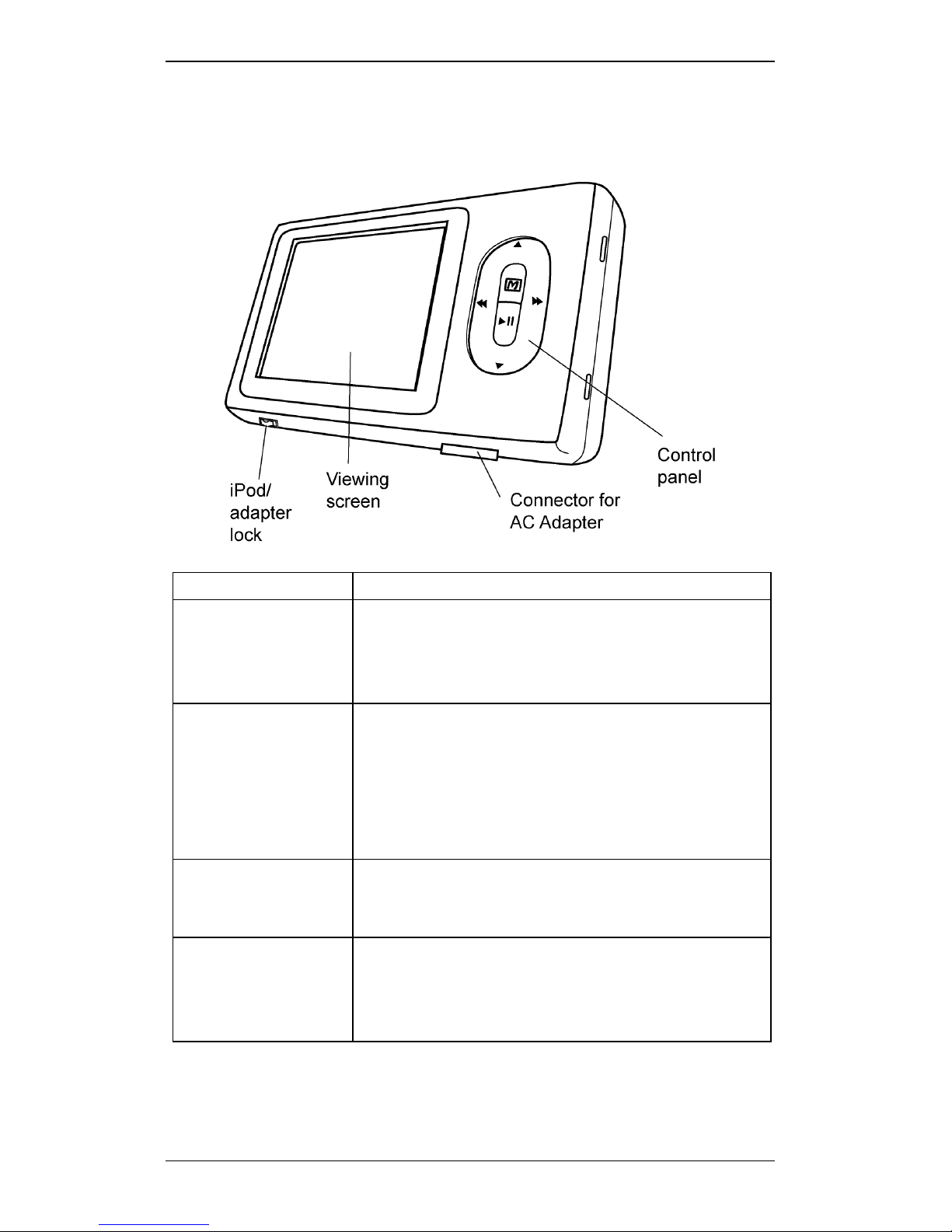
iSee 360i Controls
Front View
Control How to Use It
iPod/adapter
lock
Secures a full-sized iPod, or an adapter
for iPod mini, nano, etc. Press to the right
(toward the connector) to unlock.
Viewing screen Watch video.
View slide shows.
Play music.
AC Adapter
connector
Connect iSee’s AC adapter here
Control panel Press to select and start video, slide
show, or music, cycle through menus,
and control the iSee and iPod.
Autres manuels pour iSee 360i
1
Table des matières
Manuels caméscope populaires d'autres marques

Panasonic
Panasonic AG-HMC152EN Manuel utilisateur

Insignia
Insignia NS-DCC5HB09 - Camcorder - 720p Manuel utilisateur

MYDLINK
MYDLINK DCS-6100LH Manuel utilisateur

Sony
Sony video Hi8 Handycam CCD-TR555 Manuel utilisateur

SECURECOM
SECURECOM V-5014B Manuel utilisateur

Panasonic
Panasonic HDC-SD100 Manuel utilisateur