Assa Abloy SMARTair Mini Updater Manuel utilisateur

SMARTair
Mini Updater

12/04/2016 - 2 - Concept
Table of contents
Table of contents....................................................................................................................................................................- 2 -
History–Modifications ..........................................................................................................................................................- 2 -
1General .........................................................................................................................................................................- 3 -
2Setting up the TCP/IP –RS232 Adaptor ......................................................................................................................- 3 -
2.1 Connecting the TCP/IP –RS232 Adaptor...........................................................................................................- 3 -
2.2 Configuring the TCP/IP –RS232 Adaptor via web browser ..............................................................................- 4 -
2.3 Configuring the TCP/IP –RS232 Adaptor via the VCOM program...................................................................- 5 -
2.3.1 Adding the TCP/IP –RS232 adaptor in the VCOM software........................................................................- 5 -
2.3.2 Now we can setup the virtual comport for the mini updater...........................................................................- 8 -
4Setting up the Mini Updater software.........................................................................................................................- 10 -
5Setting up Windows to start up the UpdaterBox after boot. .......................................................................................- 12 -
6Good to know.............................................................................................................................................................- 13 -
7Reset the TCP/IP –RS232 adaptor to default.............................................................................................................- 13 -
7.1 Reset without changing the IP address..............................................................................................................- 13 -
7.3 Reset everything to default including the IP address ........................................................................................- 14 -
History– Modifications
Version
Modification
Concept
Not for distribution
V1.0
SMARTair Mini Updater manual

12/04/2016 - 3 - Concept
1General
The Mini Updater has an direct connection to the TS1000 SMARTair database.
This means that if the connection is lost, the mini updater will no longer function until the connection is established again.
As the Mini Updater cannot open a door, no configuration is necessary in the TS1000 software and no special license is
needed.
The connection to the database is done by TCP/IP port 3050, the firewall needs setup accordingly.
You will need an IP address for the Mini updater before you start setting up the mini updater.
2Setting up the TCP/IP – RS232 Adaptor
2.1 Connecting the TCP/IP –RS232 Adaptor
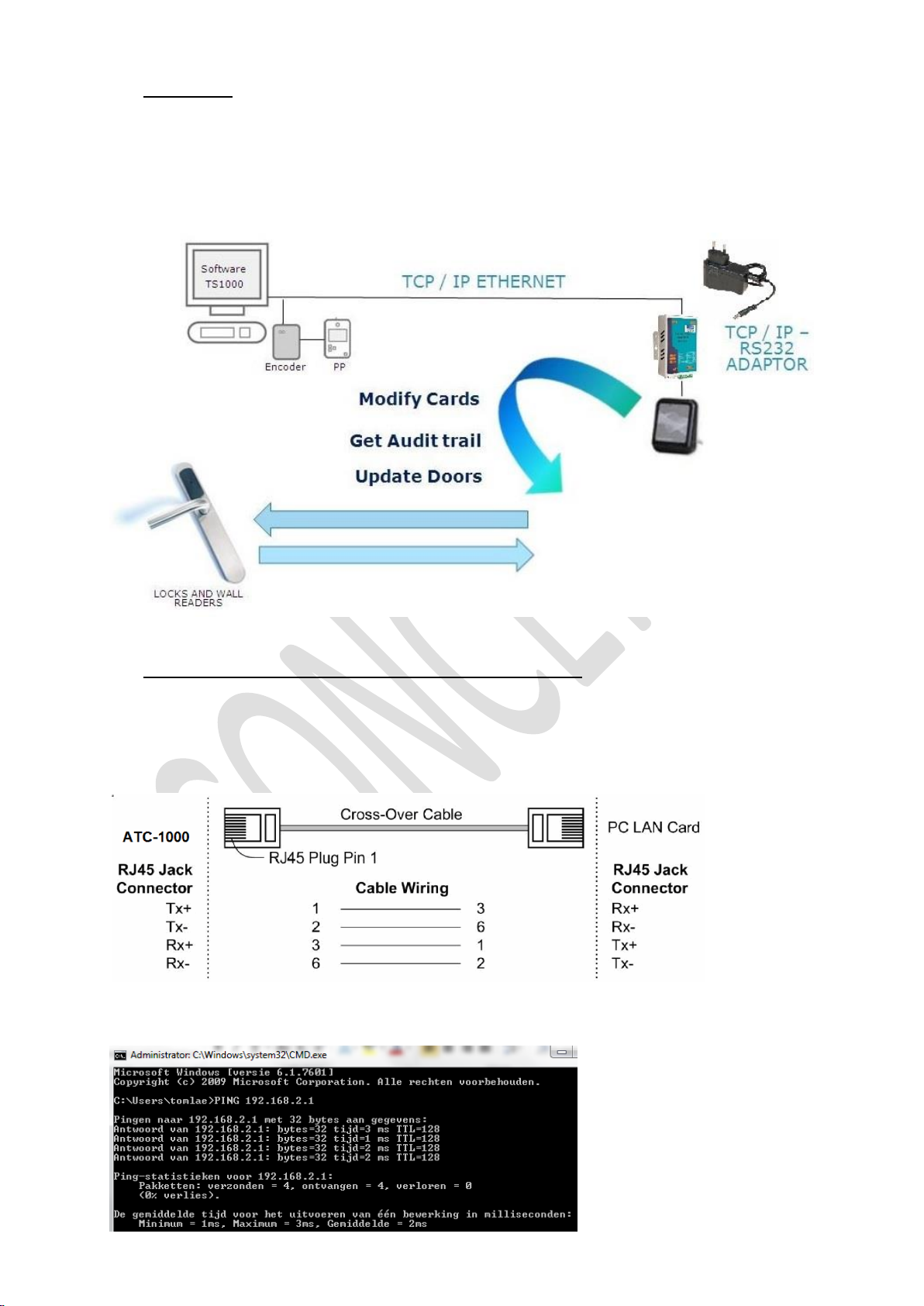
The default IP address of the mini updater is 192.168.2.1, so set your IP address of your computer to the same range.
For ex. 192.168.2.2 until 192.168.2.254
Connect your PC to the mini updater with an crossed cable and power up the mini updater.
Test your connecting with an PING command to IP address 192.168.2.1
If this test is OK, you can proceed with the setup of the TCP/IP –RS232 Adaptor.

12/04/2016 - 4 - Concept
There are two ways we can configure the TCP/IP –RS232 adaptor.
2.2 Configuring the TCP/IP –RS232 Adaptor via web browser
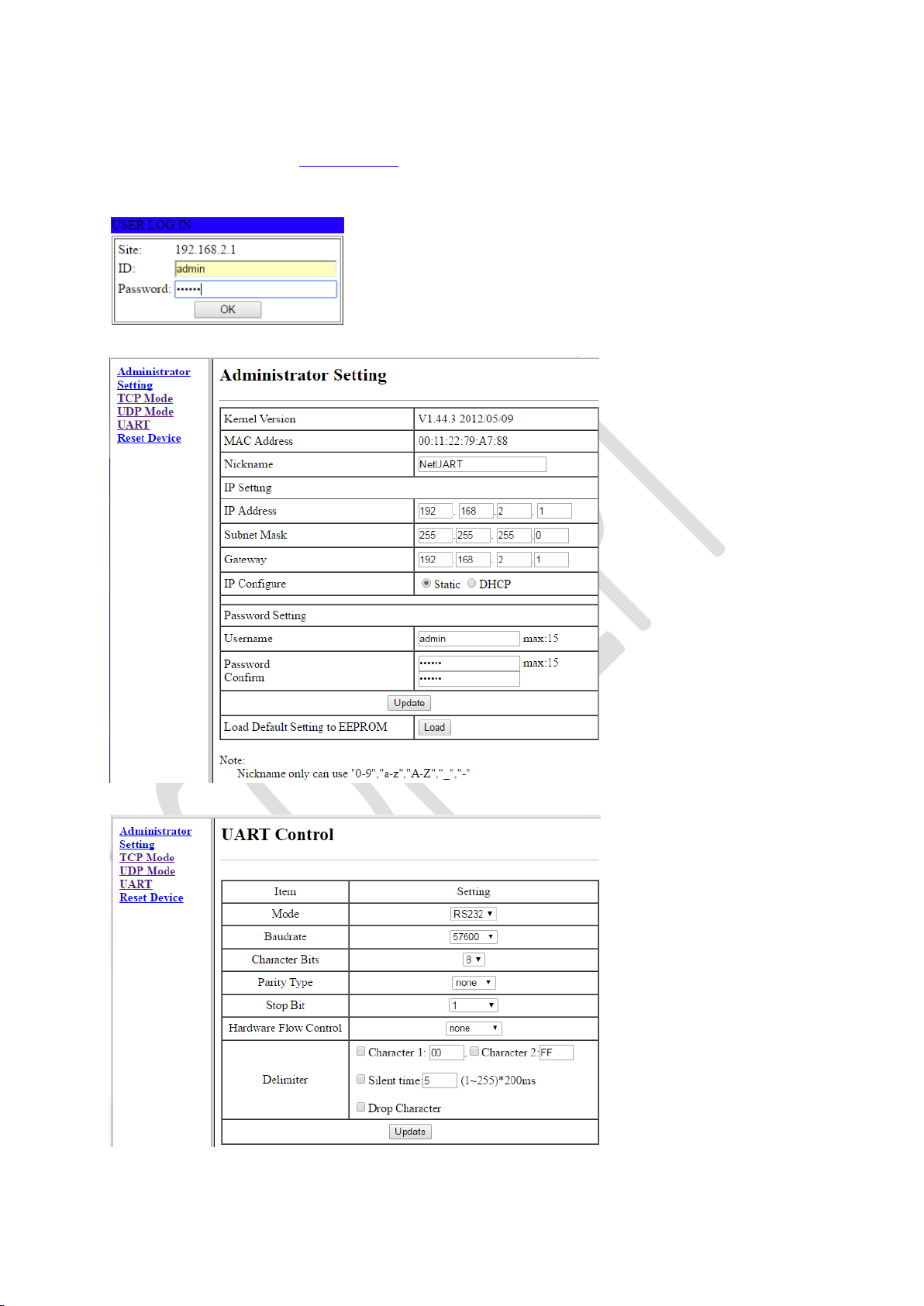
Open your web browser and type http://192.168.2.1 and click enter.
The User Log-in screen appears.
Default ID: admin
Default Password: system
The setup screen will then appear.
First we will change the RS232 settings, therefore we will select UART at the left side of the screen.
We must change the following settings:
Baudrate: change to 115200
Silent time: If selected, please remove the selection.
If these settings have been made, click on the Update button.

12/04/2016 - 5 - Concept
Now we will adapt the default IP address to the new IP address given to you by the IT service of the client.
We will go back to the main screen, we must click on Administrator settings to do this.
In the main screen we will type in the new IP address, subnet Mask and gateway and click the Update button.
If the new IP address is not in the same range as the default IP address, you will lose communication to the TCP/IP –RS232!
You will need to change the IP address from your PC to be in the same range again as the IP address of the TCP/IP –RS232.
The TCP/IP –RS232 adaptor is now setup correctly in the network.
Now we must setup the virtual comport via the VCOM program.
See point 2.3.2
2.3 Configuring the TCP/IP –RS232 Adaptor via the VCOM program
Always use the latest version of the VCOM program with a new installation or in case of problems.
Run the VCOMsetup.exe program (can be downloaded from the Tesa support website or can be found on the CD delivered
together with the TCP/IP –RS232 adaptor, look in the folder: F:/Driver/ATC-1000 folder to run VCOMSETUP.)
Please select the correct Windows version driver!
You need to be administrator to install this software and make sure the firewall is configured correctly or is disabled!
The VCOM program will automatically start after installation and also every time Windows is started.
The VCOM program must always be running in order to make the Mini updater functional! If the VCOM program is not
running, the mini updater will not work!
2.3.1 Adding the TCP/IP –RS232 adaptor in the VCOM software
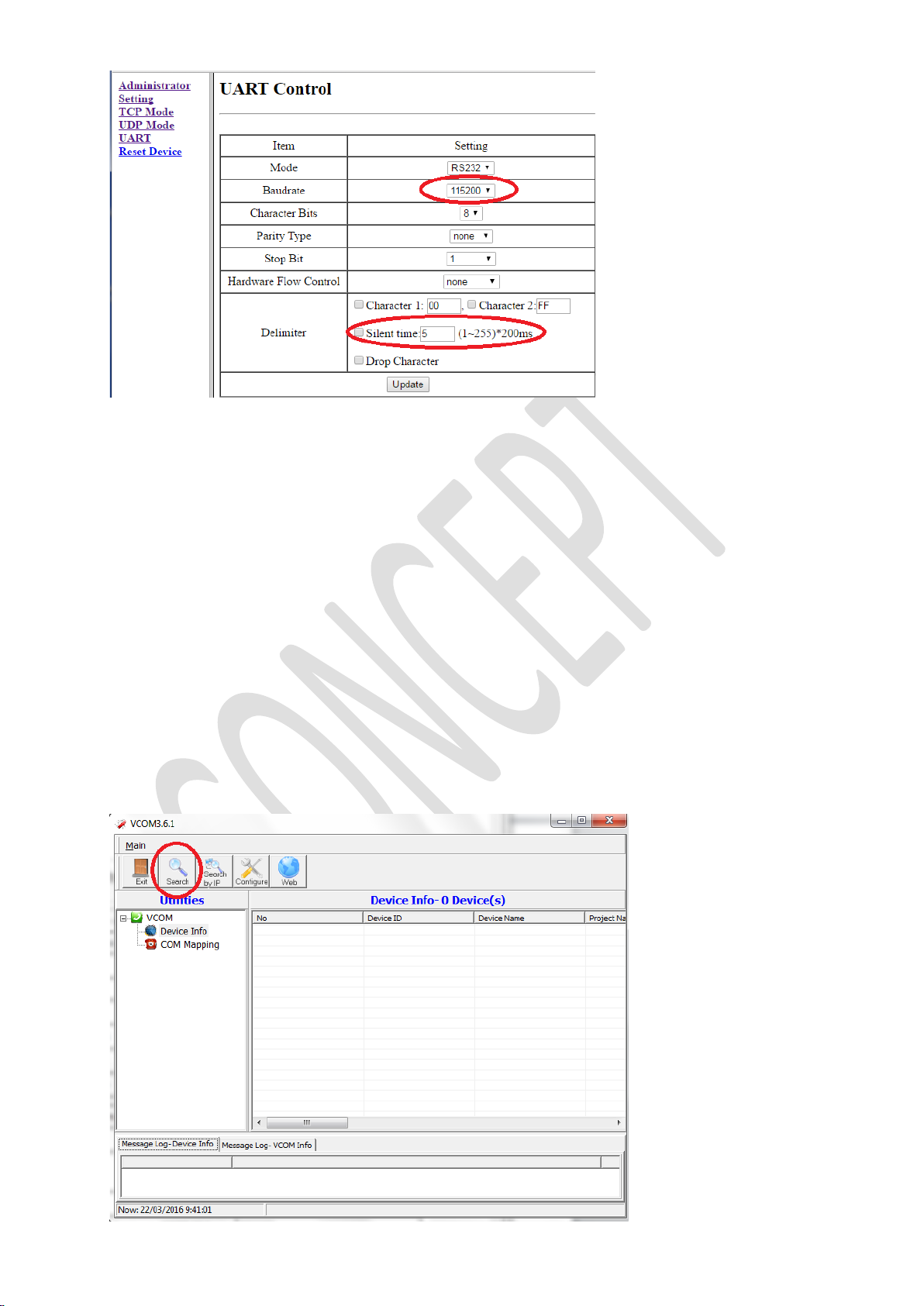
In the VCOM program we must first search for the newly configured TCP/IP –RS232 adaptor. Therefore we click on the
Search button.

12/04/2016 - 6 - Concept
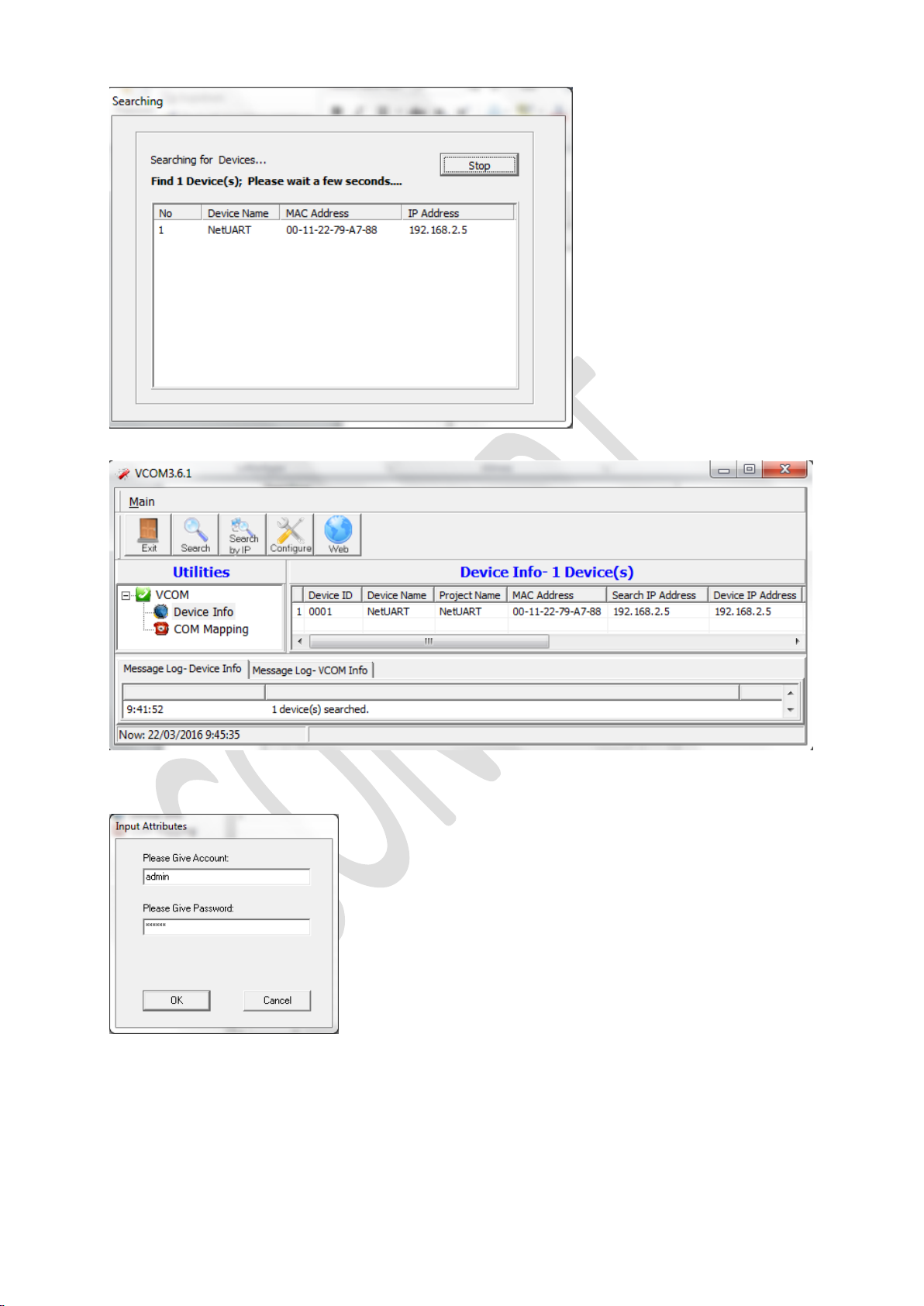
The program will scan the network and will find the TCP/IP –RS232 adaptor.
After the scan, the TCP/IP –RS232 adaptor will be listed in the VCOM program.
We can now Configure the TCP/IP –RS232 adaptor by selecting the TCP/IP –RS232 adaptor and by clicking on the
Configure Button.
Enter the Login and password (same as for the web browser, see point 2.2) and click OK
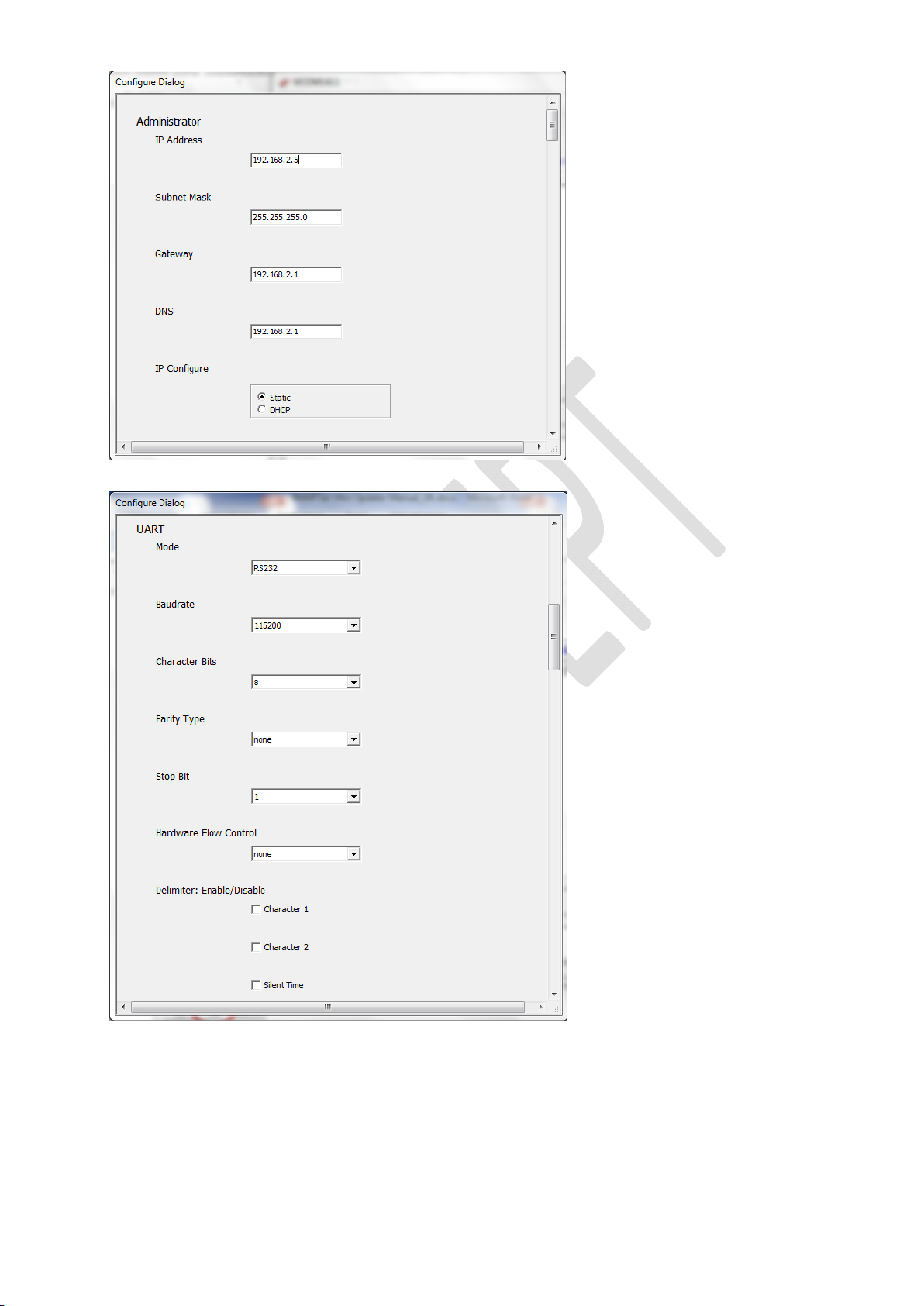
Change the IP address to the new IP address provided by the client.

12/04/2016 - 7 - Concept
Scroll down to the UART section and change the Baudrate to 115200 and uncheck the Silent option if needed.

12/04/2016 - 8 - Concept
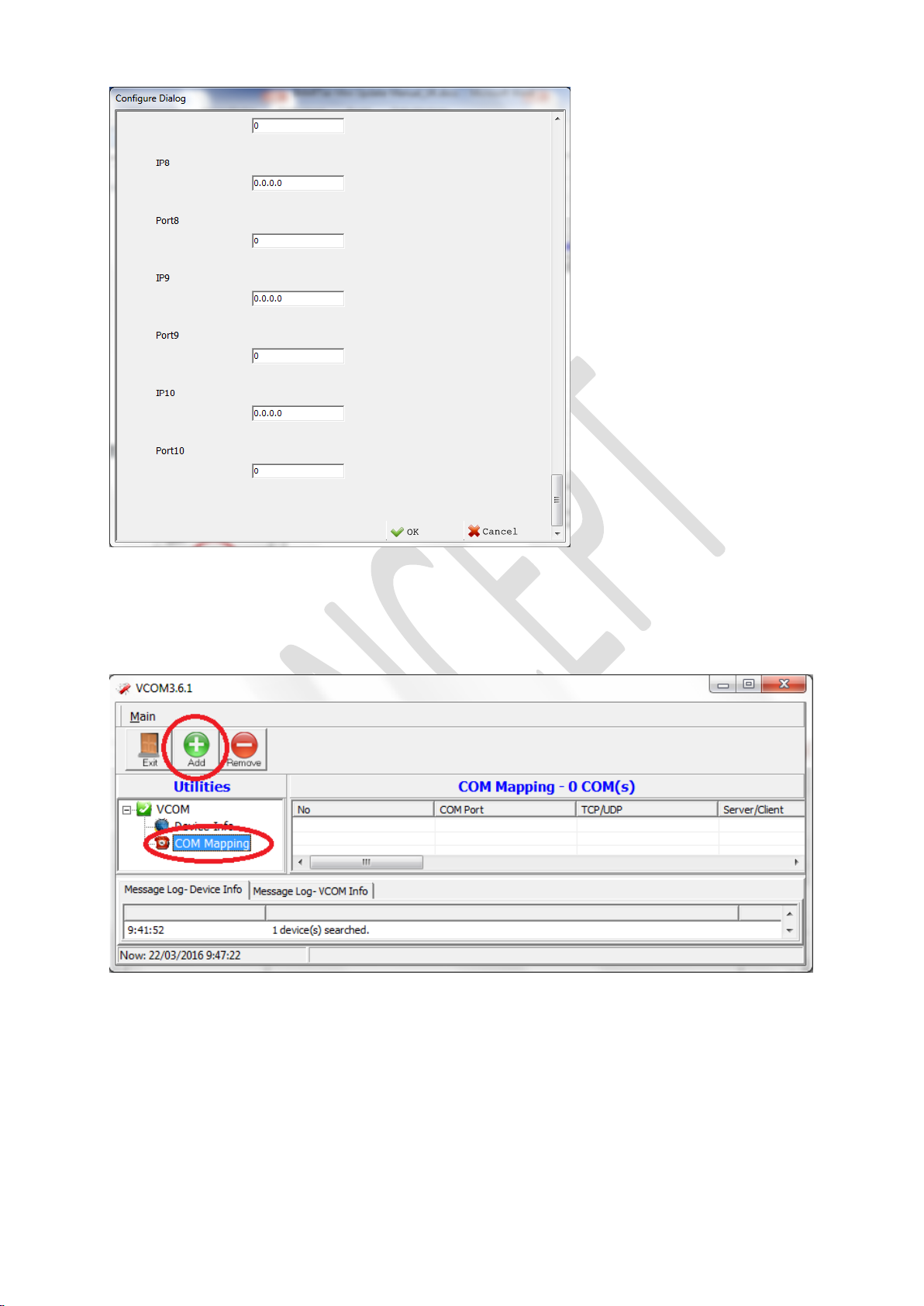
Scroll completely down and click OK.
The TCP/IP –RS232 adaptor is now setup correctly in the network.
Now we must setup the virtual comport via the VCOM program.
See point 2.3.2
2.3.2 Now we can setup the virtual comport for the mini updater.
We click on COM Mapping and then we click on the ADD button.
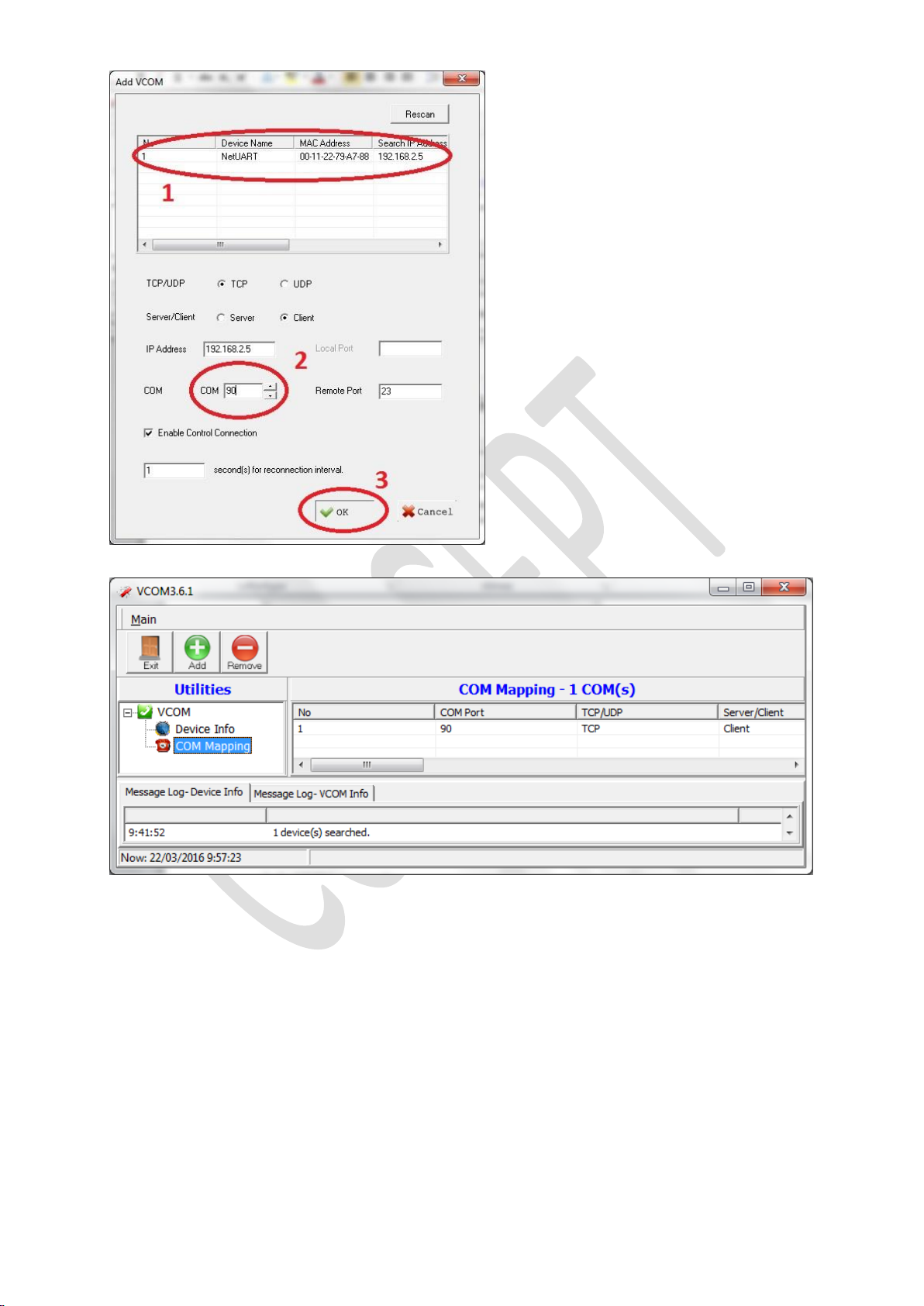
First select the correct TCP/IP –RS232 adaptor we which to setup and then we give the comport its number and click OK.
Make sure that the comport number is in an higher range so interference with other comports in the system will not be a
problem. Make sure that the IT service of the client knows the comport number(s) used by the mini updaters.
They can confirm that these will not be in conflict with other systems on their PC/system or recommend another number(s).

12/04/2016 - 9 - Concept
In the VCOM program we will now see the COM Port in the COMM Mapping menu.
The TCP/IP –RS232 adaptor is now setup completely.
Now we can proceed installing the Mini Updater software and the link to the TS1000 database.

12/04/2016 - 10 - Concept
4Setting up the Mini Updater software
The Mini Updater uses an small software called UpdaterBox.
This software can be downloaded from the Tesa website and must be exactly the same version as the TS1000 version!
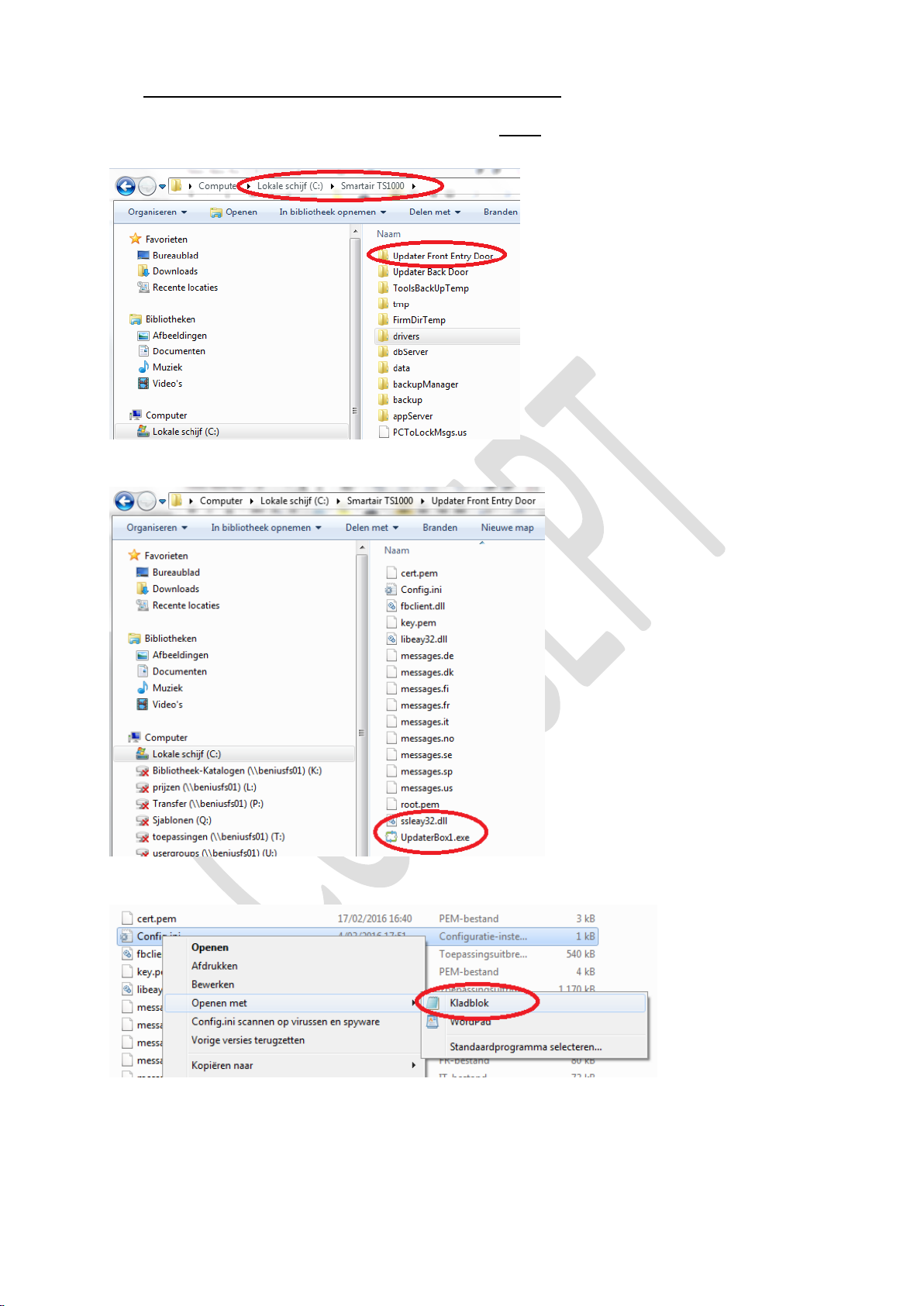
Unzip this software to an folder inside the default TS1000 folder and give the folder an clear and unique Name.
For ex. Updater Front Entry Door.
If you have multiple mini updaters, than change the name from UpdaterBox.exe to for ex. UpdaterBox1.exe
This way it is more clearly later which updater is running and which one is not running.
Now we can configure the Mini Updater by opening the Config.ini file in notepad.
Right click on the Config.ini file and select Open With and select notepad.
In the config.ini file we change the COM port number to the number we defined in the VCOM program see point 2.3.2
We can give the UpdaterBox program also an Name so it will be more clearly later which Updater is running and Which
Updater is not running.
Therefore we must add the line called Name= in the Updater section of the Config.ini file.
In the example I put in the location of the updater (the same as the folder name).
If the database is installed in the standard location, the database Path must not be adapted.
If the you changed the location when installing the TS1000 software, please adapt the database Patch to the database location.
Then save and close the Config.ini file.
Table des matières