Asoka PlugLink-ETH-500 Manuel utilisateur

PlugLink-ETH-500
User’s Guide
PL9670-Q2
QUICKFIND L
OCATOR
Contact
Information
Getting Help
Table of Contents
Installation
66-0376-01Rev.001

2 of 38
© 2012 Asoka USA Corporation
ALL RIGHTS RESERVED
Notice: No part of this publication may be reproduced or transmitted in any form or by any means, electronic or
mechanical, including photocopying and recording, or stored in a database or retrieval system for any
purpose without the express written permission of Asoka USA Corporation.
Asoka USA Corporation reserves the right to make changes to this user’s guide at any time without notice and
assumes no responsibility for its use. Asoka USA products and services can only be ordered under the terms and
conditions of Asoka USA Corporation's applicable agreements. All of the features described in this user’s guide
may not be currently available. Refer to the most recent product announcement for information about feature
and product availability.
This user’s guide contains the most current information available at the time of publication. When new and/ or
revised information becomes available, this entire user’s guide is updated and distributed to all registered users.
All company and product names mentioned herein are trademarks of their respective companies. Mention of
third-party products is for informational purposes only and constitutes neither an endorsement nor a
recommendation. Asoka USA Corporation assumes no responsibility with regard to the performance or use of
these products.
Revision
Date
Description
66-0376-01Rev.001 July.
2012
Preliminary Release
Changes in This Revision
• Not applicable (preliminary release)

3 of 38
Contact Information
For more information about the PlugLink-ETH-500 or any of Asoka’s other leading-edge
solutions, please contact us using any of the following methods:
zVoice calls: We welcome your calls Monday through Friday, from 9:00 am
to 5:00 pm Pacific Time at (408) 550-8167. Voice mail is available during non-business
hours. zEmail: If you prefer, you can send information requests to our e-mail address:
zFax calls: You can also send your requests for information to our 24-hour fax
number: (408) 884-2390.
zWeb site: Our Web site contains valuable information about our products,
solutions, and services. We encourage you to visit us at
http://www.asokatech.com.
Getting Help
Asoka USA backs its products with unparalleled customer service and technical support
for our valued customers.
Customer Service
Customer service, the customer-satisfaction arm of Asoka USA, is available Monday
through Friday, from 9:00 am to 5:00 pm Pacific Time, by calling (408) 550-8167 or
emailing custserv@asokatech.com
Technical Support
Technical support is available Monday through Friday, from 6:00 am to 6:00 pm
Pacific Time, by calling (408) 550-8173 or through email at support@asokatech.com.
Please provide the following information about the problem:
zProduct name, model number, part number (if applicable) and serial number
zSystem configuration, including a description of the devices connected to your
PL9672
zThe circumstances surrounding the error or failure
zA detailed description of the problem and what has been done to try to solve it

4 of 38
Table of Contents
1 Simple Installation......................................................................5
Package Contents................................................................................................... 5
Types of Connections ............................................................................................. 5
Simple Connection (Peer to Peer) ............................................................................ 6
Simple Broadband
Connection
................................................................................. 6
Other Connections.................................................................................................. 7
Finding a Suitable Location ..................................................................................... 7
Installing the Hardware .......................................................................................... 7
2 Advanced Configuration (Expert Users Only) .............................8
Installing the Software............................................................................................ 8
3 Network Management...............................................................12
Viewing the Device Information (Profile).................................................................12
Changing your device Name and Network Encryption Key (NEK)...............................13
DEVICE NETWORK ENCRYPTION KEY (NEK) ………………………………………………………..16
Resetting and Upgrading the PlugLink-ETH-500.......................................................20
Prioritizing the Network Traffic...............................................................................21
Viewing the Network Statistics screen.....................................................................22
Viewing the Link screen.........................................................................................22
Viewing the LED screen.........................................................................................24
Rescanning your Powerline Network.......................................................................24
Manually Resetting the Firmware and Network ID (NID) ..........................................25
4 Troubleshooting........................................................................26
A Specifications............................................................................28
B Components..............................................................................30
C Warranty...................................................................................34
D FCC Notice.................................................................................36

5 of 38
Simple Installation
Congratulations on your purchase of the PlugLink-ETH-500 !
This adapter allows you to network your home or office by plugging directly into an
electrical outlet. With your PlugLink-ETH-500, you can easily share your high-speed
Internet, mp3s, video, and gaming throughout the home or office.
This manual describes how to connect your PlugLink-ETH-500 to a PC or cable/DSL
Router.
Package Contents
zPlugLink-ETH-500(PL9670-Q2)
z6-foot Ethernet cable
zQuick Installation Guide
zInstallation Resource CD (for advanced users only)
zWarranty and Support Information Card
If any of the parts are incorrect, missing, or damaged, contact the retailer
where you made your purchase. Keep the carton, including the original packing
materials, in case you need to return the unit for repair.
Types of Connections
This section describes what you need to do to before installing the PlugLink-ETH-500.
You can set up a home or an office network or compliment your existing network by
connecting to any device with a 10BaseT/100BaseT /1000BaseT Ethernet- capable
device.

6 of 38
Simple Connection (Peer to Peer)
To share a simple connection between computers, attach one PL9670-Q2 device to
each computer.
NOTE: Do not connect the PlugLink-ETH-500 into a power strip, extension
cord, un-interruptible power supply (UPS), or surge protector. This may prevent
the unit from working properly or degrade the network performance.
Simple Broadband
Connection
The following items are needed to share a Broadband connection with computers:
zOne (1) PL9670-Q2 device attached to a standard cable, DSL, or wireless router;
zOne (1) PL9670-Q2 device attached to each computer;

7 of 38
Other Connections
You can also use the PlugLink-ETH-500 with other Ethernet enabled devices, such as
IP Cameras, IP set top box, game consoles, etc.“Up to eight (8) PL9672 can be placed
on the same PLC (Powerline Communication) network.”
Finding a Suitable Location
Find a suitable location to install your PlugLink-ETH-500 . Where you install the units
can affect their performance. Find a location that is:
zAcceptable temperature and humidity ranges.
zFree of strong electromagnetic field generators (such as motors), vibration, dust,
and direct exposure to sunlight.
zAn electrical outlet for your PlugLink-ETH-500 . Outlet must be within six feet (1.82
meters) of the device you are connecting to.
Installing the Hardware
Connect each of your PlugLink-ETH-500 .
1. Connect the unit into a nearby wall outlet (Do not plug the adapter into a power
strip).
2. Connect the enclosed Ethernet cable to the Ethernet port of the unit.
3. Connect the other end of the cable to the Ethernet port of the PC or device.
Congratulations! You have completed the installation of the
PL9672 for normal use.

8 of 38
Advanced Configuration
(Expert Users Only)
This chapter provides information on installing and setting up the PlugLink-ETH-500.
NOTE: Do not connect the PlugLink-ETH-500 into a power strip, extension cord,
un-interruptible power supply (UPS), or surge protector. This may prevent the unit from
working properly or degrade the network performance.
Installing the Software
Following are software installation procedures for advanced users.
NOTE: Software installation is not required for normal use. The utility is used to
change the security settings and view information about the network.
1. Insert the enclosed Installation Resource CD into your CD-ROM drive If the PlugLink-
ETH-500 Installation Utility does not appear within 30 seconds, select your CD-ROM
drive and double-click the Setup.exe icon to start the Installation Utility.
2. Select the language preference, and click the Run button.

9 of 38
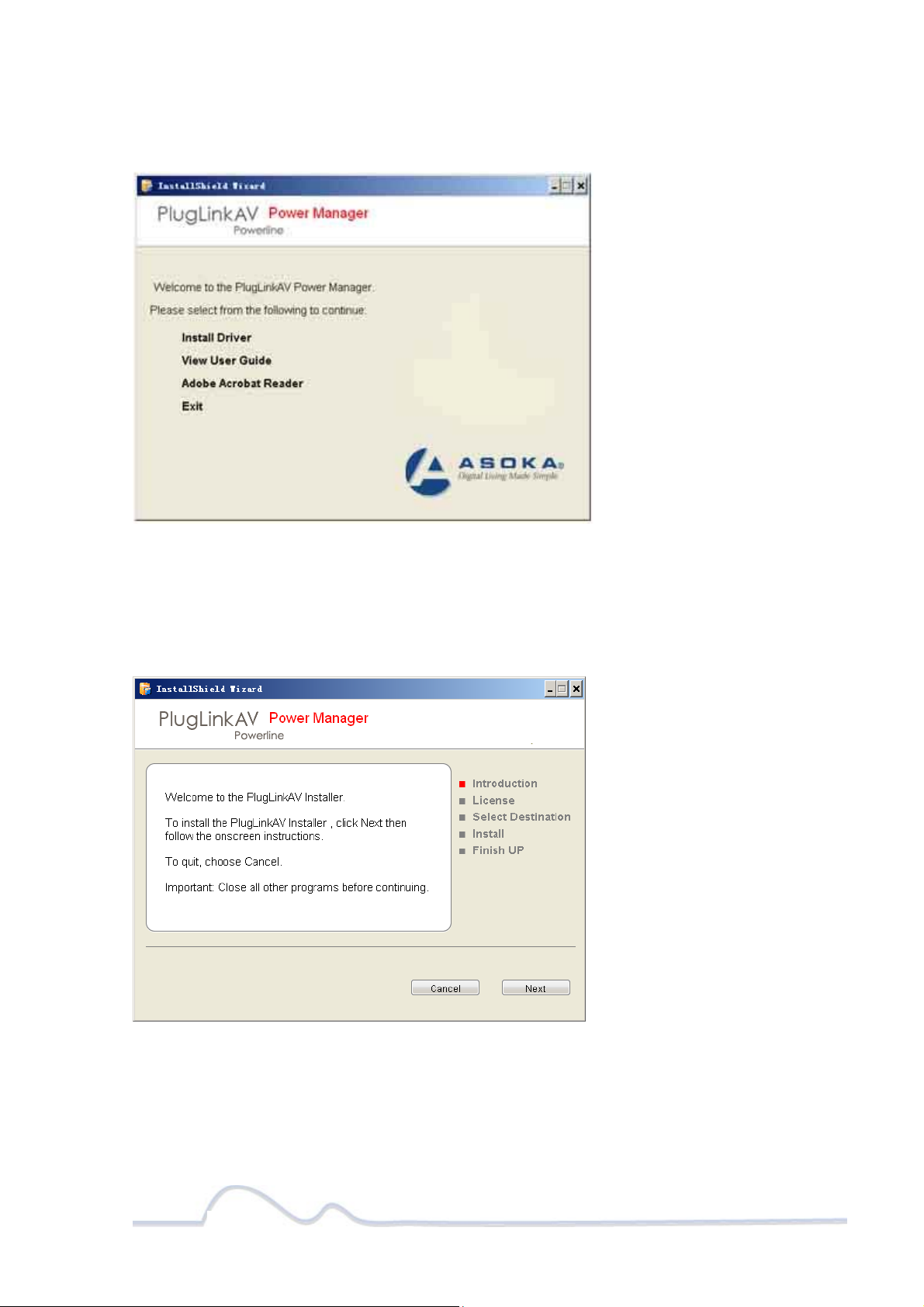
3. In the Start screen, click Install Driver to start the installation.
4. In the Welcome screen of the screen of the wizard, click Next to begin the
installation.

10 of 38
5. Read the End User Software License Agreement, and if you agree, click the Agree
button to continue the installation.
6. To change the name of the PlugLink AV unit, select Yes, and enter a name in the
text field. Otherwise, select No. Click Next to advance to the next screen.
Ce manuel convient aux modèles suivants
1
Table des matières
Autres manuels Asoka Adaptateur

Asoka
Asoka PlugLink AV 9660 Manuel utilisateur

Asoka
Asoka PlugLink 500G Manuel utilisateur

Asoka
Asoka PL9667-Q1 Manuel utilisateur

Asoka
Asoka AV 9560 Manuel utilisateur

Asoka
Asoka PlugLinK-ETH-500G Manuel utilisateur

Asoka
Asoka PL9571-WAP Manuel utilisateur

Asoka
Asoka PlugLink HD AV ECo PL9661-ETH Manuel utilisateur

Asoka
Asoka PlugLink PL9661-I2 Manuel utilisateur

Asoka
Asoka PlugLink PL9660-Q1 Manuel utilisateur

Asoka
Asoka PlugLink PL9661-G1 Manuel utilisateur