
Argom Tech T9021 Manuel utilisateur

0
USER MANUAL

1
Content
1 Foreword....................................................................................................................3
1.1 Acknowledgements..................................................................................... 3
1.2 Announcements............................................................................................3
1.3 Safety Tips..................................................................................................... 3
1.4 Acronym/terms............................................................................................. 4
2 Brief Description of MID Series of Products..................................................... 5
2.1 MID Overall Drawing.................................................................................... 5
2.2 MID Accessories Introduction................................................................... 6
2.3 MID Use and preparation............................................................................ 6
2.4 MID State and information..........................................................................7
3 Quick start................................................................................................................. 9
3.1 Button function............................................................................................. 9
3.2 Boot and shut down.....................................................................................9
3.3 Screen of opening and closing............................................................... 10
3.4 The use of touch screen........................................................................... 10
3.5 Page interface............................................................................................. 11
3.6 Status bar describe....................................................................................12
3.7 Use touch panel..........................................................................................12
3.8 Equipment basic settings.........................................................................13
3.9 APPS install and uninstall........................................................................17
3.10 Input text.................................................................................................... 18
4 Establish connections..........................................................................................18
4.1 USB connection..........................................................................................18
4.2 WIFI connection..........................................................................................20
4.3 3G connection.......................................................................................... 21
5 Communication......................................................................................................21
5.1 E-MAIL...........................................................................................................21
6 Multimedia...............................................................................................................22
6.1 Support the file format.............................................................................. 22
6.2 Music............................................................................................................. 23

2
6.3 Camera..........................................................................................................24
6.4 Gallery........................................................................................................... 25
6.5 HDMI.............................................................................................................. 27
7 Internet..................................................................................................................... 28
7.1 Browser........................................................................................................ 28
8 Other applications................................................................................................. 29
8.1 Alarm clock.................................................................................................. 29
8.2 Calculator..................................................................................................... 30
8.3 Explorer........................................................................................................ 30
9 Troubleshooting.................................................................................................... 32
Appendix 1 Specifications......................................................................................32
Appendix 2 The optional parts and models....................................................... 35

3
1 Foreword
1.1 Acknowledgements
Thank you for choosing our products. Product MID (Mobile Internet Device) is
a kind of mobile Internet equipment, delicate and cabinet, easy to carry.
Equipped with a high resolution 1024x600 capacitive 5- touch screen,
this MID
supports high-definition videos and images, installation of multiple Office Micro
Software, entertainment and other applications.
The dazzle cruel interface can provide you new user experience.
This manual introduces the various functions, using skills and announcements.
Please read the manual carefully before using MID.
1.2 Announcements
Packing List
Please keep MID dry. Keep the equipment and battery charger away from
water, vapor and wet hand in case of short circuit, corrosion or equipment
failure.
Keep the equipment, battery and charger away from strongly impact or
vibration in case of equipment/battery/charger fault, fire or explosion.
Keep the equipment, battery and charger away from very high/low
temperature region in case of equipment/battery/charger fault, fire or
explosion.
Do not hit, throw or acupuncture product MID, and avoid dropping,
extruding and bending MID.
Keep the equipment and accessories authorized,otherwise the equipment
and accessories would not be under our company warranty scope.
1.3 Safety Tips
Before you use the MID, please read this section of information and keep your
child aware of this information. For detailed information, please refer to the
safety guidelines.
Do not use MID during driving for safety.

4
In medical sites, please follow the relevant regulations by turning off your
MID when you are in medical sites.
Please turn off your MID or turn on planes mode when you are boarding, to
avoid wireless signals jamming aircraft control signal.
Please turn off your MID near the use of high precision electronic
equipment, otherwise it may lead to electronic equipment disability.
Do not take apart your MID or accessories without authorizing. Only
authorized institutions can repair this MID.
Please keep MID away from magnetic equipment. The radiation of MID will
erase the information of the magnetic storage device.
Please don’t use MID under high temperature or in flammable areas
(example: gas station).
Please keep your MID and accessories away from children without
supervising.
Please obey the relevant laws and regulations when you use your MID, and
respect others lawful rights and privacy.
Please obey the relevant specification of this manual when you use USB
cable. Otherwise it may damage your MID or personal computer.
Please don’t use your MID in the damp environment such as bathroom etc.
keep your MID from being soaked or flushed by the liquid.
Please choose the appropriate volume, use headphones should not be too
big voice, if feel tinnitus, lower the volume or stop using it.
1.4 Acronym/terms
Acronym/terms Full name Instruction
MID Mobile Internet Device Mobile Internet terminals
WIFI Wireless Fidelity Based on the IEEE 802.11B
standard wireless LAN
TF Trans Flash Also call :Micro SD
5
HDMI High Definition Multimedia
Interface
High-resolution multimedia
interface
2 Brief Description of MID Series of Products
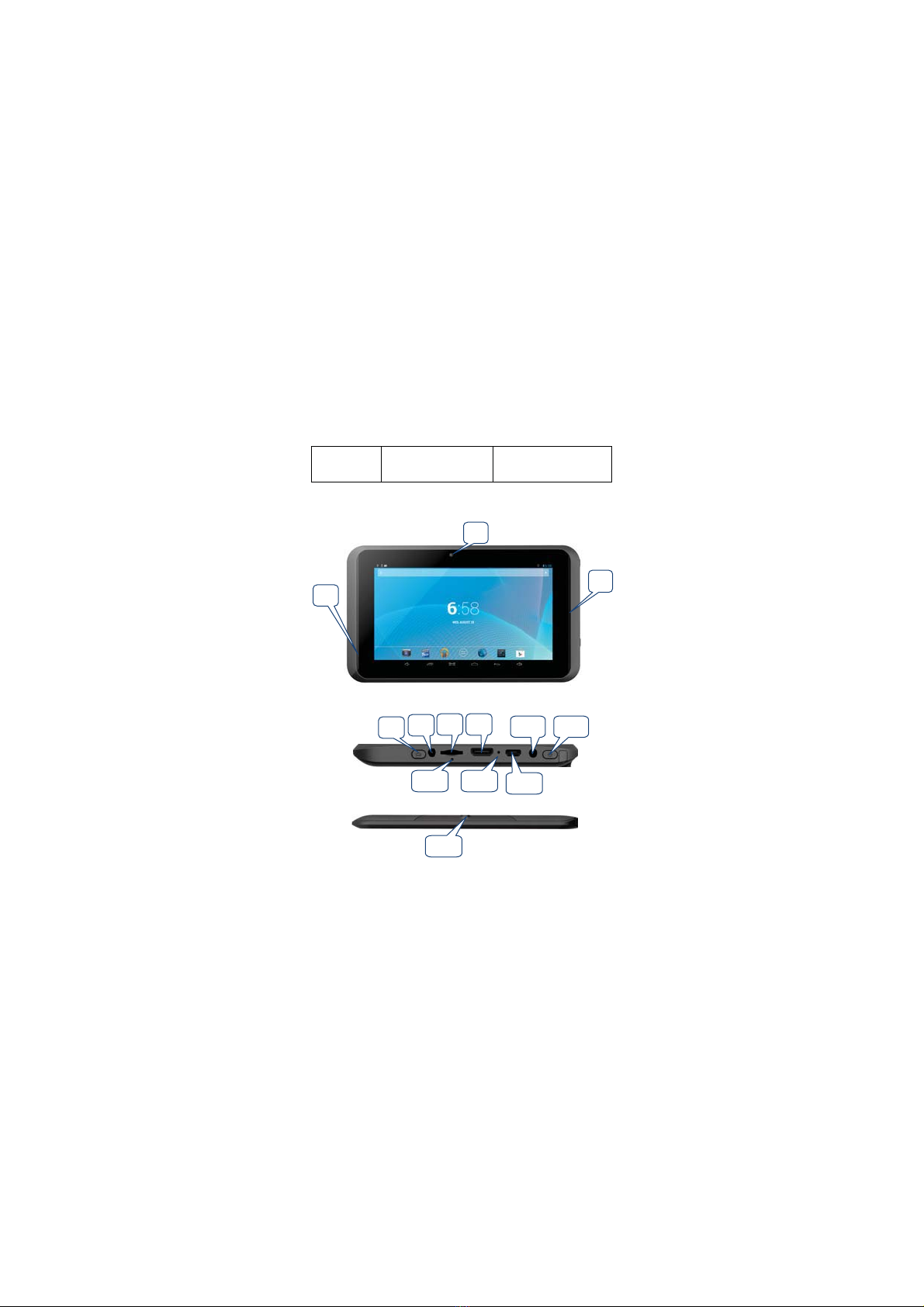
2.1 MID Overall Drawing
1
2
3
456 8
7 9 10
13
11 12

6
1. Front Camera
2. Speaker
3. Charger Indicator Light
4. Home Key
5. Charger Jack
6. TF Card Slot
7. Reset Key
8. HDMI port
9. Mic
10. Micro USB port
11. Earphone Jack
12. Power Key
13. Rear Camera
2.2 MID Accessories Introduction
Packing List
Your MID packing box includes the following items
MID complete machine
Power adapter
USB cable
OTG to Host Gender
Earphone
User manual
2.3 MID Use and preparation
Battery Management and charging
BeforeusingMID,pleasechargeupthebattery.
1. Use the AC adapter to charge up your MID battery.
This tablet adopt built-in lithium polymer battery, must be choose standard
adaptor for charging.

7
(Input: AC110~240V 50/60Hz 0.3A; Output: DC5.0V/2.0A).
2. The first two times charging please keep about 6 hours, after that please
charge for 4 hours at least.
Please charge in the following conditions:
A: The battery icons shows have no power.
B: The system automatically shut down, shut down after boot soon.
C: Press operation buttons have no response.
D: The top right corner of the device shows red icons.
【Remark】
1. If you haven’t use this tablet for a long time, in order to avoid power
consumption caused damage, please charge/play the battery once a month.
2. After low battery shut down, connect DC adaptor, device will remind low
battery, charging, need to wait some time until the battery is enough power
to enter into main menu.
3. Device charging should be in standby status for each normal charging time.
With device and screen consumption, it may cause longer charging time.
2.4 MID State and information
Notice Icon
Please click column frame and slide to right on the screen to unlock notice icon.
Click the requisite view options and check the detailed information. Later you
can click the information box and slide to shut up the information windows. The
icon illustration for status bar is as follows:
New instant messaging No SD card

8
New email Uploading/downloading
Matterstobehandled Download is completed
Use USB line to
connect computer with
MID
General notice (such as:
synchronization error)
Music playing Flight mode
Data synchronization Charging
Insufficient SD
card space More
WIFI service already
connected network
unavailable
Battery charging sign
Notice panel
Notice icon implies new messages, the settled alarm clock, schedule, and SD
card inserting etc. You can open the information panel to check specific
information.
Open notice panel
When new notice icons appear in notice bar, please hold notice bar and slide
down to open notice panel.

9
3 Quick start
3.1 Button function
Key functions illustration:
Power
key
Long press this button for booting
In booting condition, long press this button pop-up shutdown
options.
In booting condition, press this button to turn off the screen
Home
key
Press this button to return to the function interface from
arbitrary interface.
Reset
button
When the tablet is crash, use the small objects to short press
RESET button, tablet will force to shut down.
Suggest don’t use the RESET button unless tablet unable to
shut down normally. Otherwise, it will easy to damage the
tablet system.
3.2 Boot and shut down
Boot
After long pressing for 2 seconds on the power button, you can see the boot
logo.
The system access into screen locking status after opening, please press the
Power On/Off button to refresh, and slide up the unlock icon on the screen.
Power off
1. Long press the power On/Off button, then "Power off" options pop up.
2. There is silent mode in device options, Power off and Cancel.
3. Click Power off.
Reset
Press the reset button to reset the device. It will clear the all data, please be
careful with the function. (Note: you can’t restart your device after the current
Table des matières
Autres manuels Argom Tech Comprimé


