Arenti VBELL 1 Manuel utilisateur

VBELL 1

VBELL 1 ......................................................................................................................................................... 1
1. Video Doorbell Introduction......................................................................................................... 3
Device Overview.................................................................................................................................... 3
Status Indicator...................................................................................................................................... 4
Charge Doorbell.................................................................................................................................... 4
2. Setup and Installation ..................................................................................................................... 4
Set up the Doorbell.............................................................................................................................. 4
Install the Doorbell ............................................................................................................................... 8
Pair the Chime......................................................................................................................................10
3. View Your camera ..........................................................................................................................11
Adjust Device list.................................................................................................................................11
Multiple Views......................................................................................................................................12
Live video............................................................................................................................................... 13
Pick up the ring call............................................................................................................................14
Manually Capture................................................................................................................................ 15
Manually Record .................................................................................................................................15
Full Screen .............................................................................................................................................16
2-Way Audio ........................................................................................................................................17
4. Alarm and Detection .....................................................................................................................17
Set up Motion detection...................................................................................................................17
Human shape detection. ..................................................................................................................18
Alert Plan ...............................................................................................................................................19
Set up Push notifications..................................................................................................................20
Set Tamper Alarm...............................................................................................................................21
5. Recording and Playback...............................................................................................................22
Micro SD card Recording .................................................................................................................22
Cloud storage service........................................................................................................................ 23
Playback .................................................................................................................................................25
Album .....................................................................................................................................................28
6. Camera settings ..............................................................................................................................29
Camera Name ......................................................................................................................................29
Share Arenti Devices with others...................................................................................................29

Device information .............................................................................................................................31
Installation Guide ................................................................................................................................32
Basic function .......................................................................................................................................33
Speaker volume ..............................................................................................................................33
Voice Message ................................................................................................................................34
Time setting......................................................................................................................................35
Night Vision......................................................................................................................................35
Power Management......................................................................................................................36
Wireless Chime................................................................................................................................ 36
Amazon Echo Show & Google Home.......................................................................................... 37
Device version......................................................................................................................................38
Delete the Device................................................................................................................................ 39
7. Use Arenti APP ................................................................................................................................40
Messages ...............................................................................................................................................40
Sharing History................................................................................................................................41
Alarm Message................................................................................................................................41
System Messages ...........................................................................................................................41
Scene.......................................................................................................................................................42
Account ..................................................................................................................................................42
APP Settings..........................................................................................................................................44
8. FAQ and Troubleshooting...........................................................................................................47
FAQS .......................................................................................................................................................47
Troubleshooting..................................................................................................................................48
1. Video Doorbell Introduction
Device Overview
VBELL1 is wireless battery video doorbell that are compact and can be seamlessly integrated
into your home. Loaded with smart features, they can do many things like check the live
video wherever you are. Or send you customized motion alerts. With unbeatable prices,
they make smart and high-quality home protection accessible to everyone.

Status Indicator
Front Status Indicator
Camera status
No light on
Not power /stand by
Constant blue/slow flashing
Working properly/ WiFi Connection succeeded
Blue fast flashing
Upgrading
Red flashing slowly
Waiting to connect/ WiFi is not configured
Red flashing fast
Network abnormal/ WiFi connection failed
Charge Doorbell
Take off the rubber, plug in the Micro-USB charge the camera.
Fully charge it before mounting the doorbell at your front door.
Charge indicator
Constant red: camera in charging
Constant blue: camera fully charged
Charging time(5V/1A)
10 hours from 1%-100%
Notices: The battery life varies depending on usage. In most common cases, a camera
may have up to 10 events(visiters) per day and each recording lasts 20 seconds on average.
Under this scenario, the camera battery life can last 3 to 6 months.
2. Setup and Installation
Set up the Doorbell
•What you’ll need.

1. Wi-Fi and a working broadband internet connection with at least 2 Mbps upload
speed.
2. A phone or tablet with iOS 8 or later or Android 4.2 or later
3. A Phillips screwdriver or power drill with Phillips driver bit
•How the system works
After Doorbell connects with WIFI, allows you to check the view anytime and anywhere via
Arenti APP.
Normally Doorbell camera will be in sleep mode to reduce the battery consumption, it will
wake up and work when the PIR motion sensor is triggered.
•Power on
Find the power key at bottom of the camera body , switch ON to start the Camera, you will see
the front network indicator light will on and flash red slowly means boot up is finished.
Connect Arenti APP
Scan QR code or search ‘Arenti on App Store (IOS); Play Store (Android). Download and
install Arenti APP. Open the APP tap ‘Sign up’’ to create and account and log in.
Open the Arenti APP home page, Click’+’ at the right top page. Follow the guide on the
APP to add the camera.
1. Choose Doorbell on APP and power on the Vbell1 camera

2. Waiting for camera to boot up around 10s. Press the Bell,confirm camera is working.
Make sure the network indicator red flashing slowly and enable it . If not, please
reset the camera(move thecamera head and u top find the reset bottom), then wait the
network indicator red flashing slowly. Then tap ‘Next’.
3. Select the wifi you want camera to connect, and input the correct Password.Tap ‘Next’.

4. APP will generate the QR code for camera to scan. Keep your phone 5-8 inches(15-
25cm) from the lens . Please scan the QR code when indicator in red flashing slowly.
5. A tone will be heard when successfully scanned. Then tap ‘Notification tone heard’
After reading QR code, camera get the WiFi information(name/password) from APP QR
code, and start to connect the WiFi. The network indicator will turn to red fast flashing.

6. Around 10-30s later, the camera indicator turns to constant blue, means camera
connect the WiFi. And APP will find the device and add it to APP. Tap ‘Done’ to finish
the process.
Note: When adding the camera, ensure the WIFI network is good, the camera is normally
turned on, and the indicator light flashes red slowly. After the connection is successful, the
indicator light is blue.
Install the Doorbell
Find a position where you can get the desired field of view.
Consider the below factors:
1. Avoid direct sunlight;
2. Keep it in range of your router WIFI;
3. Avoid the front of the lens facing the plant or porch light; Avoid facing a busy road,
heat source avoids false triggering of PIR.
4. Place it 1-1.6 meters above the ground-close enough to see someone’s face and talk to
them through the camera. Make sure that the camera can see what you want to see.

Note: the back plate is fixed on the back of the door bell,please release the back plate screw,
and take off the back plate before install it.
Install with screws:
Install with 3M Stickers:

Installation Precautions:
To prevent injury, the unit must be securely fastened to the wall by the installation
instructions
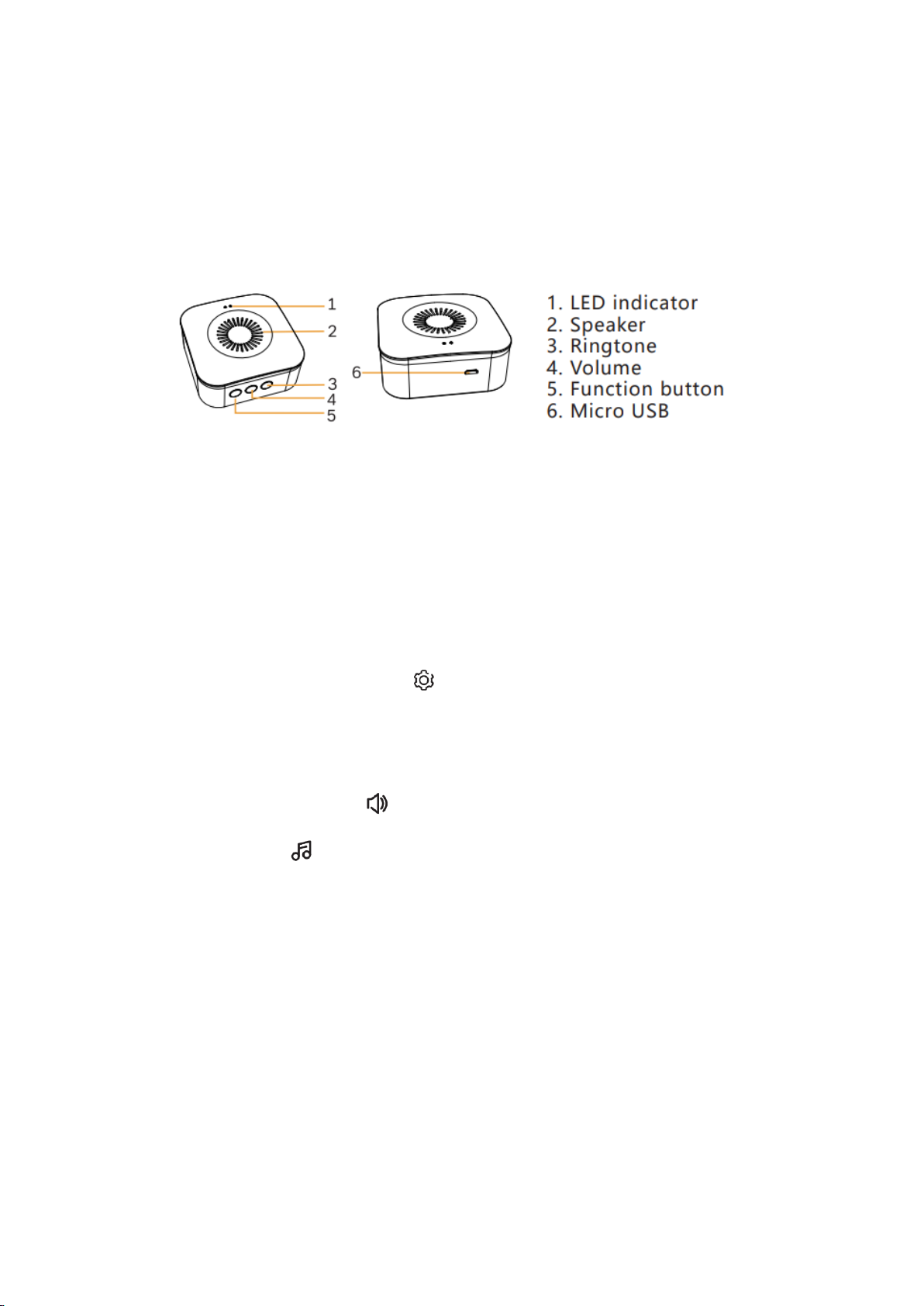
Pair the Chime
LED indicator of chime:
Flashing red light -- Wait for pairing
Fixed blue light --- Succeed to pair
Install the battery or plug in the cable to power on the camera:
1. Short press " " (within 2 seconds), the status light flashes red slowly and the chime
will be in pairing mode.
2. Press the doorbell button to pair, when the chime status light turns off, and the
song will play automatically, the chime pairing is successful at this time. Description:
1. The chime can connect to maximum eight doorbells. 2. When the chime is in
pairing mode, press the " " again (within 2 seconds), the chime will
automatically exit the pairing mode.
3. After adding the chime successfully, the volume will be adjusted to the maximum
automatically. When it is at the minimum volume, it will return to the maximum
volume after pressing " ".
4. Each press " ", will play the next song along with blinking blue light
Autres manuels pour VBELL 1
3
Table des matières
Autres manuels Arenti Accessoires