
Aquaris Aquaris E5 Manuel utilisateur

Complete User Manual

2
ENGLISH
Complete User Manual
bq Aquaris E5
The bq team would like to thank you for purchasing your new Aquaris E5. We hope
you enjoy using it.
The Aquaris E5 is an unlocked smartphone with dual SIM (micro-SIM) function,
which means you can use two SIM cards at the same time, regardless of network
operator. You can browse the internet, check your e-mail, play games, use apps
(which you can download directly onto the device), read e-books, transfer les via
Bluetooth, record audio, watch movies, take photos and videos, listen to music,
chat with your friends and family, use your favourite social networks and much,
much more.
About This Manual
· To guarantee correct use of your smartphone, please read this manual carefully
before using your device.
· It is possible that some of the images and screenshots shown in this manual may
not exactly match those of the nal product.
· As a result of rmware updates, it is possible that some of the content of this
manual may not exactly correspond to the operation of your device. To obtain
the most up-to-date version of this manual, please go to www.bq.com.
· bq shall not be held liable for any performance- or compatibility-related issues
caused by modification of the registration parameters on the part of the
user. Nor shall it be held liable for any incompatibility issues with third-party
applications available through the app stores.
About This Manual

3
ENGLISH
Complete User Manual
Icon guide
Danger: This icon indicates situations that could pose a risk to personal safety
or health.
Warning: This icon indicates situations that, although they do not pose a risk
to personal safety or health, could pose a risk to the correct functioning of
the device.
Tip: This icon indicates additional information that will help you make the
most of your device.
Trademarks
The bq logo is a registered trademark of Mundo Reader, S.L.
The Android and Google SearchTM logos are registered trademarks of Google Inc. Wi-Fi®is a registered trademark
of the Wi-Fi Alliance.
Bluetooth®is a registered trademark of Bluetooth SIG, Inc.
MicroSDTM and the corresponding logo are registered trademarks of SD-3D, LLC.
Dolby and the double-D symbol are registered trademarks of Dolby Laboratories.
All other trademarks are the property of their respective owners. All rights reserved.
Icon Guide / Trademarks

4
ENGLISH
Complete User Manual
8 BEFORE YOU BEGIN
8Box Contents
9Product Overview
10 GETTING STARTED
10 How to Insert SIM Cards
11 Inserting/Removing the MicroSD Card
13 Switching the Device On and Off
14 Charging the Device and Transferring Files
16 Setup Assistant
17 HOME SCREEN
17 Screen Lock
18 Home Screen
19 Extending the Home Screen
19 Adjusting Screen Rotation
20 Customising the Home Screen
20 Moving and Deleting Icons on the Home Screen
20 Creating App Folders
21 Taking Screenshots
21 Making Screen Recordings
21 Learning to Use the Multi-Touch Screen
24 Buttons and Icons
24 Buttons
24 Status Bar
25 Notications Bar
27 Keyboard
Contents
Contents

5
ENGLISH
Complete User Manual
28 TELEPHONE
28 Managing Contacts
28 Adding a Contact
29 Editing an Existing Contact
29 Using a Contact
30 Creating a Group of Contacts
31 Contacts to Show
31 Importing and Exporting Contacts
32 Blocking a Contact
32 Calls
32 Via the Phonebook
33 Options Available During a Phonecall
35 Hiding Your Caller ID
35 Restricting Calls
36 SMS and MMS
37 Message Settings
38 SETTINGS
38 WIRELESS SETTINGS
38 Managing SIM Cards
39 Wi-Fi
40 Bluetooth
41 Data Usage
42 More...
44 Wireless Screen
45 DEVICE SETTINGS
45 Audio Proles
46 Display
47 Storage
48 Battery
48 Apps
49 PERSONAL SETTINGS
49 Location
50 Security
51 Language and Text Input
52 Backup Copies
Contents

6
ENGLISH
Complete User Manual
53 ACCOUNT SETTINGS
53 SYSTEM SETTINGS
53 Date and Time
54 Auto Switch On and Power Off
54 Accessibility
57 Printing
57 About Phone
58 Developer Options
59 PERFORMANCE SETTINGS
59 Optimasing Battery Life
59 Monitoring Battery Usage Information
60 E-MAIL
60 Setting up a Gmail Account
60 Setting up Other E-mail Accounts
61 Sending an E-Mail
61 Replying to an E-Mail
62 MULTIMEDIA
62 Camera
63 Photo and Video Settings
66 Preset Image Modes
67 Image Gallery
68 Playing Music
69 Playing Videos
70 APPS
70 App Store
70 Apps from Unknown Sources
71 Preinstalled Apps
71 Internet Browser
72 Instant Messaging
72 Text Editor, Spreadsheets and Presentations
73 Calendar
73 Maps and GPS Navigation
73 File Explorer
74 Dolby
75 News&Weather (Genie Widget)
Contents

7
ENGLISH
Complete User Manual
76 TOOLS
76 Calculator
76 Clock
77 Voice Recorder
77 FM Radio
78 Voice Search
79 APPENDICES
79 APPENDIX A: OTA Updates
80 APPENDIX B: Technical Specications
81 APPENDIX C: Cleaning and Safety
84 APPENDIX D: Information on Exposure to Radio Waves and
SAR (Specic Absorption Rate)
85 APPENDIX E: Disposing of this Product Correctly
86 APPENDIX F: Declaration of Conformity
Contents

8
ENGLISH
Complete User Manual
BEFORE YOU BEGIN
Box Contents
Before using your bq device for the rst time, please check the contents of the box.
If any of the following items are missing, contact the retailer that sold you the device.
bq Aquaris E5
USB to micro-USB cable
Mains Charger
SIM key
Documentation:
Quick Start Guide
Warranty and Safety Manual
bq Accessories
Before You Begin

9
ENGLISH
Complete User Manual
Product Overview
MicroSD slot
Notication
LED
Front
camera
Menu
Microphone
Back
Speaker
Home
Micro-USB
port
Flash
Rear camera
Light and
proximity sensor
Receiver
Volume buttons
On/Off/Screen-lock
button
Noise-cancelling
microphone
Headphone jack
Micro-SIM
slots
Do not attempt to remove the rear cover of your bq Aquaris E5, as this may
damage the device.
Do not remove the battery for any reason. Removing it may invalidate the
warranty.
Do not insert any pointed objects into the opening next to the rear camera, as this
may damage the noise-cancelling microphone.
Before You Begin
10
ENGLISH
Complete User Manual
GETTING STARTED
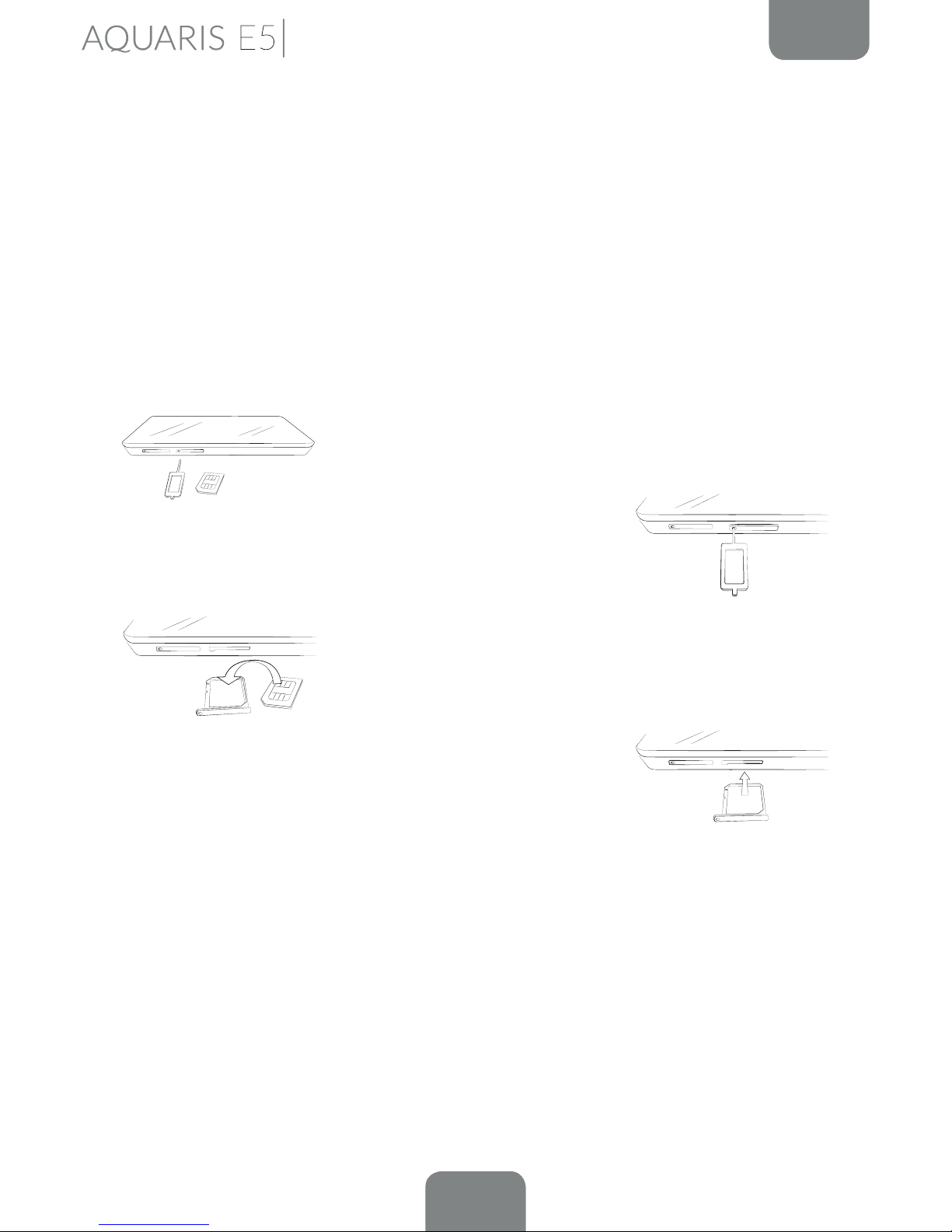
How to Insert SIM Cards
Your bq Aquaris E5 is a dual-SIM (2 x micro-SIM slot) smartphone. The SIM trays
are accessed from the phone’s exterior; the rear cover should not be removed under
any circumstances.
Later on we’ll show you how to congure and use the dual-SIM function. But rst,
the steps below will show you how to insert your SIM card(s) into the phone before
starting to use it.
Inside the box you’ll nd the phone documentation and the
SIM key.
Making sure the device is off, insert the end of the SIM key
in the opening of the SIM slot you wish to use.
Place your SIM card in the tray. Make sure it is in the
correct position (use the notch on the corner for guidance:
see image).
Once the SIM is in position, insert the tray back into the
slot.
Getting Started
Ce manuel convient aux modèles suivants
2
Table des matières
Autres manuels Aquaris Téléphone portable


