Apex Digital TM785CH Manuel utilisateur

1
TM785 User Manual v.1.0
Introduction
Thank you for purchasing the Apex TM785CH 7.85” internet tablet with Google Play. It utilizes
touch technology to make your personal computing fast, seamless and immersive. The tablet is
the perfect companion for accomplishing everyday tasks, browsing multimedia entertainment
and enhancing productivity on the go. Features include access to 25GB of free cloud storage,
Bluetooth connectivity, TF memory card slot for up to an additional 32GB of storage, front &
rear cameras, and trial access to a popular educational and video app for kids in a parent-
protected environment. With a sleek design, powerful processor and high-definition IPS display,
you’ll enjoy the TM785CH for many years to come. The following information will help get the
most out of your tablet so we strongly recommend reading it thoroughly.
What Is in the Box?
• Apex TM785CH Tablet
• AC Adapter; USB Cable; OTG Cable
• Quick Start Guide

2
Important Safety Instructions
Please read the following instructions and notices before using your tablet.
1. Avoid using in extremely hot, cold, dusty, damp or wet environments.
2. The tablet is not moisture/water-resistant. Avoid using the tablet around sources of
water.
3. Avoid dropping or forcibly placing the tablet onto a hard surface. This may
damage the screen or internal electronic components.
4. Do not use alcohol, thinner or benzene to clean the surface of the tablet. Use only
cleaning products designed for computer tablet devices.
5. Do not use the tablet while walking or driving.
6. Excessive use of earphones at high volume may lead to hearing impairment. Limit
earphone usage, and adjust the volume to a moderate level when doing so.
7. The images in this manual may vary slightly from the actual product.
8. Charge the tablet battery under any of the following circumstances:
a) Battery level icon indicates low power, by showing a drained, red battery icon.
b) Tablet powers-off automatically, continuing to do so even after restarting.
c) On-screen keys do not function.
9. Do not suddenly disconnect the tablet when formatting, uploading or downloading
data. This can lead to program errors (e.g., system or screen “freezing”.)
10. Static discharge in the cable, while it is connected to a computer, may corrupt files
or damage the memory.
11. Dismantling the tablet will void the manufacturer’s warranty. If you are experiencing
problems, review the Troubleshooting section of this manual.
12.Tablet functions, hardware, software, and warranty information may be revised by
the manufacturer or their respective owners, and subject to change without notice.
13.Warning: This product may contain a chemical known to the State of California to
cause cancer, birth defects, or other reproductive harm.

3
Table of Contents
Introduction / What Is In the Box p1
Safety Instructions p2
Table of Contents p3
Function Overview p4-5
Getting Started
a. Charging the Battery/Battery Care p6-8
b. Tablet Power On & Unlock Screen/Tablet Power Off/Standby
Basic Operation p8-12
a. Home Screen and Managing Apps
b. Screen Orientation
c. Notification Bar
d. Bottom Navigation Bar Overview (Back, Home, Open Apps, Take a Screenshot)
e. On Screen Text Entry
f. Common Finger Gestures (Touch & Hold, Drag, Pinch to Zoom)
Setting Up Your Tablet p13-15
a. Connecting to Wi-Fi
b. Set Date & Time
c. Changing the Wallpaper
Pre-Installed Apps p16-22
a. Preloaded Apps (Google Play Store, Playkids, CloudLink, Maxthon, AccuWeather)
b. Cloud Storage (Google Drive, File Locker)
c. Utilities (Calculator, Calendar, Clock, File Manager)
d. Maps
e. Google Now
Multimedia Apps p23-24
a. Music
b. Video
c. Sound and Voice Recorders
Overview of Features p25-33
a. Front & Rear Cameras
b. Camera Setting/Adjustments
c. Gallery (Photos & Video)
d. Bluetooth
e. TF Memory Card Slot
f. Connecting External USB Devices
g. Email Accounts (email, Gmail)
h. Transfer Media Files
Settings Menu p34-35
a. Wireless Menu (WiFi, Data Usage)
b. Device Menu (Sound, Display, Storage, Battery, Apps)
c. Personal Menu (Location Access, Security)
d. Account Menu (Google, Add Accounts)
e. System Menu (Date & Time, Accessibility, About Tablet)

4
Function Overview
Touch Screen
Experience brilliant detail and wide angle viewing from the widescreen 10.1” IPS panel
with 1280 x 800 resolution.
1. Front Camera
Built in 2MP front camera allows you to take “selfies” or to add video to your calls to family
& friends.
2. Power/Lock Key
Powers ON/OFF when held for about 3 seconds. Locks and unlocks the tablet in Standby
Mode.
3. Rear Camera
Built in 2MP rear camera allows you to take HD videos or pictures.
4. Micro USB Port
Transfer media files to or from your computer to the Tablet. Micro USB 2.0 will charge the
internal battery from your PC (slow charge only).
DC Input & Charging Port
Connect to charge the internal rechargeable battery.
5. Headphone Jack
Use headphones for private listening or to connect with amplified speakers.
6. Volume ± Key
Increase or decrease the volume level.
7. Micro TF Card Slot
Built-in memory card reader slot that supports up to an additional 32GB of storage.
8. Speaker
Built in audio speaker to listen without need for headphones.
9. Microphone
Use for voice narration, meetings, or note taking.
FRON
T
REAR
143 5
7
8
9
6
2

5
Getting Started
Charging the Battery
Connect the MicroUSB cable to the wall plug power adapter, then to the Tablet as
shown. It is recommended to fully charge the battery before first use.
NOTE: It takes approximately five hours to recharge the battery via AC power and
it is normal for the Tablet to feel warm during the recharging process and actual
usage. Play times will vary depending on display settings, apps that remain open,
and your internet usage.
Battery Care
Operating temperature: Your Tablet is designed to function between 32°F and 95°F (or
0°C to 35°C). Lithium-polymer batteries are sensitive to higher temperatures, so keep
your Tablet out of direct sun light and don’t leave it in a closed environment susceptible
to extreme temperatures (ie: such as a vehicle).
Recharge Battery: Recharge the battery whenever it is convenient; it is also
recommended to run the battery down to 10% at least once a month and recharge it.
To View battery usage: Go to Settings > Battery to determine where battery resources
are being used and for what purpose.

6
Power ON & Unlock Screen
Press and hold the POWER button on the side for about 3 seconds until the logo
screen appears, then release. The tablet will eventually display the locked Start-Up
screen. Slide the “Lock” icon to the right to unlock.
Power OFF
Press and hold the POWER button until the POWER OFF window appears, then tap to
turn off.You also have the option to reboot the tablet, turn sound or Airplane mode off
and on.
Standby
Briefly press the POWER button to enter STANDBY mode which will turn off the display
and leave the tablet in a low-power mode.
NOTE: Battery drain will occur in this mode when compared to completely turned off.

7
Basic Operation
Unlocking the Tablet
The lock screen is the starting point when you power on your tablet. To unlock, tap the
lock icon then drag your finger to unlock.
Home Screen and Managing Your Apps
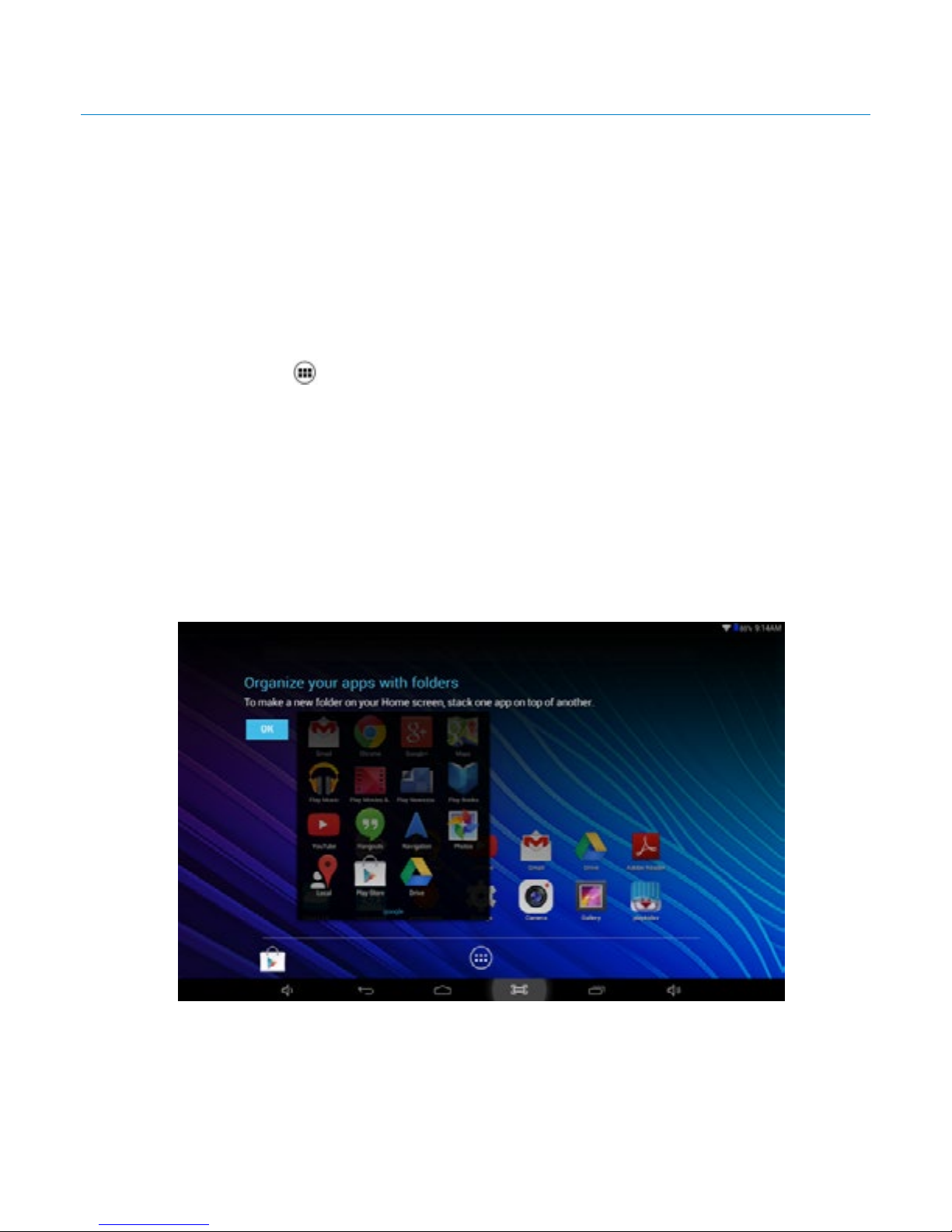
The Home screen is where all of the applications are found on your tablet. There are
additional applications in the App Tray. Most Google apps are contained in a folder for
your convenience.
Press the App Tray icon to launch all Apps on the Tablet. Swipe your finger to the
left or right to view additional Apps (if available). The Home screen is comprised of 5
separate screens; the main screen, and others on the right and left side.
In order to move an App from the App Tray to the Home Screen, touch and hold the
app, then drag it to the desired screen. To remove it, touch and hold the App, then drag
it to the “Remove” icon at the top of the screen.

8
Screen Orientation
The Tablet is set for “Auto-Rotation”. When enabled, the screen automatically rotates
based on how you are holding the tablet.
To lock the display in a Landscape or Portrait screen orientation, simply deselect the
“Auto-rotate screen” option in Settings > Accessibility.
Portrait
Landscape

9
Notification Bar
Swipe the Top Left or Right Side the Status Bar to View Notifications
Notifications provide a means to alert you of new messages, alarms and scheduled
events, screenshots captured, etc. The Notification Bar is the black bar at the top of the
screen. To view notifications, swipe your finger down from the top left side of the bar to
open pending notifications. When done, simply swipe back to close.
For quick access to Settings options, swipe your finger down from the top right side of
the Notification Bar. Quickly adjust for brightness, Wi-Fi, screen rotation, battery status,
and more.

10
Bottom Navigation Bar Overview
Take a Screen Shot - You can take a screenshot of the current image on your tablet.
Save it in your Gallery or share with others. To capture an image tap the icon.
NOTE: To share or edit an image, swipe your finger down from the top left of the
screen to select.
Volume Down – Tap to decrease volume.
Back – Tap or to go back to the previous screen. Once back to the Home
screen you cannot go further back.
Home – Tap to open the home screen.
Open Apps – Tap to open a list of thumbnail images you have open. To open an
app, tap on it. To close an app, swipe it left or right.
NOTE: Closing open apps will avoid excessive battery drain.
Volume Up – Ta p to increase volume.
On Screen Text Entry
To type information, tap in the text field. An on-screen keyboard will appear and allow
you to type directly on the display.
Ce manuel convient aux modèles suivants
1
Table des matières
Autres manuels Apex Digital Comprimé