
AOC 210V Manuel utilisateur

AOC 210V User Manual
Preface
About This Guide
This guide describes the monitor's features, setup, and operation. lnformation in this document is subject to change without notice.
The sections are as follows:
xSafety Instructions: lists safety information.
xSetup: describes the initial setup process.
xUsing the Monitor: gives an overview of how to use the monitor.
xDrivers: provides driver installation instructions for Windows.
xTechnical Support :provides tips and solutions for common problems.
xProduct Information: lists the technical specifications of the monitor.
xWarranty Statement: Warranty Statement used in Australia and New Zealand.
National Conventions
The following subsections describe notational conventions used in this document.
Notes, Cautions, and Warnings
Throughout this guide, blocks of text may be accompanied by an icon and printed in bold type or in italic type. These blocks are notes, cautions, and warnings, and they are used as
follows:
NOTE: A NOTE indicates important information that helps you make better use of your computer system.
CAUTION: A CAUTION indicates either potential damage to hardware or loss of data and tells you how to avoid the problem.
WARNING: A WARNING indicates the potential for bodily harm and tells you how to avoid the problem.
Some warnings may appear in alternate formats and may be unaccompanied by an icon. In such cases, the specific presentation of the warning is mandated by regulatory authority
Safety Instructions
FCC Notice
FCC Class B Radio Frequency Interference Statement WARNING: (FOR FCC CERTIFIED MODELS)
NOTE: This equipment has been tested and found to comply with the limits for a Class B digital device, pursuant to Part 15 of the FCC Rules. These limits are designed to provide
reasonable protection against harmful interference in a residential installation. This equipment generates, uses and can radiate radio frequency energy, and if not installed and used in
accordance with the instructions, may cause harmful interference to radio communications. However, there is no guarantee that interference will not occur in a particular installation. If
this equipment does cause harmful interference to radio or television reception, which can be determined by turning the equipment off and on, the user is encouraged to try to correct the
interference by one or more of the following measures:
1. Reorient or relocate the receiving antenna.
2. Increase the separation between the equipment and receiver.
3. Connect the equipment into an outlet on a circuit different from that to which the receiver is connected.
4. Consult the dealer or an experienced radio/TV technician for help.
NOTICE :
1. The changes or modifications not expressly approved by the party responsible for compliance could void the user's authority to operate the equipment.
2. Shielded interface cables and AC power cord, if any, must be used in order to comply with the emission limits.
3. The manufacturer is not responsible for any radio or TV interference caused by unauthorized modification to this equipment. It is the responsibilities of the user to correct such
interference.
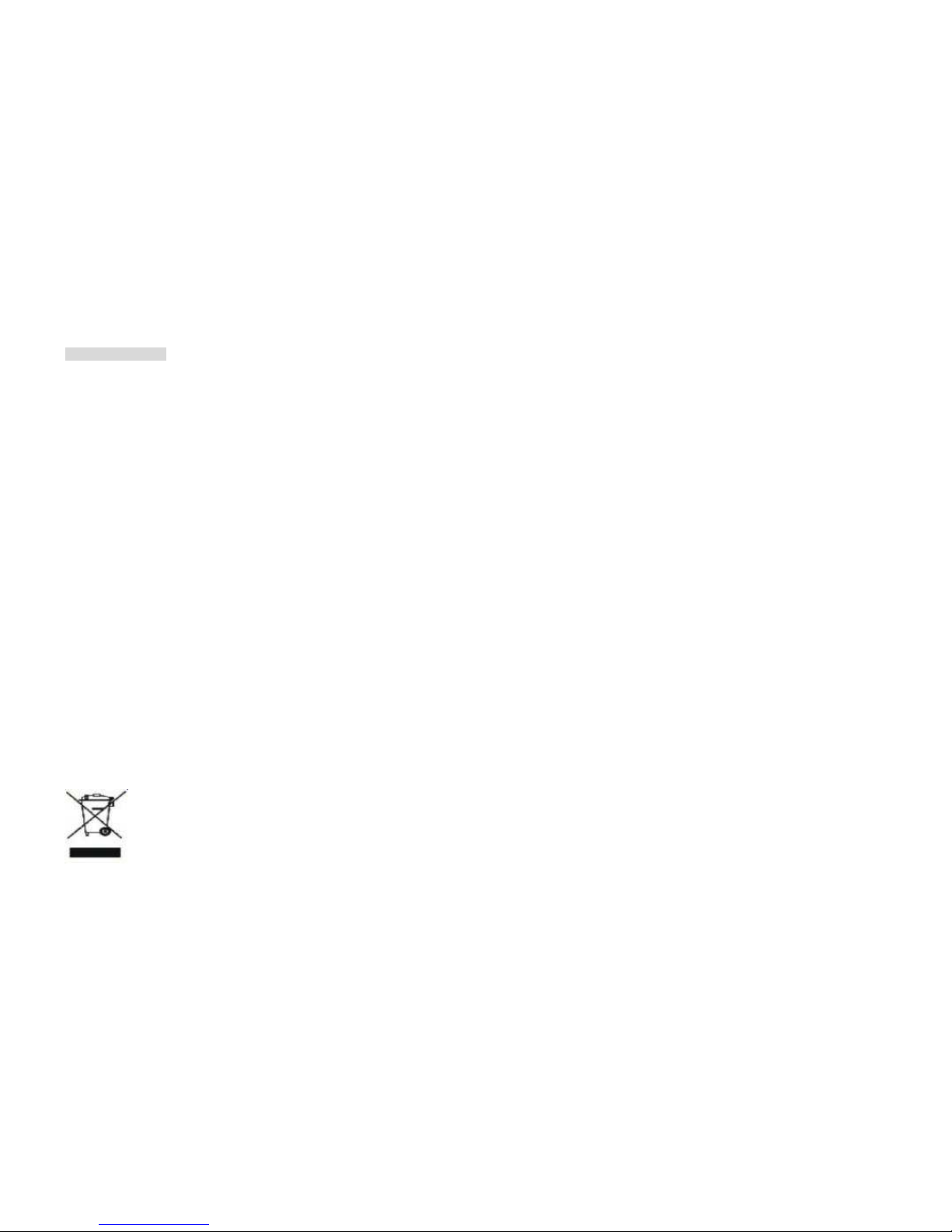
WEEE Declaration
Disposal of Waste Equipment by Users in Private Household in the European Union.

This symbol on the product or on its packaging indicates that this product must not be disposed of with your other household waste. Instead, it is your responsibility to dispose of your
waste equipment by handing it over to a designated collection point for the recycling of waste electrical and electronic equipment. The separate collection and recycling of your waste
equipment at the time of disposal will help to conserve natural resources and ensure that it is recycled in a manner that protects human health and the environment. For more
information about where you can drop off your waste equipment for recycling, please contact your local city office, your household waste disposal service or the shop where you
purchased the product.
HG Declaration
SAFETY: Lamp Disposal
LAMP(S) INSIDE THIS PRODUCT CONTAIN MERCURY AND MUST BE RECYCLED OR DISPOSED OF ACCORDING TO LOCAL, STATE OR FEDERAL LAWS. FOR MORE
INFORMATION, CONTACT THE ELECTRONIC INDUSTRIES ALLIANCE AT WWW.EIAE.ORG.
Precautions
WARNING: Use of controls, adjustments, or procedures other than those specified in this documentation may result in exposure to shock, electrical hazards, and/or
mechanical hazards.
Read and follow these precautions when connecting and using your computer monitor:
PRECAUTIONS
xDo not use the monitor near water, e.g. near a bathtub, washbowl, kitchen sink, laundry tub, swimming pool or in a wet basement.
xDo not place the monitor on an unstable cart, stand, or table. If the monitor falls, it can injure a person and cause serious damage to the appliance. Use only a cart or stand
recommended by the manufacturer or sold with the monitor. If you mount the monitor on a wall or shelf, use a mounting kit approved by the manufacturer and follow the kit
instructions.
xSlots and openings in the back and bottom of the cabinet are provided for ventilation. To ensure reliable operation of the monitor and to protect it from overheating, be sure
these openings are not blocked or covered. Do not place the monitor on a bed, sofa, rug, or similar surface. Do not place the monitor near or over a radiator or heat register. Do
not place the monitor in a bookcase or cabinet unless proper ventilation is provided.
xThe monitor should be operated only from the type of power source indicated on the label. If you are not sure of the type of power supplied to your home, consult your dealer or
local power company.

xThe monitor is equipped with a three-pronged grounded plug, a plug with a third (grounding) pin. This plug will fit only into a grounded power outlet as a safety feature. If your
outlet does not accommodate the three-wire plug, have an electrician install the correct outlet, or use an adapter to ground the appliance safely. Do not defeat the safety
purpose of the grounded plug.
xUnplug the unit during a lightning storm or when it will not be used for long periods of time. This will protect the monitor from damage due to power surges.
xDo not overload power strips and extension cords. Overloading can result in fire or electric shock.
xNever push any object into the slot on the monitor cabinet. It could short circuit parts causing a fire or electric shock. Never spill liquids on the monitor.
xDo not attempt to service the monitor yourself; opening or removing covers can expose you to dangerous voltages and other hazards. Please refer all servicing to qualified
service personnel.
xTo ensure satisfactory operation, use the monitor only with UL listed computers which have appropriate configured receptacles marked between 100 - 240V AC, Min. 5A.
xThe wall socket shall be installed near the equipment and shall be easily accessible.
xFor use only with the attached power adapter (Output 12Vdc) which have UL,CSA listed license(Only for monitors with power adapter).
Setup
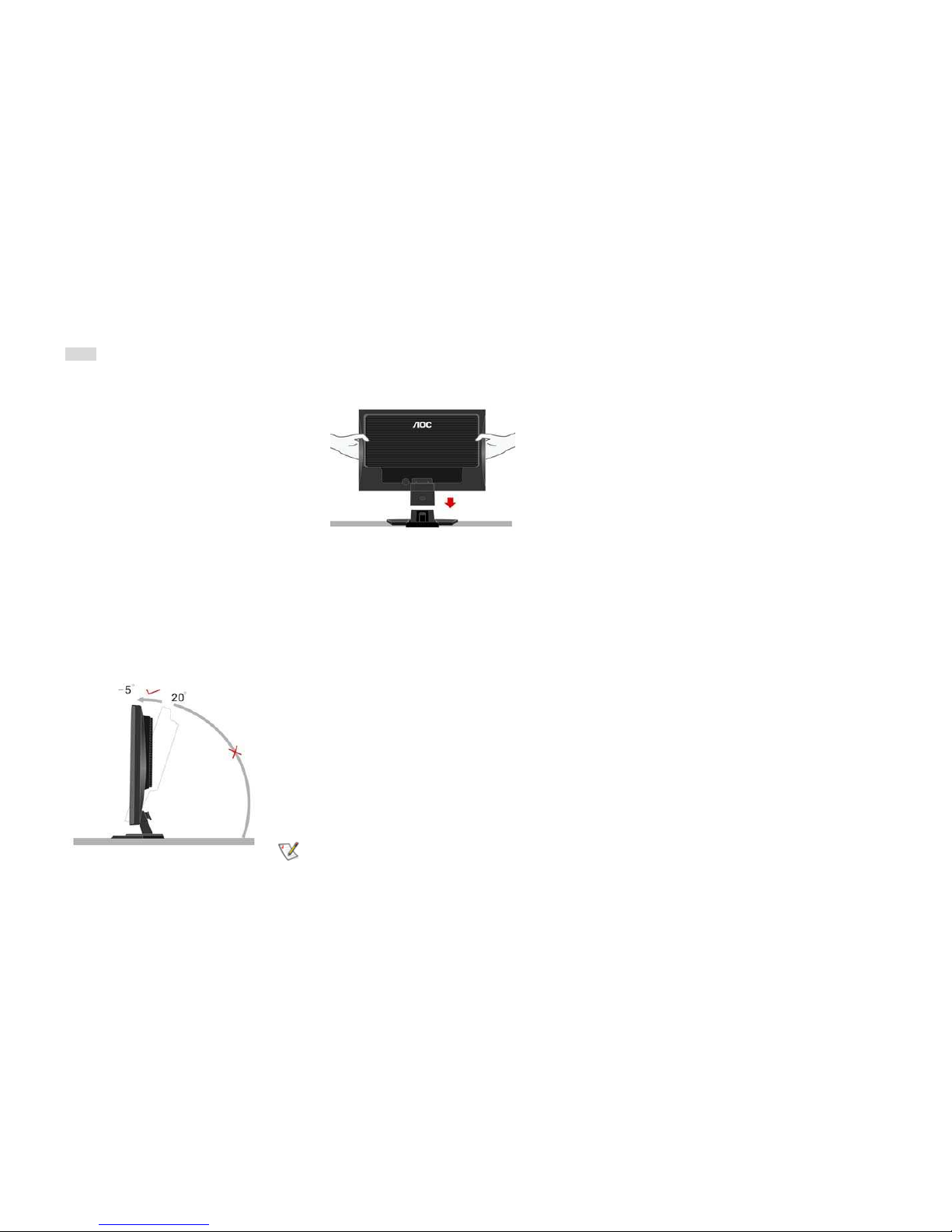
Setup the stand and base
Please setup or remove the base following below steps.
Adjusting Viewing Angle
xFor optimal viewing it is recommended to look at the full face of the monitor, then adjust the monitor's angle to your own preference.
xHold the stand so you do not topple the monitor when you change the monitor's angle.
xYou are able to adjust the monitor's angle from -5°to 20°.
NOTE: Do not touch the LCD screen when you change the angle. It may cause damage or break the LCD screen.

Attaching the Cables
Cable Connections On Back of Monitor and Computer
1.Power
2.DVI
3.Analog
Turn off your computer before performing the procedure below.
1. Connect the power cable to the AC port on the back of the monitor.
2. Connect one end of the 15-pin D-Sub cable to the back of the monitor and connect the other end to the computer's D-Sub port.
3. (Optional - Requires a video card with DVI port) - Connect one end of the 24-pin DVI cable to the back of the monitor and connect the other end to the computer's DVI port
4. Turn on your monitor and computer.
If your monitor displays an image, installation is complete. If it does not display an image, see Troubleshooting.

Attaching Wall Mounting Arm
Preparing to Install An Optional Wall Mounting Arm
This monitor can be attached to a wall mounting arm you purchase separately. Disconnect power before this procedure. Follow these steps:
1. Remove the base.
2. Follow the manufacturer's instructions to assemble the wall mounting arm.
3. Place the wall mounting arm onto the back of the monitor. Line up the holes of the arm with the holes in the back of the monitor.
4. Insert the 4 screws into the holes and tighten.
5. Reconnect the cables. Refer to the user's manual that came with the optional wall mounting arm for instructions on attaching it to the wall.

Using the Monitor
Setting the Optimal Resolution
The recommended resolution for this monitor is 1680 by 1050. To setup the monitor to this resolution, follow the steps below.
1. Click START.
2. Click SETTINGS.
3. Click CONTROL PANEL.
4. Double click DISPLAY.
5. Click SETTINGS.
6. Set the resolution SLIDE-BAR to 1680 by 1050.
External Controls
Press the power button to turn the monitor on or off. The other control knobs are located at front panel of the monitor (See Figure ). By changing these settings, the picture can be
adjusted to your personal preferences.
* The power cord should be connected.
* Press the power button to turn on the monitor. The power indicator will light up.
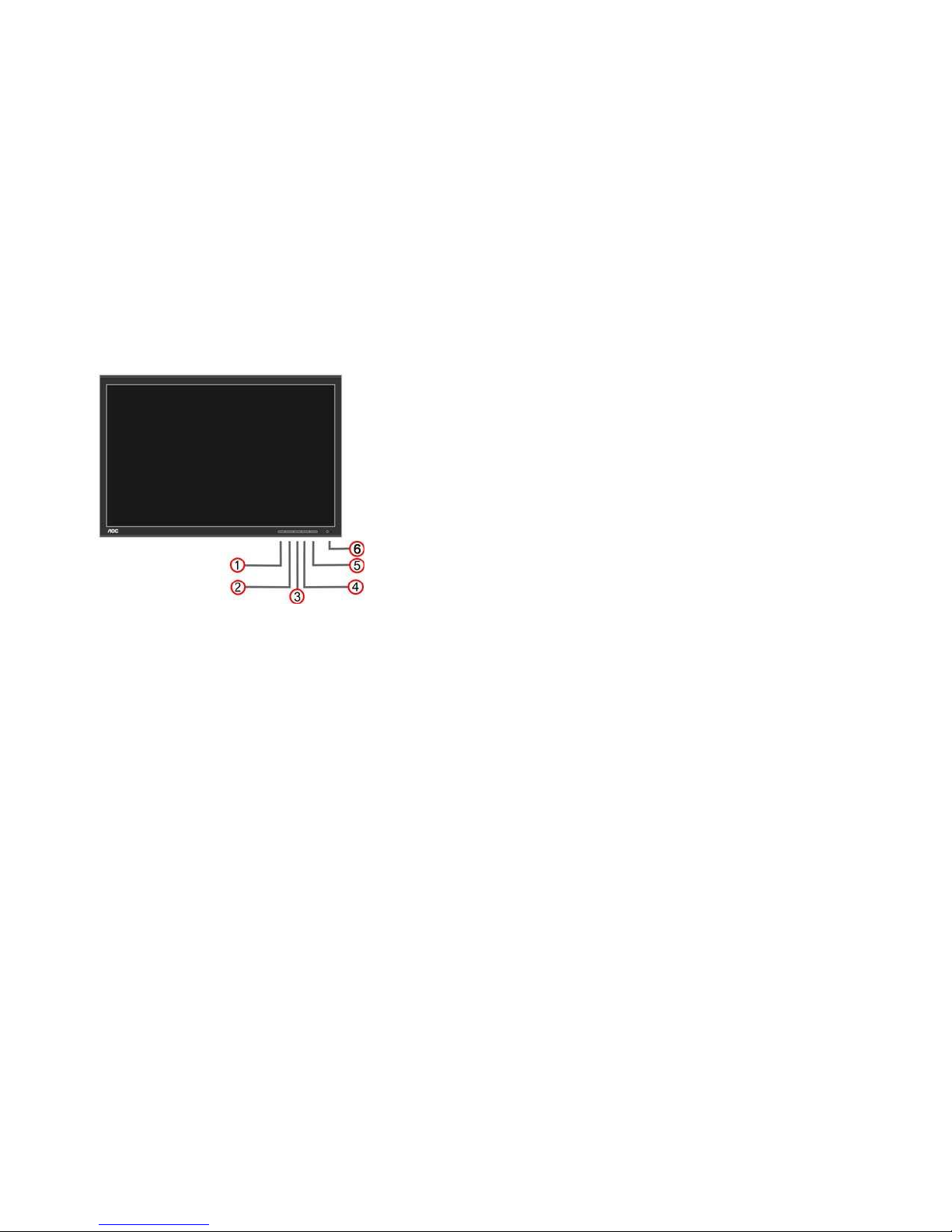
1.Souce
2. Auto Config
3. Eco Mode/ down
4. Up
5. Menu / Enter
6. Power Button & Indicator
OSD Settings
xPress the MENU-button to activate the OSD window.
xPress+ or - to navigate through the functions. Once the desired function is highlighted, press the MENU-button to activate it. If the function selected has a sub-menu, press or
again to navigate through the sub-menu functions. Once the desired function is highlighted, press MENU-button to activate it.
xPress+ or - to change the settings of the selected function. To exit and save, select the exit function. If you want to adjust any other function, repeat steps 2-3.
xOSD Lock Function: To lock the OSD, press and hold the MENU button while the monitor is off and then press power button to turn the monitor on. To un-lock the OSD - press
and hold the MENU button while the monitor is off and then press power button to turn the monitor on.

Function Control Illustration
Luminance Adjust Range Description
Brightness 0-100 Backlight Adjustment
Contrast 0-100 Contrast from Digital-register.
Standard Standard Mode
Text Text Mode
Internet Internet Mode
Game Game Mode
Movie Movie Mode
Eco mode
Sports Sports Mode
Gamma1 Adjust to Gamma1
Gamma2 Adjust to Gamma 2
Gamma
Gamma3 Adjust to Gamma 3
Off Disable dynamic contrast ratio
DCR On Enable dynamic contrast ratio
Image Setup
Clock 0-100 Adjust picture Clock to reduce Vertical-Line noise.
Focus 0-100 Adjust Picture Phase to reduce Horizontal-Line noise
H.Position 0-100 Adjust the vertical position of the picture.
V.Position 0-100 Adjust the horizontal position of the picture.
Table des matières
Autres manuels AOC Moniteur

AOC
AOC CU34G2XE/BK Manuel utilisateur

AOC
AOC 177sa Manuel utilisateur

AOC
AOC 519Sw Manuel utilisateur

AOC
AOC I2490PXQU Manuel utilisateur

AOC
AOC Q32V3S Manuel utilisateur

AOC
AOC e2060Sda Manuel utilisateur

AOC
AOC I2769VM Manuel utilisateur

AOC
AOC E2775SJ Manuel utilisateur

AOC
AOC LM-729 Manuel utilisateur

AOC
AOC C24G1 Manuel utilisateur

AOC
AOC LM800 Manuel utilisateur

AOC
AOC e1649Fwu Manuel utilisateur

AOC
AOC A2258PW Manuel utilisateur

AOC
AOC Q32P2CA Manuel utilisateur

AOC
AOC 24B2XHM2 Manuel utilisateur

AOC
AOC 786ls Manuel utilisateur

AOC
AOC 177sa Manuel utilisateur

AOC
AOC E960PRDAS Manuel utilisateur

AOC
AOC AG273QCX Manuel utilisateur

AOC
AOC CU34G2X Manuel utilisateur


