Amcrest AMDV5M8 Manuel utilisateur

Digital Video Recorder
Quick Start Guide
Version 1.0.0.
January 20th, 2022

2
Contents
Front/Back Panel Diagrams & Descriptions........................................................................3
Hardware Setup ..................................................................................................................4
Console Setup.....................................................................................................................6
Main Menu overview.........................................................................................................12
Motion Detection & Recording Setup................................................................................14
Setting Up AI Events......................................................................................................21
Accessing Playback ..........................................................................................................28
How To Upgrade System Firmware..................................................................................30
Computer Access Setup ...................................................................................................30
Accessing the Web User Interface....................................................................................32
Web Interface Walkthrough...............................................................................................35
Amcrest View Pro App Setup............................................................................................36
FCC Statement..................................................................................................................38
IC Warning Statement.......................................................................................................38
References & Contact Information....................................................................................39

3
Welcome
Thank you for purchasing an Amcrest DVR!
This document is designed as a reference tool only for the installation and operation of your DVR.
To access and download the full user manual for your DVR, please go to amcrest.com/support.
Important Safeguards and Warnings
Use of this product should conform to your local electrical safety codes.
We assume no liability or responsibility for any of the fires or electrical shocks caused by improper
handling or installation.
We are not liable for any problems caused by unauthorized modifications or attempted repair.
Improper battery use may result in fire, explosion, or personal injury.
When replacing the battery, please make sure you are using the same model.
Check Packaging
When you receive the system, unpack it, and check all sides of the DVR to see if there is any
damage to the unit. The protective materials used for the packaging of the DVR can protect most
accidental damage during transportation, but to ensure that your equipment is operating as
expected, it is recommended to inspect the product before proceeding further.
On the DVR unit, please verify that the label on the bottom of the DVR is not damaged. The serial
number of the unit is often needed to provide support or other functions such as connecting to the
Amcrest View Pro app.
Front/Back Panel Diagrams & Descriptions
Front Panel
Please refer to the following chart for information on the front panel buttons.
Icon
Name
Function
NET
Network abnormality indicator light
When a network error occurs or there is no network
connection, this light turns red.
PWR
Power indicator
When DVR is on, this light remains on.
HDD
HDD abnormal indicator light
When an HDD error occurs, or the HDD capacity is
below the specified threshold value, this light turns red.
USB 2.0 Port
USB 2.0 port: connect a mouse, USB storage device,
etc.

4
Rear Panel
Please refer to the following chart for detailed information on the rear panel ports:
Port Name
Function
Video Input Port
Connects to analog camera to input video signal.
Audio Input Port
Receives audio signal output from an RCA microphone DVR.
Audio Output Port
Output’s audio signal to an external RCA speaker.
HDMI Port
High-definition audio and video signal output port. The port outputs
an uncompressed high-definition feed as well as multichannel
audio data to a connected HDMI compatible display.
USB Port
Connects to an external DVR such as, a mouse, keyboard, or
external USB storage DVR.
Ethernet Port
Connects an Ethernet cable to the network.
A/B Port
Connects to a control device such as PTZ. RS-485_A port is
connected by the cable “A” and RS-485_B is connected to the
cable “B”.
VGA Port
Outputs analog video data to a connected display with a compatible
VGA port.
Power Input Port
Inputs DC 12V power.
Ground terminal.
Power Cable Fastener
Use a clamp to secure the power cable on the DVR to avoid signal
error.
Hardware Setup
Before setting up the DVR, you will need the following items.
The items are not included:
A computer monitor or TV with either an HDMI or VGA input
A power strip with room for 4 large power plugs
It is recommended to connect all components of the system as shown below before mounting any
of the cameras. This is to ensure all components areworking before any physical installation takes
place. If any components are not functioning, please contact Amcrest Support at
https://amcrest.com/contact or by giving us a call at 888-212-7538.
Setting up the cable connections
The following instructions will show you how to set up the cables for the DVR, cameras, as well as
a monitor or TV screen.
1. Connect a monitor or TV screen to your DVR. For purposes of this guide, we will use a VGA
connection. Take a VGA cable, and connect one end to the VGA port on your monitor/screen and
the other end to the VGA port on the back panel of your DVR.

5
2. Connect the included USB mouse to the front of the DVR.
3. Connect an Ethernet cable to your router and connect the other end of the Ethernet cable to the
Ethernet port on the back of the DVR.
4. Plug the included power adapter into the power port on the back of the DVR and plug the power
adapter into a wall outlet or surge protector. Allow the DVR to power up. Please note, the DVR will
beep if a hard drive (sold separately) is not installed, for more information on how to install a hard
drive, please refer to “Hard Drive Installation”.
5. Secure the BNC connection on the coaxial cable to the BNC video connection on the camera
then connect the power connection to the power port of the camera.
6. Secure the other BNC connection from the camera to a video (coaxial) ports on the back of the
DVR and connect the power adapter to the power port found on the BNC cable.
- PLEASE READ BELOW-
Note: Your DVR may not work properly if the following is not accounted for.
Every DVR comes preset to a video output resolution of 1280x1024. What this means is that any
time an HDMI cable is plugged into an HDTV, it may result with a blank screen even if the DVR is
working properly.
If this occurs, please follow the steps below.
Procedure using a VGA cable:
1. Connect your DVR to a computer monitor or TV screen with a VGA cable (the HDMI cable
should not be connected during this process).
2. Boot up the unit. On the monitor or TV, please make sure the “input” is set to VGA.
3. When the interface loads, you will see the login screen. Enter the login credentials for your DVR.
If this is your first-time logging into your unit, the default username and password will be admin.
4. Once you have logged into your DVR, navigate to the section that says Display. The display
menu allows you to configure resolution and display settings.
5. Then, on the new window, change your resolution from 1280x1024 to 1920x1080. Once
complete, scroll down to the bottom and click on Save to save your display settings. Your DVR will
reset to effect the change.
6. Disconnect the VGA cable and connectyour DVR to an HD monitor or TV using an HDMI cable.
Do not forget to change the input to HDMI on your TV/monitor. The DVR will load, and you will be
able to properly use the unit on your screen.
Hard Drive Installation
A hard drive allows you to configure and store recordings from the DVR, this includes playing back
previously recorded footage.
Note: This section only applies to DVRs purchased without a hard drive already preinstalled. Most
‘kits’ or ‘bundles will come with a pre-installed hard drive.

6
The DVR has connections for only 1 hard drive inside the case and the hard drive must be
no bigger than 10TB (Terabytes).
To install your hard drive, the following is needed:
A medium sized (regular) Phillips-head screwdriver - not included
A hard drive - not included (unless you purchased a ‘kit’ that does have one included)
Four hard drive fastening screws - included
Note: Before installing the hard drive, make sure the DVR is powered off and completely
disconnected from power.
1. Loosen the screws on
the upper cover and side
panel.
2. Attach four screws in the
HDD (Turn three times.)
3. Place the HDD in accordance
with the four holes on the bottom.
4. Turn the device over
secure the screws.
5. Connect the HDD data cable
and power cable to the HDD.
6. Attach the cover onto the DVR
and secure it using the screws.
Once the hard drive is installed, turn on the DVR. If the hard drive for your DVR was not setup
properly you may hear a beeping noise. This indicates the DVR does not have the proper
connection with your hard drive.
Console Setup
Device Initialization
After turning the system on, the default video display will show multiple windows and a device
initialization page will appear. Follow the on-screen prompts to complete initialization.
Password Setting
The first thing you will need to do in the setup process is create a new admin password for your
device. The password for your device should be between 8 and 32 characters with a combination
of letters, numbers, and symbols are recommended.
Note: Please do not use special symbols like ‘ “ ; : &
Once you have entered a new password for your device, confirm the password in the next field.

7
Please note that the system consists of two accounts (out of the box):
Username: admin Password: admin (administrator, local and network)
Username: default Password: default (hidden user)
Lastly, you will be asked to enter a prompt question for your account. This is useful if you have
forgotten your password and would like an easier means of recovering your password. Please use
a prompt question what will help you remember the password for your device.
After you have completed this section, click Next to continue.
Unlock Pattern
This is an optional security measure for your device. You can also assign an unlock pattern for
your admin account. To set an unlock pattern, using your mouse, draw a design which you will
remember to access your device. If you do not wish to assign an unlock pattern, you can
click “Skip” to skip this process.

8
If you have assigned an unlock pattern, you will need to draw the pattern again to confirm the
validity of your assigned unlock pattern.
Password Protection
Additional means of password protection and retrieval can be set up in this menu. If you would like
to reset your password via email, toggle the toggle switch to the on position and enter a valid email
address in the Email Address field. The email address will be retained in the system.
If you do not wish to use an email address, you can enter security questions. To enable security
questions, click the toggle switch to the on position in the Security Questions field. Select a
question from the drop-down menus for Question 1, Question 2, and Question 3 and enter the
answers to those questions in the Answer fields.

9
Once this section is complete, click on the OK button to save your information to the device.
Startup Wizard Walkthrough
The first page of the Startup Wizard will appear.
If you do not want to use the Startup Wizard, or you have already gone through it and do not want
it to keep appearing, unmark the checkbox next to Startup and click Cancel.
Note: Every page from the Startup Wizard that follows can be accessed and modified at any time
through the Main Menu. To login to the system, click Next.
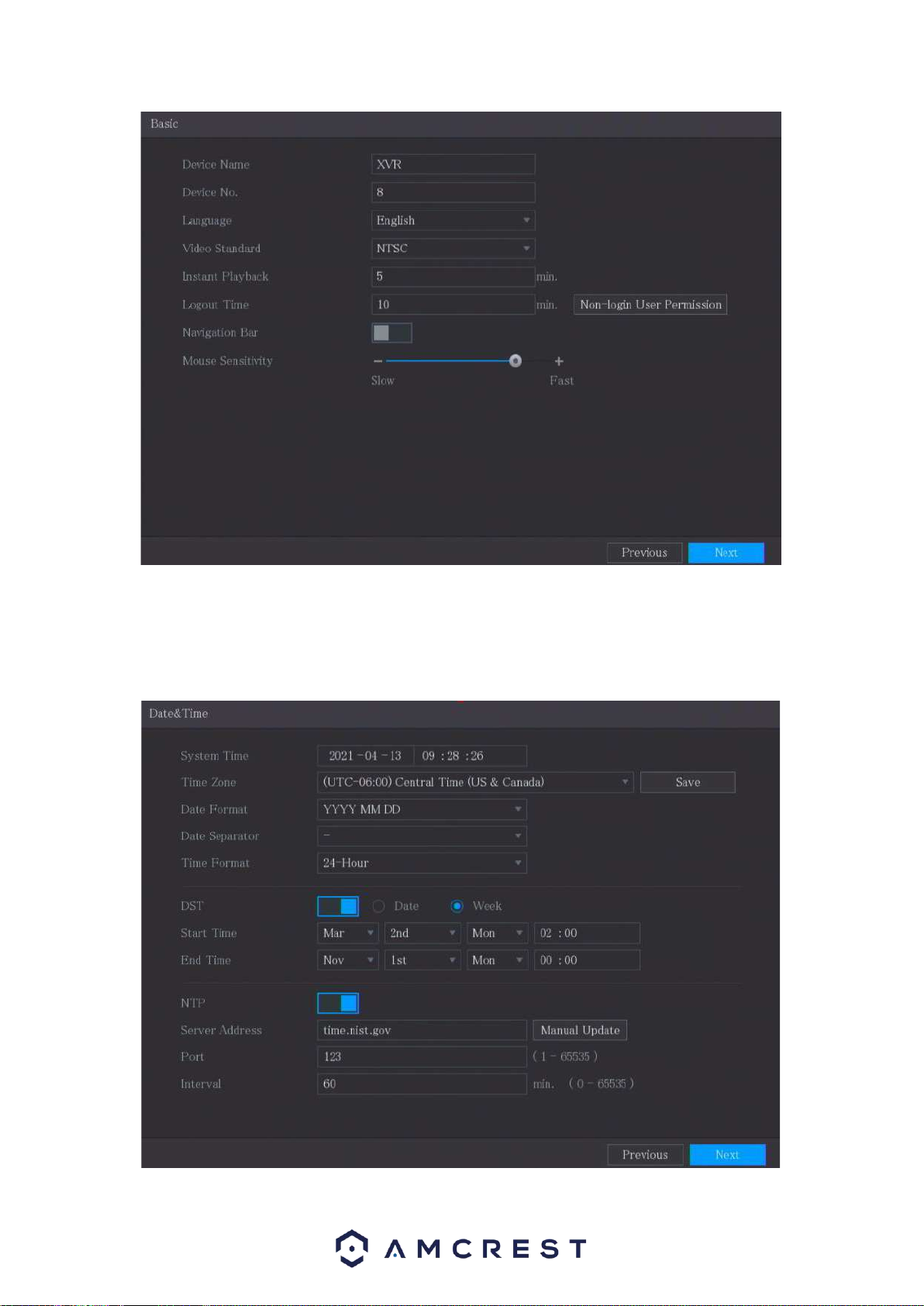
Basic
The Basic screen allows you to set a language, video standard and other basic settings for the
DVR. Once you are satisfied with the settings on this screen, click the Next button at the bottom
of the screen.

10
Date & Time
The next screen that appears will be the Date & Time settings screen. This is where you can set
the date and time for your specific location. If you wish to utilize daylight savings time, toggle the
DST toggle switch to the on position. Once you have selected the proper date and time for your
device, click the Next button to continue.
Table des matières
Autres manuels Amcrest DVR

Amcrest
Amcrest H5 Series Manuel utilisateur

Amcrest
Amcrest A2 Manuel utilisateur

Amcrest
Amcrest XVR/H5 Manuel utilisateur

Amcrest
Amcrest AMDV7204-2B2D Manuel utilisateur

Amcrest
Amcrest 960H Manuel utilisateur

Amcrest
Amcrest General 720P(V2) Mini 1U Series Manuel utilisateur

Amcrest
Amcrest NVR11H Series Manuel utilisateur

Amcrest
Amcrest AMDV4M4 Manuel utilisateur

Amcrest
Amcrest HDCVI Manuel utilisateur

Amcrest
Amcrest 960H Manuel utilisateur