
Amazfit GTS 2e Manuel utilisateur

Amazfit GTS 2e User Guide
Contents
Amazfit GTS 2e User Guide..........................................................................................................................1
Getting started................................................................................................................................................3
Appearance ....................................................................................................................................3
Power on and off............................................................................................................................3
Charging ........................................................................................................................................3
Wearing and replacing the watch strap..........................................................................................3
Connection and pairing..................................................................................................................4
Updating the system of your watch ...............................................................................................5
Control center ................................................................................................................................6
Time format ...................................................................................................................................6
Units...............................................................................................................................................6
Common operations.......................................................................................................................7
Features available when the watch is connected ...........................................................................................8
App alerts.......................................................................................................................................8
Incoming call alerts .......................................................................................................................8
Find Phone.....................................................................................................................................9
Find Watch ....................................................................................................................................9
Watch face .....................................................................................................................................................9
Watch face compilations ...............................................................................................................9
Always On Display......................................................................................................................10
Add watch faces...........................................................................................................................10
Change watch faces .....................................................................................................................10
Delete watch faces .......................................................................................................................11
Shortcuts ......................................................................................................................................................11
Shortcut cards ..............................................................................................................................11
Quick access apps........................................................................................................................12
Double press the side button........................................................................................................12
Workout .......................................................................................................................................................13
Workout .......................................................................................................................................13
Workout GPS positioning............................................................................................................13
Workout alerts and settings .........................................................................................................14
Workout control...........................................................................................................................15
View workout records .................................................................................................................16

Activities and health ....................................................................................................................................17
PAI...............................................................................................................................................17
Activity goal ................................................................................................................................17
Idle alerts .....................................................................................................................................18
BPM.............................................................................................................................................18
Abnormal heartbeat alerts............................................................................................................19
BPM alerts ...................................................................................................................................19
All day BPM monitoring .............................................................................................................20
Manual measurement...................................................................................................................20
Sleep ............................................................................................................................................21
Sleep assistant..............................................................................................................................21
Sleep breathing quality monitoring .............................................................................................21
SpO2 ............................................................................................................................................22
Precautions for SpO2 measurement ............................................................................................22
Stress............................................................................................................................................23
Voice feature................................................................................................................................................24
Offline voice ................................................................................................................................24
Watch apps...................................................................................................................................................25
Watch apps ..................................................................................................................................25
App list management ...................................................................................................................26
Temperature.................................................................................................................................26
Events ..........................................................................................................................................26
Weather........................................................................................................................................27
Compass.......................................................................................................................................27
Barometer and Altimeter .............................................................................................................28
Alarm ...........................................................................................................................................28
Stopwatch ....................................................................................................................................29
Countdown...................................................................................................................................30
Watch settings..............................................................................................................................................30
System language settings.............................................................................................................30
Wearing direction ........................................................................................................................30

Getting started
Appearance
Power on and off
Power on:
Press and hold the side button to power on the watch. The start screen will appear. If the start screen does not
appear after you press and hold the digital crown, charge your watch and try again.
Power off:
When the device is on, press and hold the side button for 5 seconds to go to the power-off menu, where you can
choose to shut down or restart the watch.
Force shut down:
When the device is on, press and hold the side button for 10 seconds to restart the watch.
Charging
This watch is charged using a magnetic charging base. Please use the standard charging base. Align the charging
port on the back of the watch with the metal contacts on the charging base, then wait until the charging level
indicator appears on the watch screen.
Notes:
Please use the charging base provided with the watch. Ensure that the charging base is dry before charging.
Use a charger with the rated output current of 1A or above to charge your watch.
Wearing and replacing the watch strap
Do not wear the watch too tightly or loosely. Ensure that you both feel comfortable and that the sensor can work
properly.

When measuring SpO2, avoid wearing the watch on the wrist joint, maintain a comfortable (appropriately tight)
fit between the watch and the skin of your wrist, and keep your arm still throughout the measurement process.
When affected by external factors (such as arm sag, arm sway, arm hair, and tattoo), measurement results may be
inaccurate or the measurement may fail with no output.
You can tighten the watch strap during the workout and loosen it afterwards. Tighten the strap appropriately if
your watch sways on your wrist or fails to output data.
To assemble and disassemble the strap, see the following figure.
Note:
Once the strap is attached, pull the strap using appropriate force to ensure secure attachment.
Avoid contact with liquid, as the leather strap is not waterproof. Switch to a fluororubber strap or a silicone if you
cannot avoid such contact, for example, when you are swimming.
Connection and pairing
Use your phone to scan the following QR code, and download and install the Zepp app. For better user
experience, update this app to the latest version as prompted.
Note: The operating system of your mobile phone must be Android 5.0 or iOS 10.0, or later.
Initial pairing:
When the watch is started for the first time, the QR code used for pairing is displayed on the screen.
Open the Zepp app on your phone, log in to the app, and scan the QR code displayed on the watch to pair your
phone with the watch.

Pairing with a new phone:
1. Open the Zepp app on your old phone and synchronize data with the watch.
2. On your old phone, go to the information page of the watch, tap More at the bottom of the page, and unpair
the old phone from the watch.
3. Restore the factory settings of the watch, and then reboot the watch. After the watch is rebooted, pair the
watch with your new phone as described in the initial pairing procedure.
Updating the system of your watch
Keep the watch connected to your phone, open the Zepp app, go to Profile > Amazfit GTS 2e, and tap System
update to view or update the system of your watch.
We recommend that you tap Update Immediately when your watch receives a system update message.

Control center
On the watch face page, swipe down to go to the control center for the following system features: Flashlight,
Brightness adjustment, DND, Battery save mode, Screen locked, Find Phone, Theater mode, and Keep screen on.
Time format
Keep the watch connected to your phone. During data synchronization, the watch automatically follows the
system time and time format of your phone, and displays the time in a 12-hour or 24-hour system.
Units
Keep the watch connected to your phone, open the Zepp app, and go to Profile > More > Settings. There, you can
set the unit of measurement for distance. During data synchronization, the watch automatically follows the
settings in the app.

Common operations
Tap the screen
Use this feature to select the current item or proceed
with the next step.
Press and hold your finger on the watch face
Activate watch face selection and watch face settings.
Cover the screen
Unlit the screen.
Swipe up/down/left/right
Scroll or switch pages. On some pages, you can
swipe right to return to the upper-level page.
Press the side key
Wake up the watch, go to the app list, or return to the
watch face.
Double press the side button
Quickly start a particular app.
Press and hold the side button for 5 seconds or longer
Power on, access the restart page, and force restart.

Features available when the watch is connected
App alerts
Keep the watch connected to your phone, and you can receive the phone app alerts on your watch. You can swipe
up on the watch face page to view the latest 20 alerts in the notification center.
Setting method:
Keep the watch connected to your phone, open the Zepp app, go to Profile > Amazfit GTS 2e, and tap App Alerts
to enable alerts for apps as needed.
Note:
To enable this feature on an Android phone, you need to add the Zepp app to the allowlist or auto-run list in the
phone's background so that the app always runs in the background. If the Zepp app is killed by the phone's
background process, the watch will be disconnected from your phone, and you cannot receive app notifications on
the watch.
Incoming call alerts
Keep the watch connected to the phone to receive incoming call alerts on the watch. You can choose to answer the
call on the phone or hang up on the watch.

Modifying settings on an Android phone:
Keep the watch connected to your phone, open the Zepp app, and go to Profile > My Device > Amazfit GTS 2e >
Notifications and Alerts > Incoming Call Alerts. Tap the "Please grant the phone permission" message on the top
of the screen. In the Grant Phone Permission dialog box, grant the call permission to the Zepp app. If the message
does not appear, the Zepp app has been assigned the phone permission.
Note:
To enable this feature on an Android phone, you need to add the Zepp app to the allowlist or auto-run list in the
phone's background so that the app always runs in the background. If the Zepp app is killed by a background
process of the phone, the watch is disconnected from the phone and cannot receive incoming call alerts.
Find Phone
1. Keep the watch connected to your phone.
2. On the watch face page, swipe down to go to the control center, and tap Find Phone. Your phone will vibrate
and ring.
3. In the app list, tap Widgets, and tap Find Phone. Your phone will vibrate and ring.
Find Watch
Keep the watch connected to your phone, open the Zepp app, go to Profile > Amazfit GTS 2e, and tap Find watch.
Your watch will vibrate.
Watch face
Watch face compilations
Some watch faces support compilations. With compilations, you can view information such as steps, KCAL, and
weather, or tap a compilation to open the corresponding app. You can also edit information as needed.
Edit watch face compilations:
1. Wake up the watch face, and press and hold the watch face to go to the watch face selection page.
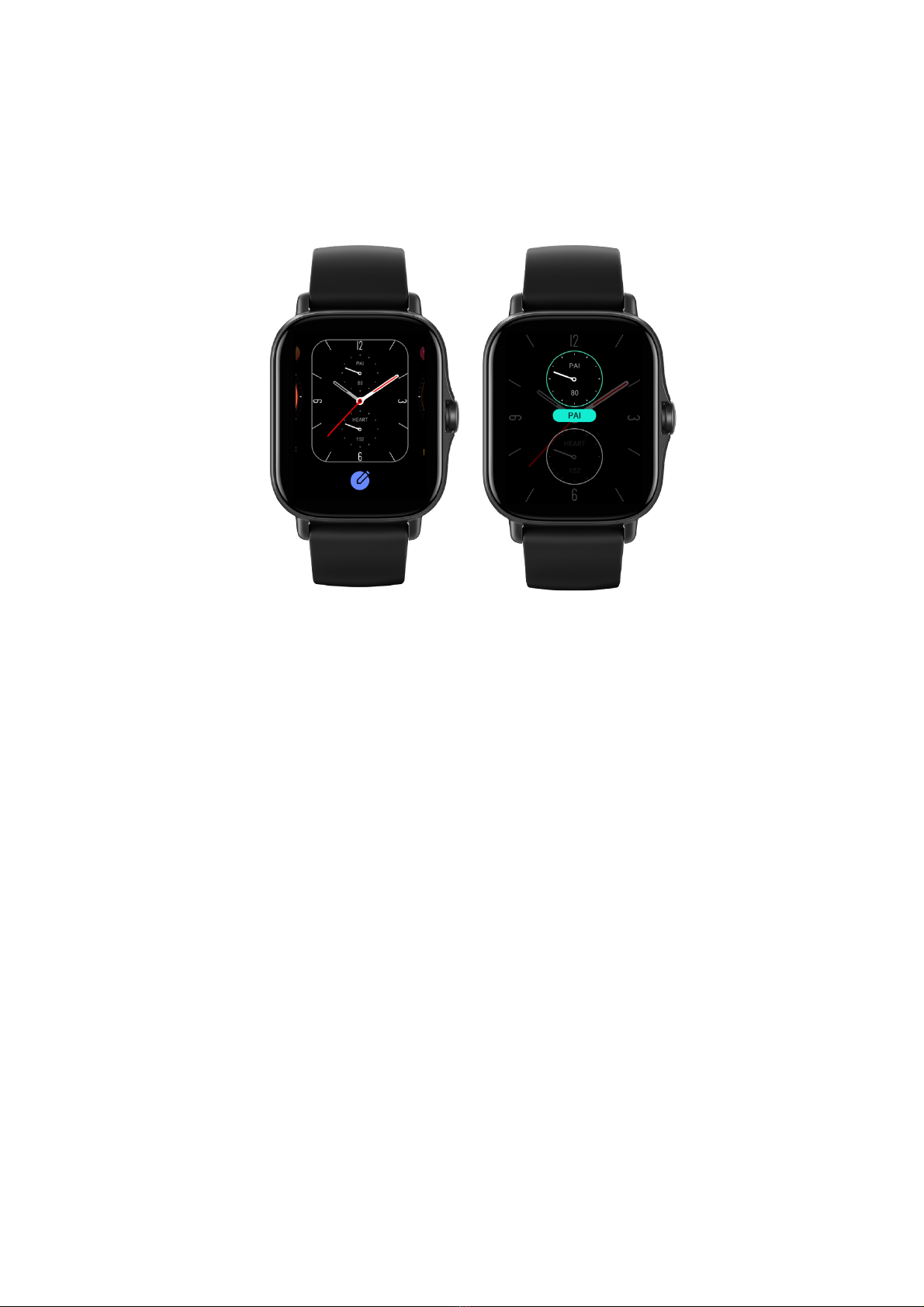
2. Swipe left or right to preview the watch faces available. The Edit button will be displayed at the bottom of a
watch face that supports compilations. You can tap this button to go to the page for editing the compilations
of this watch face.
3. Select the compilation to edit, and tap this compilation, or swipe up and down on the screen to switch
between compilations.
4. After editing, press the side button to enable the watch face.
Always On Display
If this feature is enabled, the screen still displays some information in standby mode, which greatly reduces
battery life.
Set Always On Display:
1. After you wake up your watch, press the side button to access the app list. Then go to Settings > Display and
Brightness > Always On Display.
2. Select the watch face style and enable status for Always On Display.
Add watch faces
The watch provides several watch faces by default. You can also go to the Store in the Zepp app to synchronize
online watch faces to the watch, or set a picture on the phone as the watch face picture by using the Zepp app.
Add online watch faces:
1. Keep the watch connected to your phone, open the Zepp app, and go to Profile > Amazfit GTS 2e > Store.
2. Select one or more watch faces, then synchronize them to the watch to give yourself multiple options.
Add customized watch faces:
Keep the watch connected to your phone, open the Zepp app, go to Profile > Amazfit GTS 2e > Store, and go to
customized watch faces.
Change watch faces
1. Wake up the watch face, and press and hold the watch face page to go to the watch face selection page.
Autres manuels pour GTS 2e
2
Table des matières
Autres manuels Amazfit Suivi de forme physique

Amazfit
Amazfit A1501 Manuel utilisateur

Amazfit
Amazfit Bip S Lite Guide d'installation

Amazfit
Amazfit Band 5 Manuel utilisateur

Amazfit
Amazfit Cheetah Square Manuel utilisateur

Amazfit
Amazfit Band 7 Manuel utilisateur

Amazfit
Amazfit GTR 2e Manuel utilisateur

Amazfit
Amazfit A2005 Manuel utilisateur

Amazfit
Amazfit Cor Manuel utilisateur


