Alula RE657WF Manuel utilisateur

Connect Family
RE657WF Flat Mount Touchpad
Connect+™Encrypted
I
N
S
T
A
L
L
G
U
I
D
E
I
Features
• Vibrant 7” Android™ tablet display
• Provides local control of security and automation
functionality
• Expanded footprint for covering marks left by
pre-existing keypads
• Encrypted, Connect+ enabled, battery-backed
Wi-Fi™ connection
Installation Overview
1. Conrm the panel has a Wi-Fi DeviceLink card installed.
Installing the Wi-Fi DeviceLink Card
• Disconnect the panel’s AC power and backup
battery.
• Install the Wi-Fi DeviceLink card in Slot 2 by
carefully aligning the nylon retention posts and
the 8-pin connector while pushing the card
rmly until all posts are fully seated.
• Reconnect the panel’s AC power and backup
battery.
• Verify the Wi-Fi card LEDs are on.
Slot 2
Backup
Battery
AC Power
Input
2. Verify signal strength at the desired location before mounting it permanently.
Verifying Signal Strength
1. Make sure the panel is powered and the Wi-Fi DeviceLink card is installed.
2. Power up the Touchpad.
3. Select the “Connect” option to see the available networks. If the “Connect” option is
not available, press “Setup” then “Factory Default”.
4. If the signal strength displayed is less than 35, relocate Touchpad or Connect+ panel. If
neither options are available, install an RE621 Touchpad Range Extender.
The RE657WF Flat Mount Touchpad is an intuitive interface for controlling
the Connect+ security system. Designed to cover unsightly marks, the Flat
Mount Touchpad is well suited for takeover situations. It is AC powered and
communicates with the panel wirelessly.

3. Finish mounting the Touchpad. See Touchpad Mounting for detailed instructions.
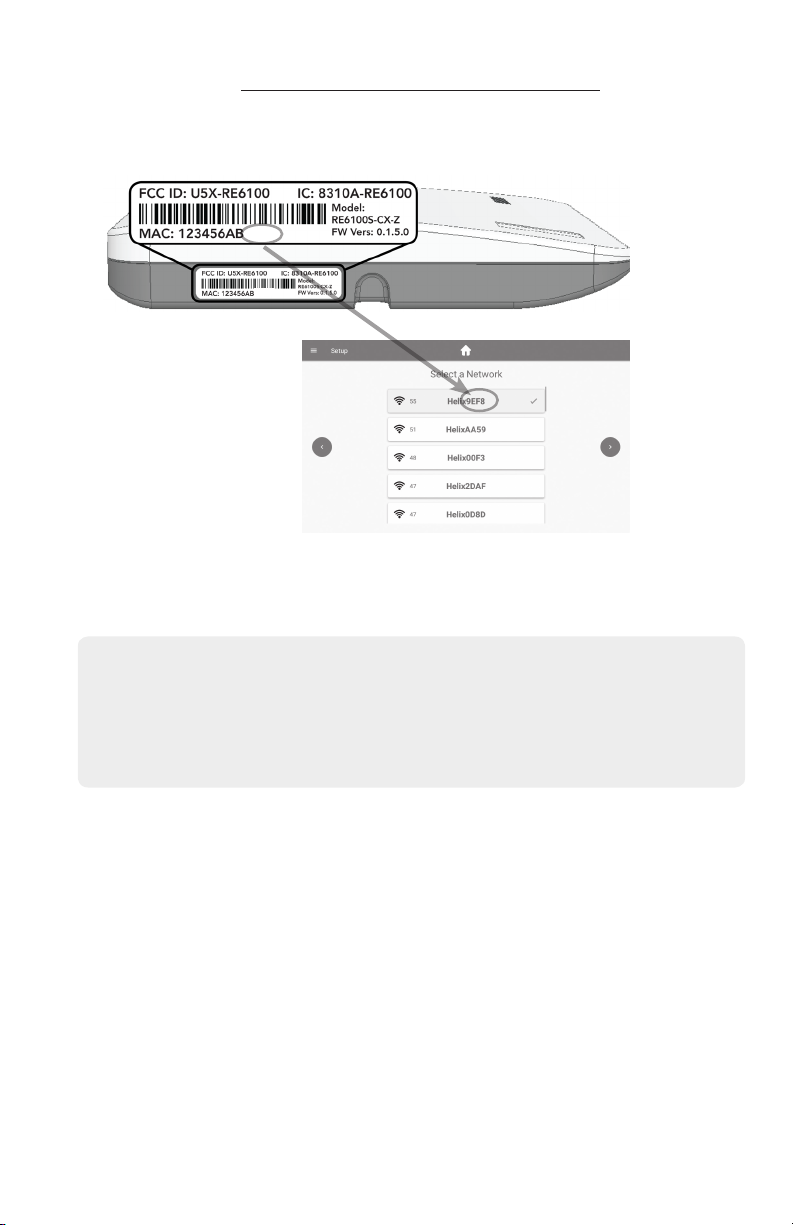
4. Enroll the Touchpad by pressing the enroll button on the side of the panel until it beeps once
and pressing “Connect” on the Touchpad. Then select the desired panel on the Touchpad.
Note, the Touchpad will list all panels within range, not just the ones in enrollment mode.
The network "names" will include the last 4 digits of the MAC Address printed on the panel
label.
After selecting the desired panel, the Touchpad will progress through stages of discovery
and authentication. Upon success it will show the DISARMED screen. If the wrong panel was
selected, press the "Restart"button in the side menu.
Troubleshooting Steps if Enrollment Fails:
• Conrm the panel is disarmed and in wireless enrollment mode. A red light will ash
on the panel if in wireless enrollment mode.
• Check whether the panel is already full. The limit is four Touchpads. To conrm
number of Touchpads connected, log into your account.
• Tap the "Restart" button to try again.
5. Test the Touchpad by arming and disarming the panel from the Touchpad.
9EF8
9EF8

Touchpad Mounting
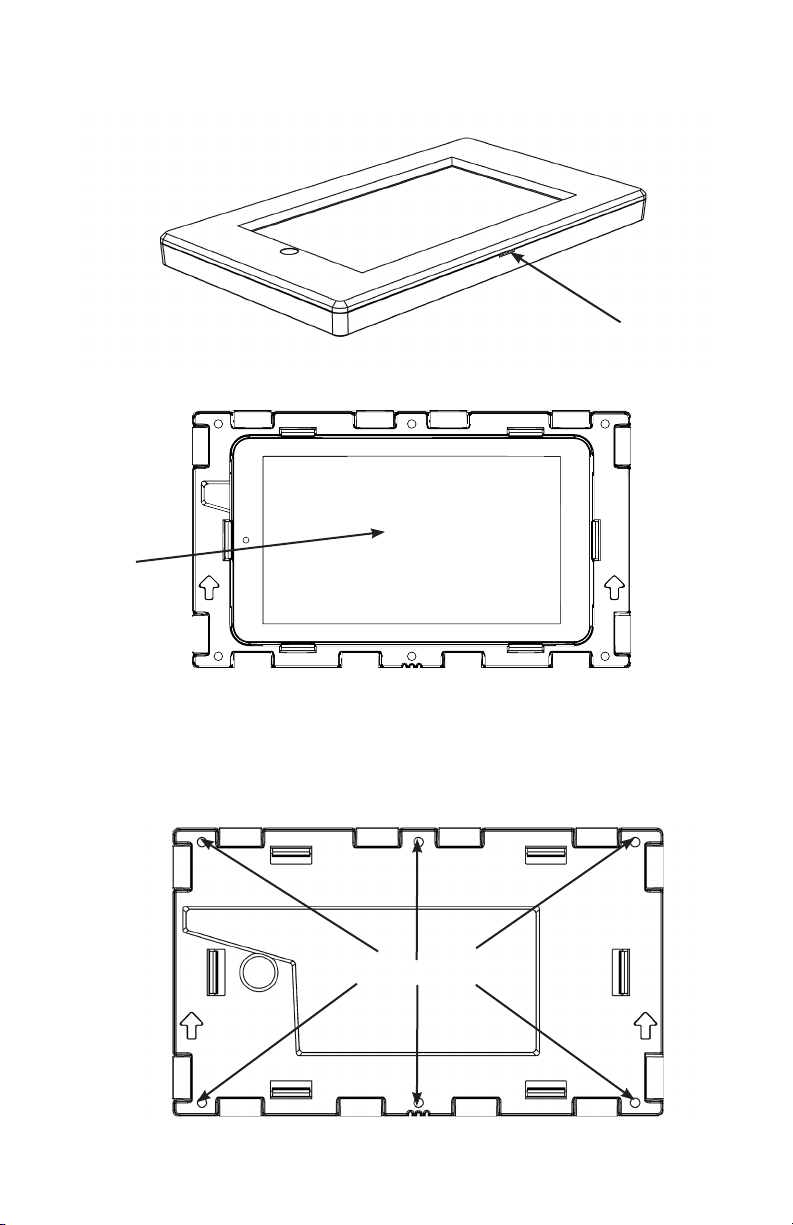
1. Open the enclosure by lifting at the single point with a athead screw driver at the location
shown below.
2. Remove the display by pulling it out of the back plastic.
3. Mount the enclosure to the wall using the screw holes in the enclosure. Insert the wall
anchors prior to securing the screws in place.
Display
Mounting Holes

Power Transformer Power Converter
USB Connector
4. Pull wire from touchpad to AC outlet. If replacing an existing touchpad, existing wiring can
be used; however, new touchpad must be powered by supplied 12V DC power transformer.
Do not power from existing panel.
5. Connect wire to provided power transformer.
NOTE: Power Converter must be powered by supplied 12V DC Power Transformer. Do not
power from existing panel or other power supply.
6. Splice power converter wires to wires pulled from AC outlet.
7. Ensure correct polarity. Red wire must connect to +12V of power transformer.
8. Plug USB connector into the display.
9. Place power converter and excess wire inside the wall.
10. Snap the display into the back plastic (ensure camera is on the left side).
11. Align the front cover and snap into place.
12. Plug in the Power Transformer and ensure the display lights up. If display does not light up,
unplug power transformer and verify wire polarity.
See table below for Max Wire Length
WIRE GAUGE MAXIMUM WIRE LENGTH BETWEEN POWER
TRANSFORMER AND TOUCHPAD
#24 Up to 50 feet
#22 Up to 75 feet
#20 Up to 125 feet
#18 Up to 200 feet
#16 Up to 300 feet
Power Converter
Splice
Power Transformer
Display

Security
• History - shows event history
• Attention - shows all opened, bypassed, or troubled zone. Zones can be bypassed or
activated by pressing the toggle to the right of the zone name.
Scenes
• Create scenes from the Touchpad by clicking the “+ Add” button
• Enable/disable scenes with the toggle button
• Navigate to the edit scene page by selecting an item in the list
• Rename a scene by selecting the name label in the top bar
• Modify the scene by adding/removing triggers and actions
Devices
• Add/Remove Z-Wave®devices using the "+ Add" or "- Remove" buttons in the app bar
• Lock and unlock Z-Wave door locks
• Turn Z-Wave lights on and off
• Set dimmer level for Z-Wave dimmer switches
• Open and close Z-Wave garage door openers
• Control Z-Wave thermostats
**PLEASE SEE Z-WAVE USER GUIDE FOR ADDITIONAL INFORMATION**
System
•
Panel
• Troubles - shows all system troubles
• Status - shows all status updates
•
Touchpad
• Battery - shows battery level and charging information
• Network - shows network the Touchpad is connected to
• Access point MAC
• Wi-Fi signal strength - must not be less than 35
• Response Time
• Wi-Fi channel
• Touchpad Firmware
• Touchpad Hardware
• Updater Firmware
• Serial Number
• Uptime
• FCC/IC information
Menu Guide

Menu Guide (Continued)
Settings
•
Display
• Brightness - adjust slide bar to change brightness level
• Auto sleep display - when enabled the Touchpad screen will go to sleep after programmed
period of inactivity. When disabled the Touchpad screen will stay on and show the system
overview page.
• Entry wake - when enabled the screen will turn on during entry delay
• Clean screen - ignores touch input on the screen for 30 seconds to allow user to clean the
screen
•
Sound
- adjust slide bar to change volume level
•
Touchpad
(must enter code to access)
• Show Favorites - display favorites menu that shows frequently used zones, scenes, and
devices on dashboard
• Show Panics - ability to turn off individual panics (this option can only be viewed when using
installer or dealer code)
• Lock to Dashboard
• When enabled only the dashboard menu can be accessed without an access code
• When disabled no access code is needed to navigate outside of dashboard
• Return to dashboard - species time of inactivity before Touchpad will automatically return
to dashboard
• Dock - specify the items to be displayed in the bottom dock
• Temperature Scale - option for displaying °F or °C
• Power off
•
Panel
(must enter code to access)
• Sensor Chime - enables or disables panel sensor chime mode
• Keypads - lists the panel’s keypads
• Rename keypads by selecting an item on the list and holding it for 2 seconds
• Communication Test mode
• The Touchpad will begin testing communications and display "TESTING"
• After one minute, the Touchpad will show the result of the test which will be either
"GOOD," "FAIR," OR "POOR"
• If you get a "POOR" test result, try the test again from another location
• The table below lists the thresholds used to determine the outcome of the test
• If any statistic falls in the poor range, the test outcome is "POOR"
• If there are no poor statistics and any statistic is in the fair range, the outcome of the
test is "FAIR"
• If all statistics are in the good range, the outcome of the test is "GOOD"
Statistic Unit GOOD FAIR POOR
Wi-Fi Signal
Strength
dB Over 39 35 to 39 Under 35
Communication
Success Rate
% Over 89 85 to 89 Under 85
Response Time
Average
ms Under 200 200 to 250 Over 250

Menu Guide (Continued)
Settings (Continued)
•
Panel (Continued)
• Check for updates - this will tell the panel to check for any system updates
• Z-Wave
• Join/Leave Another Z-Wave Network - the panel can be placed into Z-Wave
inclusion or exclusion mode to allow it to join/ leave existing Z-Wave networks.
• Soft Reset - a soft reset will reset the Z-Wave controller software. All Z-Wave
devices will remain enrolled.
• Hard Reset - this action will cause your Connect+ Z-Wave module to be restored
back to the default state. Warning: Performing this action results in all Z-Wave
devices being removed from this Z-Wave controller. To add them back, you will
rst need to exclude them, and then include them again.
**PLEASE SEE Z-WAVE USER GUIDE FOR ADDITIONAL INFORMATION**
• About - lists information about the panel’s installed hardware and software

Home Screen Functions
Tap or slide to
view Side Menu
Tap to mute beeps
during arm/disarm
action
Tap to view Panic options and then press desired
Panic option for two seconds to trigger
The headline indicates panel status
such as "Disarmed" or "Armed Stay"
Tap one of the arming buttons to arm the
panel
The time zone is
congured online Tap to turn the
Touchpad’s
display off
Tap to view
selected favorite
Zones, Devices,
and Scenes
Tap to disable
entry delay

Hold for two seconds
to trigger police
alarm
Hold for two seconds
to trigger re alarm
Hold for two seconds to trigger
auxiliary alarm
Turn on/off
individual
panics
Panic Functions

Pro Tips
The Touchpad display turns off on its own after specied allotted time of inactivity
(Auto sleep display setting). It will turn back on when the screen is touched, or for some
alarm conditions. The screen can also be turned off manually by pressing "Sleep."
The Touchpad volume can be changed in the Settings screen. The physical volume rocker
switch on the top left side of the Touchpad is not enabled.
The Touchpad can be rebooted by holding the power button on the top left side of the
display for several seconds; however, this should never be required.
To unenroll the Touchpad navigate to the Settings menu and then to the section labeled
"Panel." Put the panel into wireless enrollment mode and press the unenrollment button.
Note: The unenrollment button is displayed only when the panel is in enrollment mode.
When addding display into enclosure, camera should be on the left side.
USB connector
Camera
Table des matières
Autres manuels Alula Écran tactile
Manuels Écran tactile populaires d'autres marques

IBASE Technology
IBASE Technology ASTUT-152-RE1S Manuel utilisateur

YASKAWA
YASKAWA TP 610C Manuel utilisateur

B&R
B&R Power Panel C Series Manuel utilisateur

Beijer Electronics
Beijer Electronics X2 control Manuel utilisateur

AXIOMTEK
AXIOMTEK GOT321W-521 Manuel utilisateur

TRIDONIC.ATCO
TRIDONIC.ATCO x-touchBOX Manuel utilisateur