
Alpha WCB-G03A1 Manuel utilisateur

i
Table of Contents
1 General Information....................................................................... 1
1.1 Features ................................................................................ 1
1.2 WCB-G03H Appearance....................................................... 2
2 Wireless Basics ............................................................................. 1
3 Configuration ................................................................................. 1
4 WEP Glossary ................................................................................ 1
5 Technical Specifications............................................................... 3

1
1 General Information
WCB-G03H is a special 802.11g and 802.11b CardBus Card,
which design to enable the wireless connection of MT841. WCB-
G03H is based on Conexant Javelin chipset that complied with IEEE
802.11g and IEEE 802.11b standard from 2.412~2.462GHz, and it can
be used to provide up to 54Mbps for IEEE 802.11g, or 11Mbps for
IEEE 802.11b to connect your wireless LAN.
With seamless roaming, fully interoperability and advanced
security with WEP standard, WCB-G03H offers absolute
interoperability with different vendors’ 802.11g and 802.11b wireless
Cardbus card through the wireless LAN.
1.1 Features
zCompatible with IEEE 802.11g high rate standard to provide
wireless 54Mbps data rate
zCompatible with IEEE 802.11b high rate standard to provide
wireless 11Mbps data rate
zOperation at 2.412~2.462GHz frequency band to meet
worldwide regulations
zDynamic date rate scaling at 6, 9, 12, 18, 24, 36, 48, 54Mbps
for IEEE 802.11g
zDynamic date rate scaling at 1, 2, 5.5, and 11Mbps for IEEE
802.11b
zMaximum reliability, throughput and connectivity with
automatic data rate switching

2
zSupports wireless data encryption with 64/128-bit WEP for
security
zSupports infrastructure networks via Access Point and ad-
hoc network via peer-to-peer communication
zIntegrated microstrip antenna
zOne-piece PC Card design to fully support PC Card type II
defined mechanical and environmental stress conditions
Support
zWPA enhanced security
Note:
Environmental factors may negatively affect the wireless signal range and the
performance of the WCB-G03H.
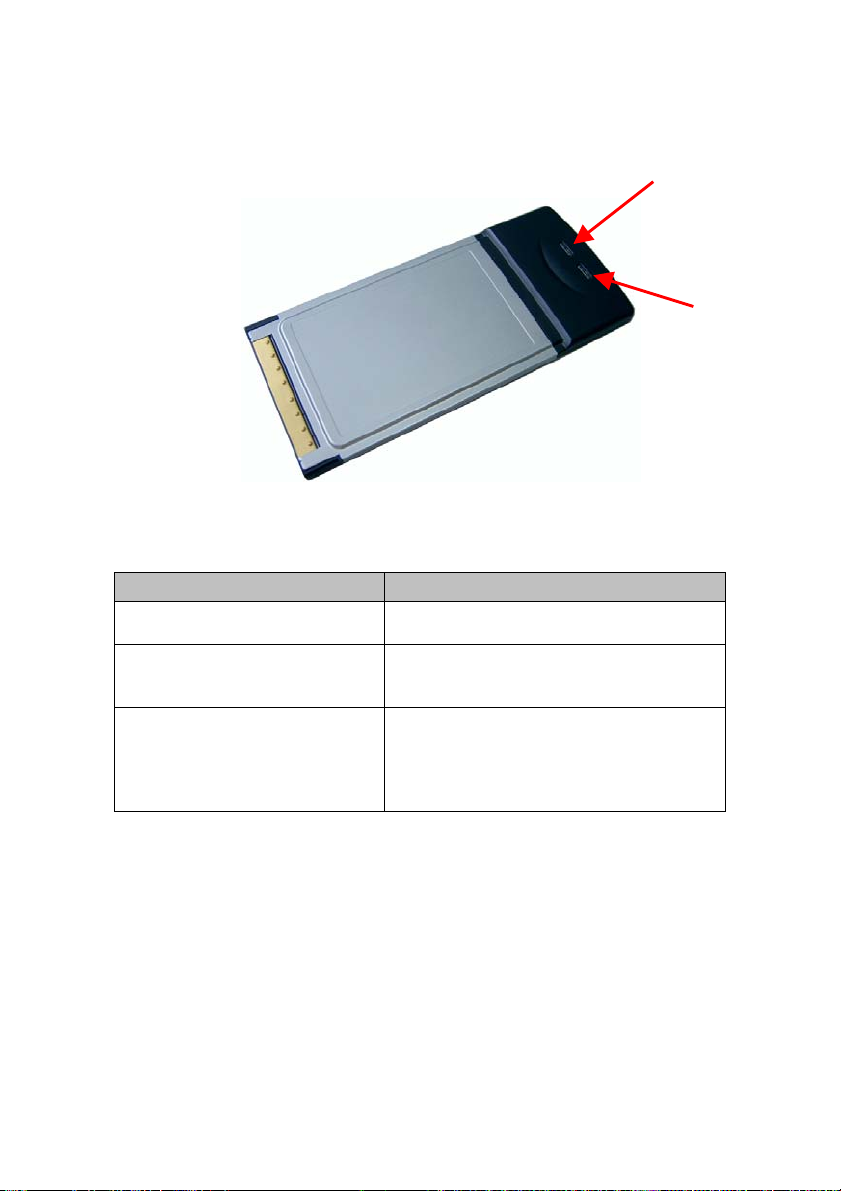
1.2 WCB-G03H Appearance
Figure 1-1 WCB-G03H Appearance
3
The WCB-G03H Wireless Cardbus Adapter has two LEDs:
POWER and ACTIVITY.
Figure 1-2 LDEs
LED Activity What that means
LEDs are flashing alternatively The WCB-G03H is searching for a wireless
network connection.
LEDs are flashing in unison The WCB-G03H has made a valid wireless
network connection, and there is activity on the
link.
LEDs are flashing in unison, but dimly The WCB-G03H has made a valid wireless
network connection, but there is no activity on the
link. This could be caused by an Access Point
that is functioning, but not connected to the wired
network.
ACTIVITY
POWER

1
2 Wireless Basics
Wireless products are based on industry standards to provide
easy-to-use and compatible high-speed wireless connectivity within
your home or business. Strictly adhering to the 802.11b and 802.11g
standards, our wireless family of products will allow you to access
the data you want, when and where you want it. No longer will you
be limited to one location or forced to run new wiring through your
home or office. You will be able to enjoy the freedom that wireless
networking delivers.
A wireless local area network (WLAN) is a cellular computer
network that transmits and receives data with radio signals instead of
wires. Wireless LANs are used increasingly in both home and office
environments, and public areas such as airports, coffee shops and
universities. Innovative ways to utilize WLAN technology are helping
people to work and communicate more efficiently. Increased mobility
and the absence of cabling and other fixed infrastructure have
proven to be beneficial for many users.
Wireless users can use the same applications they use on a
wired network. Wireless adapter cards used on laptop and desktop
systems, support the same protocols as Ethernet adapter cards.
Under many circumstances, it may be desirable for mobile
network devices to link to a conventional Ethernet LAN in order to
use servers, printers or an Internet connection supplied through the
wired LAN. A Wireless Access Point (AP) is a device used to provide
this link.

2
The advantages of Wireless LAN are many and varied and
include:
zMobility −Productivity increases when people have
access to data in any location within the operating range of
the WLAN. Management decisions based on real-time
information can significantly improve worker efficiency.
zLow Implementation Costs – WLANs (Wireless Local
Area Networks) are easy to set up, manage, change and
relocate. Networks that frequently change, both physically
and logically, can benefit from WLANs ease of
implementation. WLANs can operate in locations where
installation of wiring may be impractical.
zInstallation Speed and Simplicity −Installing a wireless
LAN system can be fast and easy and can eliminate the
need to pull cable through walls and ceilings.
zNetwork Expansion −Wireless technology allows the
network to go where wires cannot go.
zReduced Cost-of-Ownership −While the initial
investment required for wireless LAN hardware might be
higher than the cost of wired LAN hardware, overall
installation expenses and life-cycle costs will be
significantly lower. Long-term cost benefits are greatest in
dynamic environments requiring frequent moves, adds,
and changes.
zScalability −Wireless Local Area Networks (WLANs) can
be configured in a variety of topologies to meet the needs
of specific applications and installations. Configurations
are easily changed and range from peer-to-peer networks
suitable for a small number of users to full infrastructure

3
networks of thousands of users that allow roaming over a
broad area.

1
3 Configuration
Insert WCB-G03H into the slot of MT841, and then enter the
web-based configuration of MT841. The layout of MT841 configuring
page shown as below when you first log in.
zThe left part of the page is wizard column, and you can
enter the web page of configuration or management
through the hyperlink in wizard column.
zThe right part of the page is the practical domain of
configuration and management.
Figure 3-3 Layout of Web-based Configuration Manager
Click the WLAN of Basic in the Wizard Column to set the
WLAN configuration.

2
Figure 3-4 Wireless Configuration
The illustration of this page as below:
zSSID: The SSID identifies members of Service Set. If the
SSID is changed, all other devices on the wireless network
must use the same SSID.
zChannel: The available channel for the MT841 is
depending on the local regulatory environment. Remember
that all devices communicating with the device must use
the same channel (and use the same SSID). Use the drop
down menu to select the channel used for your wireless
LAN.
zModule: MT841 provides multiple wireless bands, select
the suitable band from the drop-down menu.
zWEP Method: WEP (Wireless encryption Protocol)
encryption can be enabled for security and privacy. WEP
encrypts the data portion of each frame transmitted from

3
the wireless adapter using one of the predefined keys. If
network Security is not used, click None, otherwise select
WEP or WPA-PSK.
zWEP Key: The MT841 offers 64, 128, or 256-bit
encryption with four keys available, select an
encryption level from the drop-down menu on the right,
and then enter the proper-length key.
zWPA-PSK: Wi-Fi Protected Access was designed to
provide improved data encryption, perceived as weak
in WEP, and to provide user authentication, largely
nonexistent in WEP. There are two kinds of arithmetic:
TKIP (Temporal Key Integrity Protocol) and AES
(Advanced Encryption Standard), select arithmetic
from the drop-down menu on the right, and then enter
the proper-length key.
zWLAN connections: Select enable option, then the
WALN connection will be enabled with above settings,
otherwise it will be disabled.
zSSID Hidden: Select enable option, and then the SSID will
be hided and can not be viewed by WLAN clients. It is to
enable or disable SSID Hidden.
Click the <Apply> button to save the settings while finished the
modification.
Table des matières
Autres manuels Alpha Adaptateur


