Alba Quick 2 View STB8 Manuel utilisateur


2
Connections
RF IN RF OU T SCART OUT RS-232C RESET
AC IN
100-240V
50/60Hz
TO AERIAL INPUT
SOCKET ON TV SET
TO SCART INPUT
CONNECTOR ON TV SET
EXTERNAL AERIAL
SET TOP BOX
RF CABLE
SUPPLIED
SCART-SCART LEAD
NOT SUPPLIED

Contents
3
Contents
Connections ................................................... 2
Contents ......................................................... 3
Important information about searching for
new channels ................................................. 4
What is Freeview? ....................................... 4
How do I search for new channels? ............ 5
Safety information ......................................... 7
Cleaning ....................................................... 7
Ventilation .................................................... 7
Servicing ...................................................... 8
Getting rid of batteries ................................. 8
Electrical safety ............................................. 9
What’s in the box? ...................................... 11
Parts ............................................................. 12
Main unit .................................................... 12
Remote control .......................................... 13
Putting batteries in the remote control ....... 14
Using the remote control ............................ 15
How to use the remote control ................... 15
How do I connect the set-top box to my TV
set? ............................................................... 16
How do I turn the set-top box on and off? .. 17
How do I tune-in TV stations? .................... 19
Basic operation ........................................... 21
How to select a TV channel ....................... 21
How to adjust the volume .......................... 23
How to use subtitles ................................... 24
How to set the viewing format .................... 25
How to use Teletext ................................... 27
How to see the time ................................... 29
How to go back to the last channel you were
watching .................................................... 30
Information banner ..................................... 31
Channel List ............................................... 32
How to display the electronic programme
guide .......................................................... 43
Now and Next format ................................. 44
How to set the programme reminder ......... 46
7-Day format .............................................. 49
Main menu ................................................... 54
Installation ................................................. 55
Configuration ............................................. 58
Language ................................................... 64
Glossary ....................................................... 65
Specification ................................................ 68
Guarantee .................................................... 70
Help and advice ........................................... 71
Frequently asked questions ....................... 73

Important information about searching for new channels
4
Important information about searching for new channels
As new channels and features become available, you will need to set your set-top box to search for
new channel listings.
If you do not do this, you will not be able to watch any of the new channels.
Note Using the 'Reset' button on the back of the set-top box will not search for new
channels and update the channel listing.
Follow the instructions on page 5 to search for new channels through your set-top box.
What is Freeview?
Freeview is the free digital service that currently provides over 40 digital channels, over 20 digital radio
stations and interactive services (see below). It is broadcast from a transmitter and you receive it
through your aerial.
Freeview works like traditional TV, but because the signals are digital you need a set-top box or digital
TV to watch them through your TV. This means you can get more channels with extra features such as
interactive TV and wide screen pictures.
Note Interactive services are where you can respond to events or questions on your TV
for the programme you are watching, using the coloured buttons on the remote
control.

How do I search for new channels?
5
How do I search for new channels?
1 Press the 'MENU' button on your remote control.
Your TV will display the 'main menu' (shown right).
2 Select 'Installation' from the 'Main Menu' using the
‘up’, ‘down’, ‘left’, ‘right’ buttons.
3 Select 'First Time Installation' and press the
'SELECT' button
4 Select 'Yes' to delete all the channels.
5 Your set-top box will turn off and then back on
again. This is normal.
6 Your TV will display the 'First Time Installation'
screen (shown right) after a short delay.
7 Use the 'right' button to step through the TV type
options: 'NORMAL 4:3' or 'WIDESCREEN 16:9' until
it displays the format of the TV you have connected
to the set-top box.
8 Press the 'SELECT' button.
9 Your TV will show the display shown right.
10 Press the 'SELECT' button to start the search for the
new channels (or use the 'right' button to select
'No').
Main Menu
Channel List
Installation
Configuration
Language
FIRST TIME INSTALLATION
Please choose TV Type using keys
P res s to sta rt ins tallation NOR MAL 4:3
Do you want to start automatic search?
No
Yes

How do I search for new channels?
6
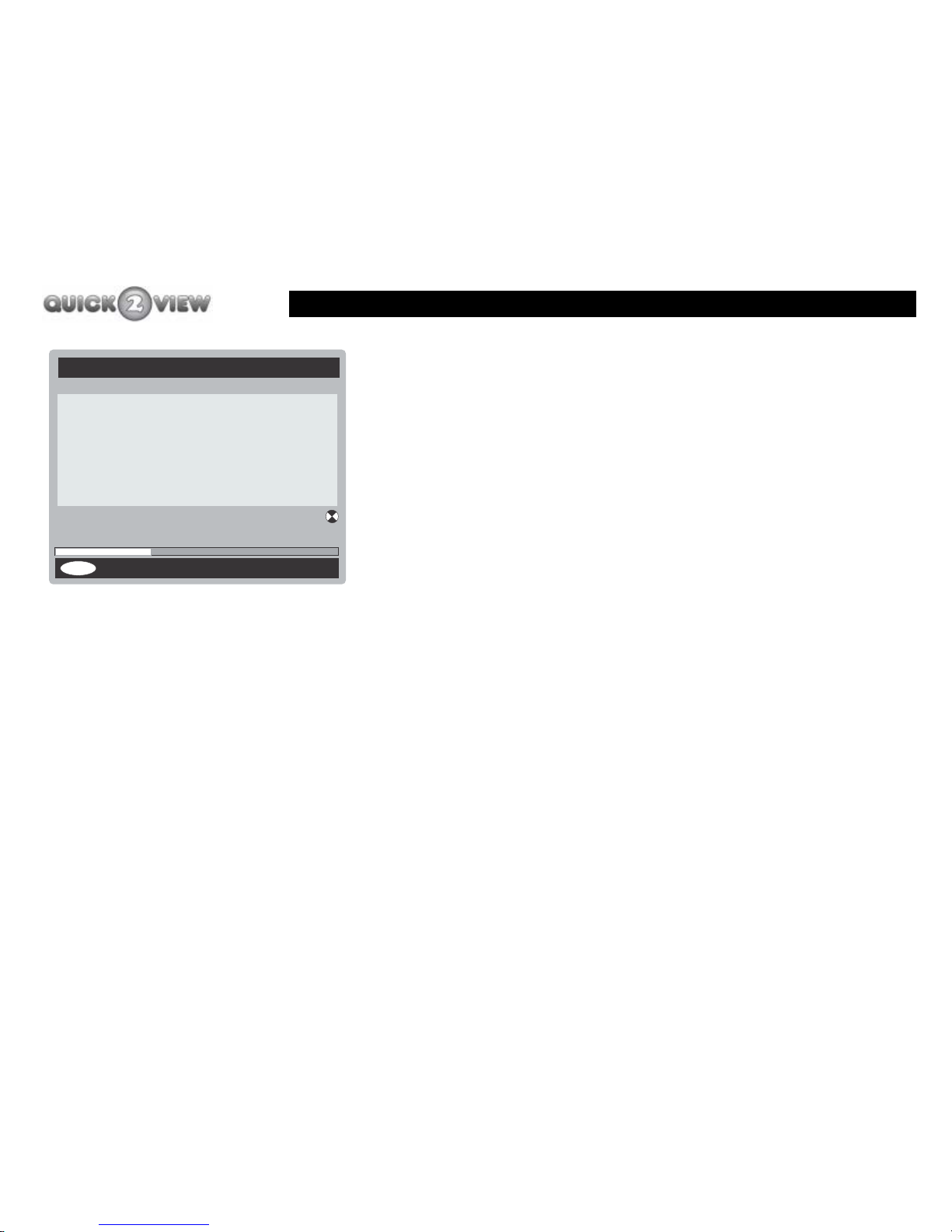
Your TV will show the 'Automatic Search' page
(shown left). The set-top box will search through
channels 21 to 69 and list the TV channels it finds on
the TV screen. The set-top box will store the
channels in its memory in number order.
A progress bar will be displayed at the bottom of the
TV screen to show the channels the set-top box has
found.
When the set-top box has finished searching, the
search page will close and the set-top box will tune
the TV to the first station in the list and display it.
11 Your set-top box has now finished searching for new
channels, and you can use your new channel list.
Channels:
Cancel Search
Automatic Search
Searching UHF Channel: 31 Please wait. This will take a
few minutes
0% 100%
MENU
Channel 4
BBC ONE
BBC TWO

Safety information
7
Safety information
• Place cables where you won’t walk on them and don’t put anything on or against
them.
• Do not use the set-top box in humid or damp conditions.
• Do not allow the set-top box to get wet.
• Do not drip or splash anything on the set-top box.
• Do not put anything with water in it (such as a vase) on top of the set-top box.
• Do not put naked flames (such as candles) on top of the set-top box.
Cleaning
• Always unplug the set-top box before you clean it.
• Do not use liquid or aerosol cleaners.
• You should clean the set-top box with a soft, cloth that is barely damp.
Ventilation
• The slots and openings on the set-top box are for ventilation (allowing air into the box
to keep it cool). Do not cover or block them as this could cause the set-top box to
overheat.
• Never let children push anything into the slots or openings in the case.

Safety information
8
Servicing
• There are no parts in the set-top box which you can repair yourself.
• If your set-top box doesn’t work or has a fault, always take it to a qualified engineer.
• Always talk to staff in the shop where you bought the set-top box if you have any
questions about installing it or how it works, or for safety instructions.
Getting rid of batteries
• Always make sure you get rid of batteries safely. Check with your local authority for
how you should get rid of batteries.
• Never put batteries on a fire, or in the bin with household waste.

Electrical safety
9
Electrical safety
Warning Read the electrical-safety pages of this
guide carefully, before you connect the
set-top box to the mains supply.
Make sure the voltage of your electricity supply is the same as
the voltage printed on the label on the underside of the main unit
of your set-top box.
The set-top box needs a 230 volt 50 Hz mains supply. Do not
use any other supply.
The set-top box may be fitted with a moulded plug which cannot
by re-wired. If you need to change the fuse in a moulded plug,
you must refit the fuse cover. If you lose or damage the fuse
cover, you must not use the plug until you have a replacement
plug cover or plug.
If you have to change the plug because it is not suitable for your
socket, or it is damaged, you should remove it and fit an
appropriate plug following the wiring diagram shown on the next
page. You must get rid of the plug safely, because you could get
an electric shock if you use it again.

Electrical safety
10
The colours of the wires in the mains lead of the set-top box may
not match the coloured markings on the terminals in your plug,
so you should follow these instructions.
• You must connect the blue wire to the terminal
marked with the letter ‘N’ or coloured black.
• You must connect the brown wire to the terminal
marked with the letter ‘L’ or coloured red.
• You should not connect anything to the earth
terminal of the plug marked with the letter ‘E’ or
coloured green.
If you use a 13-amp (BS1363/A) plug, you must fit a 3-amp fuse
(BS1362), or if you use any other type of plug you must use a
3-amp fuse in the plug, adaptor or in the plug connected to the
mains extension cable.
BLUE
(neutral)
BROWN
(live)
No connection
(earth)
N
E
L
Cable grip
The plug should be approved to
British Standards (BS1363/A).
Fit a 3 amp fuse
Ensure the outer sheath of the mains cable
is securely held by the cable grip
Mains cable
Table des matières
Autres manuels Alba Décodeur